Samsung refrigerator diagnostics are not one universal procedure. Owners of supported Family Hub refrigerators can run a built-in Self Check from Fridge Manager, and Samsung also documents a Self Check through the SmartThings app for supported connected models. Older display panels use button combinations that differ by model family, so the sequence for your refrigerator is the only one worth trying. Start with the model’s user manual or Samsung’s official support page for that exact model, and do not apply a button sequence remembered from another fridge.
Before you start: identify the model and the display type
Every diagnostic route depends on two details: the model code and the type of control panel. Find the model code on the rating label inside the fresh food compartment or on the back of the appliance, then search Samsung’s support site for that code. Use the manual that matches it.
As an Amazon Associate I earn from qualifying purchases.
Sort your refrigerator into one of three groups:
- Family Hub (touchscreen with apps): Self Check is available through Fridge Manager on the screen. Some connected models also support Self Check through SmartThings.
- Smart display without Family Hub apps: Check the manual before trying anything. Samsung’s documentation lists diagnostic button combinations only for specific panel families, described below.
- Basic panel or unknown layout: Read the error code directly from the display, then use the code guidance later in this article. Do not assume a diagnostic mode exists.
Run Self Check on a Family Hub refrigerator
Samsung’s Family Hub instructions use the following route. Labels and gestures can differ by Family Hub generation and regional software, so if your screen shows different wording, follow the manual for your exact model.
- Open Apps from the home screen, or go to the home screen itself.
- Select Fridge Manager.
- Select Fridge Settings.
- Select Self Check, then select Start.
- Wait while the refrigerator scans. When it finishes, it displays any issues it detected.
- Write down or photograph the results before you leave the screen. Samsung says the detailed results can be shared with Customer Service or a technician, which is faster when the report is already in hand.
Samsung’s India support guidance describes the same scan-and-share approach. A Self Check reports what the appliance detects; it does not replace a technician’s inspection, and a clean result does not rule out a problem that the sensors do not monitor.
#1 Best Overall
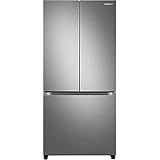
- COUNTER DEPTH: Built-in look for a seamless fit. The smooth and streamlined exterior design features beautiful flat doors and easy-to-open recessed handles that blend seamlessly into your cabinetry, adding function and style to your kitchen.
- WiFi CONNECTIVITY: Wi-Fi connectivity on your fridge isn’t just a nice-to-have. It’s essential for safety and energy conservation. You’ll get immediate notifications if the temperature drops due to a power outage or if you accidentally leave the door open.
- TWIN COOLING PLUS: Independent fridge and freezer controls keep food fresher, longer.
- ENERGY STAR CERTIFIED: Eco-friendly and energy-efficient.
- FINGERPRINT-RESISTANT FINISH: Finish that withstands everyday smudges so you spend less time cleaning.
Run Self Check through SmartThings
Samsung UK support documents a Self Check through the SmartThings app. The app runs the test, looks for issues, and then shows recommendations for the problems it finds. Follow those recommendations in order, starting with the simplest step the app suggests.
This route applies only to supported, connected refrigerators, and the app must be able to reach the appliance. If your model does not appear in SmartThings or the option is missing, use the on-screen Self Check where it exists or the panel method for your model family. The UK guidance is region-specific; confirm that the option exists for your model in your country’s Samsung support pages.
Use panel button sequences on older models
Samsung’s Customer Care knowledge base lists diagnostic button combinations for several panel families. These are examples for the listed families, not a universal Samsung procedure. The published hold times also differ between families, so read the instructions for your model before pressing anything.
| Panel family (as Samsung describes it) | Button combination listed for that family |
|---|---|
| Left-door displays with paired upper buttons | The paired upper display buttons, held together |
| Some Flex Zone models | Freezer and Control Lock |
| Some top-table displays | Power Freeze and Power Cool |
| Some top-mount units | Freezer and Fridge |
If your panel matches one of these descriptions, confirm the exact sequence and hold duration in the official manual for your model code or on Samsung’s support page for it. Do not try undocumented service modes, and do not change any settings while you are only trying to read a code. Changing settings can alter the state you are trying to diagnose.
Rank #2

- COLOR CUSTOMIZATION: Customize the design of your french door french door refrigerator with changeable door panels. Choose from a variety of colors and two finishes to create a space that fits your style.
- BEVERAGE CENTER: Quick access to refreshingly cool, filtered water two ways. Choose from an internal dispenser or a built-in pitcher that automatically refills, with the option to infuse with a flavor.
- EXTRA LARGE CAPACITY: With 29 cu. ft. of capacity, this spacious french door french door refrigerator is designed for convenience, offering flexibility and organization to store and access all your favorite foods with ease.
- DUAL ICE MAKER WITH ICE BITES: Enjoy your favorite beverage with your choice of ice. Select from cubed ice or Ice Bites that chill your drink faster.
- FLEXZONE DRAWER: The FlexZone Drawer is customizable with 5 different temperature settings. From french door refrigerator to soft freeze, this middle drawer can store everything from fruit and vegetables to your favorite meat & seafood.
Read the result before you change anything
Treat the displayed code, its pattern, and when it appeared as evidence. Before clearing or troubleshooting anything, note:
- The exact code or symbol shown, including letters and spacing.
- Whether the refrigerator recently lost power, or a door was left open.
- Whether the code appeared during startup, after an outage, or during normal operation.
- Whether the code repeats after the step recommended for it.
Samsung’s US support guidance says the unplugging and resetting steps can make diagnosis harder. The refrigerator’s US error-code guide states: “Unless directed, do not unplug the refrigerator.” It also warns against pressing panel buttons to make an error code disappear. Samsung’s reset guidance adds that resetting erases error-code history and diagnostic information, and recommends photographing the code first where possible.
Know the common codes, and their limits
Samsung’s US and Canadian support pages list example codes, not a complete catalog. Meanings and recommended actions can vary by model and by regional page. Use the table as a starting point, then check your model’s official guidance.
| Code (as displayed) | Samsung’s example meaning |
|---|---|
| 21E | Freezer fan problem |
| 22E or 22C | Refrigerator fan problem |
| PC ER or PC CH | Communication error |
| 83E, 85E, or 86E | Power or voltage issue |
| 88 88 | Startup-related issue |
If a code is missing from your model’s official guidance, keeps returning after the consumer step Samsung recommends, or is marked for service, stop troubleshooting and contact Samsung support. Give them the photographed code and the Self Check results if you have them.
Rank #3

- EXTRA LARGE CAPACITY: With 30 cu. ft. of capacity, this spacious french door french door refrigerator is designed for convenience, offering flexibility and organization to store and access all your favorite foods with ease.
- COLOR CUSTOMIZATION: Customize the design of your french door french door refrigerator with changeable door panels. Choose from a variety of colors and two finishes to create a space that fits your style.
- DUAL ICE MAKER WITH ICE BITES: Enjoy your favorite beverage with your choice of ice. Select from cubed ice or Ice Bites that chill your drink faster.
- AUTOFILL WATER PTICHER: A built-in pitcher that automatically refills with filtered water and the option to infuse with a flavor of your choice.
- DEDICATED PANTRY DOORS: Two separate drawers that let you store more deli items, meat, poultry, and fish, including larger-sized items.
Do not mistake normal display states for faults
Some displays look alarming but are not errors:
- OF OF, O FF, or OFF OFF: Cooling Off or Demo mode. Samsung says a reset is not needed for this state. The steps to turn it off vary by model, so check your manual.
- All icons flashing right after connecting power or after an outage: This can be a normal startup self-diagnostic.
- Blinking temperature display: This can mean the inside temperature is above 59°F (15°C). Samsung’s US guidance says recovery after a door-open event or an outage can take up to four hours if the refrigerator is otherwise cooling normally. If the display keeps blinking after that window, treat it as a fault and contact support.
Unusual lit-segment patterns on older or non-numeric displays can encode a fault that Samsung’s service staff interpret. Record the pattern exactly as it appears rather than trying to decode it yourself.
Compare the diagnostic routes
The routes differ in where the result appears, which models support them, and what kind of information they give you.
| Route | Where the result appears | Model support | Output type |
|---|---|---|---|
| Family Hub Self Check | Refrigerator screen | Supported Family Hub models | Detected issues, shareable with Customer Service or a technician |
| SmartThings Self Check | SmartThings app | Supported connected models; region-specific guidance | Issues with recommended steps |
| Panel button sequence | Refrigerator display | Only listed panel families, per model manual | Code or lit-segment pattern, sometimes needing service interpretation |
Samsung’s materials do not rank these routes by accuracy, so choose based on what your model supports rather than on an assumed difference in precision.
When to contact Samsung
Call or contact Samsung support when a code is not in your model’s guidance, when a code returns after the recommended step, when the display blinks beyond the expected recovery window, or when Samsung’s instructions direct you to service. Have the model code, the photographed display, the Self Check results, and a short timeline of the power outage or door event ready. That information is what a technician will ask for first.
Quick Recap
“
Product prices and availability are accurate as of the date/time indicated and are subject to change. Any price and availability information displayed on Amazon at the time of purchase will apply.




