Recommended Free Tools
The Quick Access Toolbar (QAT) keeps selected commands available regardless of which ribbon tab is open. Add commands you repeatedly need across tabs, put the most-used ones first, and choose a position that suits your screen. The exact setup differs between Windows and Mac, and the toolbar is a convenience—not a measured guarantee of time saved.
What the Quick Access Toolbar does
Microsoft describes the QAT as a customizable set of commands independent of the currently displayed ribbon tab. That makes it useful for commands you reach for while switching among tabs: once added, they remain accessible from the toolbar rather than requiring you to return to a particular tab. See Microsoft’s Quick Access Toolbar instructions for Windows desktop Office.
As an Amazon Associate I earn from qualifying purchases.
The QAT does not replace the ribbon or change what a command does. It gives you another place to access commands supported by your app and platform.
Do these 3 things before closing this tab:
1Scan for outdated or missing drivers - takes under a minute2Repair Windows errors before they cause bigger problems3Fix the driver behind crashes, sound loss and screen glitchesHow to customize the QAT on Windows
Add a command already visible on the ribbon
- Open the ribbon tab or group that contains the command.
- Right-click the command and select Add to Quick Access Toolbar.
- Repeat for other commands you want to keep available.
This is the quickest route when you can already see the command. The right-click option is documented for Windows desktop Office; do not assume it appears the same way in every app or on Mac.
#1 Best Overall

- Reliable Plug and Play: The USB receiver provides a reliable wireless connection up to 33 ft (1), so you can forget about drop-outs and delays and you can take it wherever you use your computer
- Type in Comfort: The design of this keyboard creates a comfortable typing experience thanks to the low-profile, quiet keys and standard layout with full-size F-keys, number pad, and arrow keys
- Durable and Resilient: This full-size wireless keyboard features a spill-resistant design (2), durable keys and sturdy tilt legs with adjustable height
- Long Battery Life: MK270 combo features a 36-month keyboard and 12-month mouse battery life (3), along with on/off switches allowing you to go months without the hassle of changing batteries
- Easy to Use: This wireless keyboard and mouse combo features 8 multimedia hotkeys for instant access to the Internet, email, play/pause, and volume so you can easily check out your favorite sites
Add, remove, and reorder commands in Options
- Go to File > Options > Quick Access Toolbar.
- Choose a command from the available-command list and select Add to place it on the toolbar.
- To remove an entry, select it in the customized-toolbar list and choose Remove.
- Select an item in the customized list and use the move-up or move-down controls to set its position.
If you cannot find a command in the usual list, check All commands. Microsoft notes that commands no longer visible in the app may still be listed there, sometimes under a legacy name with a descriptive tooltip. Knowing the command’s name or where it belongs in the app can help you identify it. The same Options area also provides a reset option if you want to restore the toolbar configuration.
Show, hide, or move the toolbar on Windows
Windows desktop Office lets you show or hide the QAT and place it above or below the ribbon. Microsoft identifies above the ribbon, on the title bar, as the default position. When you place it below the ribbon, you can also choose whether command labels appear. These display controls are described in Microsoft’s QAT guidance.
Rank #2

- All-day Comfort: This USB keyboard creates a comfortable and familiar typing experience thanks to the deep-profile keys and standard full-size layout with all F-keys, number pad and arrow keys
- Built to Last: The spill-proof (2) design and durable print characters keep you on track for years to come despite any on-the-job mishaps; it’s a reliable partner for your desk at home, or at work
- Long-lasting Battery Life: A 24-month battery life (4) means you can go for 2 years without the hassle of changing batteries of your wireless full-size keyboard
- Simply plug the USB receiver into a USB port on your desktop, laptop or netbook computer and start using the keyboard right away without any software installation
- Simply Wireless: Forget about drop-outs and delays thanks to a strong, reliable wireless connection with up to 33 ft range (5); K270 is compatible with Windows 7, 8, 10 or later
Use the toolbar’s customization menu to find the visibility and placement choices. If you move it below the ribbon, consider whether labels help you recognize commands or take up space you would rather use for the document.
Customize the QAT on Mac
For Word, Excel, and PowerPoint on Mac, Microsoft’s documented route is through the app’s preferences, not the Windows File > Options screen:
Rank #3

- 【Lag-free & Efficient】Stable and reliable connection of wireless keyboard and mouse is up to 10m(33ft). This combo share a nano USB receiver, no need to take up additional USB ports (Also the wireless keyboard and mouse can also be used separately). Plug and play, no software needed,convenient and efficient.
- 【Quiet & Type in Comfort】Wireless keyboard come with adjustable height tilt legs to increase comfort and prevent your wrists injury when typing for a long time.Our wireless keyboard adopts a silent structure. Soft membrane keys provide a quiet and comfortable typing experience.The wireless mouse is quiet without any clicking sound also.So whether at home or in the office, you can use this combo as you please without worrying about disturbing others.
- 【Full Size Keyboard】This keyboard saves desktop space while retaining its full size.The full size wireless keyboard with numeric keypad and 12 multimedia shortcut keys, such as play/ pause, volume increase and decrease, and search, to help you improve work efficiency.
- 【Auto Power Saving Function】Wireless keyboard and mouse have a smart auto-sleep mode to save power for long battery life. They will enter sleep mode after stop using a while(Refer to the instructions for details). Unplug the receiver or after the PC shutdown, they will enter sleep mode too.You can press any keys to wake. (battery life may vary based on user and computing conditions)
- 【Comfortable Optical Mouse】This silent wireless mice provides 3 adjustable DPI (800/1200/1600) to meet your different needs in terms of sensitivity.The compact lightweight design of wireless mouse and a hand-friendly contoured shape for all-day comfort, and smooth, precise tracking. Very suitable for office and daily use.
- Open or create a document in Word, Excel, or PowerPoint.
- Open the app’s Preferences and select Quick Access Toolbar.
- Choose the commands you want, then use the arrows to add or remove them and adjust the order.
Microsoft warns that some commands are not supported on the Mac toolbar. If a command is missing, it may not be available for the QAT in that app; the Windows command list and menu paths do not establish Mac availability. See Microsoft’s Word for Mac toolbar instructions for the Mac-specific preference flow.
Windows and Mac setup at a glance
| Task | Windows desktop Office | Mac Word, Excel, and PowerPoint |
|---|---|---|
| Open toolbar settings | File > Options > Quick Access Toolbar. Microsoft Support | App Preferences > Quick Access Toolbar. Microsoft Support |
| Add a visible ribbon command | Right-click the command and choose Add to Quick Access Toolbar. Microsoft Support | Use the documented Preferences flow; the Windows right-click method is not established for Mac. Microsoft Support |
| Find commands beyond those currently visible | Use the available-command list, including All commands. Microsoft Support | Some commands are not supported; the Mac instructions do not establish an equivalent of the Windows All commands list. Microsoft Support |
| Move the toolbar above or below the ribbon | Both positions are documented; below the ribbon, command labels can be shown or hidden. Microsoft Support | Not stated in the cited Mac instructions. Microsoft Support |
Choose commands that fit your workflow
There is no universal set of commands that suits every Office user. Start with tasks you repeatedly perform while working across different ribbon tabs, then add a small set of those commands. Put the ones you use most often near the beginning of the toolbar so they are easier to locate.
Rank #4

- Easy Setup: Simply insert the nano USB receiver into your computer and use the keyboard instantly. Arteck 2.4G Wireless Keyboard Stainless Steel Ultra Slim Full Size Keyboard with Numeric Keypad for Computer/Desktop/PC/Laptop/Surface/Smart TV and Windows 10/8/ 7 Built in Rechargeable Battery
- Ergonomic design: Stainless steel material gives heavy duty feeling, low-profile keys offer quiet and comfortable typing.
- 6-Month Battery Life: Rechargeable lithium battery with an industry-high capacity lasts for 6 months with single charge (based on 2 hours non-stop use per day).
- Ultra Thin and Light: Compact size (16.9 X 4.9 X 0.6in) and light weight (14.9oz) but provides full size keys, arrow keys, number pad, shortcuts for comfortable typing.
- Package contents: Arteck Stainless 2.4G Wireless Keyboard, nano USB receiver, USB charging cable, welcome guide, our 24-month warranty and friendly customer service.
- Prefer commands you reach for in more than one stage of your work, rather than filling the toolbar with every command you know.
- Use the available-command list when a needed command is not visible on the ribbon, and check All commands on Windows if necessary.
- Reorder or remove entries if the toolbar becomes harder to scan than the ribbon tab you were trying to avoid.
This is workflow advice, not a promise of a specific productivity gain: Microsoft documents what the toolbar does and how to configure it, but does not provide a quantified time-savings figure.
Quick Recap
Best Value
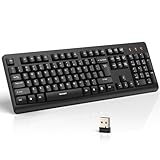
- 【Stable 2.4G Wireless Connection】TECKNET 2.4G wireless keyboard provides a fast, stable connection up to 13m (43 ft). Simply plug the USB receiver—stored in the battery compartment—into your laptop or PC. No drivers needed, just plug and play for seamless, uninterrupted typing
- 【Ergonomic & Full-Size Keyboard】The ergonomic wireless keyboard features 8° foldable tilt feet and crater-shaped keycaps that match your finger shape. The full-size layout with number pad ensures comfortable typing for long working hours at home or in the office
- 【Spill-Resistant Design with Drainage Holes】TECKNET spill-resistant keyboard designed for durability, it includes 4 bottom drainage holes to protect against minor liquid spills. Whether you’re working with coffee, tea, or water nearby, it keeps your workflow safe and steady
- 【Quiet Typing with 90% Less Noise】Engineered with PET film key switches and 3mm key travel, this quiet wireless keyboard reduces typing noise by up to 90%. Perfect for shared workspaces, home offices, libraries, or remote work—type freely without disturbing others
- 【Power Saving & Wide Compatibility】This wireless pc keyboard powered by 1 AA battery (not included), offers long battery life with auto sleep mode and LED low-battery alert. Compatible with Windows 11/10/8/7, and works with desktops, laptops, and more
If a command or setting is missing
- On Windows: Check All commands in the QAT Options screen; some commands may be listed even when they are not currently visible in the app.
- On Mac: Follow the app’s Preferences route and account for Microsoft’s warning that some commands are unsupported on the toolbar.
- If the menu path differs: Confirm that you are using the desktop app and the correct platform-specific instructions. Microsoft publishes separate Windows and Mac guidance, and menu paths and supported commands vary by app and platform.
Product prices and availability are accurate as of the date/time indicated and are subject to change. Any price and availability information displayed on Amazon at the time of purchase will apply.




