Choose a MacBook if your work depends on a conventional laptop workflow or on apps, features, and connected-device tasks you have not confirmed will work on iPad. Choose an iPad with Magic Keyboard if touch interaction, tablet flexibility, or Apple Pencil input matters and the iPad apps you use support your work. The keyboard makes an iPad more suitable for typing, but it does not turn iPadOS into macOS.
Which setup fits your work?
| What your work needs | Better starting point | What to check |
|---|---|---|
| Specific desktop apps, features, or connected-device workflows | MacBook | Confirm the exact app and workflow on the model you plan to buy. Do not assume an iPad version has the same features as its Mac counterpart. |
| Touch-first interaction, tablet use, or handwriting and drawing | iPad with Magic Keyboard | Check that your required apps work as needed on iPad, and add Apple Pencil only if you need stylus input. |
| Typing combined with touch and tablet flexibility | iPad with Magic Keyboard | Confirm keyboard compatibility for the exact iPad model and screen size. |
| Uncertain app or workflow compatibility | MacBook is the safer starting point | List the apps, features, peripherals, and file-handling steps your work requires; verify them before choosing an iPad. |
How do the interaction and multitasking models differ?
iPad: touch-first, with keyboard typing available
Apple describes iPad Pro as offering “an intuitive touch-first experience.” Pairing it with Magic Keyboard adds a keyboard for typing, while the iPad remains a touch-oriented device. Apple also describes iPadOS as supporting resizable and rearrangeable windows, split-screen layouts, and background tasks. Those are vendor-described capabilities, not proof that every desktop workflow or app behaves equivalently.
As an Amazon Associate I earn from qualifying purchases.
For the iPad Pro, Apple says users can “Open more windows at once, resize and rearrange them your way, and split your screen into thirds or quarters.” Whether that arrangement suits your work depends on the apps and tasks you need to run together.
Free tools Windows power users keep installed
One-click scans. No signup required.
MacBook: verify the exact model if touchscreen hardware matters
Do not assume a MacBook has a touchscreen—or that every MacBook generation has the same hardware. If touch input is a purchase requirement, verify the specifications of the exact model before buying. The more important workflow question is whether your work depends on a conventional laptop setup and the specific software or connected devices you use.
#1 Best Overall
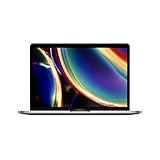
- Touch Bar and Touch ID
- Backlit Magic Keyboard
- Brilliant Retina display with True Tone technology
Will your apps and work tasks run on iPad?
Apple lists iPad versions of professional apps including Final Cut Pro, Logic Pro, Photoshop, and Microsoft Word. That confirms those apps are available for iPad; it does not establish that their iPad versions include the same features or support the same workflows as their Mac versions.
- Write down the exact apps you need, including any specialist or work-provided software.
- Identify the specific features you rely on, rather than checking only whether an app is listed for iPad.
- Check any connected devices, file-handling steps, or other parts of your workflow that the app must support.
- If you cannot confirm a required capability on iPad, favor the MacBook workflow or verify it before committing to the iPad setup.
Apple’s current iPad Pro page is a useful starting point for its iPad app and iPadOS descriptions, but those descriptions are not a substitute for confirming the exact capabilities your work requires.
Rank #2

- WIRELESS, RECHARGEABLE CONVENIENCE — Magic Keyboard with Numeric Keypad connects wirelessly to your Mac, iPad, or iPhone via Bluetooth. And the rechargeable internal battery means no loose batteries to replace.
- WORKS WITH MAC, IPAD, OR IPHONE — It pairs quickly with your device so you can get to work right away.
- ENHANCED TYPING EXPERIENCE — Magic Keyboard delivers a remarkably comfortable and precise typing experience. Its extended layout features document navigation controls for quick scrolling and full-size arrow keys. The numeric keypad is ideal for spreadsheets and finance applications.
- GO WEEKS WITHOUT CHARGING — The incredibly long-lasting internal battery will power your keyboard for about a month or more between charges. (Battery life varies by use.) Comes with a Lightning to USB Cable that lets you pair and charge by connecting to a USB port on your Mac.
- SYSTEM REQUIREMENTS — Requires a Bluetooth-enabled Mac with macOS 10.12.4 or later, an iPad with iPadOS 13.4 or later, or an iPhone or iPod touch with iOS 10.3 or later.
Does handwriting or drawing change the decision?
If you annotate documents, write by hand, or draw, an iPad offers an optional stylus path with Apple Pencil Pro. It is not essential to every iPad setup. Consider it only if those tasks are part of your work, and confirm that the Pencil and your chosen iPad model are compatible before purchasing.
A MacBook-versus-iPad decision should therefore account for how you actually interact with documents: keyboard and laptop workflows may be enough, while frequent handwriting, markup, or drawing can make touch and stylus input more valuable.
Rank #3
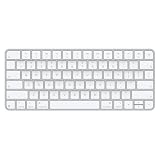
- Magic Keyboard delivers a remarkably comfortable and precise typing experience for Mac and Apple Vision Pro
- It’s also wireless and rechargeable, with an incredibly long-lasting internal battery that will power your keyboard for about a month or more between charges
- It pairs automatically with your Mac, so you can get to work right away
- It features a USB-C port and includes a woven USB-C Charge Cable that lets you pair and charge by connecting to a USB-C port on your Mac
What should you include in the cost comparison?
Compare the exact configurations available when you buy; a like-for-like current MacBook and iPad total price is not established here. For an iPad setup, include the compatible Magic Keyboard and, only if needed, Apple Pencil Pro. Check the current price and fit of each accessory rather than comparing the iPad alone with a complete laptop setup.
Magic Keyboard compatibility depends on iPad model and size. Use Apple’s Magic Keyboard compatibility listing to check your exact iPad generation before buying. Apple’s iPad Pro page also describes supported iPad features and optional Apple Pencil Pro.
Quick Recap
Best Value

- Magic Keyboard is available with Touch ID, providing fast, easy, and secure authentication for logins and purchases
- Magic Keyboard with Touch ID and Numeric Keypad delivers a remarkably comfortable and precise typing experience
- It features an extended layout, with document navigation controls for quick scrolling and full-size arrow keys, which are great for gaming
- The numeric keypad is also ideal for spreadsheets and finance applications
- It’s wireless and features a rechargeable battery that will power your keyboard for about a month or more between charges
Rank #4

- Magic Keyboard is now available with Touch ID, providing fast, easy, and secure authentication for logins and purchases
- Magic Keyboard with Touch ID delivers a remarkably comfortable and precise typing experience
- It’s also wireless and rechargeable, with an incredibly long-lasting internal battery that will power your keyboard for about a month or more between charges
- It pairs automatically with your Mac, so you can get to work right away
- It features a USB-C port and includes a woven USB-C Charge Cable that lets you pair and charge by connecting to a USB-C port on your Mac
Product prices and availability are accurate as of the date/time indicated and are subject to change. Any price and availability information displayed on Amazon at the time of purchase will apply.




