If your paired Google TV Streamer Voice Remote is misplaced, you can make it play a sound instead of buying a replacement. On the Google TV Streamer (4K), briefly press the button on the back of the device; the remote rings for 30 seconds. Press any button on the remote to stop the sound once you find it.
Make the Google TV Streamer remote ring from the device
- Make sure the Google TV Streamer is powered on and the Voice Remote was paired with it. Find My Remote relies on that pairing.
- Briefly press the physical button on the back of the Google TV Streamer (4K). You do not need to hold it down.
- Listen for the sound from the remote’s audio port. Google says it plays for 30 seconds; press any button on the remote to stop it when found.
These instructions apply to Google TV Streamer (4K). Google says Chromecast with Google TV does not have the same physical finder button, although its remote can be located through Google Assistant or Google Home. See Google’s Find My Remote instructions and its Google TV Streamer (4K) overview.
As an Amazon Associate I earn from qualifying purchases.
Start the sound with Google Assistant or Google Home
Ask a nearby Assistant-enabled device
If the Streamer is hard to reach, ask a nearby Google Assistant-enabled device to find the remote. Google gives “Hey Google, where’s my remote?” as an example. The remote still needs to be paired with the Streamer.
Use the Google Home app
- Open Google Home and select the TV device associated with your Streamer.
- Open Settings, choose “Find my remote,” then start playing the sound.
Google’s help pages and app labels can vary by locale or version, so follow the equivalent labels displayed in your app. Google documents these options in its Find My Remote help page.
#1 Best Overall
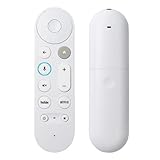
- 【Compatible Models】 Compatible with Google Streamer 4K, including Chromecast Google TV, GA03131-US, GA01920-US, GA01409-US, GA01919-US, and others, ensuring seamless integration with your existing streaming setup
- 【Smart Voice Search】 The voice remote control Compatible with Google TV Streamer 4K features a microphone button, enabling voice search for content, volume adjustment/input source switching, and music playback. Simply speak your commands to effortlessly control your TV, adjust the volume, or play your favorite music
- 【One-Touch Streaming Access】 With dedicated shortcut buttons for Youtube, Netflix, you can instantly access your favorite streaming services with just one press. No need to navigate through menus—enjoy seamless entertainment at your fingertips
- 【Premium materials】 Crafted with high-quality ABS material and featuring a performance-enhanced chip, this replacement remote ensures exceptionally stable connectivity. Experience superior control with upgraded technology that delivers long-range operation (39+ ft), ultra-fast response times (0.25s), and exceptional durability rated for over 160,000 clicks
- 【Effortless Pairing】 Simply press and hold the Press and hold the Back and Home buttons for 5 seconds until the LED on your new remote starts flashing to pair effortlessly
Use Google TV settings when you have another remote
If you can control the Streamer with a different physical remote or a virtual remote, open Google TV settings and use the Find My Remote option. This route is useful only if you already have another way to navigate the menus.
Control the Streamer from your phone while you search
The Google Home app or Google TV app can act as a virtual remote for controlling the streaming device. This is a workaround for navigating the Streamer while you look; it does not make a remote ring if that remote was never paired. Setup and device requirements are described in Google’s phone-as-remote instructions.
Rank #2

- 【Compatibility】Replacement for white Google-Chromecast-Remote, for Snow Chromecast with Google TV HD/4K & Google TV Streamer 4K.
- 【Voice Search】Pressing the voice button on the remote, not only can you use voice search to find your favourite entertainment, but you can also use voice to control the volume, switch inputs, play music, and get answers on-screen
- 【EASY TO PAIR】Pair your new remote in just two steps: ①. Press the pairing button on your device; ②. Press and hold the Back and Home buttons simultaneously for 10 seconds until the LED on your new remote starts flashing
- 【BATTERIES COMPATIBLE】Insert 2 * AAA batteries. (Package not included batteries)
- 【FEATURES】32ft Range, 0.2s Response, 120K+ Clicks Tested. Features Anti-Slip Dot Design & Multi-Angle Control for Stable Operation.
When to replace the remote
If the paired remote is simply misplaced, try the finder first. If it is permanently lost or damaged, Google identifies the Google TV Streamer Voice Remote as the matching remote. Google’s support pages do not establish a current replacement price or stock availability, so check current listings before purchasing. See Meet the Google TV Streamer Voice Remote for product details.
The Tool Desk
Outbyte Driver Updater FREEScan for outdated or missing drivers - takes under a minuteDriver Scan →Outbyte PC Repair FREEClear out junk files and repair common Windows errorsFree Scan →Quick Recap
Best Value
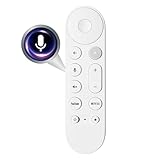
- Smart Home Integration & Voice Control: Compatible with Google TV Streamer 4K, features built-in microphone for voice-activated content search, volume adjustment.
- Step-by-Step Pairing Process: Insert 2 AAA batteries to initiate 10-second auto-pairing (wait for confirmation chime); if unresponsive, long-press Back + Home buttons for 5 seconds until LED flashes, then hold 30cm from device for manual pairing; reset by removing batteries for 5 minutes if connection fails.
- Customizable & Versatile Control: Equipped with programmable shortcut key (configurable via Home app) for favorite apps or functions; dual Bluetooth 5.0 + IR connectivity operates both streaming device and TV power/volume without extra remotes.
- Enhanced 4K Entertainment Experience: High-sensitivity microphone ensures accurate Google Assistant responses, perfect for searching 4K HDR content, adjusting playback settings, or switching input sources without manual navigation.
- Ergonomic & Durable Design: Anti-slip textured grip prevents accidental drops; compact 137mm × 38mm size fits comfortably in hands; robust construction supports daily use, with reliable performance for seamless home entertainment control.
Rank #4

- 【Compatibility】Voice replacement for white Google-Chromecast-Remote, for Chromecast with Google TV Remote, for Google TV HD/4K Streaming Stick, for Google TV Streamer (4K). Only for Snow Chromecast Google!!
- 【Incompatible Devices】NOT Compatible with Google Chromecast lst Gen, NOT for Google Chromecast 2nd Gen, NOT for Google Chromecast 3rd Gen, NOT for Chromecast Ultra, NOT for Chromecast Audio
- 【Easy to Pair】Pair your new remote ①Press the pairing button on your device; ②Press and hold the"Back" and "Home" buttons simultaneously for 10 seconds until the LED on your new remote starts flashing
- 【Voice Control】Pressing the voice button on the remote, you can use voice to search for specific shows, or by mood, genre, actress, and more. Talk to Google and say, "What should I watch?" And use the remote to control the volume switch inputs, play music, and get answers on-screen
- 【Preferred Features】The replacement remote for Google Chromecast TV has 2 shortcut buttons for popular streaming channels,and needs to install new 2*AAA batteries to use(batteries are NOT included in package)
Rank #3

- 【COMPATIBILITY】 Voice Remote Replacement for Google TV Streamer 4K Remote, for Chromecast with Google TV Remote(4K/HD).
- 【VOICE INTERACTION】Control your entertainment hands-free with Google Chromecast Remote—powered by voice interaction. Just speak to search shows, adjust volume, or launch apps instantly.
- 【QUICK PAIR】Quick 2-Step Pairing①Press the button on the back of your Google device ②Hold "Back" + "Home" on the remote for 10 seconds until the LED flashes.
- 【SHORTCUT KEYS】Upgrade your streaming experience with replacement remote featuring dedicated YouTube and Netflx buttons.
- 【RAPID RESPONSE】26 feet long-distance remote control, 0.2 seconds fast response, 50,000 times presses for durability, requires 2 * AAA batteries. (Batteries not included in package)
Product prices and availability are accurate as of the date/time indicated and are subject to change. Any price and availability information displayed on Amazon at the time of purchase will apply.




