Recommended Free Tools
To speed up a Logic Pro project at one steady rate, show Beats & Project in the control bar LCD, then drag the tempo value upward or double-click it and enter a BPM. Use the Tempo track or Tempo List for changes across a song, and Smart Tempo when a recording should determine the tempo. Before changing anything, consider whether audio regions should follow the new project tempo.
Raise the project tempo to one fixed BPM
- Show the tempo control. In the control bar LCD, open the display menu and choose Beats & Project if the tempo is not visible.
- Change the value. Click and drag the tempo value upward to increase it. For an exact target, double-click the value, type the BPM, and confirm.
- Play the project and check the result. Listen to audio, software instrument recordings, Drummer regions, and Apple Loops. A new project defaults to 120 bpm, and Apple documents a project tempo range of 5–990 bpm. Those are the software’s default and documented limits, not recommendations for a particular song. Apple’s project-properties guide explains project tempo; its tempo-setting guide covers the LCD control and range.
Choose the method that fits the timing you want
| Goal | Logic Pro method | Timing source |
|---|---|---|
| Set one steady BPM | Tempo value in the LCD | Your chosen BPM |
| Estimate a pulse by tapping | Tap Tempo key command | Your taps |
| Change speed by section or over time | Tempo track or Tempo List | Tempo events you set |
| Follow a freely performed recording | Smart Tempo: Adapt or Automatic | Beat detection in the recording |
| Calculate a loop’s tempo from its musical length | Edit > Tempo > Adjust Tempo using Region Length and Locators | The selected region and locator span |
Estimate a tempo with Tap Tempo
Logic Pro includes Tap Tempo as a key command. Assign the command in the user key-command configuration, then tap along to the pulse you want. Apple’s guide says an alert appears the first time, asking whether to enable Tap Tempo; it does not establish a universal default key binding. See Apple’s guide to setting project tempo for the command details.
As an Amazon Associate I earn from qualifying purchases.
Create a tempo change across the song
For a gradual acceleration, a slower bridge, or distinct tempos in different sections, add or edit tempo events in the Tempo track or Tempo List. This creates a tempo map rather than replacing the project with one constant BPM. Apple describes both controls in its tempo-setting guide.
What’s actually slowing this PC down?
Pick the symptom - the matching free tool is one click away.
Have Logic Pro follow a recording
Smart Tempo determines whether the project follows a performance or the performance follows the project. Choose the mode based on which timing you want to preserve:
#1 Best Overall

- Next-Gen Music Production and Beat Maker Essential - USB-powered MIDI keyboard controller with 25 mini velocity-sensitive keys, optimized for studio or beat production, piano-style performance, synth leads, sample triggering
- Real-Time Control and Navigation - 8x assignable 360° knobs, a vibrant full-color screen and push/turn encoder for hands-on access to settings, presets, and DAW functions, without reaching for a computer
- Iconic MPC Pads with RGB Feedback - 8 velocity- and pressure-sensitive MPC pads deliver an iconic finger-drumming experience, plus dynamic visual feedback to match your performance in studio or on the go
- Studio Instrument Collection Included - A powerful VST/AU and standalone virtual suite packing 1000+ pro-grade drums, keys, synths, bass, FX from AIR, Akai Pro and Moog, plus MPK Mini IV integrated controls
- Pre-Mapped DAW Integration - Get producing in under 15 minutes with Ableton Live Lite 12, Logic Pro, FL Studio and more; comes with an expanded DAW-mapped transport section for uninterrupted workflow
- Keep Project Tempo: Keeps the project tempo. Audio follows it when the region’s Flex & Follow setting is enabled.
- Adapt Project Tempo: Changes the project tempo to match a recording or imported region. This is useful for a free performance recorded without a metronome, but it can alter the existing tempo map.
- Automatic: Chooses Keep or Adapt behavior based on whether a tempo reference is present and other project conditions.
After recording in Adapt mode, switch to Auto or Keep if later recordings should not change the tempo map created from the first performance. If beat detection needs correction, review it in Smart Tempo Editor. Apple explains the modes in its Smart Tempo guide and Smart Tempo overview; its guide to working in Smart Tempo Editor covers refining detected timing.
Match the project tempo to an audio loop
When a loop has a known musical length, use its region and locator span to calculate a matching tempo instead of guessing.
Rank #2

- Full Creative Control - A dynamic 37-Key MPK Mini keybed for 3 full octaves of melodic and harmonic performance; Easily connect to your DAW or studio equipment with the USB-powered MIDI Controller
- Advanced Connectivity - Connect to different sound sources with CV/Gate and MIDI I/O; Control modular gear, sound modules, synthesizers, and more to bring new sound sources into your music production
- Native Kontrol Standard (NKS) Integration - Akai Professional and Native Instruments have partnered to bring NKS support to the MPK Controller series, get ready to Kontrol straight from your MPK
- Choose Your Exclusive Complimentary NKS Bundle - Browse and control Native Instruments presets and sound libraries; select one of three curated Komplete 15 Select bundles: Beats, Band, or Electronic
- Record and Compose Without a Computer - Connect to your production station and use the built-in 64-step sequencer featuring one track for drums and one for melodies or chords, with up to 8 notes each
- Select the audio region.
- Set the left and right locators to closely match the region’s musical length, usually to the nearest bar.
- Choose Edit > Tempo > Adjust Tempo using Region Length and Locators.
- Choose Globally to adjust the entire project tempo, or Create to add a local tempo change across the section occupied by the region.
The region length remains constant while Logic Pro recalculates project tempo. See Apple’s instructions for matching project tempo to an audio region.
Do these 3 things before closing this tab:
1Repair Windows errors before they cause bigger problems2Fix the driver behind crashes, sound loss and screen glitches3Clear out junk files and repair common Windows errorsCheck how audio regions respond
Changing project tempo can affect audio and software instrument recordings, Drummer regions, and Apple Loops. For audio, the region’s Flex & Follow setting controls whether and how it follows project tempo changes. If a part shifts in timing or sounds different after a tempo edit, inspect that setting on the affected region and listen again. Apple covers this behavior in its project-properties guide and Smart Tempo guide.
Rank #3
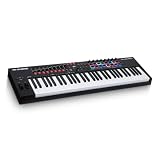
- MIDI Keyboard Essentials - 61 velocity-sensitive, semi weighted keys with aftertouch and assignable zones for playing virtual sampler instruments and virtual synthesizer plugins
- Native Kontrol Standard (NKS) Integration - M-AUDIO and Native Instruments have partnered to bring NKS support to the Oxygen series, get ready to Kontrol straight from your Oxygen keyboard
- Choose Your Exclusive Complimentary NKS Bundle - Browse and control Native Instruments presets and sound libraries; select one of three curated Komplete 15 Select bundles; Beats, Band, or Electronic
- Beat Maker Mainstays - 16 RGB backlit MIDI assignable velocity sensitive drum pads with Note Repeat for beat production, clip launching, soundboard triggering and more
- Total Command of Your Music Production - 8 assignable knobs and buttons and 9 assignable faders for tactile MIDI control of virtual instruments, effect plugins, DAW controls and more
Menu labels and controls can vary by Logic Pro release. The cited tempo and Smart Tempo guide pages are labeled version 10.7 for macOS 11.0; check the guide for your installed version if a control is in a different place.
Quick Recap
Best Value

- New creative features: Scale Mode, Chord Mode, and Arpeggiator, making composition, songwriting, and beat-making more intuitive than ever.
- Custom DAW integration: KeyLab Essential 3 features custom scripts for deeper control over DAWs, including Ableton Live Logic Pro X, FL Studio, and more.
- More versatile presets: The 2000 presets included with Analog Lab V are no longer limited to vintage sounds; users can enjoy unique hybrids, modern synths, orchestral sounds, and more.
- Easier controls & interface: RGB-backlit pads with velocity and pressure sensitivity, contextual button, and a bright new 2.5” LCD screen for real-time feedback.
- Expanded software package for beginners & pros: Now includes Analog Lab V, 2 pianos (UVI Model D, NI’s The Gentleman), plus subscriptions to Loopcloud and Melodics.
Rank #4

- Music Production and Beat Maker Essential -USB powered MIDI controller with 25 mini MIDI keyboard velocity-sensitive keys for studio production, virtual synthesizer control and beat production
- Total Control of your Production - Innovative 4-way thumbstick for dynamic pitch and modulation control, plus a built-in arpeggiator with adjustable resolution, range and modes
- Native Kontrol Standard (NKS) Integration - Akai Professional and Native Instruments have partnered to bring NKS support to the MPK Controller series, get ready to Kontrol straight from your MPK
- Choose Your Exclusive Complimentary NKS Bundle - Browse and control Native Instruments presets and sound libraries; select one of three curated Komplete 15 Select bundles: Beats, Band, or Electronic
- The MPC Experience - 8 backlit velocity-sensitive MPC-style MIDI beat pads with Note Repeat and Full Level for programming drums, triggering samples and controlling virtual synthesizer / DAW controls
Product prices and availability are accurate as of the date/time indicated and are subject to change. Any price and availability information displayed on Amazon at the time of purchase will apply.




