To insert an emoji in an Outlook email, use the emoji button in Outlook on the web, the Windows emoji picker or Mac’s Emoji & Symbols menu on desktop, or your phone’s emoji keyboard. The exact steps depend on which Outlook app or interface you’re using.
Outlook on the web
In a new message or reply, select the Insert emojis and GIFs icon at the bottom of the message, then choose an emoji under Popular emojis. Microsoft documents these controls for the newer Outlook on the web interface; an older web interface may look different. See Microsoft’s Outlook on the web instructions.
As an Amazon Associate I earn from qualifying purchases.
Outlook.com
In Outlook.com, open the message ribbon’s Insert group, choose Emoji under Graphics, and select an emoji. This is the workflow in Microsoft’s Outlook.com instructions; the control’s wording or placement may differ in the current web app. See Microsoft’s Outlook.com instructions.
Outlook for Windows
Click in the message body where the emoji should go, then press Windows key + . (period) to open the Windows emoji picker. Select an emoji, or search by keyword in the picker. Microsoft lists this guidance for Microsoft 365, Outlook 2024, Outlook 2021, Outlook 2019, and Outlook 2016. See Microsoft’s emoji instructions for Outlook.
#1 Best Overall

- Get loud, get retro: Shout your inner retro out loud with a bold color combination of black, grey and arcade game yellow, allowing you to make a performance with POP Keys wireless keyboard in Blast
Classic Outlook also has an Insert > Symbol route for symbols. That is a separate symbol dialog, not the Windows emoji picker. See Microsoft’s instructions for inserting symbols in Outlook for Windows.
Outlook for Mac
Microsoft’s documented route for Outlook 2016 for Mac is Edit > Emoji & Symbols, followed by selecting an emoji. Menu labels can vary across Mac and Outlook versions, so treat this as the documented path for that version rather than a guarantee for every current Mac installation. See Microsoft’s symbol instructions.
Rank #2
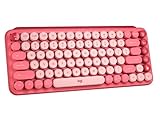
- Deep feels: Neon corals meet crushed raspberry colors on a keyboard designed for the ones who care the most, allowing you to change the game with POP Keys wireless mechanical keyboard in Heartbreaker Rose
- Feelings at your fingertips: Unleash your online personality with 8 swappable emoji keys and 1 emoji menu key, all customizable via Logitech Software (on Windows and macOS only)
- Fun bouncy typing: Experience typing that’s almost addictive on typewriter-style mechanical keys; feel your fingers bounce across the comfy, scooped keys as they click, clack and pop
- Multi-device: Pair POP Keys with up to 3 devices and hop between them using the Easy-Switch keys; connect via Bluetooth or Logi Bolt USB receiver on Windows, macOS, Chrome OS, Android, iPadOS or iOS
- Yours for the long haul: Express yourself to your heart’s content with this wireless external keyboard, featuring 3-year battery life and keys engineered to endure up to 50 million strokes
Outlook on iPhone or Android
- Start a message and tap in its body to open the on-screen keyboard.
- Tap the emoji control on the keyboard, then choose an emoji.
The emoji control’s location and appearance vary by device, operating-system version, and keyboard app. Microsoft’s mobile guidance explains composing and entering text with the on-screen keyboard, but does not specify one universal Outlook emoji button or sequence. See Microsoft’s email composition instructions and its Outlook for iOS and Android Quick Start.
Free tools Windows power users keep installed
One-click scans. No signup required.
Inserting an emoji or reacting to a message?
Inserting an emoji puts it in the body of a message you are writing. A reaction is a separate response to a message you have received. Outlook reactions require a qualifying work or school account and Microsoft 365 subscription. They work fully when both participants have Exchange Online mailboxes; other sender mailbox arrangements may result in a fallback email. See Microsoft’s explanation of Outlook reactions.
Rank #3

- 𝗗𝗲𝘀𝗶𝗴𝗻𝗲𝗱 𝘁𝗼 𝗠𝗮𝘁𝗰𝗵 𝗶𝗠𝗮𝗰/𝗠𝗮𝗰𝗯𝗼𝗼𝗸 𝗸𝗲𝘆𝗯𝗼𝗮𝗿𝗱 𝗮𝗻𝗱 𝗺𝗼𝘂𝘀𝗲: Add a splash of color to your workspace with a wireless Mac keyboard and mouse that perfectly complements the latest iMac colors.
- 𝗠𝘂𝗹𝘁𝗶-𝗦𝘆𝗻𝗰 𝗕𝗹𝘂𝗲𝘁𝗼𝗼𝘁𝗵 𝗞𝗲𝘆𝗯𝗼𝗮𝗿𝗱 𝗮𝗻𝗱 𝗠𝗼𝘂𝘀𝗲: The wireless keyboard and mouse for Mac can connect to up to 3 devices and switch seamlessly between Mac, iPad, and iPhone for smooth multitasking across Apple devices.
- 𝗔𝗽𝗽𝗹𝗲 𝗸𝗲𝘆𝗯𝗼𝗮𝗿𝗱 𝗮𝗻𝗱 𝗺𝗼𝘂𝘀𝗲 𝗳𝗼𝗿 𝗮𝗻𝘆 𝘁𝗮𝘀𝗸: With 108 keys and 21 macOS shortcuts, including exclusive iPad and iPhone function keys, the iMac keyboard makes multitasking easy and efficient.
- 𝗦𝗲𝗮𝗺𝗹𝗲𝘀𝘀 𝗡𝗮𝘃𝗶𝗴𝗮𝘁𝗶𝗼𝗻 𝗔𝗽𝗽𝗹𝗲 𝗱𝗲𝘀𝗸𝘁𝗼𝗽 𝗸𝗲𝘆𝗯𝗼𝗮𝗿𝗱 𝗮𝗻𝗱 𝗺𝗼𝘂𝘀𝗲: The mac Bluetooth mouse features a 1200 DPI optical sensor for smooth, accurate tracking. Easily switch between 3 devices with a single button press for effortless multitasking.
- 𝗥𝗲𝗰𝗵𝗮𝗿𝗴𝗲𝗮𝗯𝗹𝗲 𝗕𝗮𝘁𝘁𝗲𝗿𝗶𝗲𝘀: Work wirelessly without interruptions with built-in rechargeable batteries on the mac bluetooth keyboard and mouse – 500mAh for the keyboard and 300mAh for the mouse. USB-C charging cable included.
Why an emoji may look different to a recipient
Emoji appearance can vary across email programs and devices. Microsoft cautions: “Not all email programs display emoticons the same way.” The recipient may therefore see a different rendering from the one shown while you compose the message.
Quick Recap
Best Value

- ERGONOMIC SPLIT KEYBOARD WITH FULL-SIZE LAYOUT: This full-size ergonomic split keyboard features a curved key layout that positions your hands at a more natural typing angle. The spacious layout with number pad gives medium and large hands more room for comfortable typing during long work sessions.
- CUSHIONED WRIST REST FOR LONG WORK SESSIONS: Curved wrist rest with soft memory foam cushions your wrists and helps maintain a more natural position with less bending during extended typing. The soft-touch leather surface is water-resistant and easy to clean. Four adjustable tilt legs let you customize the typing angle for comfortable use while sitting or standing.
- WINDOWS/MAC LAYOUT & PRODUCTIVITY SHORTCUTS: Switch between Windows and Mac keyboard layouts with a dedicated system key. Convenient shortcut keys provide quick access to media controls, calculator, screenshot, emoji, and other everyday functions. Includes a 2.4GHz USB-A receiver stored inside the mouse bottom and a USB-C adapter packed separately for flexible connection options. The USB-C adapter works with the included USB-A receiver for laptops and devices with USB-C ports.
- ERGONOMIC MOUSE WITH PALM & THUMB SUPPORT: Contoured ergonomic mouse with palm and thumb rests helps keep your hand in a more natural position during extended computer use. Four adjustable DPI levels—800/1200/1600/2400—let you customize cursor speed, while forward/back buttons provide convenient navigation for everyday work and browsing.
- USB-C RECHARGEABLE & STABLE 2.4GHz WIRELESS: This rechargeable ergonomic wireless keyboard and mouse combo eliminates the need for disposable batteries. A reliable 2.4GHz wireless connection delivers stable, responsive performance up to 33 ft, while 5-second auto sleep helps conserve power. Provides up to 250 hours of keyboard standby and 350 hours of mouse standby.
Rank #4

- Start with a POP: Proudly express yourself and own your space with the compact Bluetooth keyboard that stands out with its bold aesthetic, comfy typing and customizable Action Keys[2]
- Dare to be different: POP Icon Keys is anything but ordinary with its refined shape, detailed transparent frame, and fresh colors – made with recycled plastic[1]
- Comfy typing: The wireless keyboard comes with contoured, low-profile keys that fit your fingers perfectly for a comfortable, quiet, familiar laptop-like typing experience wherever you go
- Life is easier with shortcuts: Quickly switch between modes - work, social, break (Netflix, Spotify), or access your AI tools in less than 1 second[4] with the Action keys and Logi Options+ App[2]
- Easily hop across 3 devices: Connect with Bluetooth to up to 3 wireless devices across OS (Windows, macOS, iPadOS, iOS, ChromeOS) with a press of the Easy-Switch buttons
Product prices and availability are accurate as of the date/time indicated and are subject to change. Any price and availability information displayed on Amazon at the time of purchase will apply.




