To cut or copy content in Adobe InDesign, select the text or object, choose the matching command from Edit, then activate the correct destination before choosing Edit > Paste. Text goes at an active text insertion point; table cells and graphics have their own paste behavior. You can also control whether pasted text keeps its source formatting.
Start by selecting the right content and destination
InDesign’s paste result depends on what you select and what is active when you paste. For text, choose the Type tool and select the characters to move or duplicate. To set the destination, click inside a text frame where the text should go. If text is selected at the destination, pasting replaces that selection; if an insertion point is active, the pasted text appears there.
As an Amazon Associate I earn from qualifying purchases.
For a frame or other page object, use the Selection tool to select the object. Copy or cut it, then click the intended page or location before pasting. For text pasted when no text insertion point is active, InDesign creates a new plain text frame.
Cut or copy text and paste it elsewhere
- With the Type tool, select the text to move or duplicate.
- Choose Edit > Cut to remove the selection from its original location, or Edit > Copy to leave the original in place.
- Click the destination insertion point in a text frame. If the text should replace existing text, select that text first.
- Choose Edit > Paste.
These menu commands work across text frames in the document. If you paste without an active insertion point, InDesign creates a new plain text frame rather than inserting into an existing story.
#1 Best Overall

- 【InDesign Shortcuts】The Large mouse pad with professional desktop InDesign shortcuts,specifically designed for improve work efficiency, making it easy for you use InDesign.
- 【HD Printing】The extra large keyboard shortcut mousepad adopts high-tech printing process to ensure that the pattern of the mouse pad is clear and the color is bright. Ensuring users have quick and easy access to frequently used commands and functions. This is a great office accessories.
- 【Universal Fit】Mouse Pad for Desk is designed for comfort and productivity. Measuring at 31.5x11.8 inches, it provides ample space to accommodate your mouse, keyboard, and other desk essentials.
- 【Invisible Seams & Waterproof】Our large gaming mouse pad has a waterproof coating, the surface can be easily cleaned with water or a damp cloth. It also has invisible stitched process to avoid edge damage caused by long-term use. This design effectively extends the service life of the keyboard shortcut mouse pad and is suitable for computers and laptops.
- 【Easy to Clean and Maintain】 The spill-repellent surface ensures easy cleanup of daily spills or accidents, extending the lifespan of your mouse pad. Say goodbye to the hassle of dealing with spills and enjoy a pristine workspace at all times.
Choose whether pasted text keeps its formatting
For text copied from another application, InDesign offers a preference for how clipboard formatting is handled. On Windows, open Edit > Preferences > Clipboard Handling. On macOS, open InDesign > Preferences > Clipboard Handling. Choose All Information to retain formatting information, or Text Only to strip it.
For a single paste, choose Edit > Paste without Formatting. These options affect formatting behavior; they do not guarantee that styles or appearance will map identically between different applications or documents.
Rank #2
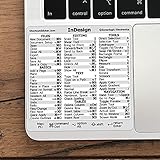
- 💻 ✔️ EVERY ESSENTIAL SHORTCUT - With the SYNERLOGIC Reference Keyboard Shortcut Sticker, you have the most important shortcuts conveniently placed right in front of you. Easily learn new shortcuts and always be able to quickly lookup commands without the need to “Google” it.
- 💻 ✔️ Work FASTER and SMARTER - Quick tips at your fingertips! This tool makes it easy to learn how to use your computer much faster and makes your workflow increase exponentially. It’s perfect for any age or skill level, students or seniors, at home, or in the office.
- 💻 ✔️ QUALITY GUARANTEE - We stand behind our product! It’s made with outstanding military-grade durable vinyl and the professional design gives our stickers an OEM appearance. Our responsive and dedicated customer service team is here to promptly respond to your messages and resolve any issues you may have.
- 💻 ✔️ From BASIC to ADVANCED - Whether you are a seasoned computer professional or a beginner, the SYNERLOGIC Sticker will save you both time and frustration, guaranteed! You can easily reach a new level of computer proficiency using our convenient and affordable sticker.
- 💻 ✔️ Cross-platform compatibility. The sticker is specially designed to work for both PC and Mac computer keyboards.
Paste table cells or move an entire table
Table content behaves differently from ordinary text. Use the Type tool to select cell text or cells, then use Edit > Cut or Edit > Copy.
- Insert copied cells as a nested table: click an insertion point in one target cell and paste.
- Replace destination cells: select enough destination cells, then paste. Adobe specifies that sufficient empty cells must be available below and to the right of the selected destination.
- Move or duplicate the whole table: place the insertion point inside the table, choose Table > Select > Table, cut or copy, and paste at the destination insertion point.
Check the destination before pasting: a single target cell and a selected range of cells can produce different results.
Rank #3

- 3 ADOBE APPS IN ONE: Photoshop, Illustrator and InDesign shortcuts are printed on the keys with icons and color-coded by tool group, so selection, drawing, type and layout commands are easy to find.
- MADE FOR MAC: macOS US layout with Command, Option and Control keys. Connects to any Mac with a USB-C port, including MacBook Pro, MacBook Air, iMac, Mac mini and Mac Studio. Plug and play.
- A REAL KEYBOARD, NOT A CONTROL PANEL: Each key shows the Photoshop, Illustrator and InDesign shortcut icon and label plus the standard letter, so you can type normally and use the printed shortcuts in the same session. No software, drivers or setup needed.
- BACKLIT ALUMINUM BUILD: Solid aluminum frame with backlit keys for late-night sessions and dim studios. USB-C wired for a stable, lag-free connection with no batteries to charge or Bluetooth pairing.
- WHO IT IS FOR: Graphic designers, illustrators, photo editors, layout designers and design students working in Adobe Creative Cloud on Mac. Please check the compatibility image before ordering.
Use Paste Into to place a graphic inside a shape
Edit > Paste Into is a graphics command, not the standard way to paste text. First select a path—the shape that will act as the clipping boundary—then choose Edit > Paste Into. The graphic is placed within the path. To reposition the graphic inside that boundary, use the Direct Selection tool.
Drag and drop text for a small move within one document
For a short text move within the same InDesign document, drag-and-drop can be quicker than using the menu. Enable the feature in Type preferences, select the text with the Type tool, and drag it to the new insertion point.
Rank #4

- 💻 ✔️ EVERY ESSENTIAL SHORTCUT - With the SYNERLOGIC Reference Keyboard Shortcut Sticker, you have the most important shortcuts conveniently placed right in front of you. Easily learn new shortcuts and always be able to quickly lookup commands without the need to “Google” it.
- 💻 ✔️ Work FASTER and SMARTER - Quick tips at your fingertips! This tool makes it easy to learn how to use your computer much faster and makes your workflow increase exponentially. It’s perfect for any age or skill level, students or seniors, at home, or in the office.
- 💻 ✔️ QUALITY GUARANTEE - We stand behind our product! It’s made with outstanding military-grade durable vinyl and the professional design gives our stickers an OEM appearance. Our responsive and dedicated customer service team is here to promptly respond to your messages and resolve any issues you may have.
- 💻 ✔️ From BASIC to ADVANCED - Whether you are a seasoned computer professional or a beginner, the SYNERLOGIC Sticker will save you both time and frustration, guaranteed! You can easily reach a new level of computer proficiency using our convenient and affordable sticker.
- 💻 ✔️ Cross-platform compatibility. The sticker is specially designed to work for both PC and Mac computer keyboards.
- Hold Alt on Windows or Option on macOS to copy instead of move.
- Hold Shift to drop the text without formatting.
Adobe’s instructions specify releasing the mouse before pressing the modifier key. For text from another document or application, use copy and paste or the Place command instead.
Crashes, No Sound, or Screen Glitches?
Random freezes, missing sound and display glitches usually trace back to one bad driver. Find and replace yours safely.Free scan · under a minuteWindows Errors? Fix Them Before They Spread
Repair common Windows errors and clear accumulated junk for a smoother, more stable PC - no reinstall needed.Free scan · no reinstallFind and verify cut, copy, and paste shortcuts
Shortcut assignments can depend on the InDesign version and active shortcut set, including a custom set. To check the commands on the installation you are using, open Edit > Keyboard Shortcuts, search for the command name, and inspect its assigned shortcut. You can use a default set or create and share a custom set on the same platform. Verify the active assignments before printing shortcut instructions or relying on a key combination.
Quick Recap
Quickly choose the right paste method
| Content | Destination | Action |
|---|---|---|
| Text | Active insertion point in a text frame | Paste to insert; selected destination text is replaced |
| Text | No active text insertion point | Paste to create a new plain text frame |
| Table cells | One target cell | Paste to insert the copied cells as a nested table |
| Table cells | Selected destination range with sufficient empty cells below and to the right | Paste to replace destination cells |
| Graphic | Selected path | Choose Paste Into to place the graphic within the shape |
Adobe help for the documented commands
- Add text to documents in InDesign (desktop help updated 7 August 2026).
- Cut, copy, and paste table contents in InDesign (desktop help updated 7 August 2026).
- Apply clipping paths to graphics in InDesign.
- Drag and drop text in InDesign (desktop help updated 7 August 2026).
- InDesign keyboard shortcuts (desktop help updated 28 July 2026).
Product prices and availability are accurate as of the date/time indicated and are subject to change. Any price and availability information displayed on Amazon at the time of purchase will apply.




