The HP EliteBook 830 G5 is a compact 13-inch business laptop built for durability, manageability, and day-to-day productivity. It’s often sold in enterprise fleets and later as refurbished gear, which means the “right” configuration (CPU, RAM, storage, display, and WWAN) matters more than the model name alone.
This guide is written as a real-world reference: what to check before you buy, what you can upgrade, how to get drivers and BIOS in shape, and what issues show up most often with this platform.
As an Amazon Associate I earn from qualifying purchases.
Because EliteBooks vary heavily by SKU, treat the “typical” guidance as configuration-dependent. Where a detail can change, this article calls that out so you don’t waste time or buy the wrong parts.
What’s actually slowing this PC down?
Pick the symptom - the matching free tool is one click away.
What the HP EliteBook 830 G5 Is (and Who It’s For)
The 830 G5 is part of HP’s business EliteBook line and targets customers who want a portable machine with enterprise features: solid docking support, strong chassis design, and management-friendly firmware.
#1 Best Overall

- 8th Generation Intel Core i5 processor ( i5-8350U ) | Quad Core | 1.70GHz max boost speed 3.60GHz
- Intel HD Graphics 620 | 8 GB DDR4 2400MHz 256 SSD
- Intel Dual Band Wireless-AC 8265 802.11 a/b/g/n/ac (2x2) | Bluetooth 4.2 | 2 x USB 3.1 Gen 1 | 1 x USB-C | VGA | DisplayPort 1.2 | RJ-45
- 13.3" FHD screen | 1920 X 1080 | Headphone/microphone combo jack | Webcam
- Windows 10 Professional 64-bit - Ideal for Home, Professionals, Small business, School Education
It typically comes with 8th-gen Intel Core options (often Intel Core i5 or i7), 13-inch displays, and a mix of storage sizes. Many units were configured with Windows 10 Pro and later upgraded or reimaged in workplaces, so software state can differ even when hardware is identical.
Key Specifications by Configuration
You’ll find multiple configurations depending on production batch and seller listings. Use the steps in the “Buying Guide” section to confirm the exact CPU, display, and storage.
Common processor options (varies by SKU)
Most EliteBook 830 G5 units you’ll see are built around Intel 8th-gen Core CPUs paired with integrated graphics (no gaming GPU). Typical use includes Office, web, email, Zoom/Teams, light content creation, and enterprise apps.
The Tool Desk
Outbyte PC Repair FREEClear out junk files and repair common Windows errorsFree Scan →Outbyte Driver Updater FREEFix the driver behind crashes, sound loss and screen glitchesFind Drivers →Memory (RAM) variants
EliteBooks of this class commonly ship with 8GB or 16GB RAM, and some configurations may support an upgrade depending on whether the machine uses a mix of soldered RAM and a SO-DIMM slot. Your service manual and the “Memory” details in Windows will confirm what’s actually possible.
Storage (SSD) options
Storage is usually an M.2 NVMe SSD in many G5-era EliteBooks. Capacity can range widely; 256GB and 512GB are common. If you work with large files, 512GB or more is usually the sweet spot for a refitted workstation.
Display and panel types
Display options vary. Some units come with lower-resolution matte panels; others include higher-resolution or touch. Touch typically costs extra and may affect power/thermals slightly, so decide based on your actual workflow.
Connectivity: Wi‑Fi and optional WWAN
Most units include Intel Wi‑Fi modules. Some enterprise configurations include WWAN (cellular) support via an optional modem. If you need always-on connectivity, confirm WWAN presence before purchase—modem hardware and antenna configuration must exist.
Do these 3 things before closing this tab:
1Fix the driver behind crashes, sound loss and screen glitches2Clear out junk files and repair common Windows errors3Scan for outdated or missing drivers - takes under a minutePerformance and Real-World Use Cases
The EliteBook 830 G5 is designed for responsive business computing rather than sustained high-load workloads. With an Intel Core i5/i7 and SSD storage, it can feel quick in daily tasks—especially after a clean Windows install and driver updates.
Rank #2

- HP 13.3" EliteBook 830 G5 Laptop
- 1.7 GHz Intel Core i5-8350U Quad-Core
- 8GB of DDR4 RAM | 256GB SATA III M.2 SSD
- 13.3" 1920 x 1080 Anti-Glare IPS Display
- Integrated Intel UHD Graphics 620 1 x Thunderbolt 3 | 2 x USB 3.0 Type-A 1 x HDMI 1.4b Wi-Fi 5 (802.11ac) & Bluetooth 4.2 Gigabit Ethernet Port 720p HD Webcam, Mics, and Speakers
Best-fit tasks
- Microsoft 365 work: Word, Excel, PowerPoint, Teams, Outlook
- Browser workflows: multiple tabs, web apps, light-to-medium research workloads
- Enterprise apps: VPN clients, RDP, endpoint security tools
- Light creative work: photo edits and PDFs (not heavy video rendering)
Where you may feel limits
- Large datasets in Excel or database tooling (CPU/RAM become the bottleneck)
- Exporting high-res video or long renders
- Long-running CPU-heavy tasks that stress thermals without adequate cooling headroom
Ports, Expansion, and Docking Options
EliteBooks are built to live on desks and at work sites, which is why docking support is a major selling point. Port layout varies slightly by configuration, but this is the pattern you should expect.
Typical connectivity expectations
- USB ports (often a mix of USB-A and USB-C)
- Display outputs supporting external monitors via USB-C/DisplayPort alt mode or HDMI (model dependent)
- Ethernet support via dock in many enterprise setups
- Audio (headphone/mic combo or separate, SKU-dependent)
Docking reality check
Before buying a dock, confirm which dock connector your EliteBook uses (and whether it’s the “full” docking ecosystem or a newer slimmer dock style). Also verify whether you need dual-monitor output and what resolution you expect—most business docking solutions can do it, but not every dock supports every combination of outputs.
RAM and Storage Upgrades (What You Can Typically Improve)
Upgrading an EliteBook is often the fastest way to make an older unit feel modern again. The exact upgrade path depends on whether RAM is partially soldered and what SSD form factor your unit supports.
Windows Errors? Fix Them Before They Spread
Repair common Windows errors and clear accumulated junk for a smoother, more stable PC - no reinstall needed.Free scan · no reinstallCrashes, No Sound, or Screen Glitches?
Random freezes, missing sound and display glitches usually trace back to one bad driver. Find and replace yours safely.Free scan · under a minuteBefore you open the chassis
- Find the exact product number (often labeled on the bottom cover).
- Check current memory in Windows: open Task Manager → Performance → Memory.
- Check storage type: Task Manager → Performance → Disk or use wmic / third-party tools.
Common upgrade outcomes
- Moving to 16GB RAM is usually the biggest “feel” improvement for multitasking.
- Upgrading to 512GB+ SSD improves boot times and app loading, and reduces juggling space.
- Cleaning/replacing thermal paste can help sustained performance if the laptop is older or stored warm.
SSD replacement guidance (high level)
For the EliteBook 830 G5, SSD upgrades are typically M.2 NVMe class parts. Confirm this by checking the service manual or by reading what the current SSD reports in Device Manager.
When you replace the drive, plan on reinstalling Windows and reactivating with your license method (see the “Buying Guide” section for how to avoid activation surprises).
Battery, Display, and Thermals: Practical Expectations
Real battery life depends heavily on display brightness, wireless use, and CPU load. A refurbished battery can degrade; even a new-looking unit may have less capacity than expected.
Battery health checks
- In Windows, check battery report: open Command Prompt and run
powercfg /batteryreport. - Inspect cycle count and designed vs full charge capacity in the generated HTML report.
- If the battery shows heavy wear, expect shorter runtime and potential performance throttling under load.
Display behavior
If you see flicker, uneven brightness, or dead pixels, it’s either a panel issue or a loose connection. Touch panels add another layer of complexity, so if touch isn’t needed, a non-touch matte panel is often simpler to troubleshoot.
Recommended Free Tools
Thermals
Business laptops don’t use gaming-class cooling. Under long CPU loads, expect fan ramp and reduced sustained boost clocks. Keeping vents clear and running BIOS/firmware updates helps, but physics still applies.
Rank #3

- Processor: Intel core i7-8650
- RAM and Storage: 32GB RAM, 1TB Solid State Drive
- Display:13.3" screen with FHD (1920x1080) resolution
- Ports: USB 3.1, HDMI, RJ-45, Headphone/microphone combo
- Operating System: Windows 11
Firmware, BIOS, and Drivers: Getting It Stable
For an EliteBook, stability is mostly firmware + drivers + clean OS state. Many failures people attribute to “hardware” are actually driver mismatches, outdated BIOS, or a corrupted Windows install.
What to check first
- BIOS version (System Information tool)
- Chipset driver state
- Intel graphics driver version
- Wi‑Fi/Bluetooth module drivers
- Power management behavior (Sleep/hibernate reliability)
HP Support and driver downloads
Use the HP Support site and enter the device’s serial number or product number to pull the exact driver set. This matters because Wi‑Fi cards and display panels vary by configuration.
BIOS update precautions
- Plug in AC power before updating.
- Don’t close the lid or force sleep during the update.
- If an update fails, do not keep retrying blindly—find the failure reason and check HP’s release notes.
Security and Business Admin Basics
The EliteBook 830 G5 is typically sold into enterprises where management and security are required from day one. Even if you’re using it personally, it’s worth understanding the core controls.
Common security features
- TPM (Trusted Platform Module) for Windows security features
- BIOS/firmware password options
- Secure Boot
- Optional fingerprint reader on some configurations
Admin reset considerations
If you’re buying a refurb, make sure the device isn’t locked behind an unknown BIOS password or a Windows account with no available reset. A seller may claim it’s “factory reset,” but account and BIOS states can persist depending on what was done in the refurb process.
Common Problems and Fixes
EliteBooks are generally reliable, but they’re also enterprise-managed systems. Here are the problems that show up most often and what to try.
Laptop won’t boot or boot loops
Start with basics: confirm the AC adapter is the correct wattage and the charger port is seated. If it still fails, check BIOS for boot order and run the HP startup diagnostics if available on your BIOS version.
If boot loops began after a driver update, rolling back device drivers or reinstalling the chipset and storage controller drivers often fixes it.
Free tools Windows power users keep installed
One-click scans. No signup required.
No display / black screen with fans running
- Try an external monitor via dock or HDMI/USB-C output (to rule out panel failure).
- Disconnect all peripherals (including USB devices) and power cycle.
- Check brightness hotkeys and keyboard backlight behavior.
- If it remains blank, reseat RAM/SSD if you’re comfortable opening the chassis—loose seating can cause no-post behavior.
Wi‑Fi drops or can’t connect
Common causes are outdated Wi‑Fi drivers, power management settings, or the wrong driver variant for your exact Wi‑Fi card. Update from HP using the serial number, then check Windows power settings for the wireless adapter.
Rank #4

- This Certified Refurbished product is tested and certified to look and work like new. The refurbishing process includes functionality testing, basic cleaning, inspection, and repackaging. The product ships with all relevant accessories, a minimum 90-day warranty, and may arrive in a generic box. Only select sellers who maintain a high performance bar may offer Certified Refurbished products on Amazon.com.
- (1) Thunderbolt (USB Type-C connector), (2) USB 3.1 Gen 8
- HDMI 1.4b port, RJ-45/Ethernet port, Docking connector. Headphone/microphone combo jack, AC power port, VGA port
- Laptop and AC Adapter
- A GRADE/Add 12-in-1 USB-C Hub Triple Display Docking station
Also verify the module in Device Manager matches what the seller described. A different Wi‑Fi card can require different drivers.
Battery not charging
- Confirm the charger LED behavior and try a known-good adapter.
- Run a battery health check using
powercfg /batteryreport. - Look for “plugged in, not charging” in Windows.
Sleep/hibernate issues
These machines can misbehave when a driver update changes power states. Update BIOS and chipset drivers first, then test with wireless and dock peripherals disconnected. If the issue persists, check Windows Event Viewer for sleep-related logs.
Overheating and loud fan behavior
Start by cleaning vents and checking if dust has blocked airflow. If temperatures are still abnormal, replacing thermal paste (if you can do it carefully) and updating BIOS can help. Fans running at max for long periods is often a sensor or thermal management problem, not just dust.
Buying Guide for Used or Refurbished Units
The EliteBook 830 G5 is best bought with a checklist. When you buy used, you’re also buying the unit’s history: battery wear, missing screws/covers, BIOS password status, and storage health.
What to verify in the listing
- Exact CPU model (i5 vs i7 changes capability)
- RAM (8GB vs 16GB is a major difference)
- SSD capacity (256GB can feel tight quickly)
- Display type (resolution, matte vs glossy, touch vs non-touch)
- Wi‑Fi module (optional but helps if you care about compatibility)
- Battery condition (cycle count or “holds charge” should be explained)
- Included accessories (charger and dock are not always included)
Questions that save you money
- Is the Windows license tied to a Microsoft account, a local account, or a digital entitlement?
- Has the device been used in a corporate environment with endpoint security that might persist?
- Are there any BIOS locks, admin password restrictions, or missing function keys?
Model-number to service-track approach
Use the product number/serial number to pull the exact HP documentation and driver set. This prevents a common mistake: installing a driver bundle meant for a different Wi‑Fi card or display panel.
Performance expectations for common configs
For office tasks, a 16GB RAM + SSD configuration usually feels “modern” even years later. A 8GB + smaller SSD config can still work, but you’ll likely spend time managing storage and coping with slower multitasking.
EliteBook 830 G5 vs Alternatives
If you’re considering buying, compare not just model numbers but configuration and value. The most common alternatives are newer EliteBook 8xx G6/G7 machines, as well as similarly sized business ultrabooks from Lenovo and Dell.
When 830 G5 makes sense
- You want a compact business chassis and can get a good price on refurb.
- You plan to upgrade RAM/storage (when supported).
- Your workload is mostly Office, web, and enterprise apps.
When you should step up
- You need better battery life under sustained wireless use.
- You require newer Wi‑Fi standards and longer software support runway.
- You want lower fan noise under normal productivity loads.
Benchmarks Snapshot and How to Interpret Them
Most EliteBook 830 G5 benchmarks are CPU-limited and depend on exact Intel Core model, RAM configuration, and whether the system is running in balanced vs performance power modes. Storage performance also varies by SSD health.
Best Value
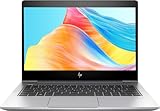
- 【Excellent Memory & Storage】This HP Elitebook 830 G5 Laptop Computer with 16GB high speed DDR4 RAM to smoothly run and launch multiple applications and browser tabs all at once; 512GB SSD allows to fast bootup and data transfer and provide ample space for your valuable data.
- 【Exceptional Processor】This laptop features Intel 8th Gen Core i7-8650U Processor 1.9GHz up to 4.2GHz. This processor enable handles complex tasks effortlessly, ensuring smooth performance in any business, study and daily scenario, which makes your work yield twice the result with half the effort.
- 【FHD Display】This Laptop is 13.3” FHD screen with 1920x1080 Resolution. It can offer a visually stunning display that enhances your viewing experience. Whether it's watching videos, playing games or browsing the web, more content can be displayed on the screen, while details are sharper and images are more lifelike.
- 【Ports Specs】HDMI, Thunderbolt port(USB Type-C), 2 x USB 3.1 Gen 1 , RJ-45/Ethernet, smart card reader.
- 【Operating System】Windows 11, will get all the features of Windows 10 Pro operating system and enhanced productivity. It is refurbished item in excellent condition, tested and cleaned by Amazon qualified vendors. 90-days Warranty.
Instead of fixating on a single number, look at three indicators: boot/app responsiveness (SSD), multitasking smoothness (RAM), and sustained behavior (thermals and power profiles).
What to measure on your own unit
- Run a basic system check after drivers are updated.
- Test storage speed in a tool you trust (and compare repeat runs).
- Confirm the fan curve behavior under a known workload and monitor CPU clock stability.
FAQs
Is the HP EliteBook 830 G5 good for Windows 11?
Support depends on the exact CPU generation, BIOS features (TPM/Secure Boot settings), and whether you’re installing Windows 11 officially. Always verify the CPU meets Windows 11 requirements and ensure TPM is enabled in BIOS.
If you’re unsure, check current firmware and confirm TPM status before upgrading.
Can I upgrade the RAM and SSD?
Often, you can upgrade storage, and some configurations support RAM upgrades depending on how HP built the motherboard for that SKU. Your specific service manual and your current “Memory” and “Device” reports in Windows will determine what’s possible.
What’s the best configuration for everyday work?
A common “sweet spot” is 16GB RAM and a 512GB SSD with a non-touch matte display if you don’t need touch. That combo tends to feel fast and avoids the storage-pressure issues that smaller drives create.
How do I find the correct drivers for my unit?
Use HP Support with the serial number or product number to pull the exact driver list for your Wi‑Fi card, graphics, and peripherals. Avoid generic “one size fits all” driver packs from third-party sites.
My Wi‑Fi is unstable. What should I try first?
Update to the latest HP-provided Wi‑Fi driver for your exact module, then review power management settings for the wireless adapter. If you’re still stuck, test with different power profiles and remove VPN/client drivers temporarily to isolate the cause.
Quick wins for a faster PC:
Fix the driver behind crashes, sound loss and screen glitchesFind Drivers →Repair Windows errors before they cause bigger problemsFix Now →Scan for outdated or missing drivers - takes under a minuteDriver Scan →Bottom Line
The HP EliteBook 830 G5 remains a solid business laptop when you match the right configuration to your use: prioritize a fast SSD and 16GB RAM if possible. With updated BIOS/drivers and a battery that’s still in good shape, it can be a dependable daily machine for office and enterprise workloads.
If you’re buying used, slow down and verify CPU, RAM, SSD capacity, display type, and any lock/account details. That checklist is what turns a “cheap deal” into a laptop you’ll actually want to keep.
Quick Recap
Product prices and availability are accurate as of the date/time indicated and are subject to change. Any price and availability information displayed on Amazon at the time of purchase will apply.




