In current Lightroom desktop, you whiten teeth by making a local adjustment to a People mask that covers only the teeth. On Lightroom mobile, the built-in Teeth slider under Retouch does this in one step when it is offered for the photo. Both approaches keep the rest of the portrait unchanged, and the desktop route also gives you manual control when automatic selection misses.
Whitening teeth in Lightroom desktop
Current Lightroom desktop uses the Masking panel to find facial features. Adobe’s masking help describes the capability this way: “You can select specific parts of the person – including skin, beard, clothes, hair, teeth, etc and make adjustments to those parts.” The page is Adobe product documentation and does not name an individual author. Adobe’s Apply Masking for local adjustments guide covers the full set of People selections.


As an Amazon Associate I earn from qualifying purchases.
- Open the portrait in the Develop module.
- In the right-hand panel, select Masking.
- Choose Select People, then select the person you want to edit.
- Choose the teeth option for that person. Lightroom creates a mask over the teeth.
- Review the mask overlay. If it includes lips or gums, use Subtract to remove them. Use Add to bring back any missed teeth.
- Adjust the masked area. Exposure controls brightness in the selection, and Saturation controls color intensity. Make small moves, then check the result at normal viewing size.
Adobe does not publish universal slider values for this. A modest change that matches the rest of the photo’s light is a sensible starting point. Teeth that look flat white or glowing usually have been pushed too far, so compare the result against the lips and skin before you accept it.
When the automatic mask is unreliable
Automatic selection can fail on small teeth, closed mouths, low-contrast lighting, or unusual angles. When that happens, switch to a manual mask:
#1 Best Overall
- Choose Brush in the Masking panel.
- Zoom in before you paint, so you can see the tooth edges clearly.
- Paint only over the teeth. Use Size to set the brush width and Feather to soften its edge.
- Lower Flow for gradual builds, and use Density to control the strength of the mask.
- Erase any spill onto the lips or gums.
Adobe’s Brush tool guide for Lightroom web documents these brush controls. Desktop uses the same masking concepts, but check the panel labels in your version because they may differ slightly.
Whitening teeth in Lightroom mobile
Lightroom mobile handles this through Retouch rather than a manual mask. Adobe’s guide to retouching people features in Lightroom mobile describes the Teeth slider.
Rank #2
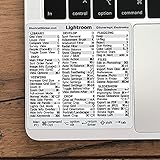
- 💻 ✔️ EVERY ESSENTIAL SHORTCUT - With the SYNERLOGIC Reference Keyboard Shortcut Sticker, you have the most important shortcuts conveniently placed right in front of you. Easily learn new shortcuts and always be able to quickly lookup commands without the need to “Google” it.
- 💻 ✔️ Work FASTER and SMARTER - Quick tips at your fingertips! This tool makes it easy to learn how to use your computer much faster and makes your workflow increase exponentially. It’s perfect for any age or skill level, students or seniors, at home, or in the office.
- 💻 ✔️ QUALITY GUARANTEE - We stand behind our product! It’s made with outstanding military-grade durable vinyl and the professional design gives our stickers an OEM appearance. Our responsive and dedicated customer service team is here to promptly respond to your messages and resolve any issues you may have.
- 💻 ✔️ From BASIC to ADVANCED - Whether you are a seasoned computer professional or a beginner, the SYNERLOGIC Sticker will save you both time and frustration, guaranteed! You can easily reach a new level of computer proficiency using our convenient and affordable sticker.
- 💻 ✔️ Cross-platform compatibility. The sticker is specially designed to work for both PC and Mac computer keyboards.
- Open a photo that contains a person.
- Tap Actions, then choose Retouch.
- If more than one person is detected, select the person you want to edit.
- Tap Teeth and drag the slider to adjust the effect.
Teeth may not appear for every image. Adobe states that the available feature options depend on what Lightroom detects in the photo or the selected person. If the result needs more precision, use the masking tools instead. Adobe’s masking tools guide for Lightroom mobile covers brush selection and erasing, and it recommends zooming in for precise work.
Quick wins for a faster PC:
Fix the driver behind crashes, sound loss and screen glitchesFind Drivers →Clear out junk files and repair common Windows errorsFree Scan →The Teeth Whitening effect in Lightroom Classic
Older tutorials often describe a Teeth Whitening effect in the Adjustment Brush workflow. Adobe’s Lightroom Classic local adjustments guide lists this effect, and it says missing local adjustment presets can be restored from Preferences. The same page states that this workflow no longer applies starting with Lightroom Classic 11.0, released in October 2021.
Rank #3

- Adobe Lightroom Classic keyboard cover with over 100 color-coded shortcuts for faster photo editing, culling and organizing, printed over each key.
- Built for Lightroom workflows: quickly find flags, ratings, Develop and Library commands when sorting and editing large photo batches.
- 0.3 mm ultra-thin silicone keyboard protector keeps rapid culling and editing keystrokes responsive while Lightroom shortcuts stay visible.
- Washable protection helps keep dust, crumbs and everyday spills off the keyboard. Remove, rinse, dry and reuse. Includes a 12-month warranty.
- Fits MacBook Pro 14/16 (M1-M5), MacBook Air 13/15 (M2-M5) and MacBook Neo 13 (A18 Pro). US English ANSI layout.
If you are on Classic 11.0 or later, follow the desktop Masking steps above instead of looking for that preset. If you are on an earlier version, you can use the legacy route, but Adobe’s documentation indicates that a current version is the better choice.
Keeping the result natural
- Change only the masked teeth, not the whole photo. Local controls exist for this purpose.
- Check the mask along the lip line and between teeth before you increase the effect. Spill there is the most common cause of a tinted lip edge.
- Compare before and after with the mask toggled on and off, not only at full zoom.
- Stop when the teeth look like a natural shade for that person’s age and lighting.
Choosing a method
| Method | Platform | Selection | Control | Version notes |
|---|---|---|---|---|
| Select People mask with Exposure and Saturation | Lightroom desktop | Automatic, feature-aware | Add and Subtract refinement, two sliders | Current desktop Masking workflow |
| Brush mask | Lightroom desktop | Manual | Size, Feather, Flow, Density, erasing | Current masking workflow |
| Teeth slider in Retouch | Lightroom mobile | Automatic, when offered | One slider | Available only when the photo or selected person supports it |
| Teeth Whitening effect | Lightroom Classic | Adjustment Brush preset | Preset-based local adjustment | Legacy; Adobe says it does not apply from Classic 11.0 onward |
For most people, the desktop People mask is the most precise option. The mobile slider is the fastest route when it is available. Use a manual brush mask only when automatic selection cannot isolate the teeth cleanly.
Adobe’s local adjustment controls guide explains the individual sliders that appear once a mask is active.
Quick Recap
Best Value

- 1)Provides Lightroom Shortcuts hot keys,improve and speed up your workflow
- 2)Made with premium engineering grade durable non-toxic silicone,ultra thin won't hurt the screen and made it easier for typing
- 3)Compatible for Magic Keyboard (MLA22LL/A-A1644) released in October 2015 with US layout
- 4)Removable and washable, keeping it clean and makes it always new, well protective and ideal for resistance against drink or food spillage's at home or at work
- 5)Flexible, washable, easy to apply and remove for cleaning or disinfecting; Manufactured to the Highest Quality Available
Product prices and availability are accurate as of the date/time indicated and are subject to change. Any price and availability information displayed on Amazon at the time of purchase will apply.




