To watch Peacock, install its app on a supported smart TV or streaming device and sign in, or use the Peacock app on a supported phone or tablet. You can also cast from the phone app to a Chromecast. Check Peacock’s current device list before troubleshooting an unsupported screen or buying a streaming device.
Check whether your device supports Peacock
Peacock’s device requirements vary by platform and can change. Its supported devices and platforms list, accessed October 4, 2026, includes the following minimums and device families:
As an Amazon Associate I earn from qualifying purchases.
- Fire TV devices running Fire OS 6 or later; Peacock notes that the Fire Max 11 Tablet is not currently supported.
- Apple TV HD (4th generation or later) running tvOS 18 or later.
- Chromecast (2nd generation or later), Google TV devices, and Android TV devices running Android OS 5.1 or later.
- Samsung Smart TVs from 2017 or later, and LG TVs running webOS 3.5 or later.
- Selected Roku models, PlayStation 4 and 5, and Xbox One, Series X, and Series S.
- Android phones and tablets running Android 7.0 or later, and iPhone or iPad running iOS 16 or later.
Peacock also lists Chrome 125 or later, Firefox 127 or later, and Microsoft Edge 125 or later on Windows or Mac, as well as Safari 17.3 or later on Mac. Requirements can be model-specific: check the official list for your exact TV or device rather than assuming that every product in a brand family works.
Install Peacock on a smart TV
- Check that your TV model and software meet Peacock’s current requirements.
- From the TV home screen, look through installed apps for Peacock.
- If it is missing, open the television’s app store and search for “Peacock.”
- Select the app and install it.
- Open Peacock and sign in, or choose “Pick a Plan” to begin account setup. Peacock’s smart TV setup instructions describe this flow.
Install Peacock on Fire TV
Fire TV devices use Amazon’s app store rather than a TV manufacturer’s app store. On a compatible Fire TV, open Find or the Appstore from the home screen, search for Peacock, select it, and choose Get or the download option. Open the app after installation and sign in, or choose Pick a Plan to sign up. See Peacock’s Fire TV installation steps.
#1 Best Overall

- 4K streaming made simple:With America’s number 1 TV streaming platform,* exploring popular apps—plus tons of free movies, shows, and live TV—is as easy as it is fun. *Based on hours streamed—Hypothesis Group
- 4K picture quality: With Roku Streaming Stick Plus, watch your favorites with brilliant 4K picture and vivid HDR color.
- Compact without compromises: Our sleek design won’t block neighboring HDMI ports, and it even powers from your TV alone, plugging into the back and staying out of sight. No wall outlet, no extra cords, no clutter.
- No more juggling remotes: Power up your TV, adjust the volume, and control your Roku device with one remote. Use your voice to quickly search, play entertainment, and more.
- Shows on the go: Take your TV to-go when traveling—without needing to log into someone else’s device.
Do not treat a Fire TV streaming device and an Amazon Fire tablet as interchangeable. Peacock supports Fire TV devices meeting its stated Fire OS requirement, but says the Fire Max 11 Tablet is not currently supported.
Watch on an iPhone, iPad, or Android device
Install the Peacock app from your device’s app store, then open it and sign in. Peacock also describes creating an account through PeacockTV.com as a starting point in its getting-started guide. Check the current minimum iOS or Android version if the app is unavailable or will not install.
Rank #2

- Our fastest-ever streaming media player - Brings lightning-fast app starts with an octa-core processor and is 2X as powerful as Fire TV Stick 4K Max.
- The newest Fire TV experience (2026) – Our biggest update to Fire TV has a new, modern design that gets you to your entertainment fast. Browse dedicated content categories, pin more of your favorite apps, and get personalized recommendations from Alexa+. Spend less time scrolling, and more time watching.
- Smarter picks with Alexa+ – Getting to what you love has never been easier. Press the voice remote button and talk naturally to find what to watch across your apps, manage your smart home, or dive into virtually any topic.
- Hands-free Alexa with built-in mic and speakers - Control your compatible TV, soundbar, and receivers with your voice, even from across the room.
- Seamlessly navigate between your entertainment - Connect compatible devices and easily go from streaming to your cable box, game console, or webcam.
Cast Peacock from a phone to Chromecast
- Connect the phone and Chromecast to the same Wi-Fi network.
- Open the Peacock app on your phone and choose a title.
- Press Play, tap the Chromecast icon, and select the TV or Chromecast device.
If the phone cannot find the Chromecast, Peacock recommends checking that Google Home is installed and that both devices are on the same Wi-Fi network. Follow Peacock’s Chromecast instructions.
Sign in to Peacock on a TV with an activation code
- Open Peacock on the TV and choose Sign In to display an activation code.
- On a phone, tablet, or computer, open Peacock’s activation page in a browser and sign in.
- Enter the code shown on the TV and follow the on-screen steps.
Use eligible Xfinity access
Peacock says eligible Xfinity customers can link their Xfinity account through the Peacock app on an X1 or Flex device. Once linked, they can watch on any supported device. Eligibility depends on the customer’s account or package; this access does not apply automatically to every Xfinity subscriber. See Peacock’s Xfinity linking instructions.
Rank #3
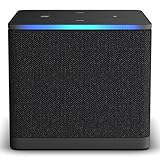
- Like-New Fire TV Cube is refurbished, tested, and certified to look and work like new and comes with the same limited warranty as a new device. Like-New Amazon devices may be packaged in generic Amazon-branded boxes.
- Our fastest-ever streaming media player - Brings lightning-fast app starts with an octa-core processor and is 2X as powerful as Fire TV Stick 4K Max.
- Hands-free Alexa with built-in mic and speakers - Control your compatible TV, soundbar, and receivers with your voice, even from across the room.
- Smarter searching starts here with Alexa – Find movies by actor, plot, and even iconic quotes. Try saying, "Alexa show me action movies with car chases."
- Seamlessly navigate between your entertainment - Connect compatible devices and easily go from streaming to your cable box, game console, or webcam.
If your TV does not support Peacock
A compatible external streaming device may let you use Peacock on an older TV, but confirm the exact model and minimum software version on Peacock’s supported-device list before buying. Start with compatibility; then consider which ecosystem you already use and how you prefer to watch:
- Choose a device with a supported Peacock app if you want to install and run Peacock directly on the TV.
- If you already use an iPhone and Apple TV, or an Android phone and Chromecast or Google TV, the matching ecosystem may make setup more familiar.
- Phone casting is a separate option for supported Chromecast devices; it depends on the phone app and both devices being on the same Wi-Fi network.
Peacock’s Premium Plus plan includes downloads for select titles on supported mobile and tablet devices. Downloads are not a way to install Peacock on a television. The plan page says Premium Plus has no ads with limited exclusions, while noting that some programming—including channels, sports and events, and some shows and movies—may still contain ads. Check Peacock’s live plan details for current terms; prices are not included here because they can change.
Quick Recap
Best Value

- This bundle contains Amazon Fire TV Stick 4K Select and Alexa Voice Remote Pro.
- The newest Fire TV experience (2026) – Our biggest update to Fire TV has a new, modern design that gets you to your entertainment fast. Browse dedicated content categories, pin more of your favorite apps, and get personalized recommendations from Alexa+. Spend less time scrolling, and more time watching.
- Essential 4K streaming – Get everything you need to stream in brilliant 4K Ultra HD with High Dynamic Range 10+ (HDR10+).
- Make your TV even smarter – Fire TV gives you instant access to a world of content, tailor-made recommendations, and Alexa, all backed by fast performance.
- Find it fast. Watch it now. – Easily find what to watch from hundreds of thousands of movies and TV episodes (subscription fees may apply), including free, ad-supported content.
Rank #4

- COMPATIBILITY: Compatible with Samsung Galaxy Tab S10 FE 10.9 inch 2025 (Model: SM-X520/X526B/X528U), Galaxy Tab S9 FE 10.9 inch 2023 (Model: SM-X510/X516/X518), Galaxy Tab S9 11 inch 2023 (Model: SM-X710/X716/X718).Please confirm your model before purchasing
- ADJUSTABIE STANDING: for Samsung tablet S10 FE&S9 FE 10.9 INCH/S9 11 inch Case allows you to adjust Tablet to multiple angles securely,liberates your hands,you can choose to watch movies, play games and online chatting,and for your work and study to provide the most comfortable experience
- MATERIAL: for The Galaxy Tablet Case is made from premium soft TPU and PU leather, to create the full-body protection for galaxy tab S10 FE&S9 FE 10.9inch/S9 11 inch tablet, Not only shock/-proof/long-lasting but also comfortable to hold
- FULL ACCESS: The Tablet case allows easy-access to all buttons, controls and ports without removing the for Samsung Galaxy Tab S10 FE/ S9 FE/ S9 5G 11'' Tablet from the case; Shock protection keeps for Samsung Galaxy Tablet away from shocks
- SMART SLEEP/WAKE FUNCTION: Built-in magnetic strip offer auto sleep/wake, Simply open the flip case to wake up and cover the screen to shut off ,Save on power to maximize your tablet standby time and battery life.
Product prices and availability are accurate as of the date/time indicated and are subject to change. Any price and availability information displayed on Amazon at the time of purchase will apply.
Recommended Free Tools




