You usually do not need to uninstall WordPress to repair it. If the site is broken but you want to keep its content, refresh the WordPress core files and preserve the database, wp-content, and wp-config.php. Removing an installation and starting over is a separate, destructive choice that can erase content and settings. Back up both the site files and database before either route.
First decide whether you are repairing WordPress or starting over
“Reinstall WordPress” can mean two different things:
As an Amazon Associate I earn from qualifying purchases.
- Repair the WordPress core: Replace or reinstall WordPress’s program files while retaining the existing site. This is the appropriate first route when you suspect damaged or missing core files.
- Remove the installation and build a new site: Create a fresh installation, possibly discarding the existing database or files. This is not a routine step in repairing WordPress and may permanently remove posts, pages, uploads, themes, plugins, settings, and user accounts.
A core reinstall does not by itself delete the site database or user content. Conversely, deleting the database or the installation’s files is not necessary just to refresh core files.
Back up the complete site before changing it
WordPress Developer Resources describes a complete site backup as having two parts: “Database and Files.” The database and the files are separate; downloading the site directory alone does not normally save the database.
#1 Best Overall

- Lightweight and convenient: Lexar JumpDrive A30E (USB Type-A) boasts a slim, portable design for easy device compatibility; lightweight at 7.41 g
- Transfer speeds up to 100 MB/s: 10x faster than standard USB 2.0 drives; Based on internal testing, performance may vary depending upon the host device, interface, and usage conditions
- Wide compatibility: Compatible with tablets, laptops, Macs, and traditional Type-A devices, no software installation required; Reliably stores photos, videos & files
- Compact: Features a push-button retractor and a lanyard loop for on-the-go use
- Enhanced security: Lexar DataShield protects files, easily creates a password-protected safe with auto-encryption; Files deleted from the safe are securely erased and can't be recovered
Back up the files
Download a copy of the WordPress installation files using your host’s file manager or an FTP/SFTP program. Keep the copy somewhere separate from the live installation. Pay particular attention to wp-content, which contains uploads, themes, and plugins, and wp-config.php, which contains database connection details. Other site files, including .htaccess where present, may also matter to your setup.
Export the database
Use your hosting control panel’s database tools or another host-supported method to export the WordPress database to a file, such as an SQL export or compressed export. Store it with the corresponding file backup and label it so you can identify which site it belongs to. Restoring the files alone will not restore database content; the database must be imported separately.
Do not assume that a host’s backups replace a copy you can access and restore yourself. A local computer is one possible place to keep backup copies; an external drive is optional, not a WordPress requirement.
Recommended Free Tools
Rank #2

- ULTIMATE RELIABILITY: Store and transfer important documents, presentations, music, videos and photos effortlessly with the DataStick Pro; this 1TB flash drive ensures your data remains secure, catering to both personal and professional needs
- USB 3.2 SPEED: Technology allows for up to 10x faster than standard USB 2.0 drives
- LONG-LASTING, CLASSIC & COMPACT DESIGN: The DataStick Pro features a lightweight aluminum casing, providing a sleek and sturdy design that's perfect for daily use and travel
- MULTI-DEVICE SUPPORT: Works seamlessly with most PC and Mac desktop and laptop computers equipped with USB 3.0 ports; additionally, it's compatible with adapters for USB-C ports
- BACKWARD COMPATIBILITY: The DataStick Pro is backward compatible with USB 2.0, making it versatile across older systems
Choose the right reinstall route
| Route | Use it when | Preserve or check |
|---|---|---|
| Dashboard reinstall | You can sign in to WordPress admin and want to refresh the current core version. | Back up files and database first; confirm the site and version afterward. |
| Manual core replacement | The dashboard reinstall is unavailable and a core-file problem is suspected. | Follow the current official manual update instructions. Keep the existing wp-content directory and wp-config.php; verify the installation path with your host if uncertain. |
| Fresh installation | You deliberately want a new site or a clean environment. | Decide what must be migrated, and keep a restorable copy of both files and database before removing anything. |
Reinstall WordPress from the dashboard
If you can log in as an administrator, WordPress documents a reinstall action for the current version in the Updates screen. Interface wording can vary by WordPress version.
- Complete and check a backup of both the site files and database.
- In WordPress admin, open Dashboard → Updates.
- Choose Re-install now for the current version, if that action is available.
- Wait for the process to finish, then load the site and sign in to the admin area to check whether the original problem remains.
This refreshes WordPress core; it is not an instruction to delete the database, uploads, themes, or plugins.
Replace core files manually when dashboard access is unavailable
If you cannot use the dashboard reinstall, use the current official WordPress manual update instructions and a fresh package from the official WordPress download page. The documented manual-update approach replaces WordPress core files, including wp-admin, wp-includes, and root-level core files. Follow the current instructions rather than relying on an old copied file list, since procedures and file layouts can change.
Rank #3

- [Package Offer]: 1 Pack USB 2.0 Flash Drive 128GB Available in Red Color.
- [Plug and Play]: No need to install any software, Just plug in and use it. The metal clip rotates 360° round the ABS plastic body which. The capless design can avoid lossing of cap, and providing efficient protection to the USB port.
- [Compatibilty and Interface]: Supports Windows 7 / 8 / 10 / Vista / XP / 2000 / ME / NT Linux and Mac OS. Compatible with USB 2.0 and below. High speed USB 2.0, LED Indicator - Transfer status at a glance.
- [Suitable for All Uses and Data]: Suitable for storing digital data for school, business or daily usage. Apply to data storage of music, photos, movies, software, and other files.
- [Warranty Policy]: 12-month warranty, our products are of good quality and we promise that any problem about the product within one year since you buy, it will be guaranteed for free.
- Back up the complete site, including an export of its database.
- Obtain the fresh WordPress package from the official download page and consult the current manual update instructions.
- Confirm the actual WordPress installation directory. If you are not sure which directory the domain uses, ask your hosting provider before replacing files.
- Use the file manager, SFTP, FTP, or shell access supported by your host to carry out the official replacement procedure.
- Preserve the existing
wp-contentdirectory andwp-config.php. Do not deletewp-contentas part of replacing core files. - When the replacement is complete, load the site and try signing in to the WordPress admin area.
Hosting providers differ in their file paths, available tools, and account setup. Ask the host which directory and access method apply to your installation instead of guessing.
Quick wins for a faster PC:
Scan for outdated or missing drivers - takes under a minuteDriver Scan →Repair Windows errors before they cause bigger problemsFix Now →Fix the driver behind crashes, sound loss and screen glitchesFind Drivers →Remove WordPress only when you intend to create a new site
A fresh installation is appropriate when you have deliberately chosen to start over or build in a clean environment—not merely because a core refresh failed. Before removing files or a database, confirm that the backup is complete and that you can identify the correct installation and database.
- Decide whether you need to move any posts, pages, media, accounts, settings, themes, or plugins into the new site.
- Keep a restorable copy of the old files and a separate database export. Do not treat a folder download as a database backup.
- Confirm the installation directory and database with your host before deleting anything, particularly if the account contains more than one site.
- Use your host’s supported process to create the new installation. Hosting setup and control-panel steps vary, so follow the provider’s instructions for that account.
Deleting files or a database can make recovery difficult or impossible without a usable backup. If your goal is simply to replace core files, use one of the repair routes above instead.
Rank #4
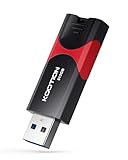
- High-Speed Transfer: With read speeds of up to 100 MB/s. Based on internal testing, performance may vary depending on the host device and user settings and configurations
- 512GB Huge Capacity: The zip drive has ultra-fast data transfer speed, supports any digital data, can transfer high-capacity 4K videos, HD photos, gaming data and more, letting you enjoy the instant large capacity at any time
- Plug and Play: Just plug and play, without any software installation.The USB stick can expand the capacity of the computer for file sharing, data transmission, and video playback when working or studying
- Safe & Retractable: Features a stylish push-pull design that is protects the USB port. The jump drive has a convenient loop at the end for easy portability, allowing you to safely store your precious memories
- Wide compatibility: The memory stick is compatible with multiple operating systems, including Windows 10/ 8/ 7/ Vista/ XP/ 2000/ 98/ ME/ NT Linux/ Mac OS, and compatible with 3.0 and below
Check the site and identify problems a core reinstall cannot fix
After a reinstall or core replacement, check whether the public site loads and whether you can sign in to WordPress admin. If the same error remains, the cause may be outside the core files.
- Database connection: Check whether the database is available and whether the connection details in
wp-config.phpmatch the host’s setup. Ask the provider about database access if needed. - Domain or directory mapping: Confirm that the domain points to the installation directory you updated. A correct reinstall in the wrong directory will not repair the site being served.
- SSL configuration: If the problem concerns HTTPS or a certificate, ask the host to check the domain’s SSL configuration; reinstalling core does not configure the certificate.
- Plugins or themes: If the error began after a plugin or theme change, investigate that component rather than assuming core files are the cause. Preserve a backup before changing site components.
- Permissions or hosting setup: If files cannot be read or written, or installation checks fail, ask the provider about account permissions and server configuration.
- Modified core files: If core files were customized, replacing them may overwrite those changes. Keep a backup and account for any custom modifications before proceeding.
WordPress requires a MySQL or MariaDB database. When installation or setup checks do not resolve the problem, WordPress’s installation guidance recommends contacting the hosting provider. A core reinstall is not a general fix for database, domain, SSL, or server configuration faults.
Quick Recap
Product prices and availability are accurate as of the date/time indicated and are subject to change. Any price and availability information displayed on Amazon at the time of purchase will apply.




