Do these 3 things before closing this tab:
1Fix the driver behind crashes, sound loss and screen glitches2Clear out junk files and repair common Windows errors3Scan for outdated or missing drivers - takes under a minuteFor a quick accent, press and hold the letter key and choose a displayed option. For accents you type often, use a dead-key combination such as Option-N, then A, with the ABC keyboard layout. To find an unfamiliar character or symbol, open Character Viewer and search for it.
Choose the right method
| What you need | Best method |
|---|---|
| An occasional accented version of a letter | Press and hold the letter key, then choose an option from the accent menu. |
| Accented letters you type regularly | Use dead keys or add the ABC – Extended input source. |
| A symbol, emoji, or character whose shortcut you do not know | Search for it in Character Viewer. |
Type an accent with the press-and-hold menu
- In a text field, press and hold the letter you want to accent, such as
a. - When the accent menu appears, press the number shown for the character you want, or use the arrow keys to select it and press Space. You can also choose an option with the pointer.
The menu only appears when that key has available accent marks, and Apple notes that it does not work in every app. If nothing appears, try a dead-key combination or Character Viewer instead. Apple’s instructions are in Enter characters with accent marks on Mac.

As an Amazon Associate I earn from qualifying purchases.
Use dead keys for accents you type often
A dead key enters an accent mark first; the next letter combines with it. With the ABC input source, Apple’s example for typing ã is Option-N, then a. In Pages, Apple also documents Option-I, then a, for â. These examples apply to the stated layout; a different input source may use different combinations.
For frequent Latin-script accents and diacritics, Apple suggests the ABC – Extended input source. To add or select an input source, go to System Settings > Keyboard > Text Input > Edit. Choose ABC – Extended from the available input sources. Exact interface wording can vary by macOS version.
#1 Best Overall
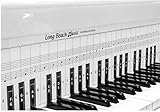
- COMPREHENSIVE TRAINING TOOL: Full 48 inches long, fits across all 88 piano keys, shows ALL notes and positions on the music staff
- 2-SIDED CHART DESIGN: One side for behind the piano keys (shows all notes and positions), other side for table top use (finger exercises, shows notes on keys)
- AWARD RECOGNITION: Voted best practice keyboard by NAMM (National Association of Music Merchants)
- DURABLE CONSTRUCTION: Made of heavy, coated, durable paper for lasting use
- THREE-DIMENSIONAL KEY ILLUSTRATION: Features detailed graphic notations of all notes with a three-dimensional drawing of piano keys for enhanced visual learning
Apple’s examples are documented in Enter characters with accent marks on Mac and Accents and special characters in Pages on Mac.
Check your active keyboard layout
If an Option-key combination produces a different character than expected, check the selected input source rather than assuming your keyboard uses the ABC layout. Keyboard Viewer displays the active layout; pressing Option, Shift, or another modifier shows the keys available with that modifier. Orange outlines mark dead keys that combine with a letter to make an accent.
- Open System Settings > Keyboard > Text Input > Edit and turn on Show Input menu in menu bar if the Input menu is not visible.
- Open the Input menu in the menu bar and choose Show Keyboard Viewer.
- Press a modifier such as Option or Shift to inspect the changed key labels. Use the viewer to confirm the mapping for your selected layout.
See Apple’s Use the Keyboard Viewer on Mac for its layout-viewing instructions.
Find a symbol or character in Character Viewer
Character Viewer is the search-and-insert tool for symbols, emoji, accented letters, and characters used in other languages. Open it from Edit > Emoji & Symbols in an app, or press Control-Command-Space. Apple also documents Fn/Globe-E as an opening shortcut on some setups; the Fn/Globe key’s action can be configured in Keyboard settings.
Rank #3
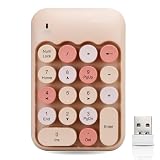
- 【Wireless connection, plug and play】 This keyboard adopts 2.4GHz wireless technology, just plug the wireless receiver into the USB port of the computer to use, no device driver is required. The signal transmission is stable, and the use range can reach up to 10m.
- 【Colorful Round Keycap】 The keycaps are made of ABS material with a smooth and comfortable surface. The cute round keycaps and stylish and colorful colors bring you a pleasant typing experience.
- 【Lightweight and Portable】This product weighs only 105g and measures 135 x 90 x 25mm. Its lightweight design makes it easy to carry and is your reliable assistant for digital entry.
- 【Multi-function key】When the Numlock light is on, the functions of 2/4/6/8 are numeric keys. When the Numlock light is off, the functions of 2/4/6/8 are direction keys.
- 【Product Guarantee】All of our products are inspected for quality before shipping. If there are quality issues with the product within one year of purchase, we offer a refund or a free replacement. If you have any questions, please feel free to contact us.
- Open Character Viewer using one of the available routes.
- Search by the character’s name or Unicode code.
- Select the result to insert it. In the expanded viewer, you may need to double-click the character.
Apple’s instructions are available in Use emoji and symbols on Mac and Use accents and special characters in Numbers on Mac.
Quick Recap
Rank #4

- ⦗ ANY PIANO ⦘ Suitable for all popular piano models and 88 key keyboard. Chart sits nicely behind the keys and does not interfere with your playing. 🎹
- ⦗ NOT A STICKER ⦘ No extra time and effort is needed. It's easy to place, and easy to remove when finished practicing. 🎵
- ⦗ 88 KEYS ⦘ The sheet covers all notes of 88 key keyboard. 🎼
- Cover All treble clef and bass clef notes up to 88 keys. 🎼
- Work with only 88 key keyboard and piano. 💯
If a shortcut or menu does not work
- No accent menu: The letter may have no available accent options, or the current app may not support the menu. Use Character Viewer or a dead key.
- Unexpected result from Option: Check the active input source in Keyboard Viewer; the examples above are specific to ABC or Pages as noted.
- Can’t find Character Viewer: Try Edit > Emoji & Symbols or Control-Command-Space. Availability of the Fn/Globe-E route depends on setup.
Product prices and availability are accurate as of the date/time indicated and are subject to change. Any price and availability information displayed on Amazon at the time of purchase will apply.




