Free tools Windows power users keep installed
One-click scans. No signup required.
You can loop a prerecorded yoga stretch routine on YouTube Live with OBS Studio: add the video as a Media Source, enable Loop, connect OBS to a YouTube encoder stream, then check the preview before starting the broadcast. This repeats the file, but it does not keep your computer or internet connection running indefinitely; for a stream that must continue with your computer off, see the cloud option below.
Before you start
- A YouTube channel that is verified, eligible for live streaming, and has no live-streaming restriction relevant to YouTube’s 90-day eligibility rule.
- A computer running OBS Studio and a local copy of the yoga routine.
- A stable internet connection with enough upload capacity for the selected stream bitrate.
- Permission to broadcast the full video and every audio element in it, including music.
YouTube says first-time live-streaming activation can take up to 24 hours, and that creators must be at least 16 to live stream. Check YouTube’s live-streaming eligibility guidance before planning your first broadcast.



As an Amazon Associate I earn from qualifying purchases.
Prepare the routine and check its rights
Use a video file you have the right to broadcast. Rights must cover the entire recording, not just the yoga instruction: music, background audio, graphics, and any third-party footage can also trigger a copyright issue. YouTube scans live streams for third-party content and may replace the stream with a placeholder, interrupt it, or terminate it. If your routine includes licensed third-party material, ask the rights owner whether your channel must be added to its Content ID allowlist before you go live. See YouTube’s copyright guidance for live streams.
Test the actual file before scheduling. Confirm that the picture is correctly oriented and framed, and that the audio is present and at a comfortable level. A prerecorded routine is a replay, not a real-time class: viewers cannot interact with the recording as if you were teaching live.
#1 Best Overall
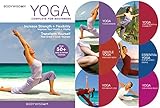
- YOGA FOR BEGINNERS DVD HIGHLIGHTS DVD
- YOGA FOR STRESS RELIEF DVD
- 12 customized routines that make all the physical and mental benefits of yoga available to everyone
- Choose from 12 easy-to-follow customized routines ranging from 15-60 minutes
- Experience yoga in a whole new way that increases your strength, flexibility & energy levels while reducing stress.
Loop one routine in OBS
- Create a scene. Open OBS Studio and add a scene for the broadcast.
- Add the video. In the Sources panel, select + → Media Source, name the source, and choose the local routine file. OBS supports common local video formats; see OBS Media Sources.
- Enable repeat. In the Media Source properties, turn on Loop. OBS describes this setting as whether the file plays again once playback has completed. The clip will restart at its end while the source remains active.
- Fit the image to the canvas. Select the source in the preview and use the transform options to fit it to the canvas, checking that the full routine frame is visible and not unintentionally cropped.
- Check audio. Play the source and watch the OBS audio meter. Confirm the routine’s audio is included, not muted, and not clipping. If the source’s audio is missing, verify the file’s audio track and OBS source settings before continuing.
For several routines, use OBS’s VLC Video source with a playlist and its loop-playlist setting. VLC must also be installed. The single-file Media Source is simpler when you only need to repeat one routine.
Connect OBS to YouTube Live
- Open YouTube Studio’s Live Control Room. Create or schedule an encoder stream, or select the broadcast you intend to use. Follow YouTube’s encoder instructions.
- Copy the connection details. Copy the stream URL and stream key shown for that stream into OBS’s streaming settings. The key is a credential: YouTube says it works like a password and address, so do not share it or show it on screen. Stream-key handling is covered in YouTube’s live-stream settings guidance.
- Choose a sustainable output. Set OBS to a resolution and frame rate suitable for the source and your upload connection. In YouTube’s encoder guidance, 720p at 30 fps is listed with a video bitrate range of 2–6 Mbps. YouTube recommends CBR and a 2-second keyframe interval; do not exceed 4 seconds. These are platform recommendations, not a guarantee that your connection can sustain them. Consult the current YouTube encoder settings.
- Leave upload headroom. YouTube recommends keeping 20% upload bandwidth headroom and notes that connectivity disruptions can break a stream. Test your upload connection under realistic conditions rather than setting OBS to the highest bitrate your connection can briefly reach. See YouTube’s streaming tips.
Test, start, and monitor the broadcast
- Start streaming from OBS and wait for the preview to appear in YouTube’s Live Control Room.
- Check both picture and sound in the YouTube preview. Confirm that the routine is framed correctly, the audio is audible, and the stream health is acceptable.
- If appropriate, test with a private or unlisted broadcast before announcing a public one. Check the viewer-facing YouTube watch page as well as the encoder preview.
- When the preview and settings are correct, start the broadcast in Live Control Room. Keep an eye on stream health and the watch page while it is running.
- When you are finished, stop the broadcast in YouTube and then stop the encoder. YouTube’s live-streaming tips say: “After your event has stopped on YouTube, stop the encoder.” See YouTube’s live-streaming tips.
What “continuous” means with a local OBS loop
OBS’s Loop setting repeats the video file; it does not restart a crashed encoder, restore a lost internet connection, or prevent a computer from sleeping, shutting down, or losing power. A continuous loop is therefore only as continuous as the machine, OBS, and network connection running it. Disable sleep for the planned broadcast, keep the computer powered, and monitor the stream if interruptions matter.
Plan the end of the broadcast and its archive separately. YouTube says streams under 12 hours are automatically archived. That guidance does not establish that a stream lasting 12 hours or longer will be archived in full. If you need a complete replay, keep the original routine file and plan a separate archive workflow rather than relying on a long live broadcast.
Or let it run in the cloud
If you need the routine to continue without leaving a home computer and connection running, StreamNeo is a YouTube-only cloud service for looping uploaded videos. Upload the routine, add your YouTube stream key once, and go live. Nothing has to stay on at home; it streams the uploaded file as made, up to 4K 60fps, at one flat price per slot, and automatically recovers if YouTube drops the stream. The first day is free with no card. Monthly access is $9.99 per month. StreamNeo plays uploaded videos rather than going live from a camera. Start the free day on StreamNeo.
Rank #3

- yoga stretching video
- pilates yoga
- abs strength
- home gym workout
Common problems and fixes
- You cannot start a live stream: verify the channel and live-stream eligibility, check for restrictions, and allow up to 24 hours if this is the first activation.
- YouTube does not receive the encoder feed: confirm you copied the stream URL and key for the selected broadcast, and that the key was entered correctly in OBS. If the key may have been exposed, replace it in YouTube’s live settings and update OBS.
- The routine stops instead of repeating: reopen the Media Source properties and check Loop. For a VLC playlist, confirm VLC is installed and the playlist loop option is enabled.
- The image is cropped or audio is absent: check the source transform and canvas framing; then verify the file’s audio track, OBS source audio settings, and mixer level.
- The stream buffers or loses health: reduce the output bitrate or resolution, check upload capacity, and preserve the recommended 20% headroom. A brief speed-test result alone does not establish that the connection will stay stable.
- YouTube interrupts or replaces the stream: review the recording and its music and other third-party elements, then resolve any rights or Content ID allowlisting issue with the rights owner.
- You cannot find a complete replay afterward: YouTube’s stated automatic archive guidance applies to streams under 12 hours; retain the original file and use a separate archive plan for longer broadcasts.
Monetization is eligibility-dependent
Eligible creators may be able to monetize live streams through ads, Super Chat, Super Stickers, or memberships, according to YouTube’s live-stream monetization guidance. Eligibility applies, and ad slots are not guaranteed to serve; do not treat these options as predictable income.
Quick Recap
Best Value
Product prices and availability are accurate as of the date/time indicated and are subject to change. Any price and availability information displayed on Amazon at the time of purchase will apply.




