Free tools Windows power users keep installed
One-click scans. No signup required.
You can run a continuous Malayalam lofi stream on YouTube with an encoder, a verified and eligible channel, and music and visuals cleared for live-stream use. The main complication is archiving: YouTube warns that streams longer than 12 hours may not be captured, so plan shorter broadcasts and keep a local recording if you need a dependable replay.
What you need before starting
- A YouTube channel that is verified and eligible for live streaming. YouTube says channels must have no live-streaming restrictions in the previous 90 days, and its general live-start guidance sets a minimum age of 16. If you have never enabled live streaming, YouTube for Artists advises doing so at least 24 hours before your planned start. Check the current requirements in YouTube’s live-streaming Help page and YouTube for Artists.
- An encoder to send your prepared music-and-visual program to YouTube. YouTube identifies encoder streaming as suitable for customized productions, such as those with overlays. Its setup guidance is at Set up your encoder for live streaming.
- Tracks and visuals you made yourself or have permission to use in a public YouTube livestream. Confirm that rights also cover an archived replay if you intend to keep one.
- A playback queue that can continue or loop without manual intervention, plus a way to monitor incoming audio and the encoder. These are practical workflow needs, not a guarantee of unattended operation.
Clear the music and visuals for live use
Use original compositions, or obtain permission that specifically covers public streaming on YouTube. Buying or downloading a track, seeing it described as “royalty-free,” or holding a license does not by itself establish that it is cleared for your particular live broadcast and replay.


As an Amazon Associate I earn from qualifying purchases.
YouTube scans live streams for third-party content. If it detects a match, it may place a placeholder over the stream and warn you to stop using the content. If the issue is not addressed, the broadcast can be interrupted or terminated. A copyright or Community Guidelines strike can also end a stream. Even licensed material can trigger a disruption if the rights holder has not added your channel to its Content ID allowlist. Ask the owner, label, or distributor about allowlisting when relevant. See YouTube’s guidance on live-stream copyright.
Keep a record for each track of its owner, license terms, territory, attribution wording, and whether the permission covers both the live broadcast and any replay. This is useful recordkeeping, not a specific spreadsheet YouTube requires. If a stream is archived, YouTube says Content ID claims are made after the broadcast is complete.
Set up and start the YouTube broadcast
- Enable and check live access. Verify your channel and confirm it has no current live-streaming restriction. If this is your first time streaming, enable the feature well in advance; YouTube for Artists recommends at least 24 hours before going live.
- Create or select a live stream in YouTube Studio. Open Live Control Room and set up the broadcast. Follow YouTube’s current encoder setup instructions, since interface labels can change.
- Copy the server URL and stream key into your encoder. Treat the key like a password: do not show it in the visuals, put it in the description, or share it with anyone who should not be able to send video to your channel.
- Build the program and playback queue. Add only tracks and visuals cleared for this use. Set the playback workflow to advance or loop without requiring someone to restart it manually, and check that the audio continues between tracks.
- Start sending the program, then inspect the preview. Confirm the incoming video and audio appear in Live Control Room and that the correct stream is selected before starting the broadcast. YouTube’s encoder guide explains the connection and preview workflow.
- Monitor the live output. Watch for encoder disconnections, silent gaps, playback stopping, or YouTube copyright warnings. Keep a local recording if preserving the program matters.
No bitrate, resolution, or encoder-vendor recommendation is established here; check the current requirements for the encoder you choose and YouTube’s live setup guidance rather than relying on a guessed setting.
Plan 24/7 operation around YouTube’s archive limits
A continuous 24-hour broadcast is not the same as a reliably archived 24-hour video. YouTube says streams under 12 hours can be automatically archived, but streams exceeding 12 hours may not be captured at all. It recommends keeping a local archive backup. Treat the under-12-hour threshold as guidance, not a promise that every stream will archive successfully. See YouTube’s live-stream archive guidance.
If you need each broadcast preserved, schedule separate segments shorter than 12 hours, leave time to end and restart the encoder and broadcast deliberately, and retain local recordings. Segmentation is a practical response to YouTube’s archive guidance; it does not guarantee a seamless restart or a complete archive.
Recommended Free Tools
Very long streams can also limit or remove DVR rewind for viewers, including streams longer than 12 hours, according to YouTube’s DVR guidance. Decide whether continuous listening, rewind, and a replay archive are all priorities, then test the actual workflow before depending on it.
Rank #3
Keep the stream running: DIY or cloud
Run an encoder yourself
A locally run encoder gives you direct control of the playback queue and program, but it depends on your local setup continuing to work. Keep the computer and network available, monitor playback and the incoming stream, and plan what you will do if the encoder or connection stops. The steps above cover the YouTube setup; the exact automation and restart behavior depend on the encoder you select.
Or let it run in the cloud
StreamNeo keeps a YouTube channel live from uploaded videos, without a computer or home connection having to stay on. Upload your recording or build a playlist, add your YouTube stream key, and go live. It loops the uploaded program in the cloud and automatically recovers if YouTube drops the stream. It plays uploaded videos, not a live camera feed, and streams to YouTube only.
Rank #4

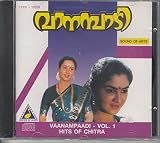
- Melodious Compilation: Immerse yourself in the captivating melodies of Malayalam film songs with this 'RAAGA RANJINI' album.
- Timeless Classics: Featuring a curated selection of iconic and evergreen songs from beloved Malayalam movies.
- Talented Artists: Enjoy the soulful renditions by renowned playback singers and musicians.
- Nostalgia Revisited: Relive cherished memories and emotions through these melodic gems.
- Audio Quality: Experience crystal-clear audio quality, allowing you to savor every note and nuance.
Every slot includes one always-on stream, 10 GB of storage per slot pooled across active slots, 24/7 looping and playlists, support from the StreamNeo team, and streaming at the quality uploaded up to 4K 60fps. There is no re-encode or quality tier; the same product is included on every plan, with only the billing length changing. The first day is free with no card, once per account. UPI and cards are supported in India; card checkout is available worldwide. For five or more slots, contact support.
Daily $0.99 per day · Weekly $2.99 per week · Monthly $9.99 per month · 6 months $49.99 for 6 months · Yearly $89.99 a year. You can cancel at any time.
To try the cloud workflow, start your free first day with StreamNeo.
Quick Recap
Troubleshoot common failures
- No preview in Live Control Room: Check that the encoder is sending to the selected stream’s server URL and that the matching stream key is entered correctly. Keep the key private; if you think it has been exposed, replace it in YouTube Studio and update the encoder.
- The stream is interrupted after a music warning: Stop or replace the flagged material and review your live-use permission. If you have a license, ask the rights holder whether your channel needs Content ID allowlisting; a license alone may not prevent a match from interrupting the broadcast.
- The broadcast ended but no replay appeared: Check its duration. YouTube warns that streams longer than 12 hours may not be captured. For future broadcasts, use shorter segments and keep a local recording; neither step guarantees a successful YouTube archive.
- Viewers cannot rewind: DVR can be limited or unavailable on very long streams. If rewind matters, test shorter segments and the exact viewer experience before relying on it.
- Music stops or goes silent between tracks: Inspect the playback queue and the encoder’s incoming audio, then test the loop or transition before the next broadcast. Automatic continuity depends on your chosen playback workflow.
Product prices and availability are accurate as of the date/time indicated and are subject to change. Any price and availability information displayed on Amazon at the time of purchase will apply.




