What’s actually slowing this PC down?
Pick the symptom - the matching free tool is one click away.
To reduce email open tracking, stop remote images from loading automatically. Choose Ask before displaying external images in Gmail on a computer, enable Block All Remote Content in Mac Mail, or use the external-image blocking control for your Outlook version. Apple Mail’s Protect Mail Activity takes a different approach: it fetches remote content privately rather than blocking it. These settings address tracking through remote images, not every way an email can track activity.
What email tracking controls can—and can’t—stop
Some email senders use a remotely hosted image, often called a tracking pixel or web beacon, to register a request when a mail app retrieves it. Preventing automatic loading can stop that particular remote-content request. It can also hide legitimate images until you choose to display them.
As an Amazon Associate I earn from qualifying purchases.
A tracking pixel is not the same thing as a read receipt. Image controls also do not stop tracking associated with links you click. Apple specifically says Mail Privacy Protection does not extend to links or attachments such as PDFs. Google also cautions that senders may sometimes know whether an email containing images was opened, so Gmail’s image handling should not be treated as a guarantee against every open signal.
Stop remote images in Gmail on a computer
- Open Gmail and select Settings, then See all settings.
- Scroll to the Images section.
- Select Ask before displaying external images.
- Scroll to the bottom and select Save changes.
When an email contains images, select Display images below to load them for that message. This computer-specific path is documented by Google’s Gmail Help; the source does not establish the same menu path for the Gmail mobile app.
#1 Best Overall
![PEHAEL for iPhone 17e/16e/14/13/13 Pro Privacy Screen Protector | 3 Pack, Installation kits, Anti-Spy Private, Anti-Scratch, 9H Tempered Glass, Case Friendly, [6.1 inch]](https://m.media-amazon.com/images/I/41zI43YJMYL._SL160_.jpg)
- [Compatible Models] - 3 Pack Privacy Glass Screen Protector for the iPhone 17e/iPhone 16e/iPhone 14/iPhone 13/iPhone 13 Pro(6.1 inch). Includes 3 privacy screen protectors and a cleaning kit. *Two types of packaging boxes are randomly shipped.
- [Full Coverage Protection] - This screen protector offers edge-to-edge protection for your device, using military-grade explosion-proof glass. It is also compatible with most phone cases, the appropriate size ensures that the phone case won't squeeze the screen protector after installation, providing double protection for the edges of the phone.
- [High Privacy Protection] - The necessary choice for you in public places. Select the optimal anti-peeping angles for the anti-spy coating to balance privacy and visual comfort. Protect your personal privacy and sensitive information from being seen by people nearby who might peek. To better protect your phone, 3mm nano-scale ultra-thin aviation glass is chosen as the material, it also protects your eyes from harsh light, ensuring a softer visual effect.
- [Superior Quality] Made of high-quality tempered glass, free of bubble wrap, easy to install and no residue when disassembled. Maintain the original touch experience, with a high-definition and clear hydrophobic and oleophobic screen coating to prevent fingerprints, sweat and oil residue. High-hardness glass protects your screen from drops, impacts, scratches and breaks, providing ultimate protection for your phone.
- [Face ID Compatible] - Precise cutting combined with high-quality glass material supports the perfect use of the Face ID function, and it can also take high-pixel photos through the front camera.
Google says Gmail’s image handling prevents senders from using image loading to learn your computer or location and prevents image requests from setting or reading browser cookies. However, Google notes that senders may sometimes still know an image-containing email was opened.
Choose the right privacy setting in Apple Mail
iPhone and iPad: Protect Mail Activity
- Open Settings > Apps > Mail > Privacy Protection.
- Turn on Protect Mail Activity.
Apple says this option hides your IP address and prevents senders from seeing whether you opened a message. It requires Limit IP Address Tracking to be enabled for the Wi-Fi network. Protect Mail Activity downloads remote content in the background by default, using two separate relays to separate the IP address from the Mail content. It is privacy-preserving retrieval, not a setting that prevents every image request. See Apple’s iPhone guide and Mail Privacy Protection explanation.
Rank #2

- Compatible Model(s): Magicmoon brand filter only for 24 inch -diagonally measured - widescreen monitor - aspect ratio 16:9 - filter size: width: 20 15/16", Height: 11 13/16" (531mm x 298mm)
- Superior Privacy: The computer privacy filter makes the screen appear dark when looking at it from an angle (the angle is about 30 to 60 degree), but bright when looking directly at it. To change the privacy level - simply adjust your monitor’s brightness accordingly
- Eye and Screen Protection: Privacy Filter does not only protect your private life but also protects your eyes by blocking 30% of blue light , blocking the harmful blue light between 380 to 495 nm, it filters out the blue light and relieves eye strain
- Perfect For Open Workspaces: Great for maintaining screen privacy in open work spaces
- Includes Two Options: Option 1 uses clear adhesive strips that securely attach to any computer screen. Option 2 (for computer screens with a raised bezel only) uses slide mount tabs that easily stick to the display frame, allowing you to slide the privacy screen filter on and off as needed
Mac: block remote content or fetch it privately
In Mail, open Mail > Settings > Privacy. Apple documents three controls:
- Protect Mail Activity privately downloads remote content in the background when a message arrives and hides your IP address.
- Hide IP Address keeps your IP address from senders. Apple says it is selected automatically with Protect Mail Activity and recommends leaving it on if you turn that feature off.
- Block All Remote Content prevents remote content from downloading until you choose to allow it.
If your priority is to keep tracking images from loading, turn off Protect Mail Activity, turn on Block All Remote Content, and keep Hide IP Address selected. Remote images will remain unavailable until you allow them. If you prefer images to load while obscuring identifying information, use Protect Mail Activity instead. Apple’s Mac Mail guide lists macOS Tahoe 26, Sequoia 15, Sonoma 14, Ventura 13, and Monterey 12.
Rank #3
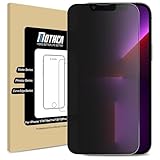
- 【Compatibility】Compatible with iPhone 17e / iPhone 16e / iPhone 14 / iPhone 13 / iPhone 13 Pro 6.1 Inch Display, NOT fit for other models.
- 【Etching process, Better quality】Made of the Highest Quality Tempered-Glass with 9H Super Tough protects From scratches to high impact drops.
- 【High Privacy】 Mothca Matte Tempered Glass Privacy Screen Protector for iPhone 17e / iPhone16e / iPhone 14 / iPhone 13 / iPhone 13 Pro will keep your personal and sensitive information safe from the strangers around you.
- 【Smooth as Silk】Matte finish using same technology as E-reader matte screen, no screen glare, no dazzling, free fingerprints and gives a silk like touch feeling, Comfortable Game Operation
- 【Go Further Than 2.5D Round Edge】Full screen coverage design with well crafted 2.5D round edge. 9H hardness, protect your iPhone 17e /16e /14 / 13 / 13 Pro from scratches, daily wear and drops.
Block external images in Outlook
Outlook for Android and iOS
Microsoft documents a Block external images setting in its mobile Outlook app. Use it to stop automatic loading of internet-hosted images that may act as web beacons. Microsoft says this setting does not block images embedded in the email as attachments, including most messages from friends and family. Follow the instructions in Microsoft’s Outlook mobile help.
Classic Outlook for Windows
Microsoft says automatic downloads of internet pictures are blocked by default in classic Outlook for Microsoft 365, Outlook 2024, 2021, 2019, and 2016. To review the control, go to File > Options > Trust Center > Trust Center Settings > Automatic Download. You can select Download Pictures for an individual trusted message. Depending on whether you opened the message in the Reading Pane or its own window, the displayed images may remain when you reopen it. Microsoft explains the setting in its classic Outlook help.
Rank #4
![[2 Pack] 24 Inch Computer Privacy Screen Filter for 16:9 Widescreen Monitor | Anti Glare, Anti Blue &UV Light, Anti Spy, Eye Protect, Protector, Film, Shield, Fit, Removable, Reusable, 9H, Black, Quality](https://m.media-amazon.com/images/I/41SBKw3J4ML._SL160_.jpg)
- 【24 PRIVACY FILTER DIMENSIONS】 Width: 20 15/16" (20.9 inches/532 mm), Height: 11 13/16" (11.8 inches/299 mm) - 16:9 Aspect Ratio. Mamol computer privacy filters are designed to be perfectly compatible with HP, Samsung, Dell, Lenovo, Acer, Asus, LG, ViewSonic and other brands of monitors. Please check the width and height dimensions of your computer screen before ordering. If you have any questions about the dimensions, please contact us.
- 【ENHANCED PRIVACY PROTECTION】Mamol 24 inch computer privacy filter keeps your electronic information confidential, making it excellent for use in high traffic areas. the computer privacy screen 24 inch is designed with advanced microlouver technology to block visibility at around 30 degrees and black out screens completely near 60 degrees.
- 【EYES PROTECTION】 This blackout privacy screen greatly reduces eye strain and minimizes potential hazards to vision. It filters 99.9% of UV rays and suppresses 98% of blue light. As a reversible 24-inch privacy screen filter: The glossy side of the protector provides extra clarity and greater privacy, and the matte side minimizes glare and distracting reflections. Satisfy your different daily uses as needed.
- 【BETTER HD CLARTIY】Mamol 24 inch computer privacy screen Shield adds an extra layer of AR Ultra HD light transmission compared to others. It maintains the high definition of the screen without sacrificing too much screen brightness. It won't reduce the brightness and cause eye fatigue because of the privacy screen installed on the screen.
- 【ANTI SCRATCH & WASHABLE 】Our privacy anti-glare Monitor film has a surface enhancement layer to protect the privacy filter from scratches and fingerprints. It is washable and reusable. Even after prolonged use, you will get a brand new privacy screen for your desktop computer monitor after cleaning. Very Durable!
Those instructions are for classic Windows Outlook, not a universal Outlook menu path. The documented controls differ between mobile and classic desktop clients; check the guidance for your specific Outlook app rather than applying the Windows path to new Outlook, Outlook on the web, or Outlook for Mac.
Quick wins for a faster PC:
Clear out junk files and repair common Windows errorsFree Scan →Scan for outdated or missing drivers - takes under a minuteDriver Scan →Quick Recap
Best Value

- Compatible Models: Width: 13 9/16" (13.5 inch/344 mm), Height: 7 5/8" (7.6 inch/194 mm), Diagonal: 15.6" (396.24 mm) widescreen laptops which have a 16:9 aspect ratio. Not touchscreen compatible !!! Not fit for 16:10.Do NOT rely solely on your laptop’s diagonal size when ordering. Use a ruler to measure your screen’s visible area (excluding the black bezels). If the width reads 344mm and height reads 194mm, this filter is a perfect match for your device.
- Keep Information Privacy: Effective "black out" privacy from side views outside the 60-degree viewing angle. Designed for optical clarity when viewing from the front, a person not at the front of the screen can only see the dark side of the screen, so it protects buisness secrets and personal privacy
- Eye and Screen Protection: Privacy filter does not only protect your private life but also protects your eyes by blocking 30% of blue light , blocking the harmful blue light between 380 - 495nm, it filters out the blue light and relieves eye strain. Our laptop privacy screen also helps keep your screen safe from dust and scratches
- Perfect For Open Workspaces: Great for maintaining screen privacy in high traffic areas such as open work spaces, airports, airplanes, commuter trains, coffee shops and other public places, etc
- Easy Installation: Choose between 2 simple Options; Slide-On/Off or Mounted. Not touchscreen compatible
Which approach fits your priority?
| Goal | Suitable documented control | Tradeoff |
|---|---|---|
| Prevent remote images from loading until you decide | Gmail on a computer: Ask before displaying external images; Mac Mail: Block All Remote Content; Outlook: the applicable external-image or automatic-download control | Legitimate remote images may be hidden until allowed. |
| Load remote content while obscuring identifying information | Apple Mail: Protect Mail Activity | Remote content is fetched in the background; this is not the same as blocking the fetch. |
| Allow images from a selected message | Gmail: Display images below; classic Outlook: Download Pictures | Loading remote content may trigger an associated image request. |
| Reduce exposure of your IP address | Apple Mail: Hide IP Address or Protect Mail Activity; Google also describes protections in Gmail image handling | These choices do not block link tracking or every possible tracking method. |
Limits to keep in mind
- Blocking remote images addresses that image-fetch pathway; it is not a complete defense against email tracking.
- Apple’s Mail Privacy Protection does not cover links or attachments, so opening or clicking those may involve other privacy considerations.
- Outlook’s image controls vary by app and version. Microsoft’s mobile setting does not block images embedded as attachments.
- In Gmail, manually displaying images is a per-message usability choice, not proof that the message contains no tracking.
Product prices and availability are accurate as of the date/time indicated and are subject to change. Any price and availability information displayed on Amazon at the time of purchase will apply.




