To put a clock on your Samsung Galaxy Home screen, touch and hold an empty spot, tap Widgets, choose Clock, select a style, and tap Add. Move it by dragging. If you want the time on the Lock screen or while the display is off, use the separate Lock screen clock or Always On Display (AOD) instead.
Add a clock widget to the Home screen
-
Touch and hold an empty area of a Home screen panel.
# Preview Product Price 1 
Samsung Galaxy Z Flip 5, 512GB, Mint - Unlocked (Renewed) $359.99 Buy on Amazon 2 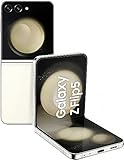
Samsung Galaxy Z Flip 5, 512GB, Cream - Unlocked (Renewed) $364.44 Buy on Amazon 3 
Samsung Galaxy Z Flip 5 5G, 256GB, Lavender - Locked to AT&T (Renewed) $329.99 Buy on Amazon As an Amazon Associate I earn from qualifying purchases.
-
Tap Widgets.
-
Find Clock and tap it to see the available widget styles.
Recommended: PC Feels Slow? A Free Scan Shows What's Dragging Windows Down →Recommended: Crashes or Glitches? A Free Driver Scan Usually Finds the Culprit →Recommended: Fix Windows Errors and Clear Junk Files in Minutes - Free Scan →Special offer. See more information about Outbyte and uninstall instructions. Please review EULA and Privacy policy. -
Choose a style, then tap Add.
-
Drag the widget to the spot you want. If the widget supports resizing, touch and hold it and use the handles that appear. Some widgets also offer appearance settings.
#1 Best Overall
Samsung Galaxy Z Flip 5, 512GB, Mint - Unlocked (Renewed)- Size (main screen)170.3mm (6.7" full screen) / 166.4mm (6.6" with rounded corners)
- Resolution (Main Display) 2640 x 1080 (FHD+) Dynamic AMOLED 2X
- Rear Camera - Multiple Resolution 12.0 MP + 12.0 MP
- 2G GSM, 3G WCDMA, 4G LTE FDD, 4G LTE TDD, 5G Sub6 FDD, 5G Sub6 TDD
- Wi-Fi 802.11 2.4G+5GHz+6GHz, USB Type-C, Bluetooth v5.3
The Clock widget is built into the Galaxy Home screen experience; no separate clock app or accessory is needed for this basic setup. The available styles and controls can differ by device and software version. Samsung’s Home screen widget instructions explain adding, moving, resizing, and removing widgets.
Choose where you want the time to appear
A Home screen widget, a Lock screen clock, and AOD are different features. Choose based on when you need to see the time.
|
Location |
When time is visible |
How to set it up |
|---|---|---|
|
Home screen |
When the display is on and you are on a Home screen panel The Tool Desk Outbyte Driver Updater FREEScan for outdated or missing drivers - takes under a minuteDriver Scan →Outbyte PC Repair FREEClear out junk files and repair common Windows errorsFree Scan →Special offer. See more information about Outbyte and uninstall instructions. Please review EULA and Privacy policy.
|
Add a Clock widget through Widgets > Clock. |
|
Lock screen |
When the phone is locked and the display is awake |
Edit the Lock screen clock or add a Clock widget using the Lock screen editor. |
|
Always On Display |
While the screen is off, if AOD is supported and enabled Rank #2
Samsung Galaxy Z Flip 5, 512GB, Cream - Unlocked (Renewed)
|
Turn on AOD in Settings. Supported Lock screen widgets may also appear there. |
Edit the Lock screen clock or add a Lock screen widget
The Lock screen clock is separate from the Home screen Clock widget. Depending on your model and One UI version, touch and hold the Lock screen to open its editor, then select the clock to change its style. To add a widget, tap Add widgets or + Widgets, choose Clock, and tap Done if that button appears.
What’s actually slowing this PC down?
Pick the symptom - the matching free tool is one click away.
The editor’s labels and available choices vary. Samsung’s Lock screen feature instructions describe clock editing, while its Galaxy widget guide covers adding and customizing widgets.
Show the time while the screen is off with AOD
Always On Display can show the time and other supported information when the screen is off. On newer software, look under Settings > Lock screen and AOD > Always On Display. Menu names can differ on older versions or other models, so use the closest Lock screen or AOD setting shown on your phone.
Samsung says Galaxy devices running One UI 6.1 use the Lock screen clock for AOD. Clock styling behavior on earlier One UI releases may differ, so do not expect a separate AOD clock-style control on every phone. AOD timing options also vary by device and software. Samsung’s AOD instructions describe the feature and its settings.
Rank #3
- 6.7" Foldable Dynamic AMOLED 2X, 120Hz, HDR10+, 1080x2640 pixels, Cover Display: Super AMOLED, 3.4", 720x748px
- 256GB ROM, 8GB RAM, Qualcomm SM8550-AC Snapdragon 8 Gen 2 (4nm) Octa-core, Adreno 740, 3700mAh Battery
- Rear Camera: 12MP, f/1.8 (wide) + 12MP, f/2.2 (ultrawide), Front Camera: 10 MP, f/2.2 (wide)
- CDMA 800/1900 / TD-SCDMA, 3G: HSDPA 850/900/1700(AWS)/1900/2100, CDMA2000 1xEV-DO, 4G LTE: 1/2/3/4/5/7/8/12/13/14/18/19/20/25/26/28/29/30/38/39/40/41/46/48/66/71, 5G: 1/2/3/5/7/8/20/28/38/41/66/77/78/257/260 SA/NSA/Sub6/mmWave
- Compatible with AT&T
Samsung documents Lock screen widget support on AOD for One UI 7.0 or higher. Where supported, Lock screen widgets appear on AOD when AOD is enabled; this does not turn the Home screen widget into an AOD clock. See Samsung’s widget guidance for more on supported widget behavior.
Quick wins for a faster PC:
Fix the driver behind crashes, sound loss and screen glitchesFind Drivers →Repair Windows errors before they cause bigger problemsFix Now →Scan for outdated or missing drivers - takes under a minuteDriver Scan →Troubleshoot a missing clock or AOD option
-
No Clock widget appears: Open the Home screen’s Widgets panel and look for Clock. Widget options vary by model and software; Samsung notes that not all devices offer the same choices.
-
The Lock screen editor looks different: Try touching and holding the Lock screen, then look for the clock or an Add widgets control. The exact editor and labels depend on One UI version and device.
-
AOD is missing or will not stay on: Check the Lock screen and AOD settings available on your phone. Samsung notes that Power saving mode can affect AOD availability on documented devices; model and software differences can also affect whether the option is present.
-
A Lock screen widget does not show on AOD: Confirm AOD is enabled and that the device is running supported software. Samsung documents this behavior for One UI 7.0 or higher.
Free tools Windows power users keep installed
One-click scans. No signup required.
Special offer. See more information about Outbyte and uninstall instructions. Please review EULA and Privacy policy. -
You are changing the wrong clock: A Home screen widget, the Lock screen clock, and the AOD display are controlled separately. Start with the screen where you want the time to appear.
Quick Recap
Bestseller No. 1Bestseller No. 2
Product prices and availability are accurate as of the date/time indicated and are subject to change. Any price and availability information displayed on Amazon at the time of purchase will apply.




