Outdated Drivers Are Slowing You Down
One free scan finds every outdated or missing driver and matches the right update for your exact hardware.Free scan · exact hardware matchPC Slower Than It Used to Be?
A free scan shows the junk files, broken settings and background clutter dragging Windows down - then fixes them in one click.Free scan · Windows 10 & 11To show recent activity on a YouTube livestream in OBS, add an overlay as a Browser Source. Choose an Events List for a continuing list of recent activity, or Alerts for individual notifications that appear as events happen. OBS does not provide alerts itself, and its setup does not require plugins.
Choose a recent-activity list or pop-up alerts
These widgets serve different purposes. An Events List keeps recent activity visible together in the scene; Alerts display individual notifications as activity happens. Decide which behavior fits your layout before creating an overlay. OBS explains the distinction in its Stream Layout Tutorial: Alerts & Chat Box.
As an Amazon Associate I earn from qualifying purchases.
- Choose an Events List when viewers should be able to see recent activity at a glance.
- Choose Alerts when you want a notification to appear as each supported event occurs.
Which events appear depends on the provider and the particular widget. The cited StreamElements documentation describes alert configuration and event data, but does not establish a complete current list of supported YouTube events across providers.
Recommended Free Tools
Add an event overlay to OBS
- Create or select the overlay. In your overlay provider, choose an Events List or Alerts widget and configure its appearance. For example, StreamElements’ Elements Editor supports preset and custom alerts, including event-specific text, graphics, and sound; see Creating Alerts in the Elements Editor.
- Copy the overlay URL. Use the URL provided for the overlay you configured. Keep it private: it is the link that loads your overlay.
- Add a Browser Source in OBS. Open the scene where the event display should appear, add a Browser Source, and paste in the overlay URL. OBS’s alerts FAQ describes this third-party Browser Source approach and says plugins are not required.
- Set the source dimensions. Enter dimensions appropriate for the overlay and your scene. Position and resize the source in the OBS preview so it does not obscure important video or other on-screen information.
- Review the composed scene. Confirm that the overlay appears where intended and that its size suits the layout. If it is missing, check the URL and dimensions; if alerts are silent or absent, check that they have not been muted or paused.
Use StreamElements’ YouTube-specific setup
StreamElements documents a YouTube route in its SE.Live Tutorial for YouTube. Connect the YouTube account, select a YouTube theme, configure the AlertBox, then add the overlay URL to OBS as a Browser Source. The guide’s theme instructions say to keep Super Chat enabled among the alert options. The Elements Editor documentation explains how to customize alert text, graphics, and sound.
#1 Best Overall
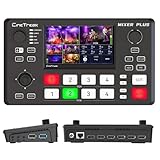
- BUILT-IN 4.5-INCH MULTIVIEW DISPLAY: Monitor all four HDMI inputs, Program, Preview, resolution status, and audio levels directly on the integrated screen. The compact all-in-one design reduces the need for a separate production monitor.
- 4-CHANNEL HDMI SWITCHING: Connect and switch between up to four HDMI video sources with 30 adjustable transition effects, including Mix and DIP. Landscape and portrait production modes support traditional broadcasts and vertical social media content.
- PTZ CONTROL AND PRODUCTION TOOLS: Control up to four compatible PTZ cameras through VISCA over IP, with four position presets available for each camera. Chroma key, luma key, PIP, DSK, and logo overlay tools help create polished live productions.
- USB 3.0 UVC LIVE STREAMING: Send uncompressed HD video to a computer through the USB 3.0 UVC connection for use with OBS and other UVC-compatible streaming or conferencing software. No separate USB capture card is required.
- FLEXIBLE VIDEO AND AUDIO WORKFLOW: Assign the AUX HDMI output to IN1–IN4, PGM, Clean PGM, PVW, Clean PVW, PAT, or Multi View for recording and monitoring. Two 3.5 mm audio inputs and a headphone output support external audio sources and real-time monitoring.
For a custom display rather than a preset, StreamElements’ Widget Events documentation describes event callbacks and data, including recent-event information. That is a development route: it requires building the behavior into an overlay rather than simply selecting a preset widget.
Troubleshoot an overlay that is missing or silent
- Nothing appears: verify that the Browser Source contains the correct overlay URL, then check its dimensions and placement in the OBS scene. StreamElements lists URL and resolution among its overlay troubleshooting checks.
- An alert does not play: check whether alerts have been muted or paused. Also confirm that you configured the relevant event in the chosen widget.
- Recent events are not shown as a list: confirm that the overlay contains an Events List widget, not only an AlertBox. Pop-up alerts and a persistent list are separate display behaviors.
- The overlay covers other content: adjust the Browser Source’s size and position in the OBS preview, and use dimensions that fit the scene.
Or let it run in the cloud
If your goal is an always-on YouTube livestream built from uploaded videos, StreamNeo is a separate option from OBS overlays: it keeps a YouTube channel live 24/7 by looping uploaded recordings or a playlist from the cloud. Upload a recording or build a playlist, add your YouTube stream key once, and go live. Nothing has to stay on at home; it streams uploads as made, up to 4K 60fps, at one price per slot regardless of quality; and it can automatically recover if YouTube drops the stream. The first day is free with no card. Monthly: $9.99 per month. Learn more at StreamNeo, or start a free day.
Quick Recap
Best Value

- [3 Color Modes & 10 Brightness Levels for Flawless Lighting] Upgrade your selfies, TikTok videos, and Zoom calls instantly. Featuring high-density LED beads, this selfie light offers 3 versatile color temperatures (Warm 3000K, Natural 4500K, White 6500K) and 10 dimmable brightness levels from 10% to 100%. Get professional-grade lighting for makeup, video recording, and live streaming anywhere.
- [Instant Plug & Play Clip-On Design] No tools, screws, or complicated setups required. The intuitive spring-loaded clip allows you to attach and detach the phone light in seconds. Perfect for smartphones, iPhones, Androids, iPads, tablets, and laptops—just clip it on, switch it on, and start shooting effortlessly.
- [Universal Compatibility & Anti-Scratch Silicone Pad] Designed with a heavy-duty clip that firmly attaches to devices, mirrors, or monitors without obscuring your screen or camera lens. The built-in soft silicone padding protects your devices from scratches while providing an adjustable tilt angle for optimal light direction during vlogs, photos, and video conferences.
- [2000mAh Long-Lasting Battery & Smart LED Display] Never guess your battery life again. Equipped with a high-capacity 2000mAh rechargeable battery and a real-time digital battery percentage display, this portable light delivers up to 3 to 10 hours of continuous use (depending on brightness). Fast Type-C charging ensures you stay powered up during long content creation sessions or back-to-back Zoom meetings.
- [Ultra-Portable, Lightweight & Travel-Ready] Sleek, compact, and lightweight, this pocket-sized LED clip-on light easily slides into your purse, backpack, or pocket. An essential content creator tool and travel accessory for Instagram influencers, YouTubers, online teachers, and remote workers on the move.
Rank #4
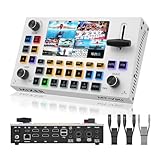
- MT-VIKI This Video Mixer Switcher built-in 5.5-inch LCD screen provides real-time monitoring, eliminating the need for an external monitor and simplifying operation for live streaming, weddings, and events. Present 4 HDMI input sources, PST preview picture and PGM output picture.
- PTZ multi-camera control allows simultaneous operation of 4 PTZ cameras, ideal for multi-angle shooting. The built-in Chroma Key supports green, blue, and auto modes, enabling one-click background replacement for professional video production.
- USB 3.0 streaming output enables 1080P 60FPS live broadcasts to Facebook, YouTube, and RTMP platforms, with USB recording support for high-quality content creation (4K not supported).
- Multiple transition effects (e.g., cut, mix, wipe) and customizable effects enhance creative possibilities. The LOGO overlay feature supports 2 custom logos, protecting copyright and boosting brand recognition.
- AFV and MIX audio modes, 2 XLR inputs, and 3.5mm Aux input/output provide flexible audio control. Ideal for live streaming, weddings, conferences, and education, meeting diverse professional needs.
Rank #3
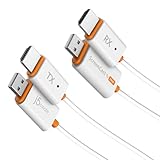
- 【The Instant Way to Share Your Screen Wirelessly】 Eliminate messy cables and complicated setups forever. This wireless adapter offers the ultimate plug-and-play experience: simply connect the HDMI transmitter to your laptop and the receiver to your TV. It creates its own direct wireless link, meaning no apps to install, no Wi-Fi networks to join, and no passwords to enter. It’s the easiest way to mirror your screen in seconds.
- 【Works With Various Laptops, PCs, and HDMI Device】 The transmitter is designed for universal compatibility with any device that has an HDMI output. From Windows and macOS laptops to desktop PCs, cameras, and even game consoles, if it has an HDMI port, you can now share its screen wirelessly with zero hassle.
- 【Two Ways to Connect for Ultimate Flexibility】 This system offers two powerful modes for total versatility. Use the HDMI transmitter for an instant, direct connection from any HDMI output devices. Plus, the receiver also works on its own, supporting standard AirPlay and Miracast. This allows you to easily cast content from your iPhone, iPad, or Android device without even using the transmitter, making it a complete solution for all your gear.
- 【Enjoy Smooth, Stable Full HD Streaming】 Experience a crystal-clear picture you can count on. This adapter delivers a smooth, low-latency 1080p video stream at 60Hz, perfect for movies and presentations. It is fully DRM/HDCP compliant for seamless playback from your favorite streaming services, while the dual-band Wi-Fi ensures a stable, reliable connection.
- 【Exceptional Range】 Stream and present with confidence. The powerful HDMI transmitter delivers up to 98 ft (30m) indoors with clear line-of-sight and an impressive 328 ft (100m) in open outdoor spaces, making it ideal for large venues and events. For everyday casting with AirPlay or Miracast, you’ll enjoy a reliable 49 ft (15m) connection—perfect for movies, meetings, and presentations at home or in the office.
Rank #2

- Ultra-Compact &Build in Screen: Mixer Plus combines a professional 4-channel HDMI video switcher with a built-in 4inch display, delivering real-time Multi View monitoring in a portable form factor ideal for live streaming and on-the-go production.
- Seamless Multi-Camera Switching: Supports up to 4 HDMI inputs with zero-latency switching, 30 customizable transition effects (Mix, DIP, etc.), and 4 user-defined scene presets, ensuring smooth and professional broadcast-quality results
- Advanced Broadcast Tools: Offers PTZ camera control via VISCA over IP (up to 4 cameras, 4 presets each), along with chroma key, luma key, PIP, DSK, and logo overlay, giving users the flexibility to create professional and engaging live productions.
- Customizable AUX HDMI Output:Mixer Plus features a versatile AUX HDMI output that allows users to customize the output signal from multiple options, including IN1, IN2, IN3, IN4, PGM, Clean PGM, PVW, Clean PVW, PAT, and Multi View—offering maximum flexibility for different production needs.
- Multi View (MV) Monitoring:The Multi View (MV) feature allows users to monitor all input sources simultaneously on a single display. It provides real-time previews of each video input along with dedicated Program (PGM) and Preview (PVW) windows, resolution indicators, and audio level meters. This enables precise signal monitoring and seamless switching during live production. Ideal for multi-camera setups, the MV mode enhances operational efficiency and ensures professional broadcast quality.
Product prices and availability are accurate as of the date/time indicated and are subject to change. Any price and availability information displayed on Amazon at the time of purchase will apply.
Free tools Windows power users keep installed
One-click scans. No signup required.




