Do these 3 things before closing this tab:
1Fix the driver behind crashes, sound loss and screen glitches2Clear out junk files and repair common Windows errors3Scan for outdated or missing drivers - takes under a minuteYou can install and use Unexpected Keyboard on Android, then adjust its height or build a custom layout to bring frequently used keys closer to your thumb. The app’s reviewed documentation does not describe a dedicated one-handed mode or a left- or right-side docking control, so these are workarounds rather than a built-in one-handed setting.
Install and activate Unexpected Keyboard
Unexpected Keyboard is an Android virtual keyboard by Juloo. The project describes it as lightweight, open source, ad-free, and privacy-conscious. It is available through Google Play and F-Droid. Store information can differ by distribution channel: Google Play reported an update on September 6, 2026, while F-Droid listed version 2.1.0 (56), added September 9, 2026. F-Droid’s listing specifies Android 5.0 or newer and ARM 64-bit, ARM 32-bit, x86, and x86_64 support.
As an Amazon Associate I earn from qualifying purchases.
- Install the app from Google Play or F-Droid.
- Open your Android Settings and search for “keyboard” if you do not see the relevant menu. Look for the on-screen or virtual keyboard settings, enable Unexpected Keyboard, then select it as the current keyboard.
- Open a text field. If the previous keyboard still appears, use your device’s input-method picker to switch to Unexpected Keyboard.
Android menu names and paths vary by version and manufacturer; Google’s support material shows different navigation paths across Android versions for keyboard-related settings. Treat the steps above as a general route rather than a universal menu path. Google’s Android accessibility instructions illustrate that variation.
Learn the swipe-based keys
Unexpected Keyboard places additional characters or actions at the corners of keys. Swipe from a key toward the corner symbol you want rather than tapping the key alone. The project README describes the central interaction this way: “The main feature is that you can type more characters by swiping the keys towards the corners.”
#1 Best Overall
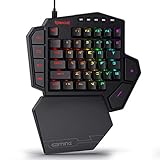
- 7 Onboard Macro Keys for Instant Combos - Bind multiple commands to each of the 7 keys (28 total across 4 profiles), so MMO and MOBA ability rotations fire with a single press instead of fumbling for a full keyboard.
- Swap Switches Without Soldering - The upgraded socket accepts almost any 3-pin or 5-pin switch, so you can tune the feel of your off-hand keypad to match your main board.
- USB Pass-Through Port, Detachable Wrist Rest - Plug your mouse or headset directly into the keypad for a cleaner desk, and unclip the magnetic wrist rest whenever you want a smaller footprint.
- 16.8 Million Colors, 5 RGB Modes - Vibrant lighting effects let your off-hand setup match the rest of your battlestation.
- Pro Software for Even Deeper Customization - Record your own macro sequences and design custom lighting effects, so the keypad adapts to your exact keybinds.
To open the keyboard’s settings, swipe down-left from the gear key. This is the documented settings gesture; it is not a general Android shortcut.
Adjust keyboard size for easier reach
From the keyboard, swipe down-left on the gear key to open Unexpected Keyboard settings. The documented settings include keyboard height and row or key sizing. Try adjusting the height and typing in your usual position to see whether the targets are comfortable.
Rank #2

- HIGH-PERFORMANCE MECHA-MEMBRANE SWITCHES — Provides the tactile feedback of mechanical key press on a comfortable, soft-cushioned, membrane, rubber dome switch suitable for gaming
- 32 MECHA-MEMBRANE KEYS FOR MORE HOTKEYS AND ACTIONS — Perfect for gaming or integrating into creative workflows with fully programmable keys
- THUMBPAD FOR IMPROVED MOVEMENT CONTROLS — The 8-way directional thumbpad allows for more natural controls for console-oriented players and a more ergonomic experience
- FULLY PROGRAMMABLE MACROS — Razer Hypershift allows for all keys and keypress combinations to be remapped to execute complex commands
- ULTIMATE PERSONALIZATION and GAMING IMMERSION WITH RAZER CHROMA — Fully syncs with popular games, Razer hardware, Philips Hue, and gear from 30 plus partners; supports 16.8 million colors on individually backlit keys
Height changes the keyboard’s size, not its docking position: a taller keyboard may make targets larger while also taking up more screen space. It should not be mistaken for a one-handed mode.
Use a custom layout to reposition frequent keys
If resizing alone does not put your most-used keys within comfortable thumb reach, a custom layout offers more control. The project’s guide documents XML-based layouts that can change key positions and widths; this is a user-configured workaround, not a validated ergonomic preset.
Rank #3
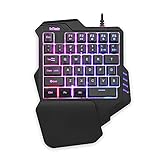
- 【Professional Gaming Keyboard】Built-in game chip, with 3ms faster response speed, more fluent for playing games, perfect for game enthusiasts to fully enjoy the pleasure of games. All 35 keys anti-ghosting, suitable for almost all PC games.
- 【Macro Recording Keys】'FN+F1' and 'FN+F2' are two sets of macro recording keys. Macro recording method: 1.Press FN+ESC until the backlit flashes to start recording; 2.Enter what you need to record; 3.Press 'FN+F1' or 'FN+F2' to end recording. The macro recording has been completed, press 'FN+F1' or 'FN+F2', the corresponding content will be output. If you want to clear the recording, just press FN+ESC until the backlit flashes, then press 'FN+F1' or 'FN+F2'.
- 【Ergonomic Design】The keyboard uses a portable design, its small size makes it not only easy to carry but also saves you space. The big wrist-res t and ergonomic design provide you with a relaxing gaming experience.
- 【RGB Backlit】The RGB backlit supports breath mode and static mode, there are 7 colors to choose, the cool lighting effect will bring you more fun for game.
- 【Easy to Use】Driver Free, Plug&Play, Fully Compatible with: Win10/8/7/Vista/ME/Mac/Linux/IBM
- Open Unexpected Keyboard settings.
- Tap an existing layout or choose “Add an alternate layout.”
- Choose “Custom layout” at the bottom of the menu.
- Edit the layout XML to place frequently used letters or actions nearer the area your thumb reaches comfortably, then try the layout and revise it as needed.
The project guide recommends keeping custom work in a file outside the app: edits stored only inside the app may be lost if you switch to a build signed differently. Customizing XML takes more effort than changing height, but allows you to alter key placement and width rather than only the keyboard’s overall size. Neither approach has an established usability result or ergonomic guarantee.
See the Unexpected Keyboard custom-layout guide for its documented layout workflow and XML details.
Rank #4

- Wired One Handed Gaming Keyboard And Mouse Combo: Features rainbow LED backlit 39 keys portable mini gaming keypad with ergonomic game controller for PC gamers, offering faster response speed and more fluent gameplay. All 39 keys are suitable for almost all PC games
- Wired Crack LED Backlight Gaming Mouse: Designed specifically for gaming computers with highest support of 3600 DPI (user adjustable 1200/2400/3600 DPI). High-precision sensors provide precise positioning, strong durability and fast response speed to adapt to different needs such as daily work or games
- Compatible System: USB Connect, Plug & Play, no driver required. Compatible with Windows XP/VISTA/WIN 7/WIN 8/WIN 10/Mac OS X/PS4/Xbox One, PC, and Laptop
- Ergonomic Design: The keyboard uses a portable design with small size that makes it easy to carry and saves space. The big wrist-rest and ergonomic design provide a relaxing gaming experience
- RGB Rainbow Backlit Lighting: Press FN+Prt to open the breath LED light effect. The RGB Rainbow backlit supports breath mode and static mode, bringing cool lighting effects for enhanced gaming atmosphere
What one-handed support does—and does not—mean
The reviewed Unexpected Keyboard documentation covers swipes, layout options, sizing, and custom layouts; it does not document a dedicated one-handed switch or a control to dock the keyboard on the left or right. Android also has a system-level One-handed mode, but Google describes it as a device feature and does not state that it rearranges Unexpected Keyboard. Its behavior may depend on the device.
What’s actually slowing this PC down?
Pick the symptom - the matching free tool is one click away.
Quick Recap
Product prices and availability are accurate as of the date/time indicated and are subject to change. Any price and availability information displayed on Amazon at the time of purchase will apply.




