Free tools Windows power users keep installed
One-click scans. No signup required.
Before your first shoot, charge the Osmo Pocket 3, insert a compatible microSD card, activate the camera in DJI Mimo, and check for a firmware update. Then choose a gimbal mode and make a short test recording so you know the camera is ready before the moment you want to capture.
What you need before you start
- A compatible USB-C PD charger: DJI recommends using a USB-C PD charger to charge the camera.
- A microSD card: The Pocket 3 has no built-in storage, so you cannot record without a card. DJI recommends at least UHS-I Speed Class 3 (U3). Its support specifications list cards up to 1 TB. See DJI’s Osmo Pocket 3 specifications for the supported-card details.
- A smartphone with DJI Mimo: You’ll use the app to activate the camera and connect to it. DJI’s Pocket 3 FAQ covers activation and smartphone control.
Insert the microSD card before trying to record. If you are buying one, check that its speed rating meets DJI’s UHS-I Speed Class 3 recommendation rather than choosing by capacity alone.
As an Amazon Associate I earn from qualifying purchases.
Charge the camera
Charge the Pocket 3 before leaving for your shoot. In DJI’s beginner guide, DJI reports that its laboratory test with a separately sold DJI 65W PD charger reached 80% in approximately 16 minutes and a full charge in around 32 minutes. Those are DJI’s test figures for that charger, not a guaranteed charging time with other chargers or conditions.
Activate the Osmo Pocket 3 with DJI Mimo
- Power on the camera.
- Enable Bluetooth and Wi-Fi on your phone.
- Open DJI Mimo and tap the camera icon to connect to the Pocket 3.
- Follow the prompts in the app to complete first-use activation.
DJI requires activation before first use. If the camera does not appear in Mimo, confirm that both phone radios are on and follow the app’s on-screen connection instructions.
#1 Best Overall

- Capture Stunning Footage - Osmo Pocket 3 vlogging camera features a 1-inch CMOS sensor and records in 4K resolution at an impressive 120fps. Capture breathtaking night views and sunsets with enhanced clarity.
- Effortlessly Frame Your Shots - Get the ideal composition with Osmo Pocket 3's expansive 2-inch touch screen that rotates for both horizontal and vertical shooting.
- Ultra-Steady Footage - Say goodbye to shaky videos! Osmo Pocket 3's advanced 3-axis mechanical stabilization delivers superb stability. Enjoy smooth footage while dancing, chasing pets, or hiking.
- Create Captivating Vlogs With ActiveTrack 6.0 - Stay effortlessly in focus as you record on the go. Set Osmo Pocket 3 up on a tripod and jump, dance, or spin, but remain center-frame.
- Fast and Accurate Focusing - Osmo Pocket 3 digital camera locks onto your subject for sharp, clear footage. Whether filming action-packed scenes or still shots, it ensures every detail is captured.
Check for a firmware update
With the camera connected in DJI Mimo, follow any firmware-update prompt shown by the app. DJI’s beginner guide advises having more than 15% battery before updating and estimates the process at about two minutes. Treat that timing as guidance, not a guarantee; keep the camera powered and follow the current prompts in Mimo until the update finishes.
Choose a gimbal mode and check your framing
The Pocket 3 offers three gimbal modes. The right one depends on how you want the camera to respond as you move:
Rank #2
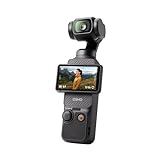
- Capture Stunning Footage - Osmo Pocket 3 vlogging camera features a 1-inch CMOS sensor and records in 4K resolution at an impressive 120fps. Capture breathtaking night views and sunsets with enhanced clarity.
- Effortlessly Frame Your Shots - Get the ideal composition with Osmo Pocket 3's expansive 2-inch touch screen that rotates for both horizontal and vertical shooting.
- Ultra-Steady Footage - Say goodbye to shaky videos! Osmo Pocket 3's advanced 3-axis mechanical stabilization delivers superb stability. Enjoy smooth footage while dancing, chasing pets, or hiking.
- Create Captivating Vlogs With ActiveTrack 6.0 - Stay effortlessly in focus as you record on the go. Set Osmo Pocket 3 up on a tripod and jump, dance, or spin, but remain center-frame.
- Fast and Accurate Focusing - Osmo Pocket 3 digital camera locks onto your subject for sharp, clear footage. Whether filming action-packed scenes or still shots, it ensures every detail is captured.
- Follow: The gimbal follows camera movement while keeping footage stabilized.
- Tilt Locked: The camera maintains its tilt angle rather than following changes in tilt.
- FPV: The gimbal follows movement more freely, including roll, for a more dynamic view.
Before an important take, frame a subject and move the camera briefly to check that the selected mode behaves as you expect. DJI’s Pocket 3 tutorials provide product-specific demonstrations.
Make a test recording and confirm the footage
- Use the shutter/record control to start recording, then press it again to stop.
- Play back the short clip on the camera and check that the framing and movement look right.
- Confirm that the clip is saved to the microSD card before beginning the shoot.
For interviews or direct-to-camera speech, DJI publishes a tutorial for connecting DJI Mic 2 to the Pocket 3; it is an optional audio setup, not a requirement for recording. See the Pocket 3 tutorial page.
Rank #3

- Capture Stunning Footage - Osmo Pocket 3 vlogging camera features a 1-inch CMOS sensor and records in 4K resolution at an impressive 120fps. Capture breathtaking night views and sunsets with enhanced clarity.
- Effortlessly Frame Your Shots - Get the ideal composition with Osmo Pocket 3's expansive 2-inch touch screen that rotates for both horizontal and vertical shooting.
- Ultra-Steady Footage - Say goodbye to shaky videos! Osmo Pocket 3's advanced 3-axis mechanical stabilization delivers superb stability. Enjoy smooth footage while dancing, chasing pets, or hiking.
- Create Captivating Vlogs With ActiveTrack 6.0 - Stay effortlessly in focus as you record on the go. Set Osmo Pocket 3 up on a tripod and jump, dance, or spin, but remain center-frame.
- Fast and Accurate Focusing - Osmo Pocket 3 digital camera locks onto your subject for sharp, clear footage. Whether filming action-packed scenes or still shots, it ensures every detail is captured.
Transfer clips after the shoot
DJI documents three ways to move footage off the camera: export to a phone through DJI Mimo, connect the Pocket 3 to a computer over USB-C, or transfer files from the microSD card using a card reader. Choose the route that fits where you plan to edit and store your clips; keep the original files on the card until you have confirmed the transfer.
Quick Recap
Rank #4

- DJI Osmo Pocket 3- 3-Axis Gimbal Mechanical Stabilizer, 1" CMOS Sensor, Full-Pixel Fast Focusing, Up to 4K120 Resolution, 2" Rotatable Screen, Smart Horizontal/Vertical Shooting, D-Log M & 10-Bit Support, Active Track 6.0, Stereo Recording, Up to 166 Minutes of Battery Life, USB-C PD Cable Included, Wi-Fi & Bluetooth Support
- DJI Battery Handle for Osmo Pocket 3- For DJI Osmo Pocket 3, Built-In 950mAh Battery, Increases Operating Time by 62%, 1/4"-20 Mounting Thread, Supports Hot Swapping, Weighs Only 2.2 oz, USB-C Port for External Audio Devices, DJI Osmo Mini Tripod- Mini Tripod with Non-Slip Design, + Transport or store your DJI Osmo Pocket 3 and select accessories in this Carrying Bag from DJI. The sleek zippered bag also accommodates the full DJI Creator Combo.
- Quick Capture for Vlogging Anywhere, Anytime-Built for travel, the Pocket 3 is compact and always ready to capture any special moment. Single-handed operation allows you to begin shooting in one second to capture photos and videos at the speed of life and in your preferred vertical or horizontal aspect ratio.
- Pocket Sized with 2" Rotatable Screen-Pocket-sized and extremely portable, the DJI Osmo Pocket 3 is a tiny camera that lets you single-handedly record memorable moments. Equipped to stabilize movement and take sharp photos and smooth videos, it gives you the freedom to create magic at hand.
- Dual Microphone Wireless Lavalier Microphone- The wireless lapel lavalier microphone can be clipped on the collar to free your hands for audio and video recording. Note: You need to take off the receiver to be able to hear the audio playback. Omnidirectional wireless lavalier microphone is built with professional-grade intelligent noise reduction chips, providing effective identification of the original sound and clear recording in noisy environment
Product prices and availability are accurate as of the date/time indicated and are subject to change. Any price and availability information displayed on Amazon at the time of purchase will apply.




