Yes—you can run multiple independent monitors from one DisplayPort output using Multi-Stream Transport (MST). The two main options are a DisplayPort MST hub or a daisy chain of compatible monitors. Either way, the computer, connection path, displays, operating system and chosen resolution and refresh rates must all support the setup.
How one DisplayPort connection carries multiple screens
DisplayPort Multi-Stream Transport (MST) lets a compatible source send multiple display streams over one link. A hub separates those streams into individual display connections; a daisy chain passes a stream from one compatible monitor to the next. The screens can show independent desktops rather than just duplicate the same image. VESA’s DisplayPort FAQ describes the standard’s multi-display capabilities.
As an Amazon Associate I earn from qualifying purchases.
That does not mean every DisplayPort socket can drive any number of screens. The computer’s graphics hardware and output, the hub or monitor chain, the operating system and the bandwidth needed by the selected display modes all matter.
Choose a connection method
Use an MST hub
Connect a compatible hub to the computer’s DisplayPort output, then connect each monitor to a separate hub output. This is usually the practical choice if your monitors lack a DisplayPort output for daisy chaining. Check that the computer supports multiple independent streams and that the hub supports the number of displays and modes you intend to use.
#1 Best Overall

- 【DP to HDMI & DisplayPort Adapter with 4K@60Hz Support】This versatile adapter converts one DisplayPort signal into two independent HDMI or DisplayPort outputs, allowing you to set up dual monitors for work or entertainment. It supports both Extended and Mirror modes for flexible screen arrangement. For optimal performance, we recommend connecting to a 5V/2A power adapter (sold separately).
- 【4K@60Hz Single Display & 4K@30Hz Dual Display】Enjoy vivid 4K visuals with support for 4K@60Hz on a single display, or 4K@30Hz across two displays simultaneously. Advanced image processing ensures rich colors, sharp contrast, and smooth motion, ideal for productivity, gaming, and multimedia consumption.
- 【Broad Compatibility with DisplayPort 】Featuring a high-performance chipset, this converter is compatible with most devices equipped with DisplayPort source ports, including desktops (HP, Dell, Lenovo) and graphics cards (AMD, NVIDIA). Ensure your GPU supports >18Gbps bandwidth for stable multi-monitor expansion. If no signal is detected, try updating your graphics driver to the latest version.
- 【Plug & Play Setup with Universal Power】No drivers or software required—simply connect your DP source to the adapter, power it via the included USB-C cable, and attach your HDMI or DisplayPort displays using standard cables. Designed for reliable standalone use; do not connect to KVMs, hubs, or docking stations to ensure compatibility and stable performance.
- 【Key Usage Guidelines for Seamless Operation】Confirm your source device has a DisplayPort output (not HDMI or USB); This is a one-way converter from DP source to HDMI/DisplayPort displays only; Always connect the USB-C power cable to ensure consistent operation. For any questions or assistance, please feel free to contact our support team.
Daisy-chain compatible monitors
- Connect the computer’s DisplayPort output to the first monitor’s DisplayPort input.
- Connect the first monitor’s DisplayPort output or downstream port to the next monitor’s DisplayPort input.
- Enable DisplayPort 1.2 or MST in the monitor’s settings if its instructions require it, then configure the displays in the operating system.
The source and monitors must support MST, and the first monitor needs a downstream DisplayPort connection. Confirm the exact model’s documentation: having DisplayPort input alone does not establish daisy-chain support. Microsoft’s Surface display guidance describes enabling MST when needed and passing a signal from one display to another.
Use a USB-C or Thunderbolt dock
A compatible dock can carry DisplayPort video from a computer over USB-C or Thunderbolt and provide outputs for one or more displays. The computer’s port must support video, and the dock must support the desired display setup; a USB-only hub is not a substitute. A dock may also carry USB data or charging power, depending on the computer, dock and connection. VESA’s DisplayPort FAQ explains DisplayPort Alt Mode over USB-C.
Rank #2
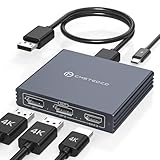
- Multi-Screen Display Adapter: Display port Splitter 3 Monitors allows the DP signal to be mirrored (SST) or expanded (MST) from one source to 2 DP monitors and 1 HDMI monitor, displaying a clear 4K UHD picture while transmitting high quality audio and video. Note: Be sure to connect the Micro USB cable for optimal display. Do not use with any docking station/hub/KVM, only unidirectional 1 in 3 out transfer. This product does not support laptops as a signal source.
- Important Note! ! !: 1. The splitter requires that your computer must support DP1.2 version of the graphics card or above; 2. Please use DP1.4 or above the standard DP cable, and the length of the DP cable does not exceed 1.8M; 3. MacOS system does not support MST, that is, it does not support the expansion of two different displays. 4. Does not support the use of HDMI to DP docking station or adapter cable to connect the computer to the product's DP input port; 5. DP cable is not included in the package. 6. Please consult customer service before placing an order to ensure compatibility between your computer and the product
- 4K Ultra High Definition Resolution: Displayport MST Hub 3 Monitors supports DP1.4 inputs for simultaneous output of 4K60Hz resolution when 3 monitors are connected at the same time, and dual 4K120Hz when 2 DP outputs are connected individually. HDMI output ports support up to 4K60Hz only. It is backward-compatible with 2K120Hz/60Hz and 1080P120hz/60Hz. Vivid images give you more stunning on-screen color and contrast. The final resolution depends on your computer and cables
- Extended/Mirror Display Plug and Play: DisplayPort to Dual DP with HDMI Adapter is plug and play, no driver installation required. Instantly and losslessly mirror/extend the DP signal from the source device to two DP monitors and one HDMI port monitor. All three monitors display the same content in mirroring mode, and all three monitors display different content in extended mode. Mac OS systems only support mirroring mode display due to the system display
- Optional Connection Length: The Displayport Monirtor Splitter input can be connected to DP cables of different lengths to meet your needs for different connection distances. It is recommended that the length of the input cable does not exceed 1.8 meters and the length of the output cable does not exceed 2 meters to ensure the stability of the video transmission. DP cable is not included in the package, please prepare your own video cable for connection
Check compatibility before buying
- Computer output and graphics limits: Confirm that the computer supports MST or the relevant multi-display path and enough external displays. A DisplayPort-shaped connector does not, by itself, guarantee a specific display count.
- Monitor ports and features: For a daisy chain, verify that the first monitor supports MST and has a downstream DisplayPort connection. Check the documentation for every monitor in the chain.
- Operating system: Confirm that the OS and graphics adapter support the intended arrangement. Microsoft notes that the display adapter can limit the number of screens. Apple says the maximum display count depends on the Mac model and display modes; a hub or chain does not raise the Mac’s overall limit. Microsoft Support and Apple’s Mac display support guidance cover these platform limits.
- Required display modes: Check the specifications for the computer, hub and monitors against the exact combination of resolution, refresh rate, color depth and chroma format. All streams share the link’s capacity.
- Independent desktops: Make sure the product is an MST hub, not a basic splitter that mirrors one input. A mirroring splitter duplicates the same image instead of creating separate extended displays. Microsoft’s guidance distinguishes this limitation.
What the bandwidth figures do—and do not—tell you
VESA’s 2014 announcement for DisplayPort 1.3 described two simultaneous 3840 × 2160 (4K UHD) displays over one interface for VESA Coordinated Video Timing and uncompressed modes. That is a standards capability example, not a promise that any computer, hub or monitor can run two 4K screens at every refresh rate or color setting. VESA’s DisplayPort 1.3 announcement gives the original context.
Free tools Windows power users keep installed
One-click scans. No signup required.
The current DisplayPort FAQ lists a maximum payload of 77.37 Gbps for DisplayPort 2.1b. That figure describes a link capability; it does not establish what a particular laptop, dock or monitor supports, or how many displays it can run at a specified mode. See VESA’s DisplayPort FAQ for the current standard information.
Quick Recap
Best Value

- 【Display Port Splitter 1 In 2 Out】The DisplayPort splitter is designed to mirror or extend video signals from a single DisplayPort source to two DisplayPort monitors. It’s perfect for multitasking, presentations, and immersive viewing. To ensure optimal functionality, please confirm that your device has DisplayPort interfaces before purchasing. This dual monitor splitter is not compatible with docking station, USB hubs or KVM switch, and only supports signal DisplayPort source output to dual DisplayPort displays.
- 【Up to 4K@120Hz Resolution】This DisplayPort splitter for dual monitors supports resolutions up to 4K at 120Hz, delivering ultra-smooth visuals with stunning clarity. It is also backward compatible with lower resolutions such as 4K@60Hz and 1080p@60Hz, making it versatile for various setups. Note: To achieve dual 4K@120Hz output, please make sure your source device supports DisplayPort 1.4 and DSC (Display Stream Compression). Additionally, use a high-quality DisplayPort 1.4 cable no longer than 6 feet (1.8 meters) to ensure stable signal transmission.
- 【Multiple Display Modes】The DisplayPort splitter for dual monitors supports both SST (AAA/ABB) and MST (ABC) modes. Please ensure that the DP port on your host device is from a dedicated graphics card rather than an integrated graphics card. Due to hardware limitations, integrated graphics may not support display output or may only support mirror mode. If you cannot get the extended display, please update your graphics card driver to the latest version. Before use, connect the USB-C power cable to a USB port on the DisplayPort MST hub. This will supply power to the built-in chipset of the DisplayPort hub. Please use a 5V 2A power adapter (not included in the package).
- 【Wide Compatibility】This Displayport MST hub is compatible with Windows, Vista, XP, Linux, and Unix operating systems. It supports input from various DisplayPort-enabled devices such as PCs and laptops, making it ideal for multimedia teaching, conference rooms, office use, and gaming setups. No drivers are required—plug and play for effortless setup. The compact and lightweight design makes it easy to carry and good for on-the-go use.
- 【Anti-Interference Design】This DisplayPort adapter is equipped with a built-in smart chip for enhanced performance and reliability. The non-locking connector design helps prevent damage to your graphics card when unplugging. In addition, All ports on the DisplayPort splitter support DisplayPort 1.4 and feature multi-layer shielding to ensure durable construction and stable signal transmission. What you get: 1* DisplayPort Splitter, 1* USB Power Cable, 1* User Manual.
Rank #4

- 【DisplayPort 1 Input to 2 DisplayPort Outputs】This DisplayPort splitter allows you to connect two DP monitors simultaneously from a single DisplayPort on your desktop PC or graphics card. Perfect for expanding your workspace or setting up a dual monitor display. No driver installation required – plug and play. Note: USB-C power (5V/2A) is required for operation as DisplayPort does not provide power.
- 【Supports 4K@120Hz High Resolution & High Refresh Rate】This DP MST hub supports up to 4K (3840×2160) at 120Hz for single monitor output, delivering smooth, clear, and lag-free visuals. Ideal for gaming, video editing, and fast-paced content. Both monitors can run at 4K@60Hz simultaneously when using DP 1.4 with DSC. Note: 4K/120Hz requires source, cable, and monitor all supporting 4K/120Hz.
- 【Extended Mode (MST) & Clone Mode Supported】Switch between extended desktop mode to expand your workspace across two monitors for increased productivity in stock trading, programming, or video editing, or clone mode to display the same image on both monitors for presentations, meetings, or classroom settings. Works perfectly with Windows 11/10.
- 【Designed for Desktop PC & Graphics Card Users】This DisplayPort splitter is compatible with desktop PCs and graphics cards (AMD, NVIDIA, Intel) that have a DisplayPort 1.2 or higher port with MST support. Works with HP, Dell, Lenovo, and mini PCs like Mini-ITX or Small Form Factor. Note: Independent graphics card recommended. Integrated graphics may have limited functionality. macOS only supports clone mode, not extended MST mode.
- 【USB Powered + Compact Design】DisplayPort carries video signal only, not power. This DP splitter requires USB-C power (5V/2A) to run the internal MST chip – simply connect to a USB-A port on your PC or a phone charger (adapter not included). Compact palm-sized design with a 28cm integrated cable reduces port strain and keeps your setup tidy. Package includes: DP splitter ×1, USB-A to USB-C power cable ×1, user manual ×1.
Rank #3

- 【Display Port Splitter 1 In 2 Out】The DisplayPort splitter is designed to mirror or extend video signals from a single DisplayPort source to two DisplayPort monitors. It’s perfect for multitasking, presentations, and immersive viewing. To ensure optimal functionality, please confirm that your device has DisplayPort interfaces before purchasing. This dual monitor splitter is not compatible with docking station, USB hubs or KVM switch, and only supports signal DisplayPort source output to dual DisplayPort displays.
- 【Up to 4K@120Hz Resolution】This DisplayPort splitter for dual monitors supports resolutions up to 4K at 120Hz, delivering ultra-smooth visuals with stunning clarity. It is also backward compatible with lower resolutions such as 4K@60Hz and 1080p@60Hz, making it versatile for various setups. Note: To achieve dual 4K@120Hz output, please make sure your source device supports DisplayPort 1.4 and DSC (Display Stream Compression). Additionally, use a high-quality DisplayPort 1.4 cable no longer than 6.5feet (2 meters) to ensure stable signal transmission.
- 【Multiple Display Modes】The DisplayPort splitter for dual monitors supports both SST (AAA/ABB) and MST (ABC) modes. Please ensure that the DP port on your host device is from a dedicated graphics card rather than an integrated graphics card. Due to hardware limitations, integrated graphics may not support display output or may only support mirror mode. If you cannot get the extended display, please update your graphics card driver to the latest version. Before use, connect the USB-C power cable to a USB port on the DisplayPort MST hub. This will supply power to the built-in chipset of the DisplayPort hub. Please use a 5V 2A power adapter (not included in the package).
- 【Wide Compatibility】This Displayport MST hub is compatible with Windows, Vista, XP, Linux, and Unix operating systems. It supports input from various DisplayPort-enabled devices such as PCs and laptops, making it ideal for multimedia teaching, conference rooms, office use, and gaming setups. No drivers are required—plug and play for effortless setup. The compact and lightweight design makes it easy to carry and good for on-the-go use.
- 【Anti-Interference Design】This DisplayPort adapter is equipped with a built-in smart chip for enhanced performance and reliability. The non-locking connector design helps prevent damage to your graphics card when unplugging. In addition, All ports on the DisplayPort splitter support DisplayPort 1.4 and feature multi-layer shielding to ensure durable construction and stable signal transmission. What you get: 1* DisplayPort Splitter, 1* USB Power Cable, 1* User Manual.
Which setup should you choose?
| Method | Choose it when | What to verify |
|---|---|---|
| DisplayPort MST hub | Your monitors do not have downstream DisplayPort outputs. | The computer supports multiple streams, and the hub’s outputs and bandwidth meet the required display modes. |
| Monitor daisy chain | The source and compatible monitors explicitly support MST, and the first monitor has a downstream DisplayPort connection. | Monitor documentation, MST settings and the combined bandwidth of the display modes. |
| USB-C or Thunderbolt dock | You want one host cable for video and potentially USB data or charging. | The computer’s port supports video and the dock supports the display count and modes you need. |
If the monitors do not work independently
- If both screens show the same image, check whether the device is a mirroring splitter rather than an MST hub, and check the operating system’s display mode.
- If a daisy chain stops at the first monitor, verify that the first monitor has a downstream DisplayPort port, MST is supported and enabled where required, and the source supports MST.
- If a screen is missing or runs at a lower refresh rate, check the computer’s display-count limit and the supported bandwidth for the entire connection path at your chosen modes.
- If using a USB-C connection, confirm that the computer’s specific port supports video; USB data support alone does not guarantee display output.
Product prices and availability are accurate as of the date/time indicated and are subject to change. Any price and availability information displayed on Amazon at the time of purchase will apply.




