To get iCUE working, install it on a supported Windows PC or Mac, connect a compatible CORSAIR device, then configure its lighting, cooling, or onboard-memory settings from that device’s page in the app. If hardware vanished after an iCUE update, start by connecting it directly to the PC’s USB port; repair or reinstall iCUE only if that does not help.
Which computers support iCUE?
CORSAIR’s compatibility article lists Windows 10 64-bit or newer, with 1.5 GB of disk space, and macOS 12.7 or newer on a Mac released in 2015 or later, with 500 MB of disk space. It says iCUE is not supported on Linux and cannot be installed on game consoles. The compatibility article was last updated two years before this guide; check CORSAIR’s current requirements for your iCUE version before downloading.
As an Amazon Associate I earn from qualifying purchases.
How do you install iCUE?
- Download and run the iCUE installer from CORSAIR.
- Select a language and follow the installer prompts.
- Finish installation and restart the computer.
These are the steps in CORSAIR’s iCUE installation instructions. CORSAIR describes iCUE as software for editing the lighting and performance of CORSAIR devices; which settings appear depends on the connected hardware.
Free tools Windows power users keep installed
One-click scans. No signup required.
How do you set up lighting in iCUE?
- Connect and select the device in iCUE.
- If you are using a lighting controller, open Lighting Setup first and configure the connected devices where required.
- Open Lighting Effects and add a layer.
- Choose a lighting type and configure its zones using the available options.
In iCUE 4 or newer, CORSAIR’s device-lighting instructions describe this workflow. A Lighting Link effect can apply across connected, compatible iCUE devices. Available effects and zones vary by device, so use the options shown for the hardware you selected.
#1 Best Overall

- Two Devices in One - Works with both ARGB PWM fans and iCUE LINK devices with a System Hub for seamless integration of two fan and lighting ecosystems
- Two Ecosystems, One Interface - With support for both types of fans and lighting, it enables control of connected devices through one streamlined interface
- Two ARGB and PWM Channels - There are two channels for control of PWM and ARGB fans, with each channel supporting up to six daisy-chained fans, which is twice the number of fans supported by the Commander Core XT
- Intelligent Fan Control - CORSAIR iCUE software offers intelligent fan detection and allows for precise control of group fan speeds and the ability to set custom fan curves
- Synchronized RGB Lighting - Easily synchronize RGB lighting across all fans in each channel with supports for up to 50 LEDs per ARGB channel
Setting up controller-connected lighting
For a Commander Pro or Lighting Node Pro setup, select the lighting device and open Lighting Setup. Choose the connected device types and the number connected on each channel, then adjust the lighting effects. CORSAIR’s fan and system-lighting guide documents this controller workflow. A controller is not a universal requirement: use one only if your particular lighting hardware and configuration call for it.
How do you save settings so they work without iCUE?
For supported devices, Device Memory Mode lets you save effects and settings to onboard memory. The saved configuration can then run without iCUE open. Available memory slots and options differ by device, and not every software effect necessarily has a hardware-mode equivalent. Select the device in iCUE, open its memory-mode controls, and confirm which settings and slots it actually offers. See CORSAIR’s hardware-lighting instructions.
Rank #2

- Build Better. Build Smarter: The CORSAIR iCUE LINK System Hub synchronises and manages all your system cooling and RGB lighting. Connect fans, CPU cooler, custom cooling components, and more with fewer cables than ever before.
- LINK Your Components: Connect up to 24 iCUE LINK devices and significantly reduce cabling complexity thanks to an innovative single-cable solution.
- Auto Detection and Installation: CORSAIR iCUE software automatically detects and configures connected iCUE LINK devices, making installation a breeze.
- Compact Design for Easy Installation: A compact 2x2” (5x5 cm) profile makes it easy to magnetically attach iCUE LINK System Hub to any metal surface in your case.
- Unite Your Setup: Powerful CORSAIR iCUE software enables you to synchronise RGB lighting across all your iCUE-compatible devices, adjust fan speeds, set up custom fan curves, and more.
How do you configure fan speeds and cooling?
Where supported fan controls are available, iCUE provides three presets. Choose based on whether you prioritize lower noise or stronger cooling:
Quick wins for a faster PC:
Repair Windows errors before they cause bigger problemsFix Now →Scan for outdated or missing drivers - takes under a minuteDriver Scan →Clear out junk files and repair common Windows errorsFree Scan →| Mode | What it prioritizes |
|---|---|
| Quiet | Noise reduction |
| Balanced | A balance between noise and cooling |
| Extreme | Cooling |
For more control, create a custom mode and choose a temperature sensor, then set a fixed fan percentage, a fixed RPM, or a custom curve that changes fan speed with temperature. The available sensors and controls depend on the connected hardware. CORSAIR’s guide for fans and lighting in iCUE is dated February 28, 2024; labels may differ in newer releases.
Rank #3
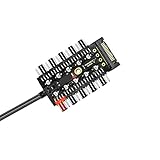
- ✔MOST EFFICIENT SATA TO FAN ADAPTER ✔ fan controller pc,Managing multiple fans from a single case input has become easier for you now. fan hub pc,If your motherboard lacks fan interfaces, use this neat & tidy way to add fans & expand fan interfaces designed for 12 V 4-pin fan. This PWM hub SATA accurately controls fan speed, you can slow down & speed up the fans up to the maximum speed. You need to connect the SATA & the 4 pin at the same time to run multiple fans.
- ✔PWM FAN CONTROLLER TEMPERATURE CONTROL✔fan controller The CPU Port (red port), would be the only port that can be controlled by the operating system. The other 9 black fan ports CAN NOT be adjusted in speed and will copy the power level of what the red port is at. Please note 4 Pin fan speed can be adjusted by temperature control as well. 3 Pin fans may also be used but have no PWM function and will stay at it's fixed speed after inserting.
- ✔INSTALLATION & CONFIGURATION✔ pc fan controller Simple installation & easy configuration, this fan splitter will work even if only connected to the PSU with SATA connector. You just plug the board into the CPU fan motherboard connection & then SATA for power. It has EVA double-sided adhesive tape at the back of the hub to mount to the case or any flat place. You can fix the screw hole in the middle of the PCB to facilitate fixing to a part of the chassis.
- ✔STEP BY STEP SET-UP✔fan hub You will receive 1 hub & 1 PWM connector in your package. The PWM interface is connected to CPU fan interface on motherboard by PWM cable & the red interface is dedicated for CPU fan. Connect 1 fan to the red port on fan hub then connect remaining fans. You then need to connect the fan hub’s PWM cable to the motherboard. Connect the power supply SATA cable to fan hub before you attach/stick it on the chassis.
- ✔MONEY BACK PRODUCT WARRANTY✔pc fan hub Our product is backed up by manufacturer’s warranty so feel free to contact us for any query or information. We have a track record of ensuring happiness of clients and are absolutely confident that our product will exceed your expectations. Just in case the product falls short of your expectations in any manner, you can return it for refund. We will go an extra mile to redress the situation at hand.
Can iCUE connect to other apps and lighting systems?
Integrations are optional. To enable supported integrations, open Settings and enable the relevant options for software, games, or devices. In iCUE 5.14 and newer, CORSAIR says the menus are labeled iCUE SDK and Game SDK under SDK settings. Labels can vary by version; consult the installed app if the path differs. CORSAIR’s integration instructions explain the setup.
CORSAIR’s overview mentions Stream Deck, select Govee, Nanoleaf, and Philips Hue lighting products, as well as select motherboard and game integrations. Those mentions do not establish compatibility with every model. Verify support for the exact device, product, and iCUE version before buying hardware or relying on a feature. See CORSAIR’s iCUE overview.
Rank #4
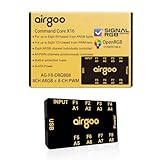
- ✅ IMPORTANT: MUST DOWNLOAD CORRECT SOFTWARE FIRST! Latest Release for SignalRGB or OpenRGB. Controller configuration available only after proper software installation.
- ✅8-Channel ARGB & 8-Channel PWM: Features 8 channels of 5V 3-pin ARGB for individual lighting control (each channel supports up to 256 LEDs) and 8 channels of 12V 4-pin PWM for synchronous fan speed regulation. It meets the needs of complex PC lighting setups and efficient cooling system adjustment at the same time.
- ✅8-Port RGB Expandability & SignalRGB Software Supported: Sync lighting effects across games, music, and apps with granular customization, create dynamic patterns, gradients, and hardware-reactive animations in one intuitive interface via SignalRGB. Eliminating motherboard header limits and unifying multi-brand lighting setups effortlessly.
- ✅ 8-Port PWM Fan Expandability:Seamless synchronization to your motherboard’s CPU_Fan header signals for intelligent, temperature-based fan speed control. Support Fan Speed Monitoring and PWM Fan regulation. (Due to motherboard limitations, fan speed monitoring is only supported for a aingle fan connected to port F1).
- ✅ Built-in Safety Assurance: Auto-resetting fuse safeguards against overloads and short circuits, ensuring long-term protection for your RGB components.
Why is a device not showing up in iCUE?
If detection failed after an iCUE update, follow CORSAIR’s update-specific sequence in order. A direct USB connection avoids a hub, switch, or pass-through that might be interfering.
Do these 3 things before closing this tab:
1Clear out junk files and repair common Windows errors2Fix the driver behind crashes, sound loss and screen glitches3Repair Windows errors before they cause bigger problems- Connect the device directly. Plug it into a USB port on the PC, not a hub, switch, or pass-through, and check whether it appears in iCUE.
- Repair iCUE. In Windows, open Installed Apps (or Apps & Features in Windows 10), select iCUE, choose Modify, and follow the installer’s repair prompts. CORSAIR notes that repair may need to be repeated.
- Cleanly reinstall if repair does not work. Uninstall iCUE, reinstall it, and check detection again.
- Contact CORSAIR support if the device is still missing.
This sequence is from CORSAIR’s post-update detection troubleshooting guide; it addresses problems that began after an update, not every possible cause of detection failure. CORSAIR also documents the Modify repair path for repairing iCUE 5.
Quick Recap
Best Value

- OPTIMIZE YOUR AIRFLOW: While multi-fan setups improve cooling, they increase complexity. Using a dedicated fan controller ensures precise management and superior performance for your PC build.
- MAX OUT YOUR FAN SETUP: Enjoy independent control for every fan, moving beyond limited hub signals for customization.
- POWER YOUR BULD: Supplies up to 2 A per port and a total maximum current of 4.5 A, unlike motherboards where different ports may provide varying output levels.
- PLUG & PLAY SUPPORT: Native driver support for both Windows and Linux (Kernel 7.2+) enables compatibility with a wide range of fan‑control and monitoring software.
- ZERO CABLE CHAOS: Centralized cable management through a fan controller ensures a cleaner build by eliminating the need for extensions and Y-splitter cables.
Product prices and availability are accurate as of the date/time indicated and are subject to change. Any price and availability information displayed on Amazon at the time of purchase will apply.




