Start in Settings > Privacy & security to review app access and diagnostic-data options, then open the Windows Security app to check antivirus, firewall, and device-protection controls. Review each setting according to the apps you use, the network you are on, and the capabilities of your PC; switching everything off is not a safe or complete privacy plan.
Start with privacy controls in Settings
Open Start > Settings > Privacy & security. This area gathers Windows privacy options and links to controls for specific capabilities and data. The exact options available can vary, and a work or school administrator may manage some settings. Microsoft’s overview of Windows privacy settings explains where to find them.
As an Amazon Associate I earn from qualifying purchases.
Control which apps can use your data and devices
Under Privacy & security, choose a capability such as Location, Camera, Microphone, Contacts, or Calendar. Where Windows offers both an overall access control and individual app controls, check both: the overall control governs access at a broader level, while an app switch lets you review access app by app.
The Tool Desk
Outbyte Driver Updater FREEFix the driver behind crashes, sound loss and screen glitchesFind Drivers →Outbyte PC Repair FREEClear out junk files and repair common Windows errorsFree Scan →These visible permission lists mostly cover Microsoft Store apps. Desktop applications may not appear and can handle access differently, so a Windows switch should not be treated as proof that every desktop program is blocked. Review desktop apps’ own privacy settings and information, and close or uninstall apps you do not trust. Microsoft describes the distinction in its guidance on Windows privacy settings used by apps and app permissions.
#1 Best Overall

- 【COMPATIBILITY】Designed for the 13-inch Surface Pro 12th11/10/9/8/X released in 2019-2026, with precise dimensions and a perfect fit. If you have questions about product dimensions, please contact us or ask a question. We have 24-hour online professional pre-sales and after-sales customer service to ensure you have a satisfactory shopping experience.
- 【EASY TO INSTALL】Peslv has innovatively designed a new installation method - MagicSuction. We designed nano-adsorption strips on the four sides of the Surface privacy screen. Just align it with the Surface screen frame and press it gently, and it can be installed in one second. With Peslv Privacy Screen Surface Pro 13 inch, you will never be in the embarrassing situation of not knowing how to install it!
- 【ABSOLUTE PRIVACY PROTECTION】Peslv Surface Pro 13inch privacy screen uses the most advanced grating technology, and conducts quality inspection on every factory Surface pro privacy screen, so that the contents of the laptop are only visible from the front, filtering side views to ensure the security of your data.
- 【PROTECT SCREEN AND EYES】Surface pro privacy screen 13 inch uses AG anti-glare technology imported from Germany and base material imported from Japan. The frosted surface layer effectively intercepts 95% of reflected light and glare; the high-quality filter layer can filter 92% of blue light; the anti-scratch layer prevents scratches during daily use. Protect your screen while protecting your eyesight.
- 【SUPER PORTABLE】 The privacy screen Surface pro 10 13 inch adopts the most advanced nano-adsorption process, which has strong adsorption force and is removable, washable, and reusable. The four-sided adsorption perfectly solves the problem of the bottom lifting. Package contents include a storage clip for easy storage of the Surface screen protector. A great Surface accessory to protect your screen privacy in public.
Understand diagnostics and feedback
Go to Settings > Privacy & security > Diagnostics & feedback. Depending on the device and its management, this page may offer diagnostic-data choices, tailored experiences, the Diagnostic Data Viewer, and an option to delete diagnostic data stored on the device.
These controls do not turn diagnostic collection into a single all-or-nothing choice. Microsoft says required diagnostic data helps keep Windows devices up to date, and the data items involved can change. Deleting data from the device also does not delete diagnostic data associated with your Microsoft account; account-associated information is managed separately through the Microsoft privacy dashboard. Some controls may be unavailable or managed by an organization. See Microsoft’s diagnostics, feedback, and privacy guidance.
Rank #2
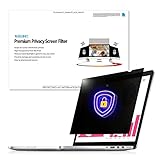
- Enhanced Privacy Protection: Protect your privacy with an Welinc privacy screen filter that makes on-screen data visible only to individuals sitting in front of the monitor. The privacy screen filter makes the screen appear dark when looking at it from an angle (the angle is 30 Each - Both 60), but bright when looking directly at it. The monitor screen protector features multiple layers of thick film with revolutionary micro-louver technology
- Precise Dimensions for 11.6 Inches Widescreen: Designed for 11.6 inches (16:9) diagonally measured widescreen monitor with Aspect Ratio 16:9. Filter Size: Width: 10 1/8 inches, Height: 5 11/16 inches (257mm x 144mm)
- Blue Light and Anti-Glare Eye Protection: The filter protects your login and other data from prying eyes while reducing harmful blue light. Its high hardness rating also provides a layer of physical protection to your screen
- Easy Installation Options: Includes two easy-to-attach options - Attachment strips and Slide-mount tabs. Package contains extra installation kits (option 1 and 2). All screen filters have 100% quality due to hand checking
- Reversible Screen and Eye Protector: Features a reversible privacy screen filter, giving you the flexibility to choose glossy or matte finish. Choose the matte to reduce external glare. The filter is Anti-Glare and Scratch Resistant
Check protection in the Windows Security app
Open Start, search for Windows Security, and open the app. Its pages show protection categories and the providers active on your particular device; a PC may reflect third-party security providers, so do not assume every Windows 11 installation has identical protection or controls. Microsoft’s Windows Security app settings guide explains the app’s status indicators.
Free tools Windows power users keep installed
One-click scans. No signup required.
Virus and threat protection
Open Virus & threat protection to review current threats, protection history, scan options, Microsoft Defender Antivirus settings, security-intelligence updates, and ransomware protection. Windows provides quick, full, and offline scan options. An offline scan restarts the device, so save open work first.
Rank #3

- 11.6-27" Laptop Screen Privacy Shield: 11.6-27 inch privacy screen filter provides you with a clear view. After applying the anti-peeping film, only the user facing the screen can see the content on the screen. If viewed from the side or back, the content on the screen will become blurred or completely invisible. In this way, whether in public or in the office
- Data Privacy: With unique, ultra-fine microlouver technology, our laptop privacy screen added a layer of security by keeping prying eyes away from password and document info while work around others, in public places, or near customers. A clear vision for you while others see a black screen – it gives you peace of mind knowing that your information and your computer are as safe as possible
- Two Installation Option: Installs in minutes. Option 1 uses clear adhesive strips that securely attach to any screen. Option 2 uses slide mount tabs that easily stick to the display frame, allowing you to slide the filter on and off the screen as needed
- Applicable Scenarios: Our computer screen privacy filters are with anti-glare and privacy filters for travel, privacy, screen protection, work, flight control, and home use
- Important: to double check your screen's Width and Height excluding frame before ordering. It's not recommended to make your selection based solely on your screen's diagonal size
Controlled folder access can help prevent unknown apps from changing files in protected folders. Microsoft also describes OneDrive recovery options for ransomware scenarios. Avoid turning off real-time protection as a routine privacy measure: doing so reduces protection while it is disabled. If you need to change a setting or create an exclusion for a specific troubleshooting reason, understand what protection is reduced and restore the setting when the need has passed. See Microsoft’s Virus & threat protection guide.
Firewall and network protection
In Windows Security, select Firewall & network protection and check which profile is active: domain, private, or public. Private networks are intended for trusted contexts; public networks are less trusted, where other connected devices may be strangers. Choose a profile that reflects the network’s trust level, not simply whether you are at home or away.
Rank #4
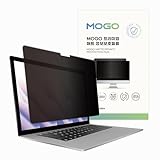
- 🔒 Premium Privacy Protection 🔒 Keep your work safe from prying eyes with this laptop privacy screen filter. Designed for Microsoft Surface Pro 11/10/9/8/X 13 inch, it ensures only the user directly in front can view the display—perfect for travel, office, or public spaces.
- 🌞 Double-Sided Anti-Glare Effect 🌞 Featuring an upgraded double-sided AG (anti-glare) design, this privacy filter minimizes reflections under bright lighting while delivering a smooth, matte viewing surface. Whether indoors or outdoors, your screen remains crisp and easy to see.
- 🌙 Blue Light & Eye Comfort 🌙 Reduce digital eye strain with advanced blue light blocking technology. This screen filter helps protect your vision during long hours of work or study, making screen time more comfortable and healthier for your eyes.
- 🛡️ Scratch & Dust Resistant 🛡️ Crafted from durable materials, this laptop screen protector shields your device from scratches, dust, and fingerprints. A reliable companion for professionals and students, it extends the life of your laptop screen.
- 💼 Easy Installation & Travel-Friendly 💼 Lightweight and simple to install, this privacy filter slips on and off effortlessly without leaving residue. Its slim profile fits neatly into any laptop bag, making it the ideal privacy solution for on-the-go users.
Keep Microsoft Defender Firewall on unless you have a specific, understood troubleshooting reason to change it. If it blocks an app you need, Microsoft’s recommended approach is to allow that app through the firewall rather than turn the firewall off. Exceptions and advanced rules can introduce risk if configured incorrectly: they may increase exposure or stop apps from working. Microsoft warns that “Turning off Windows Firewall could make your device more vulnerable to unauthorized access.” Read its Firewall and network protection guidance before changing rules.
Recommended Free Tools
Device security, TPM, Secure Boot, and encryption
Choose Device security in Windows Security. Depending on your hardware and configuration, the page may show core isolation, a security processor (TPM), Secure Boot, hardware security capability, or links to device encryption or BitLocker settings. Not every Windows 11 PC presents the same options.
Best Value

- Compatible Model: Fit for 13-inch Microsoft Surface Pro 12 (2026 Release) / Surface Pro 11 & Pro 10 (2024) / Surface Pro 9 (2022) / Surface Pro 8 (2021)/ Surface Pro X (2021/2019). Attention: NOT Compatible with Surface Pro 12-inch (2025 Release) or any other Surface Models
- Privacy Protection: Our anti-spy screen protector blocks side views when the tablet is in horizontal orientation, creating a secure visual tunnel straight. While maintaining clarity from the front, it prevents side peeping – ideal for work and entertainment during public spaces
- Dust-free Installation: Installation tray provides a seamless and efficient installation process. With innovative design, it eliminates the inconvenience of dust particles, ensures a bubble-free installation
- Surface Pen Compatibility: High sensitivity with the Surface Pen, ensures quick app launch, smooth games and video playing
- Scratch Resistant: This 9H hardness screen protector can effectively protect your device from unwanted scuffs and scratches
TPM visibility or availability depends on whether the hardware supports it and whether it is enabled in UEFI. Secure Boot helps prevent rootkits from loading at startup, but some hardware or operating systems may require it to be disabled. Do not clear a TPM casually: Microsoft explicitly advises backing up data first. Check your device’s Windows Security page and manufacturer guidance before changing hardware-related settings. Details are in Microsoft’s Device security guide.
Independent reader supportYour contribution helps us test, update, and keep practical guides available for everyone.When a setting is unavailable or managed
If Windows says a control is managed by your organization, or the option is unavailable, a work or school administrator may have set the policy. Contact that administrator rather than trying to bypass it. This can apply to privacy, diagnostics, firewall, or notification controls; the available options depend on the device and its management.
Quick Recap
Product prices and availability are accurate as of the date/time indicated and are subject to change. Any price and availability information displayed on Amazon at the time of purchase will apply.




