Free tools Windows power users keep installed
One-click scans. No signup required.
Replace a stylus tip when it is damaged, sharp, or worn too short, and use the replacement specified for your exact pen. There is no universal stylus nib or removal method: check the device manual, then follow the manufacturer’s instructions for that model.
When should you replace a stylus tip?
A tip, also called a nib, wears through use; pressure affects how quickly it wears. Wacom advises replacing a nib before it becomes sharp or too short. Its support guidance suggests replacement when the nib is approximately 1 mm long or has a sharp edge. That measurement is Wacom guidance, not a universal threshold for every stylus. Wacom explains nib wear and replacement; its user help covers nib replacement.
As an Amazon Associate I earn from qualifying purchases.
A drop can damage a tip, and normal use can wear it down. Logitech says a damaged or worn Crayon tip should be replaced to help avoid damage to an iPad screen. Wacom also warns that a worn nib can damage coated surfaces. If you see damage or an unusually sharp or short tip, stop using it until you have checked the manual and replaced it if needed. The manufacturers do not specify a universal lifespan or replacement schedule, so inspect the tip rather than relying on a fixed number of months.
Crashes, No Sound, or Screen Glitches?
Random freezes, missing sound and display glitches usually trace back to one bad driver. Find and replace yours safely.Free scan · under a minutePC Slower Than It Used to Be?
A free scan shows the junk files, broken settings and background clutter dragging Windows down - then fixes them in one click.Free scan · Windows 10 & 11How to choose a compatible replacement
- Identify the exact stylus model and, where relevant, the tablet it is used with.
- Check the pen or tablet manual for the specified tip or nib type. Wacom directs users to the device manual to identify compatible nibs.
- Match the replacement’s part number or compatibility list to the manual or the manufacturer’s spare-parts page. For example, Logitech sells a replacement tip specifically for Crayon; that does not establish compatibility with other styluses.
- Check the pack quantity, local price and stock, and whether you already have a removal tool or one is included. A separate extractor is only needed for models without an included or built-in remover.
Do not assume that tips from different brands—or even different models—fit one another. The manufacturer guidance cited here does not establish a universal or cross-brand standard.
#1 Best Overall
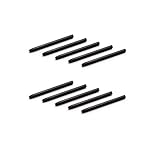
- 10 Pack Replacement Nibs for your Wacom Digital Tablet Compatible for : Xencelabs Pen Tablet Bundle, Bundle SE, Medium Standard, Small Standard
- This is Standard Replacement Nibs for Wacom BAMBOO and INTUOS SERIES
- Perfectly Compatible for wacom CTL-490 , CTL-690 , CTH-490 , CTH-690 CTL460, CTH460, CTH461, CTH661, CTL471, CTH470, CTH670 CTH-480 CTH-480S but not limited
- Simple to Install, perfect graphic Drawing Pad Standard Pen Nibs Stylus for Wacom Drawing Pen
- This pen nibs is 30 days free replacement if have problem.
How to replace a Wacom pen nib
- Confirm the correct nib type in your Wacom device manual. Check the device-specific guide for the nib extractor and any stored spare nibs; they may be in the packaging, pen, case, holder, stand, or a compartment.
- Use the supplied or built-in extractor to grip the old nib and pull it straight out. If you do not have an extractor, Wacom says small pliers can be used.
- Insert the new nib straight into the pen barrel and push until it stops.
For model-specific directions, see Wacom’s pen-tip replacement instructions and the Wacom User Help guide.
How to replace a Logitech Pen tip
- Grip the old tip with standard or needle-nose pliers and pull it out.
- Push the new tip into place by hand. If it will not seat fully, Logitech says to press the stylus tip against a table surface.
These steps are for Logitech Pen. Follow the instructions for your exact model rather than applying them to another stylus. See Logitech Pen tip replacement instructions.
Rank #2

- Compatible with Intuos4 pen, Intuos5 pen and Intuits Pro pen, grip pen, airbrush pen and classy pen
- Package Dimensions: 8.89 H x 0.254 L x 6.35 W (centimetres)
- Package Weight: 0.005 kilograms
- Country of Origin : China
How to replace a Logitech Crayon tip
Crayon uses a dedicated replacement tip and a different procedure from Logitech Pen. Follow the Crayon Quick Start Guide:
- Use the removal tool described in the guide.
- Twist the existing tip counter-clockwise to remove it.
- Insert the replacement tip and twist it clockwise to secure it.
- Install the tip cover separately, as shown in the guide.
Logitech lists Crayon tips, tip covers, and caps as separately available parts. Check the Crayon parts support page and the Crayon replacement tip listing for current availability and compatibility.
Quick Recap
Best Value
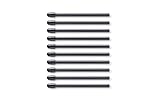
- Package Dimensions: 1.092 cms (L) x 8.001 cms (W) x 16.992 cms (H)
- Product Type: Input Pen
- Package Quantity: 1
- Country Of Origin: China
Rank #4

- This product is fully compatible with the following Wacom models: CTL-490, CTL-690, CTH-490, CTH-690, CTL460, CTH460, CTH461, CTH661, CTL471, CTH470, CTH670, CTH-480, CTH-480S, CTL-471, CTL-671, CTL-472, CTL-672, CTL/CTH-480, CTL/CTH-680, CTL/CTH-490, CTL/CTH-690, CTL-4100, CTL-4100WL, CTL-6100, CTL-6100WL, PTH-451, PTH-651, PTH-851, DTK-1301, DTH-1300, DTK-2200, DTK/DTH-2700, and other Wacom Bamboo Intuos pens. Please ensure that you verify your pen model before making a purchase!
- Fine Standard Tips: Sensitive and flexible nibs deliver comfortable control for writing or painting. Offers a natural paper-like feel while maintaining your Wacom pen's original accuracy—ensuring consistently smooth strokes
- This set includes 10 high-quality replacement digital pen tips for Wacom drawing tablets, ensuring you have an ample supply of pen tips during your creative process. With this durable pen tip set, you won't have to worry about replacing pen tips in the middle of a project.
- Easy Installation in Just 2 Steps: Simply replace your worn nib with our standard pen nibs. Start by removing the old nib, then gently press the new one into the tip of your Wacom pen. This ensures perfect performance for graphic drawing and long-lasting use.
- Reliable after-sales service: Enjoy an 18-month warranty and 24-hour customer support to answer your questions at any time.
Rank #3

- Package Includes:12 Pcs Standard Replacement Nibs for Wacom Intuos Pro,Wacom IMobileStudio Pro,Wacom Cintiq Pro,Wacom Citiq16(Equipped with a removal tool).
- Product compatibility: These Second Generation Pen Tips are designed for many digital models, and compatible with wacom pens, like PTH-460,PTH-660,PTH-860,DTH-1320,DTH-1620,DTH-2421,DTH-3221,DTK-2421,DTK-1661,DTK-2260,DTH-W1320,DTH-W1321,DTH-W1620,DTH-W1621;Please take a careful check your pen model before buying.
- Practical: This kind of standard fine tip is sensitive and flexible for you to use, providing you with a comfortable writing and painting experience,without worrying about worn problem,which will ensure you work smoothly.
- Easy to install: Standard pen nibs are easy to install and only take 2 steps, you just need to use removal ring to get a replacement nib, and then insert into the hole, easy to operate, nice performance, will serve you for a long time.
- Customer Service:The rich quantity can meet your daily needs, and its simple use is convenient for you to replace yourself. This pen nibs is free replacement if have problem.
Product prices and availability are accurate as of the date/time indicated and are subject to change. Any price and availability information displayed on Amazon at the time of purchase will apply.




