Free tools Windows power users keep installed
One-click scans. No signup required.
To reduce eye strain on a CRT monitor, first select the highest stable, non-interlaced refresh rate your monitor supports at a resolution you can read comfortably. Then reduce reflections, adjust brightness and contrast, set a relaxed viewing distance, and take regular breaks to look away and blink. If flicker remains visible or uncomfortable after changing supported modes, the display may not be comfortable for you.
1. Set a stable refresh rate and scan mode
Open your operating system’s display settings and check which refresh rates and resolutions are available for the connected CRT. Choose the highest stable, supported non-interlaced mode that keeps text readable. Do not force an unsupported combination: a mode that produces a distorted or unstable image is not an improvement.
As an Amazon Associate I earn from qualifying purchases.
Recommendations differ because they address different users and contexts. The National Health Commission of the People’s Republic of China published guidance on May 14, 2020, quoting Beijing Tongren Hospital ophthalmology director Wei Wenbin recommending 75–85 Hz for CRT displays. UCLA’s general monitor guidance recommends at least 70 Hz and notes that flicker sensitivity varies. These are guidelines, not a threshold that guarantees comfort for every person or CRT.
Do these 3 things before closing this tab:
1Repair Windows errors before they cause bigger problems2Scan for outdated or missing drivers - takes under a minute3Clear out junk files and repair common Windows errorsAfter changing modes, check whether flicker is still noticeable, including in your peripheral vision, and whether the change actually improves comfort. If the picture becomes unstable, return to a supported mode. If no available mode feels comfortable, consider using another display rather than continuing through symptoms.
#1 Best Overall

- Arcade game video image produces the scan line effect,classic,nostalgia,Perfect recall of CRT.15KHZ video image display effect,Re-experience arcade game classic picture,Feel again the wonderful image of the scan line. Scan Line Generator Function Switch
- B:HDMI In(HDMI Video-Signal In Interface).
- A:HDMI OUT(HDMI Video-Signal/Audio-Signal Out Interface)
- D:WIDTH--->Width switch(Dual or Singular scan lines)
- Note: If you experience screen cutoff or display issues, please try adjusting the output resolution settings on your game console for optimal compatibility and full screen display.
2. Set the distance, height, and text size
Place the monitor directly in front of you and far enough away that you can read without leaning forward or squinting. OSHA gives 20–40 inches (about 50–100 cm) as a preferred general computer-workstation viewing distance. The NIH Office of Research Services suggests 20–26 inches, approximately arm’s length. Treat these as starting points: screen size, text size, eyesight, and personal comfort all affect the useful distance.
- Keep your head and torso upright rather than moving closer to make small text legible.
- Position the screen so you can look slightly downward without tipping your head.
- Increase text size or adjust resolution if reading makes you lean toward the screen.
3. Reduce reflections and glare
Reflections make the image harder to see and can contribute to eye strain and fatigue. OSHA advises placing the screen at right angles to windows and other light sources and using diffuse lighting; blinds can help control window glare. Avoid positioning the CRT where overhead lights or windows appear reflected in the glass, and clean dust from the screen.
Rank #2

- This is a general purpose scan line video effect generator for VGA connection.
- It allows you to get better view for low resolution graphics displayed on a modern big screen high resolution LCD monitor or TV.
- The scan lines added to the game screen are done by hardware. Any game that needs to add a scan line can be done by linking the device.
- Self-powered device and does not require an external power supply.
- It supports most classic nostalgic games. With this scan line generator, you will have better experience in your game.
Try placement and lighting changes before buying an accessory. If reflections remain, a glare screen or filter is an option, but check its dimensions and confirm it fits the particular CRT. Curved glass can make fit especially important; no specific filter is established as compatible with every CRT.
Quick wins for a faster PC:
Clear out junk files and repair common Windows errorsFree Scan →Fix the driver behind crashes, sound loss and screen glitchesFind Drivers →4. Adjust brightness and contrast for the room
Set brightness and contrast so text and images are easy to see without an excessively bright screen in a dark room or a washed-out image in bright surroundings. There is no universal CRT brightness percentage: the comfortable setting depends on the display and ambient light. If the image is difficult to read, adjust the display and text size rather than compensating by leaning closer.
Rank #3

- Proudly made in the USA
- Screen data is visible only to persons directly in front of the monitor. 3M privacy technology darkens on-screen data when viewed from the side.
- Reduces screen glare up to 95%.
- Provides maximum user flexibility -- fits both CRT and LCD desktop monitors.
- Excellent for open, high-traffic environments where on-screen data must be kept private.
5. Take visual breaks and blink
Periodically stop focusing on the screen, look at a distant object, and blink. The National Health Commission’s 2020 guidance describes the 20-20-20 rule: after 20 minutes of screen use, look at something about 20 feet (6 metres) away for at least 20 seconds. OSHA also advises far focusing and blinking at regular intervals.
6. Know what the radiation guidance does—and does not—address
CRT eye discomfort is best approached through display flicker, glare, image clarity, brightness, viewing distance, and screen-use habits. FDA information addresses a separate concern: it says that changes in later CRT technology made the level of risk from x-ray exposure “almost non-existent,” and that CRT products are subject to federal performance standards. That radiation guidance does not mean flicker or glare cannot cause visual discomfort.
Rank #4
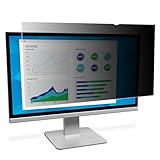
- Effective inchblack out inch privacy from side views outside the 60-degree viewing angle
- Durable privacy filter that can withstand hundreds of cleanings
- Helps reduce blue light, without distorting the natural color of your display.
- A reversible solution, 3M™ Privacy Filters offer a glossy option and a matte option that help reduce glare and fingerprints.
- 100% hand inspected for quality assurance.
7. Get help if discomfort persists
If discomfort continues after adjusting the display and workstation, do not assume the CRT is the only cause. UCLA advises using appropriate corrective lenses and seeking an eye-care assessment when focusing or alignment difficulties are involved. Ergonomic guidance is not a diagnosis or treatment for an eye condition.
What’s actually slowing this PC down?
Pick the symptom - the matching free tool is one click away.
Quick Recap
Best Value
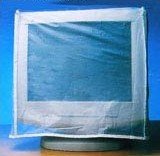
- Monitor Dust Cover
Product prices and availability are accurate as of the date/time indicated and are subject to change. Any price and availability information displayed on Amazon at the time of purchase will apply.




