Quick wins for a faster PC:
Scan for outdated or missing drivers - takes under a minuteDriver Scan →Repair Windows errors before they cause bigger problemsFix Now →If your Ooma Telo or Phone Genie has gone offline, first check whether your home Internet works. Then verify power and Ethernet connections, restart the modem, router, and Ooma device, and let startup or any software update finish. A solid blue light and an Ooma dial tone are the key signs that a Telo is ready. If the Internet works and the device still cannot connect, contact Ooma Customer Care.
What a blinking red Ooma light means
On a device that was already working, a blinking red Ooma light generally means it cannot connect to Ooma service. An interruption to your Internet connection may have broken the device’s connection to Ooma’s servers. A red light during startup or an update may be temporary, so give the device time to finish booting before deciding it is stuck. Ooma’s troubleshooting FAQ distinguishes symptoms by device and indicator; use the description that matches your model rather than assuming every light combination signals the same problem.
As an Amazon Associate I earn from qualifying purchases.
Reconnect Ooma in this order
- Check your home Internet. On a computer or another device, confirm that you can access the Internet. If it is unavailable, address the modem, router, or ISP connection first. An Ooma device cannot reconnect to service through a home Internet connection that is down.
- Check power and wiring. Make sure the AC adapter is firmly connected to the Ooma device’s POWER port and to a working outlet. For a wired setup, confirm the router’s Ethernet cable is securely connected to the Telo’s INTERNET port at both ends. On supported devices, the small green port light can help show a connection. Ooma’s Telo setup guide shows the connections for the covered base station.
- Restart the network and Ooma device. If Internet service was interrupted or the connections look correct but Ooma remains offline, reboot the modem, router, and Telo or Phone Genie. Let each device start up, then allow the Ooma device to complete any update. Do not unplug it while an upgrade is in progress.
- Check for service. On the covered Telo setup flow, a solid blue light indicates the system is working. Pick up the connected phone and listen for the musical Ooma dial tone as an additional check.
- Get help if it remains offline. If home Internet is available and the power and wiring are correct but the Ooma device still cannot connect, contact Ooma Customer Care. If this is a new device that has never been activated, follow the activation process; for a new device being added to an existing account, Ooma says to contact Customer Care.
Read the light before treating it as an outage
| Indicator or symptom | What it can mean | What to do |
|---|---|---|
| Solid blue | Ooma says the system is working on the devices covered by its setup instructions. | Confirm by picking up the phone and listening for the Ooma dial tone. |
| Blinking red | The device generally cannot connect to Ooma service. | Check Internet, power, and connections; restart connected equipment. If the device is new, check activation. |
| Solid purple | May indicate Do Not Disturb, with calls going to voicemail; it does not by itself mean service is disconnected. | Check whether Do Not Disturb is enabled. See Ooma’s device status light guide. |
| Blinking purple | On the referenced device, this can indicate a software upgrade. | Wait for the update to finish; do not unplug the device during the upgrade. |
| No lights | Could relate to brightness settings or loss of power, rather than an Internet fault. | Check brightness, the adapter, outlet, and any power strip. |
| Trash and Message buttons lit blue | Ooma’s troubleshooting FAQ treats specific blue-button combinations as distinct symptoms, including different connection problems. | Match the exact pattern to the FAQ’s symptom description instead of diagnosing from color alone. |
When Ooma is not the only connection problem
If other devices also cannot get online, focus on the home network or ISP before changing Ooma settings. If other devices work but Ooma does not, recheck its power and cable connections, then restart the modem, router, and Ooma device. If the device still cannot reach Ooma after those checks, Customer Care is the appropriate next step. Router firewall or service-port issues are possible in some setups, but Ooma’s instructions do not establish a universal setting to change; avoid changing router ports without guidance for your specific equipment and network.
What’s actually slowing this PC down?
Pick the symptom - the matching free tool is one click away.
Check model-specific instructions
The Telo Base Station setup guide is not a universal diagram for every Ooma product. Ooma’s troubleshooting FAQ also names Phone Genie, and its support index covers multiple device families. Port names, wireless setup, and light behavior can differ. If you have a Telo Air 2, an LTE bundle, Phone Genie, or another model, use its matching Quick Start Guide or manual before applying Telo-specific wiring or indicator advice.
#1 Best Overall

- Specifications: World Wide Input Voltage 100-240VAC 50/60Hz; Color: black; Output: 5V 2A
- Note: Not compatible with Ooma Telo Air 2 VoIP Home Phone Service; Please Double Check the Connector End and Machine Model Before Purchasing.
- Convenience: This lightweight and easy-to-carry adapter is the ideal portable power source for your device.
- Strict Quality Control: It is firmly designed,the wires will not be pulled out easily,or break up when it was plugged in or during shipping! Low interference and noise. Short circuit and over voltage protection. Safe to use!
- OVP, OCP, SCP Protection.Tested Units. In Great Working Condition.
If you cannot open the local setup page
Reaching the local setup page is a configuration issue, not a general fix for an offline Ooma service. For the specific access procedure, connect a computer by Ethernet to the Telo HOME port, turn off Wi-Fi on that computer, and try 172.27.35.1. Ooma’s setup.ooma.com troubleshooting page describes this procedure. It applies to the relevant Telo setup, not automatically to other models.
Quick Recap
Best Value

- Ooma has been rated the top phone service by Consumer Reports.
- Built-in wireless connectivity to place your Ooma Telo anywhere in your home. Works only in the US.
- Crystal-clear nationwide calling for free and low international rates. Pay only monthly applicable taxes and fees.
- Take your home phone on the go with the easy-to-use Ooma Home Phone mobile app
- Includes unlimited calling in the US, voicemail, caller-ID, call-waiting, 911 calling and text alerts.
Rank #4

- Safety protection mechanism supported: OVP, OCP, SCP Protection (OVP: Over Voltage output Protection. OCP: Over Current output Protection. SCP: Short Circuit output Protection).
- Input Voltage: 100-240V 50-60Hz. Output Voltage: DC 5V.
- Compatible with OOMA TELO 160-0113-100 CYA0015BUH01.
- Note: Please double confirm the device output and connector dimensions to ensure the compatibility.
- Focus on better products. We produce compatible charger adapter power cord.
Rank #3
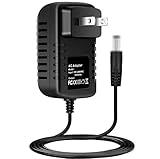
- Brand New, High Quality Replacement AC Wall Power Charger Adapter
- Input: AC 100-240V 50/60Hz Auto (Worldwide AC Input)
- Over Voltage Protection, Over Heat Protection
Rank #2
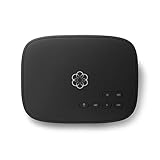
- Crystal-clear nationwide calling for free and low International rates. Pay only monthly applicable taxes and fees.
- # 1 rated home phone service for overall satisfaction and value by a leading consumer research publication.
- Pure Voice HD delivers superior voice quality for a consistently great calling experience.
- Includes nationwide calling, voicemail, caller-ID, call-waiting, 911 calling and text alerts.
- More features including the ability to block robocallers available when you upgrade to Ooma Premier phone service.
Product prices and availability are accurate as of the date/time indicated and are subject to change. Any price and availability information displayed on Amazon at the time of purchase will apply.




