You can print a photo’s capture date—and, with some printer or software workflows, its capture time—if the file retains usable Exif metadata and the printing tool supports an imprint option. First check whether the date is already visible in the image: a camera-baked stamp is part of the picture, while an Exif timestamp is separate data that compatible software can add during printing.
Choose the right kind of timestamp
A visible camera stamp and an Exif capture timestamp are not the same thing.
As an Amazon Associate I earn from qualifying purchases.
- Camera-baked stamp: The camera writes date characters into the image pixels when the photo is taken. It appears wherever the image is viewed, not just on a print. Canon says this stamp cannot be deleted from the image data after it has been recorded because the date is written into the image (Canon Support, “Inserting the Date into Images (Date Stamp),” July 23, 2024).
- Exif capture data: The camera can store the capture date and time as metadata without displaying it over the image. A compatible printer or photo app may read that data and add a mark to the print.
- Manual text overlay: You can add text in an editor if automatic imprinting is unavailable, but the entered date is only as reliable as the person supplying it. It does not verify when the photo was taken.
Before printing, inspect the image and its metadata if possible. If the date is already visible in the pixels, turn off any printer-side date imprint to avoid printing it twice.
Print directly from a compatible photo printer
Direct-print menus vary by model. The following manufacturer instructions illustrate why you should check the exact printer manual rather than assume one menu path applies to every device.
#1 Best Overall

- User-Friendly Portable Photo Printer for iPhone, Android & PC - Get beautiful and colourful memories with Liene 4x6 photo printer! After opening the entire package, you can find one cartridge + 20 sheets of photo paper (placed inside the machine packaging), as well as an additional box containing 80 sheets of photo paper (which includes two cartridges + 80 sheets of photo paper). Full package includes smartphone photo printer, Liene 4x6 photo printer papers (100 sheets), 3 colour cartridges, and fully sealed cassette to prevent dust. Minimalist and magnetic design for compact storage.
- Superior Quality 4x6 Photo Printer - Print photos like no other thanks to the thermal-dye sublimation tech adopted by the picture printer for iphone. The dyes deeply penetrate the paper for vibrant photo printing, and the laminated surface is resistant to water, scratches, fingerprints and fading. Clean the print head promptly if smudges are observed on printed photos during operation. Get Liene photo printers now for yourself and your loved ones, print your happy moments together and keep your love forever!
- Wi-Fi Photo Printer for Smartphone - The built-in hotspot of the photo printer makes it easy to print pictures from your phone, avoiding outside interference with a fast and stable connection. No other networks required! Simply connect your device to the independent instant photo printer 4x6 hotspot.
- Multiple Device Compatibility - Liene phone printer provides instant photo printing for up to 5 simultaneous connections. Share with family and friends or print from your different devices. No additional cables or Bluetooth required when printing photos with this picture printer. Note: Ensure the ink cartridge clicks into place before printing.
- Customize your Printing with the Liene App - Customize your photos with our specialized App! You can add a Square border, insert filters, enhance the contrast and brightness, check printing status, and more. You can even print your ID and Visa photos from home with this photo printer for iphone 4x6 prints.
Epson PictureMate: date and time options
The cited Epson PictureMate guide documents separate date and time settings. Its workflow is to open More Options, choose Date Stamp, select a date format or None, then choose Time Stamp and select 12-hour, 24-hour, or None. Confirm the selections and print. In that guide, the setting stays active until it is reset or the printer is powered off (Epson PictureMate User’s Guide).
Canon SELPHY CP1000: date option
Canon’s CP1000 instructions document a date imprint for Exif-standard JPEG images, not a time-of-day imprint. Select the date setting in the print settings and check that the Date icon is on before printing. Some page layouts do not allow date imprint. Canon also notes that the printed date is the one assigned by the camera when the photo was taken, so it cannot be changed from the printer (Canon SELPHY CP1000 support).
Rank #2
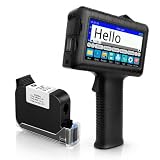
- [Long Battery Life] Engineered with advanced power management, this handheld inkjet printer delivers up to 16 hours of operation. Features a 4.3" HD capacitive touchscreen with intuitive interface, leak-proof self-locking ink cartridge, and supports 28 language interfaces for global use.
- [Custom Template & File Printing] Create or edit templates directly on the touchscreen. Supports JPG/PNG/BMP file formats via USB port for instant import of corporate logos, barcodes, and custom designs.
- [Professional Fast-Dry Ink] 42ml quick-drying ink (2-5 seconds) is waterproof and fade-resistant. Yields up to 1,140,000 characters, perfect for batch codes, dates, and markings on fabric, wood, plastic, metal, glass, and cardboard.
- [Multi-Functional Coding] 0.5" (12.7mm) print height handles text, dates, batch numbers, QR codes, and high-resolution graphics. Preloaded with industrial barcode formats for versatile commercial marking needs.
- [Complete Package + Warranty] Includes: Main Unit, 42ml Ink Cartridge, USB Cable, Positioner, U-Disk, User Manual. 1 Year Manufacturer Warranty + Amazon 30-Day Hassle-Free Return. Certified support team provides prompt technical assistance.
Print from desktop photo software
Sony’s PlayMemories Home instructions for Windows describe a Print date taken option that uses Exif data, with advanced settings for date position and color (Sony: Printing images with PlayMemories Home). This is specific to that application and platform; verify that the software is available for your system and that it still supports your files and printer.
Canon’s older support guidance also describes bundled software and DPOF print settings for sending date-print instructions to a photo developer (Canon Support, “Inserting the Date into Images (Date Stamp)”). Treat this as a legacy workflow: confirm that your camera, software, and chosen print service still support it before relying on it.
Rank #3

- Dock Photo Printer: The KODAK Dock Plus is a home photo printer that produces high-quality 4x6” prints directly from compatible smartphones. Featuring an integrated docking station, users can place their phone on the printer for better connection while simultaneously charging the device during printing.
- Genuine 4PASS dye sublimation printing: Each photo is produced in three color layers and finished with a clear protective lamination layer. In approximately 55 seconds, you receive a smooth, detailed print designed to resist fingerprints, water, and fading for long-lasting quality.
- Easy to Use: Print photos quickly without complicated setup or technical steps. Simply power on, connect wireless bluetooth, and start printing within seconds. The Dock Plus is built for straightforward operation, making it ideal for first time users and everyday photo printing.
- Home Printing Station: Designed for stable desktop use, this dock photo printer connects to a power outlet for consistent performance and larger 4x6” prints. Ideal for home printing, photo albums, framing, family events, and everyday picture printing.
- KODAK Photo Printer APP: Featuring integrated Bluetooth connectivity, this portable printer connects to compatible iOS and Android devices through the KODAK Photo Printer app. Edit, crop, and customize your photos before printing for creative results.
What to do when automatic imprinting is unavailable
Use a photo editor to add text manually if your printer or app has no date option. Sony’s support guidance notes this approach. Keep an unedited original and save the stamped version as a separate copy if you want to preserve the source image. A manually entered date should not be presented as verified capture information.
Independent reader supportYour contribution helps us test, update, and keep practical guides available for everyone.Compare the available workflows
| Method | Where the date or time is applied | What it needs | Reversibility |
|---|---|---|---|
| Camera stamp at capture | Written into the image pixels when the photo is taken | A camera Date Stamp feature | Canon says the recorded stamp cannot be deleted from the image data |
| Printer-side imprint | Added to the print by a supported printer setting | A printer that supports the desired imprint and, where applicable, retained Exif data | In Epson’s documented workflow, the setting affects printing rather than changing the original digital image |
| Photo software | Added during the software print workflow | An app with a date-taken option and usable Exif data; support depends on the app and platform | Depends on the app and whether you save an edited image |
| Manual editor overlay | Added as text to an edited image | An image editor and a person to enter the text | Preserve the original by saving a separate edited copy |
For a combined date and time, the cited Epson PictureMate guide documents both fields. The cited Canon CP1000 procedure documents a date only. Neither example establishes support across all printers in either product family, so check the exact model’s manual and supported layouts.
Quick Recap
Rank #4

- From America's most trusted printer brand, the HP Envy Photo 7975 is a premium multi-purpose home printer with everything families need to learn, work, and create. Loaded with features to print high-quality photos, homework, office docs and everything else. It's also AI-enabled to intuitively adapt to your workflow, with wireless and security features that keep your multifunction printer up to date and secure.
- PERFECT FOR HOME - The HP Envy Photo 7975 is great for printing documents, high-quality true-to-screen borderless photos, creative projects and more. Print speeds up to 10 pages per minute color, 15 pages per minute black.
- PERFECTLY FORMATTED PRINTS WITH HP AI - Print web pages and emails with precision-no wasted pages or awkward layouts; HP AI easily removes unwanted content, so your prints are just the way you want.
- KEY FEATURES - Print, copy, scan, automatic 2-sided printing, advanced photo features, separate photo tray, auto document feeder, mobile and wireless printing.
- EFFORTLESS PRINTING - Smoothly navigate printing with a large intuitive printer color touchscreen.
Check these details before printing
- Look for an existing visible stamp. If the date is already in the image, disable a second imprint.
- Confirm the file has capture metadata. Printer or software imprinting may rely on Exif data; exporting or editing a file can affect what metadata remains.
- Check the exact model and layout. Feature names, menu paths, accepted formats, and layout restrictions vary.
- Check the camera clock. A printed capture date reflects the camera’s recorded information; it is only as accurate as the camera clock and metadata at capture.
- Decide whether you need date, time, or both. Manufacturer examples differ, and a date feature does not imply a time imprint.
- Verify any print-service workflow. A DPOF route described in older manufacturer guidance does not establish that a particular lab currently offers date imprinting.
Product prices and availability are accurate as of the date/time indicated and are subject to change. Any price and availability information displayed on Amazon at the time of purchase will apply.
Do these 3 things before closing this tab:
1Scan for outdated or missing drivers - takes under a minute2Clear out junk files and repair common Windows errors3Fix the driver behind crashes, sound loss and screen glitches



