Quick wins for a faster PC:
Repair Windows errors before they cause bigger problemsFix Now →Fix the driver behind crashes, sound loss and screen glitchesFind Drivers →To reduce audio sync drift in a long 4K 60fps YouTube Live stream, test the complete setup for long enough to reproduce the problem, keep audio settings and routing consistent, and distinguish a fixed delay from drift that grows over time. A sync offset can correct a stable mismatch; it cannot stop progressive drift. If the offset keeps increasing, investigate the devices and separate audio/video paths before changing offsets or buying hardware.
What causes the problem—and what 4K60 does not explain
Audio can be out of sync by a steady amount from the start, or it can move progressively farther out of sync during a broadcast. Those are different symptoms and call for different troubleshooting. A fixed offset may be adjustable; an increasing offset points toward timing in the capture and audio path that needs investigation. The available platform and software guidance does not establish one universal cause or a guaranteed cure for progressive drift.
As an Amazon Associate I earn from qualifying purchases.
4K60 affects the stream’s delivery options and the workload on the encoder, but it is not, by itself, proof of an audio-clock mismatch. YouTube says low-latency mode is unavailable for 4K / 2160p at 60 fps, so these streams use normal latency. Delivery latency is not the same thing as audio gradually drifting out of sync on your own stream. YouTube’s latency guidance explains the distinction in available modes.
The Tool Desk
Outbyte Driver Updater FREEFix the driver behind crashes, sound loss and screen glitchesFind Drivers →Outbyte PC Repair FREEClear out junk files and repair common Windows errorsFree Scan →Establish a test that can reveal drift
- Match the real setup. Make a local recording and a private or unlisted YouTube stream using the same camera, capture device, microphone, audio routing, OBS scenes, frame rate, and other relevant settings as the planned broadcast. Include representative motion and sound, not just a static image or silence. YouTube advises: “Tests should include audio and movement in the video similar to what you’ll be doing in the stream.” See YouTube’s encoder guidance.
- Test long enough to see the reported failure. If the problem usually appears after an hour, a brief test will not establish whether it is fixed. YouTube does not prescribe a minimum test duration for drift; run the test long enough to try to reproduce what you observe in practice.
- Use repeatable audio-visual cues. Choose visible events paired with distinct sounds, such as a hand clap in view of the camera. Compare their alignment near the start and at later checkpoints. Note whether the audio is early or late, and record the offset at each checkpoint rather than relying on memory.
- Compare the local recording with the delivered stream. If both show the same divergence, examine the capture and audio paths first. If the local recording stays aligned but the YouTube stream does not, inspect the encoder, stream health, and delivery path as well. This comparison narrows the search; it does not by itself identify the cause.
Diagnose the symptom before adjusting sync
If the offset is steady
Measure the delay and identify which signal arrives early. Then adjust the appropriate OBS source’s sync timing and repeat the test. A fixed adjustment is useful only when the mismatch is reasonably constant; applying it without checking which signal is early can make sync worse.
#1 Best Overall

- DUAL MODE OPERATION: Functions as a 2-in-1 HDMI switch - connect two devices to one display, or one device to two displays with easy toggle button switching
- HIGH PERFORMANCE: Supports 4K resolution and 3D content with perfect audio/video synchronization for superior entertainment experience
- VERSATILE COMPATIBILITY: Works with multiple devices including computers, gaming consoles (PS4), smart boxes, and various display types like monitors, TVs, and projectors
- SIMPLE CONTROL: Features LED indicators and a convenient toggle button for easy input/output switching, with clear visual feedback of current connection status
- PLUG AND PLAY: No external power needed, compact design with HDMI ports that can function as either input or output depending on selected mode
If the offset grows over time
A fixed offset only shifts the starting point—it will not correct an offset that keeps increasing. Inspect whether audio and video come through independent capture paths, and check the timing and configuration of the active devices. Change one part of the path at a time, then repeat the sustained test to see whether the rate of drift changes.
Check audio formats and routing
- Check sample rates at every active stage. Inspect OBS audio settings and the operating-system or device format for each microphone, capture device, and other active input. Keep the configuration deliberate and consistent, then test again. YouTube’s health diagnostics include a sample-rate mismatch warning; the diagnostics can help identify a configuration issue, but a warning—or choosing a particular sample rate—does not prove the cause of progressive drift. See YouTube Live health-status messages.
- Follow the relevant device guidance. YouTube’s encoder page lists 44.1 kHz for stereo and 48 kHz for 5.1; Elgato’s setup guide for the 4K60 Pro MK.2 says to set OBS to 48 kHz. These are context-specific recommendations, not evidence that one sample rate cures drift. Consult the instructions for the actual hardware and signal format you use: YouTube encoder settings and Elgato’s 4K60 Pro MK.2 OBS setup.
- Find duplicate audio. A capture source may already carry audio while the same sound is also added as a separate input. Check which version actually reaches the stream and remove unintended duplication before evaluating sync.
Check YouTube and OBS stream settings
Use the current YouTube encoder guidance for the 4K60 settings that apply to your encoder and region. Its page recommends a 2-second keyframe frequency and says not to exceed 4 seconds. The published 4K60 bitrate figures can vary across localized or updated versions of the guidance, so consult the current table rather than relying on a number copied from elsewhere. YouTube’s encoder guidance also covers supported audio codecs, including AAC and MP3.
Rank #2

- 【Plug & Play, Compact & Portable】No extra drivers, software or WiFi configuration required for instant casting. Equipped with matching cables to organize your workspace. Mini lightweight TX & RX set is easy to carry for business trips, office presentations and home entertainment. Note: Only USB-C ports supporting DP Alt Mode video output are compatible. Charging-only USB-C ports cannot transmit video.
- 【164FT Transmission | 2.4G/5.8G Dual-Band WiFi】2.4G & 5.8G dual-band WiFi ensures stable signal transmission up to 164ft in open space. Walls, metal obstacles and surrounding wireless interference will reduce effective range. For smooth streaming, we recommend usage within open areas. The built-in WiFi module effectively lessens signal conflicts.
- 【1080P@60Hz HD Output & 30ms Low Latency】Delivers clear 1080P@60Hz with synchronized video and audio. 30ms low latency avoids frame stuttering, ideal for video conferences and video playback. The transmitter supports up to 60W PD pass-through charging to power your source device during screen mirroring.
- 【Broad Compatibility for Multiple Scenarios】Works with USB-C devices featuring DP Alt Mode, including laptops, tablets and USB-C smartphones. Mirror content onto HDTVs, monitors, projectors and LED displays. Great for office meetings, classroom teaching and home cinema. Supports Windows, macOS, Android, USB-C iOS devices.
- 【Complete Kit & Trustworthy After-Sales Service】The TX includes a short 2.28-inch USB-C cable; the RX is equipped with an HDMI male port and requires 5V 2A power supply. Package contains Transmitter, Receiver, extension cable, USB-C power cable and user manual. We offer 1-year warranty and 24/7 customer support.
Do not switch to low-latency delivery as a sync fix for a 4K stream: YouTube says that option is not available for 4K / 2160p. The setting affects delivery latency, not necessarily the local alignment of audio and video.
Separate performance problems from sync drift
Check OBS statistics and YouTube stream health as different sources of evidence. Rendering or encoding overload calls for reducing workload—for example, simplifying scenes or lowering output resolution or frame rate if the system cannot handle the current settings. OBS notes: “Frame rate also impacts both rendering and encoding performance.” See OBS encoding performance troubleshooting.
Rank #3
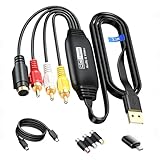
- RCA to USB Converter: This USB Capture Device can convert anolog RCA composite input into high-definition USB output, the maximum output resolution can reach 1920x1080@30Hz, suitable for camcorders, set-top boxes, boxes, DV camcorders, DVD, VHS, VCD, VCR, DVR and other devices. (Note: Only compatible with NTSC/PAL formats)
- USB2.0 Video Capture: Supports RCA and S-Video input, USB 2.0/Type-C capture, the RCA to USB Capture Card is compatible with most current laptops, ensuring stable video capture and transmission.
- 3.3ft/1m USB Cable: avedio links USB2.0 capture card is equipped with 3.3 feet USB capture cable, reduce the use of troubles caused by short cables and improve operational flexibility.
- Wide Compatibility: Compatible with Windows and MacOS operating systems and supporting video capture software such as OBS, Potplayer, etc., this RCA to USB Capture Card is ideal for video production, screen recording and other scenarios.
- Packing List: RCA&S-Video to USB Capture Card*1, USB A to Type-C converter*1, CD*1, 5ft S-Video Cable*1, RCA Converter*1, User Manual*1.
Dropped frames and intermittent disconnections point toward a network problem between the computer and the ingest server, according to OBS connection troubleshooting. Such symptoms can impair a stream, but they do not, on their own, establish an audio-clock mismatch. Compare local and delivered recordings to see where the divergence appears.
Also check YouTube health warnings for problems such as sample-rate mismatch, insufficiently frequent keyframes, or insufficient video data. A warning is a reason to address that configuration or health issue; it is not automatic proof that it caused the audio drift.
Rank #4

- 【No Need HDMI Cable,Easy Use】This wireless HDMI transmitter and receiver,easy installation, plug and play, no need for WiFi/APP/Bluetooth, say goodbye to the traditional cable connection can be audio and video signal transmission, make your office or room more neat.Use Delay <0.01s, almost 0 delay. Great for business meetings, teaching, churches, live broadcasts, business presentations home theater, parties, outdoor movie screenings, weddings, and more to use
- 【1080P HD Image Output】Those wireless HDMI transmitter and receiver support 4K decoding and 1080P/60Hz HD output. Image transmission is clear, stable and smooth. It is the best choice for sharing slides, pictures, videos and conference information. Make your meeting, classroom and any multimedia playback a more efficient and convenient playback experience(The wireless HDMI supports extended mode and duplicate mode)
- 【Outdoors 328ft/Indoors165ft Wireless Transmission】Those wireless HDMI transmitter and receiver distance can reach up to 165ft/50m(outdoor open distance: 328ft/100m), built-in advanced dual-frequency chip (2.4G and 5.8G), strong anti-interference ability, more stable signal transmission. Even through walls or obstacles, it can maintain more reliable connection. (Note: When the Wireless HDMI passes through walls, the transmission distance and speed will be affected to some extent)
- 【Wide Compatibility】The wireless HDMI allows you project content from laptops, cameras, set-top boxes onto HDTV, projectors, and monitors, whether you are sharing presentations, watching movies, or teaching, providing a high-quality visual feast on a larger screen. This wireless HDMI is also compatible with Blu-ray players, security cameras,DVDs, DSLRs,cable/satellite boxes, etc
- 【Portable Design for Easy Travel】 The wireless HDMI transmitter and receiver design is small, lightweight and sophisticated. (only 0.3 lbs), asking it ideal to take with you on business trips, holidays, patio, garden, caravan, camping and more. No matter where you are, you can discover the convenience of wireless HDMI and get high-quality connection. (Includes 2 accessories , Micro HDMI 8K Adapter/Mini HDMI 8K Adapter, allowing you to use it in multiple scenarios with ease)
When should you change hardware?
Do not assume a replacement capture card, audio interface, cable, or sync device will prevent drift. Capture-card latency depends on the device and system configuration; OBS’s community resource cautions against treating latency values as fixed. Measure your own setup rather than copying another streamer’s delay value. See OBS’s capture-card latency documentation.
What’s actually slowing this PC down?
Pick the symptom - the matching free tool is one click away.
Consider a device change only after tests implicate a specific component or its configuration. Elgato’s setup guide documents settings for its 4K60 Pro MK.2, but it does not establish that buying that card prevents progressive drift.
Best Value

- 【All-in-One Cable Design】This Component to HDMI converter integrates the chip directly into the cable. The 60cm female YPbPr connector links your device, while the HDMI male connector plugs directly into your TV. No need for extra HDMI cables, keeping your setup clean and simple
- 【1080P HD & Audio-Video Sync】This ypbpr to hdmi converter supports 1080P@60Hz, 720p, 576p, 576i, 480p, 480i(Resolution is Pass-through Mode), ensuring crystal-clear visuals. The built-in high-performance chip guarantees no video distortion or delay, while the uncompressed LPCM 2.0 audio ensures perfect audio-video synchronization for an immersive viewing experience
- 【Plug & Play】This component to hdmi adapter is no drivers needed! Simply connect your component cable to the female YPbPr input and plug the HDMI male connector into your TV or monitor. Power the device using the included 1M USB cable via a USB port on your TV or any 5V/1A USB charger for reliable performance
- 【Bring Classic Consoles Back to Life】Easily connect older devices like PS2, Xbox 360, Wii, and DVD players to modern HDMI TVs, monitors, or projectors. The component to hdmi seamlessly transforms analog YPbPr video and R/L audio signals into digital HDMI output for a nice big-screen experience
- 【YPbPr to HDMI Only】This ypbpr to hdmi cable DOES NOT SUPPORT RGB SIGNAL INPUT (e.g., SCART or VGA). Make sure your device outputs YPbPr signals (green, blue, red connectors). A component-to-component cable is required for use with this product (NOT INCLUDED)
Common symptoms and fixes
| What you observe | What to check next |
|---|---|
| The same audio delay is present at the start and later in the stream. | Measure which signal is early, then adjust the appropriate OBS source and repeat the test. |
| The stream starts in sync, then the mismatch grows. | Inspect the timing and configuration of the devices and whether audio and video use separate capture paths. A fixed sync offset will not stop the growth. |
| The local recording stays aligned, but the YouTube stream does not. | Check encoder configuration, YouTube health warnings, and the delivered stream against the local recording. |
| Audio sounds doubled or echoes. | Check whether the capture source already carries audio and the same signal is also active as a separate OBS input. |
| OBS reports rendering or encoding strain. | Simplify scenes or reduce resolution or frame rate as needed; repeat the sustained test. |
| OBS reports dropped frames or intermittent disconnections. | Troubleshoot the connection to the ingest server. Do not treat this symptom alone as proof of an audio timing mismatch. |
| YouTube reports a sample-rate mismatch, keyframe issue, or insufficient video data. | Correct the relevant configuration or data issue using the current YouTube guidance, then retest sync. |
Keep the diagnosis reproducible
Change one part of the setup at a time. Keep a short log of the audio source routing, device and OBS sample-rate settings, relevant OBS statistics and YouTube health warnings, and the measured offset at the beginning and later checkpoints. A repeatable before-and-after test is more useful than applying several arbitrary offsets or settings at once.
Or let it run in the cloud
If your goal is to keep uploaded videos looping on YouTube 24/7, StreamNeo is a cloud option rather than a local OBS setup: upload a recording or build a playlist, add your YouTube stream key once, and go live. Your computer and home connection do not need to stay on. It streams the uploaded video as made, up to 4K 60fps, at one price per slot, and automatically recovers if YouTube drops the stream. The first day is free with no card. Monthly service is $9.99 per month. This is for uploaded videos, not a live camera feed, and StreamNeo streams to YouTube only. Start the free day with StreamNeo.
Quick Recap
Product prices and availability are accurate as of the date/time indicated and are subject to change. Any price and availability information displayed on Amazon at the time of purchase will apply.




