Recommended Free Tools
To keep bhajans at a steady perceived volume, measure each complete song in LUFS, apply the same loudness-normalization target to copies of the files, preserve linked stereo channels, and listen through the playlist transitions before uploading. Peak normalization alone is not enough: it matches maximum peaks, not how loud different recordings sound to a listener. YouTube does not publish a LUFS target for uploads, so choose a sensible target for your listening context and verify the result rather than treating a broadcast standard as a YouTube rule.
Why one bhajan can sound much louder than another
Recordings can have different average loudness even when their highest peaks are similar. A quiet devotional vocal with sustained harmonium, for example, may feel louder or softer than a track with sharper percussion depending on its arrangement and mastering. Peak level tells you about the highest sample; perceived loudness measurement in LUFS gives a more useful basis for bringing independently sourced songs closer together.
As an Amazon Associate I earn from qualifying purchases.
Audacity’s manual describes Loudness Normalization as suitable when several tracks need to sit at comparable levels because it works from a loudness measurement rather than the highest peak: Audacity Manual: Loudness Normalisation.
Choose a target without treating it as a YouTube requirement
YouTube’s cited guidance does not establish an official LUFS target for uploaded videos. The European Broadcasting Union’s EBU R 128 version 5.0 recommends average programme loudness of −23 LUFS for broadcast programme audio; that is a broadcast recommendation, not a YouTube setting or requirement: EBU R 128.
#1 Best Overall
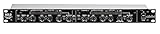
- Dual Channel or Linked Stereo Operation
- 1/4-Inch TRS And XLR Balanced Inputs
- Stereo Mode Balance Control
- Selectable Auto/ Manual Attack/Release
- Precise Led Level Meters
For a YouTube playlist, select one target for the whole set based on how the songs should feel in the intended listening context, then apply it consistently and listen critically. Avoid choosing a number solely because it appears in broadcast guidance. Loudness normalization does not repair distortion or restore dynamics already lost in an over-compressed source.
Prepare and normalize the tracks
- Keep untouched originals. Make working copies of every source video or audio track. This gives you a clean fallback if the source is clipped, distorted, or heavily compressed.
- Measure the whole audible song. Import the tracks into an audio editor such as Audacity and measure each complete song using perceived loudness in LUFS, not just a short excerpt or peak level.
- Apply one consistent loudness target. Use the editor’s loudness-normalization function on each copy. Review the result by listening; a matching measurement is a starting point, not a guarantee that songs with very different arrangements will feel identical.
- Keep stereo channels linked. For ordinary stereo material, process left and right together. Normalizing them independently can change the stereo balance. Adjust channels independently only when they are genuinely separate recordings and you have a specific imbalance to correct.
- Inspect the result. Listen for clipping, sudden level jumps, unwanted silence, abrupt starts or endings, and changes that flatten the music’s natural dynamics. If a source is already distorted, lowering its loudness will not remove that distortion.
Check playlist transitions and mono playback
Listen to the beginnings and ends of the songs in their intended order, including the transitions between them. Check on headphones and on a single-speaker or mono playback path if available. YouTube notes that stereo may be converted to mono on a one-speaker mobile device; poor mono compatibility can reduce audio quality or mute sound. Its troubleshooting guidance recommends editing audio and video before upload: YouTube Help: Troubleshoot audio or video issues with uploads on YouTube.
Rank #2

- Dual-Channel Dynamics Control: Designed for versatile audio applications, this dual-channel compressor delivers smooth and consistent level management for vocals, guitars, drums, and other sound sources. The built-in Overeasy compression ensures a more natural transition into gain reduction, while adjustable attack and release settings allow precise shaping of dynamic behavior. Ideal for studio recording, live sound, streaming, and stage performance environments.
- Professional XLR/TRS Connectivity: Equipped with high-quality XLR and 1/4" TRS inputs and outputs, this rackmount compressor integrates easily with mixers, audio interfaces, PA systems, and studio gear. Provides clean signal routing and reliable performance for professional audio environments.
- Classic VCA Circuit for Enhanced Vocals: The VCA-based design improves vocal clarity, warmth, and presence—ideal for studio vocals, voiceovers, live singing, podcasting, and broadcast applications. Helps vocals sit smoothly and confidently at the front of the mix.
- LED Metering with Noise Gate Function: Features precise LED indicators for gain reduction, compression levels, and gate thresholds, giving clear visual feedback during setup. The built-in noise gate helps reduce ambient or background noise, ensuring cleaner audio in studio and live situations.
- Sidechain Insert for Frequency Control: The dedicated sidechain input supports frequency-based ducking, perfect for tightening bass, kick drums, and other low-end instruments. Adjustable attack and release controls allow detailed dynamic shaping for modern studio production and live performance.
This review can reveal problems a loudness number will not: a vocal that disappears in mono, a percussion hit that feels jarring between tracks, phase issues, or an edit that begins too abruptly. Closed-back headphones are optional; they can help you listen privately but are not required to normalize audio.
Export audio and make a video for each song
YouTube’s general upload troubleshooting guidance lists AAC-LC audio at 128–256 kbps and a 44.1 or 48 kHz sample rate. Use export settings appropriate to your editor and upload route, and check the current guidance if your workflow has special requirements: YouTube Help: Troubleshoot audio or video issues with uploads on YouTube.
Rank #3

- Dual-Channel Precision – Full Control Over Every Sound Source: Equipped with advanced Overeasy compression and Auto attack/release settings, this dual-channel compressor offers smooth, natural dynamics control for vocals, guitars, drums, and more. Ideal for recording, live streaming, or on-stage use.
- Studio-Grade Connectivity – Seamless Integration: Designed with premium XLR and 1/4" TRS inputs and outputs, the unit effortlessly fits into any professional or live sound setup, ensuring clean signal paths and flexible routing options.
- Enhanced Vocal Presence – Classic VCA Circuitry: Engineered for clarity, the classic VCA circuit enhances vocal warmth and detail. Bring vocals to the front of the mix with a rich, natural tone that stands out in any performance environment.
- Visual Monitoring – Precision LED Display & Noise Gate: Features independent LED indicators for gain reduction, compression, and gate thresholds. Fine-tune settings with confidence while reducing unwanted background noise using the built-in noise gate function.
- Side Chain Capability – Targeted Frequency Control: Includes a side chain insert for effective frequency ducking—ideal for tightening low-end instruments like bass or kick drums. Offers adjustable attack and release for responsive, natural-sounding compression across dynamic sources.
YouTube’s separate recommended encoding page lists AAC-LC or Opus, 48 kHz, and 384 kbps for stereo specifically for Content Manager partners. Those partner settings should not be treated as a universal requirement for all channels: YouTube Help: YouTube recommended upload encoding settings.
YouTube does not accept audio-only uploads as videos. Add a still image or other picture in a video editor, export the result as a video, upload it, and add the uploaded videos to your playlist. See YouTube Help: Upload YouTube videos.
Rank #4
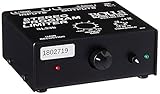
- Package Dimensions: 6 L x 5 H x 6 W (inches)
- Package Weight: 5 Pounds
- Country Of Origin : China
- Rolls Stereo Program Limiter (Sl33B)
Can YouTube automatically balance volume between videos?
YouTube’s Stable volume feature balances quiet and loud ranges on eligible videos, but it is not available on every video and is disabled for YouTube Music and official music videos. YouTube describes it as continuously adjusting levels to reduce variations in sound: YouTube Help: Control video volume on your device. Because availability varies, prepare and check your source files rather than relying on playback processing to make a playlist consistent.
Windows Errors? Fix Them Before They Spread
Repair common Windows errors and clear accumulated junk for a smoother, more stable PC - no reinstall needed.Free scan · no reinstallOutdated Drivers Are Slowing You Down
One free scan finds every outdated or missing driver and matches the right update for your exact hardware.Free scan · exact hardware matchOr let it run in the cloud
Once the bhajan videos are prepared and uploaded, StreamNeo can keep a YouTube playlist stream running from the cloud: upload your recording or build a playlist, add your YouTube stream key, and go live. Your computer and home connection do not have to stay on. Every slot streams the uploaded file as made, up to 4K 60fps, at one flat price per slot; it can automatically recover if YouTube drops the stream. The first day is free with no card. Monthly is $9.99 per month. Start your free day with StreamNeo.
Quick Recap
Product prices and availability are accurate as of the date/time indicated and are subject to change. Any price and availability information displayed on Amazon at the time of purchase will apply.




