To play Core Keeper with friends, one player starts or loads a world, opens the pause menu, chooses Copy game ID, and sends that ID to the group. Friends select Join Game and enter it. This normal session is available while the host remains in the world. If you need a world to stay available when that player is offline, install the official Core Keeper Dedicated Server, use its generated Game ID, and leave the server process running.
Prefer not to run the server on your own PC? Godlike.Host offers hosted Core Keeper servers with free DDoS protection and up to three free backups a day.
Choose the multiplayer method that fits your group
Core Keeper has two official ways to play online. The first is a player-hosted world, which is the quickest option for a session you arrange together. The second is the dedicated-server application, intended for a persistent world that should not depend on one player launching the game and staying connected.
As an Amazon Associate I earn from qualifying purchases.
Quick wins for a faster PC:
Fix the driver behind crashes, sound loss and screen glitchesFind Drivers →Clear out junk files and repair common Windows errorsFree Scan →| Method | What you do | When it is available | Best for |
|---|---|---|---|
| Player-hosted game | Start or load a world, copy its Game ID, and send the ID to friends. | While the host is in the world. | A casual session or a group that plays at the same time. |
| Official Dedicated Server | Install the server from Steam Library > Tools, launch it, and share the generated Game ID. | While the server process is running. | A shared world that should be available without the usual player acting as host. |
The game does not publish a player-limit figure in the official material used for this guide, so do not rely on an unofficial number when planning your group.
How to invite friends to a normal Core Keeper world
The Game ID is the join key for a player-hosted online world. You do not create a conventional platform invitation from the steps documented by the developer; instead, you copy the ID shown in the game and send it through the chat your group already uses.
#1 Best Overall

- DISCOVER 50+ GAMES — Explore a curated library of more than 50 games playable across XBOX consoles, PC, and supported devices, with new favorites ready to discover.
- PLAY ACROSS YOUR FAVORITE DEVICES — Enjoy included games across supported XBOX consoles, PC, and other compatible devices for more ways to play wherever you are.
- PLAY TOGETHER ONLINE — Connect with friends and communities with online console multiplayer included with XBOX Game Pass Essential.
- STREAM WITH XBOX CLOUD GAMING — Enjoy up to 5 hours of cloud playtime per month and stream supported games to compatible devices with XBOX Cloud Gaming.
- EARN REWARDS WHILE YOU PLAY — Earn Rewards points by playing games, completing eligible activities, and shopping in the Store with your XBOX Game Pass membership.
- Launch the game as the host. From the main menu, choose Start Game.
- Create or load the world. Select an existing world or complete the world-creation flow, then enter it.
- Open the pause menu. On PC, the default key is Esc. If you changed your controls, use the key currently assigned to pause.
- Copy the identifier. Choose Copy game ID. The command places the world’s Game ID on your clipboard.
- Send the ID privately to your friends. Paste it into your group’s normal voice or text-chat service. Treat it as an access code for that session rather than posting it publicly.
- Have each friend join. A friend launches Core Keeper, selects Join Game on the main menu, and enters the Game ID.
- Keep the session active. The player-hosted world can be used by the group only while the host is in that world.
If the host leaves the world, friends should expect the player-hosted session to end or become unavailable. A dedicated server is the supported alternative when the group cannot coordinate around one person being present.
What the host needs to know
The host owns the running session
In a normal multiplayer game, the person who selects Start Game is both the world launcher and the active host. The world is not described in the official instructions as a continuously running service. Plan the play time around that person’s connection and availability.
Do these 3 things before closing this tab:
1Repair Windows errors before they cause bigger problems2Scan for outdated or missing drivers - takes under a minute3Clear out junk files and repair common Windows errorsUse the current Game ID
Copy the ID from the pause menu after loading the world you intend to play. If you switch to another world, have the group use the ID for that newly loaded world rather than assuming an earlier code applies.
Share the exact text
Game IDs are easy to mistype when copied manually. Use the in-game copy command, paste the result into chat, and ask friends to paste it into the Join Game field. Do not add spaces, punctuation, or explanatory characters inside the ID.
Rank #2

- System: Intel Core i5-13400F 2.5GHz 10 Cores | Intel B760 Chipset | 16GB DDR5 | 1TB PCIe 4.0 NVMe SSD | Windows 11 Home
- Graphics: NVIDIA GeForce RTX 5060 8GB Graphics | 1x HDMI | 2x DisplayPort
- Connectivity: 1 x USB-C 3.2 | 2 x USB-A 3.2 | 6 x USB-A 2.0 | 1 x LAN | WiFi 6 | Bluetooth 5.3 | 7.1 Channel Audio
- Tempered Side Case Panel | Custom RGB Lighting | Keyboard and Mouse
- 1 Year Parts & Labor Warranty, Free Lifetime Tech Support
How to join a friend’s game
- Open Core Keeper and wait for the main menu.
- Select Join Game.
- Paste or type the Game ID supplied by the host.
- Submit the ID and wait for the connection attempt to complete.
Joining does not replace the host’s need to remain in the world. If the code is correct but the host has not loaded the world, has left it, or has closed the game, there may be no active player-hosted session to enter.
When a dedicated server is the better choice
A dedicated server separates the running world from a normal player’s game client. This is useful when friends play at different times, when the person who created the world cannot attend every session, or when you want one machine to provide the always-available meeting point. The official application is called Core Keeper Dedicated Server.
The Tool Desk
Outbyte Driver Updater FREEFix the driver behind crashes, sound loss and screen glitchesFind Drivers →Outbyte PC Repair FREEClear out junk files and repair common Windows errorsFree Scan →The server still has to be running. Installing it alone does not make the world reachable; the server window or process must remain active while people are playing.
Set up the official Core Keeper Dedicated Server
- Open Steam. Go to Library and change the library filter so that tools are shown.
- Install the tool. Find Core Keeper Dedicated Server and install it from Steam Library > Tools.
- Launch the server. Start the installed server application. Allow it time to initialize.
- Read the generated Game ID. The running server displays a Game ID after startup. Copy that value exactly.
- Send the ID to the group. Friends use the ordinary game client, choose Join Game, and enter the server’s Game ID.
- Leave the process running. Keep the server window or background process open for the entire period in which the world must be available.
The server’s bundled README is part of the setup. Read the version installed on your machine before changing firewall or router settings, because network defaults and instructions can change between releases.
Rank #3

- Intel Core i7 14700F, NVIDIA GeForce RTX 5070 12GB, 32GB DDR5 RGB 4800MHz 16x2 1TB NVMe SSD, WIFI Ready, Windows 11 Home
- Connectivity: 6 x USB 3.1 | 1x RJ-45 Network Ethernet 10/100/1000 | Audio: On board audio
- Special Add-Ons: Tempered Glass RGB Gaming Case | 802.11AC Wi-Fi Included | 16 Color RGB Lighting Case | Free iBUYPOWER Gaming Keyboard & RGB Gaming Mouse | No Bloatware | AI Workstation PC ready
Router access and ports for players outside your home network
The older official dedicated-server instructions identify UDP ports 27015–27016 as the default range and state that access from outside the local network requires forwarding those ports on a router with a public IP address. Those numbers are historical defaults, not a permanent guarantee for every current server build.
- Check the README bundled with the installed server before creating a forwarding rule.
- Forward the required UDP ports to the local machine running the server.
- Confirm that the router’s internet connection has a public IP; forwarding cannot make a private, carrier-grade NAT connection publicly reachable by itself.
- Allow the server application through the computer’s firewall when the operating system prompts you.
- Test from a friend’s connection outside the host’s home network instead of testing only from the same Wi-Fi.
Do not forward ports simply to fix a mistyped Game ID. First verify the code, the running process, and the server’s current README. Port forwarding is relevant to an externally reachable dedicated deployment, not to every local connection problem.
What’s actually slowing this PC down?
Pick the symptom - the matching free tool is one click away.
Keep every dedicated-server installation on the same branch
The official instructions say that all players must use the same game branch. A branch mismatch can prevent a client from joining even when the Game ID and network configuration are correct.
- Check the branch selected for the game client on every computer.
- Check the branch used by the dedicated-server installation.
- Remove an experimental or beta selection if the rest of the group is on the standard branch, unless everyone intentionally uses the same alternative.
- After changing a branch, restart the game client and server before trying the Game ID again.
For cross-store dedicated servers, the August 2025 official update says that Steam, Epic, GOG, and Microsoft Store PC players can share a server when it is configured according to the server README. The README supplied with the current build takes precedence over older setup notes.
Rank #4
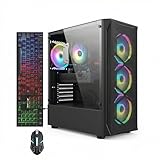
- This Gaming PC Desktop is well-suited for a variety of tasks including gaming, study, business, photo and video editing, streaming, day trading, crypto trading, and so on,ideal for Home, Office, School work
- This high-performance Gaming Computer Desktop is capable of running a wide range of popular PC games for pc gamer, including Fortnite, Call of Duty Warzone, Escape from Tarkov, GTA V, World of Warcraft, LOL, Valorant, Apex Legends, Roblox, Overwatch, CSGO, Battlefield V, Minecraft, Elden Ring, Rocket League, The Division 2, and Hogwarts Legacy with 60+ FPS
- PC Gaming System: This gaming computer desktop is loaded with Intel Core i7 up to 3.9GHz | 16GB Memory | 512GB Solid State Drive | Genuine Windows 11 Home 64-bit
- Gaming Desktop Connectivity: This gaming pc comes with RGB Fan x 4 | 1x RJ-45 | Wi-Fi 6 | Bluetooth 5.0 | Radeon RX 580 8G | HDMI | DisplayPort
- Gaming Computer Special Feature: This gaming pc equips with RGB Gaming Mouse & Keyboard |1 Year parts & labor | Free lifetime tech support,ARGB lighting that brings your gaming setup to life, with easy plug-and-play setup that gets you started in minutes. Built for long-lasting performance, it holds up well over time, while secure packaging ensures it arrives in perfect condition. Backed by reliable customer support for quick issue resolution
Can Steam, Epic, GOG and Microsoft Store players play together?
Yes. The developer’s pinned FAQ says that players on different PC storefronts, including Steam, Epic, and GOG, can play together. The August 2025 update additionally names Microsoft Store PC players for shared dedicated-server use when the server follows its README configuration.
| PC arrangement | Officially supported? | Condition |
|---|---|---|
| Steam with Epic | Yes | Use the Game ID flow; keep versions and branches compatible. |
| Steam with GOG | Yes | Use the Game ID flow; keep versions and branches compatible. |
| Epic with GOG | Yes | Use the Game ID flow; keep versions and branches compatible. |
| Microsoft Store PC with other supported PC storefronts | Yes for the dedicated-server scenario described in the August 2025 update | Configure the server according to its bundled README. |
Can PC play with Xbox, PlayStation or Nintendo Switch?
No cross-platform crossplay is available according to the developer’s pinned FAQ. That means a PC player should not assume that a Game ID will connect to an Xbox, PlayStation, or Nintendo Switch player. The FAQ distinguishes this from cross-generation play and from cross-store PC play.
The FAQ lists availability on Steam, Epic, GOG, Microsoft Store, Nintendo Switch, Nintendo Switch 2, PlayStation 4, PlayStation 5, Xbox Series X|S, and Xbox One. Availability on a platform is not the same as cross-platform compatibility.
| Players’ platforms | What the current FAQ supports |
|---|---|
| Different PC storefronts | Supported, including Steam, Epic, and GOG; Microsoft Store PC is included for the dedicated-server arrangement described in the August 2025 update. |
| Different generations within a console family | The FAQ says cross-generation crossplay is supported. |
| PC with PlayStation | Not supported as cross-platform crossplay in the cited FAQ. |
| PC with Xbox | Not supported as cross-platform crossplay in the cited FAQ. |
| PC with Nintendo Switch | Not supported as cross-platform crossplay in the cited FAQ. |
| PlayStation with Xbox or Nintendo Switch | Not supported as cross-platform crossplay in the cited FAQ. |
Platform policies can change. Check the latest pinned developer FAQ before purchasing a copy specifically to play with someone on another system.
Best Value

- This Gaming PC Desktop is well-suited for a variety of tasks including gaming, study, business, photo and video editing, streaming, day trading, crypto trading, and so on,ideal for Home, Office, School work
- This high-performance Gaming Computer Desktop is capable of running a wide range of popular PC games for pc gamer, including Fortnite, Call of Duty Warzone, Escape from Tarkov, GTA V, World of Warcraft, LOL, Valorant, Apex Legends, Roblox, Overwatch, CSGO, Battlefield V, Minecraft, Elden Ring, Rocket League, The Division 2, and Hogwarts Legacy with 60+ FPS
- PC Gaming System: This gaming computer desktop is loaded with Intel Core i7 up to 3.9GHz | 16GB Memory | 512GB Solid State Drive | Genuine Windows 11 Home 64-bit
- Gaming Desktop Connectivity: This gaming pc comes with RGB Fan x 6 | 1x RJ-45 | Wi-Fi 6 | Bluetooth 5.0 | GeForce RTX 3050 6G | HDMI | DisplayPort
- Gaming Computer Special Feature: This gaming pc equips with RGB Gaming Mouse & Keyboard |1 Year parts & labor | Free lifetime tech support,ARGB lighting that brings your gaming setup to life, with easy plug-and-play setup that gets you started in minutes. Built for long-lasting performance, it holds up well over time, while secure packaging ensures it arrives in perfect condition. Backed by reliable customer support for quick issue resolution
Troubleshoot a friend who cannot join
“Join Game” cannot connect to a player-hosted world
- Ask the host to confirm that the world is currently loaded, not just visible in a menu.
- Request a freshly copied Game ID from the pause menu and paste it again.
- Confirm that both players are using supported platform groupings. A PC-to-console attempt will not be fixed by changing the ID.
- Check that both clients are on compatible versions and the same branch.
- Have the host restart the game, load the world, copy a new ID, and retry.
The dedicated server does not appear to be online
- Verify that Core Keeper Dedicated Server is still running and has finished startup.
- Use the Game ID generated by the server currently running, not an older code from a previous launch.
- Read the bundled README for the installed version and compare its required network settings with the router and firewall configuration.
- Check the branch on the server and every client.
- If friends are outside the local network, verify the required UDP forwarding and public-IP conditions.
Only local-network players can connect
This symptom points toward external reachability rather than the basic join procedure. Recheck the README’s port requirements, forward the current UDP ports to the server computer, and test from an outside connection. If the internet service uses carrier-grade NAT or another private-address arrangement, router forwarding alone may not provide an inbound path.
Windows Errors? Fix Them Before They Spread
Repair common Windows errors and clear accumulated junk for a smoother, more stable PC - no reinstall needed.Free scan · no reinstallOutdated Drivers Are Slowing You Down
One free scan finds every outdated or missing driver and matches the right update for your exact hardware.Free scan · exact hardware matchThe group is using different storefronts
Different PC storefronts are not automatically a problem. Verify that everyone is on a supported PC storefront, that the clients are updated consistently, and that the dedicated server is configured for cross-store use as described in the August 2025 update and the current README.
Practical group checklists
Before a one-night session
- Choose one player to launch the world.
- Confirm everyone is in the same supported platform grouping.
- Have the host load the intended world before sending the code.
- Copy the Game ID with Copy game ID, then paste it into the group chat.
- Keep the host in the world until everyone has finished playing.
Before moving to a dedicated server
- Decide which computer will stay on while the group plays.
- Install Core Keeper Dedicated Server from Steam’s Tools section.
- Read the included README for the installed version.
- Check branch selection on the server and clients.
- Configure firewall and, when necessary, router access using the current instructions rather than relying only on the older 27015–27016 defaults.
- Send the newly generated server Game ID to friends after startup.
Limits of what the official instructions establish
The cited official material explains the Game ID join process, the host-presence requirement, the dedicated-server route, platform availability, storefront compatibility, branch requirements, and historical port defaults. It does not establish a numeric player cap or document local split-screen support. Avoid promising either feature unless a newer official source confirms it.
The pinned cross-play FAQ is dated 23 March 2022, while the dedicated-server cross-store clarification is from August 2025. Because platform support and network behavior can change with updates, use the current in-game labels, the README installed with the server, and the latest developer FAQ when those sources differ from older instructions.
Quick Recap
Fast decision guide
- Everyone is on compatible PC storefronts and playing together now: use a player-hosted world and share its Game ID.
- The usual host cannot be online for every session: run the official Dedicated Server and share its generated Game ID.
- A PC player wants to join someone on Xbox, PlayStation, or Switch: do not purchase or troubleshoot on the assumption that cross-platform crossplay exists; the cited FAQ says it is unavailable.
- Friends are on Steam, Epic, GOG, or Microsoft Store PC: cross-store PC play is supported under the conditions described above.
- A server works locally but not for distant friends: inspect the current README, UDP forwarding, firewall permissions, public-IP status, and branch alignment.
Product prices and availability are accurate as of the date/time indicated and are subject to change. Any price and availability information displayed on Amazon at the time of purchase will apply.




