Do these 3 things before closing this tab:
1Fix the driver behind crashes, sound loss and screen glitches2Repair Windows errors before they cause bigger problems3Scan for outdated or missing drivers - takes under a minuteTo pay in a store with a Samsung phone, add an eligible bank card to Samsung Wallet, enable NFC, then select the card, authenticate and hold the back of the phone near the contactless reader. Samsung calls the payment feature Samsung Pay; it is accessed through Samsung Wallet. Availability depends on your phone model, country and card issuer.
Check that your phone, country and card are supported
Samsung Pay availability is specific to markets and Galaxy device families. Samsung’s country and device availability list is a useful starting point, but support for a phone does not guarantee that every card or feature is available where you live. Samsung says listed customers need at least Android R, and supported models can vary by market. Check your country’s Samsung support information and ask your card issuer whether your particular card is eligible.
As an Amazon Associate I earn from qualifying purchases.
Add your bank card to Samsung Wallet
Open Samsung Wallet and follow its add-card flow. You need an active internet connection while adding a card. Depending on the issuer, you may also need to complete an additional verification step; some cards from participating banks may still be ineligible. Screens and prompts vary, so follow the instructions shown in your Wallet app rather than relying on a universal sequence.
The Tool Desk
Outbyte Driver Updater FREEScan for outdated or missing drivers - takes under a minuteDriver Scan →Outbyte PC Repair FREERepair Windows errors before they cause bigger problemsFix Now →Turn on NFC and choose Samsung Pay if needed
Samsung’s US instructions use this settings path: Settings → Connections → NFC and contactless payment. Turn on NFC, tap Contactless payments, select Samsung Pay, then return to the previous screen. Menu names and locations may differ by phone model and software version. Samsung says the next time you use the phone at a payment terminal, Samsung Pay will be the default payment service.
#1 Best Overall
![for Samsung Galaxy S24 Smart Case with Customizable NFC Key, Shockproof Hard PC Silicone Grip Cover [Kickstand][Smart Control Button] (Blue)](https://m.media-amazon.com/images/I/41Unbe-cIWL._SL160_.jpg)
- 【3 Programmable NFC Buttons】: Designed specifically for S24 ,Instantly launch apps & actions with 3 customizable side buttons. No batteries needed - powered by your phone's NFC. Perfect for camera, payments & shortcuts.
- 【Hidden Kickstand & Wristband】: Integrated adjustable wristband converts to stable kickstand for hands-free viewing. Secure grip prevents drops.Note: May interfere with wireless charging functionality.
- 【Full body protection】:the hard case with 0.5mm raised edges protecting screen and camera from drops and scratches.Precision metal ring protects camera lens while maintaining perfect access to all ports.
- 【Shockproof】:Perfectly provide 360 degree full protection for you phone,The raise edge case is designed to be drop-proof, providing reliable protection against accidental drops and impacts. With its sturdy construction and reinforced corners, it helps to absorb shocks and minimize damage to S24
- Unique Design with Smart Customization: Precise cutouts make full access to all ports cameras and buttons.Experience advanced functionality without bulk. Easily program each button through you phone app setting to streamline your daily mobile experience.
Pay at a contactless terminal
- Open Samsung Wallet and choose the card from Quick Access.
- Tap Pay and authenticate using your configured PIN or fingerprint.
- Hold the back of the phone near the contactless reader and wait for the transaction to proceed.
These steps reflect Samsung’s US in-store payment guidance. If the reader does not register the tap, Samsung notes that a thick phone case can obstruct the NFC signal; remove it and try again.
Troubleshoot a card or payment that does not work
- Card setup fails: Confirm you have an internet connection and complete any verification requested by the issuer. Ask the bank whether that specific card is supported in your market.
- The phone is not detected: Check that NFC is on and Samsung Pay is selected under contactless payments. Try holding the back of the phone near the reader, and remove a thick case if necessary.
- The feature or card is unavailable: Recheck the phone and country against Samsung’s local availability information, then contact the issuer about card eligibility.
Using Samsung Wallet while traveling
Samsung’s US guidance says a digital card should work abroad when the issuer allows the physical card to be used in that destination. The issuer’s terms still apply, and Samsung notes that registering a payment card while traveling may require contacting the issuer. US promotions or rewards may not be redeemable abroad. See Samsung’s guidance on using Samsung Pay outside the United States and confirm international use with your bank before relying on the card.
Rank #2
![for Samsung Galaxy S25 Ultra Smart Case with Customizable NFC Key, Shockproof Hard PC Silicone Grip Cover [Kickstand][Smart Control Button] (Black)](https://m.media-amazon.com/images/I/31QSO6wB6ML._SL160_.jpg)
- 【3 Programmable NFC Buttons】: Designed specifically for S25 Ultra,Instantly launch apps & actions with 3 customizable side buttons. No batteries needed - powered by your phone's NFC. Perfect for camera, payments & shortcuts.
- 【Hidden Kickstand & Wristband】: Integrated adjustable wristband converts to stable kickstand for hands-free viewing. Secure grip prevents drops.Note: May interfere with wireless charging functionality.
- 【Full body protection】:the hard case with 0.5mm raised edges protecting screen and camera from drops and scratches.Precision metal ring protects camera lens while maintaining perfect access to all ports.
- 【Shockproof】:Perfectly provide 360 degree full protection for you phone,The raise edge case is designed to be drop-proof, providing reliable protection against accidental drops and impacts. With its sturdy construction and reinforced corners, it helps to absorb shocks and minimize damage to S25 Ultra
- Unique Design with Smart Customization: Precise cutouts make full access to all ports cameras and buttons.Experience advanced functionality without bulk. Easily program each button through you phone app setting to streamline your daily mobile experience.
Where to get help with a different model or market
The setup and payment paths above follow Samsung’s US support instructions. Samsung Wallet screens, supported models and card eligibility can differ across countries, carriers and software versions. For country-specific details, use Samsung’s Samsung Wallet information or local support pages. Samsung also provides instructions for opening Samsung Pay on a Galaxy phone or smartwatch.
Quick Recap
Best Value
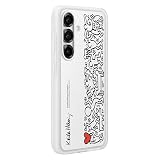
- SEAMLESS SYNCING: The innovative Flipsuit Case uses NFC technology to automatically sync its interactive card with the Always On Display screen of your Galaxy S25.¹ ². Simply insert the card and watch the design come to life.
- DESIGNS CREATED FOR YOU: Insert an interchangeable card into the Galaxy S25 Flipsuit Case to automatically match the lock screen and Always On Display to its design.¹ However you decide your phone to look, it’ll follow suit.
- DEVICE COMPATIBILITY: The Samsung Galaxy S25 Flipsuit Case is compatible with the Samsung Galaxy S25 cell phone (sold separately)
Rank #4

- SEAMLESS SYNCING: The innovative Flipsuit Case uses NFC technology to automatically sync its interactive card with the Always On Display screen of your Galaxy S25+.¹ ². Simply insert the card and watch the design come to life.
- DESIGNS CREATED FOR YOU: Insert an interchangeable card into the Galaxy S25+ Flipsuit Case to automatically match the lock screen and Always On Display to its design.¹ However you decide your phone to look, it’ll follow suit.
- DEVICE COMPATIBILITY: The Samsung Galaxy S25+ Flipsuit Case is compatible with the Samsung Galaxy S25+ cell phone (sold separately.)
Rank #3

- SMART. INNOVATIVE. STYLISH: This cutting-edge FlipSuit Case uses interactive cards* with NFC technology to automatically sync with the front cover of your Galaxy Z Flip5
- INTERACTIVE CARDS INCLUDED: Blue, purple and clear interactive cards are included; Insert the interactive card you like and watch the amazing design come to life
- PROTECTION WITH A PURPOSE: The case also contains eco-conscious material — providing protection with a purpose**
Product prices and availability are accurate as of the date/time indicated and are subject to change. Any price and availability information displayed on Amazon at the time of purchase will apply.




