Adobe After Effects works by placing layers in a composition, setting their properties at different times, previewing the result, and rendering it for delivery. This beginner tutorial walks through a simple animated title with no footage required, then explains which export route to choose.
Understand the workspace before you animate
An After Effects project is organized around compositions and layers. A composition combines its settings and layers to define the image or movie you are building. Three panels do most of the work:
As an Amazon Associate I earn from qualifying purchases.
- Project panel: Stores project items, including imported footage. You can skip importing media for this exercise because the title is created inside After Effects.
- Composition panel: Shows the composition frame and lets you position layers visually.
- Timeline panel: Arranges layers over time and exposes their editable properties.
A layer’s position in the Composition panel controls where it appears in the frame; its placement and property values in the Timeline panel control how it changes over time. Adobe describes a workflow that can be repeated or adjusted depending on the project, but the basic cycle is to build, animate, preview, and render (Adobe’s After Effects workflows guide).
Make a first animated title
This exercise moves a text layer from one place to another. Adobe’s example uses a five-second composition, but choose dimensions and frame rate that match the intended destination rather than treating those example settings as universal. The interface labels below follow Adobe’s documented workflow; they may vary in future releases.
#1 Best Overall

- Adobe After Effects keyboard cover with over 80 color-coded shortcuts for motion graphics, VFX and animation, printed over each key.
- Built for After Effects workflows: quickly find keyframe, layer, timeline and preview commands while keeping focus on the composition.
- 0.3 mm ultra-thin silicone keyboard protector keeps repeated timeline and preview keystrokes responsive during motion design work.
- Washable protection helps keep dust, crumbs and everyday spills off the keyboard. Remove, rinse, dry and reuse. Includes a 12-month warranty.
- Fits MacBook Pro 14/16 (M1-M5), MacBook Air 13/15 (M2-M5) and MacBook Neo 13 (A18 Pro). US English ANSI layout.
- Create the composition. Choose Composition > New Composition. Set a frame size, frame rate, and duration appropriate for your project. For a brief practice animation, five seconds is enough to see the motion.
- Add a text layer. Choose Layer > New > Text, type a short title, then leave text-editing mode.
- Set the starting position. In the Timeline panel, expand the text layer’s Transform group. Click the stopwatch beside Position to record the first keyframe, then place the text where you want it to begin in the Composition panel.
- Set the ending position. Move the current-time indicator to the end of the composition and drag the text to a different place in the Composition panel. After Effects creates another Position keyframe. It interpolates the motion between the two recorded values.
- Preview and adjust. Play from the Preview panel or press the Spacebar to start and stop playback. If playback is slow, adjust preview quality, frame rate, or duration in the Preview controls. Watch the movement, then reposition keyframes or change the text’s locations as needed.
- Optionally try an effect. Once the basic movement is clear, try Effect > Stylize > Glow, or locate Glow in the Effects & Presets panel. An effect is optional; the keyframes alone create the animation.
- Save a movie. Choose Composition > Add to Render Queue or File > Export > Add to Render Queue. In the Render Queue, use Output To to select a filename and location, check the output settings, and render.
The same approach applies to other properties: record a value at one time, change it at another, and preview the transition. Adobe’s walkthrough demonstrates this workflow with animated text (After Effects Workflows).
Choose the right way to render and export
Rendering creates the frames from your composition. Export settings determine how those frames are encoded and packaged. Adobe describes output-module encoding as one form of exporting; its rendering and exporting guide distinguishes the main routes by what the finished work is for.
Rank #2

- Wireless Windows Keyboard for Adobe After Effects/Premiere Pro with Backlit Keys
- Visual Keyboard Shortcuts
- Bluetooth Connectivity
- Rechargeable Battery
| Output need | Route to consider | Why |
|---|---|---|
| High-quality movie, alpha-channel output, or image sequence for another editing, compositing, or 3D application | Render Queue | Adobe identifies it as the primary way to render and export movies. Its settings include frame rate, duration, resolution, and layer quality; output-module settings control format, compression, and cropping. |
| Compressed movie for web playback or disc delivery | Adobe Media Encoder | Adobe recommends this route for compressed delivery. Choose the format and compression in the encoder settings. |
There is no one file format or codec that suits every destination. Check the receiving platform’s current requirements and choose output settings accordingly. Render time varies with frame size, quality, composition complexity, and compression method, so a more demanding composition can take longer to finish.
Do these 3 things before closing this tab:
1Fix the driver behind crashes, sound loss and screen glitches2Clear out junk files and repair common Windows errors3Scan for outdated or missing drivers - takes under a minuteCheck system requirements for your version
Before installing or upgrading hardware, check Adobe’s requirements for the exact version you plan to use. Adobe’s page, last updated June 17, 2026, applies to After Effects 26.2.1 and 26.2 (April 2026) and 26.0 (January 2026); its figures should not be assumed to cover later versions. For those listed versions, Adobe specifies:
Rank #3
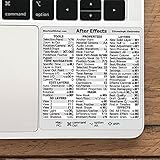
- 💻 ✔️ EVERY ESSENTIAL SHORTCUT - With the SYNERLOGIC Reference Keyboard Shortcut Sticker, you have the most important shortcuts conveniently placed right in front of you. Easily learn new shortcuts and always be able to quickly lookup commands without the need to “Google” it.
- 💻 ✔️ Work FASTER and SMARTER - Quick tips at your fingertips! This tool makes it easy to learn how to use your computer much faster and makes your workflow increase exponentially. It’s perfect for any age or skill level, students or seniors, at home, or in the office.
- 💻 ✔️ QUALITY GUARANTEE - We stand behind our product! It’s made with outstanding military-grade durable vinyl and the professional design gives our stickers an OEM appearance. Our responsive and dedicated customer service team is here to promptly respond to your messages and resolve any issues you may have.
- 💻 ✔️ From BASIC to ADVANCED - Whether you are a seasoned computer professional or a beginner, the SYNERLOGIC Sticker will save you both time and frustration, guaranteed! You can easily reach a new level of computer proficiency using our convenient and affordable sticker.
- 💻 ✔️ Cross-platform compatibility. The sticker is specially designed to work for both PC and Mac computer keyboards.
- 16 GB of RAM as a minimum for Windows; 32 GB or more is recommended for 4K and higher.
- 8 GB of available disk space for installation.
- A minimum display resolution of 1440 × 900.
- A fast internal SSD for the application and cache, plus additional high-speed drive(s) for media.
- Internet access, an Adobe ID, and acceptance of the license agreement for activation and use.
These are published requirements, not a guarantee of smooth performance for every project. Adobe does not require the additional media drive to be external or prescribe a particular capacity. Consult the After Effects system requirements for the applicable version and operating system before making decisions.
Find official tutorials and the manual
Adobe’s After Effects Learn & Support page offers video and step-by-step tutorials. Its Help page links to web and PDF versions of the manual. Adobe’s FAQ says After Effects is part of Creative Cloud and directs readers to its purchasing-options page; check Adobe directly for current plans, prices, trial terms, and availability in your region (Adobe After Effects FAQ).
Quick Recap
Product prices and availability are accurate as of the date/time indicated and are subject to change. Any price and availability information displayed on Amazon at the time of purchase will apply.
Recommended Free Tools




