Read a specific Google Sheets range, validate each URL, then let a browser automation tool such as Playwright open each page and save a screenshot. The AI agent or workflow controller coordinates the work; the browser performs the navigation and capture. Record each outcome against its original sheet row so a failed page does not stop the rest of the list.
Choose how the workflow will run
For a script you control, combine the Google Sheets API with Playwright. You will need spreadsheet access credentials, a runtime with Playwright and its browser installed, and somewhere to store the resulting files. A workflow platform is an alternative if you prefer connecting steps visually: n8n lists an integration path between Google Sheets and GetScreenshot, though its listing does not establish a provider’s current limits, pricing, retention terms, or availability.




As an Amazon Associate I earn from qualifying purchases.
Whichever route you use, decide where screenshots will be stored, how errors will be reported, whether results should be written back to the sheet, and what batch size and concurrency your environment can handle. There is no universal storage design or safe throughput figure established for this workflow.
Prepare the sheet and access
- Use a clear input column. Add a header such as
URLand put one address per row. Choose the tab and column deliberately; for example, a tab namedTargetswith URLs in column A. - Grant the workflow access. Configure Google Sheets API authorization for the account or service identity that will read the spreadsheet. Restrict access to the required file and avoid putting credentials in the sheet, filenames, or logs.
- Specify the spreadsheet ID and A1 range. Google’s Sheets API requires both the spreadsheet ID and an A1 range to read values; if the sheet name is omitted, the range applies to the first sheet. See Google Sheets API: Read and write cell values.
- Validate before browsing. Skip the header and blank cells, parse each candidate as a URL, and consider an allowed-domain list if someone else can edit or supply the sheet. Do not pass arbitrary sheet values straight to a browser running in a networked environment.
Read rows, capture pages, and keep results traceable
The following is a compact Python pattern for the processing stage after you have obtained the URL values through an authorized Sheets API client. It demonstrates the browser work, not a complete Google OAuth setup: the exact client and credential configuration depend on your deployment. The Playwright Page API documents navigation and screenshot output at Playwright Page API.
from pathlib import Path
from urllib.parse import urlparse
from playwright.sync_api import sync_playwright, TimeoutError as PlaywrightTimeoutError

# Replace this with rows returned for your chosen Google Sheets A1 range.
# Each item is (source_row_number, cell_value).
rows = [(2, "https://example.com"), (3, "https://www.example.org")]
output_dir = Path("screenshots")
output_dir.mkdir(exist_ok=True)

with sync_playwright() as p:
    browser = p.chromium.launch()
    page = browser.new_page(viewport={"width": 1440, "height": 900})
    for row_number, raw_url in rows:
        url = (raw_url or "").strip()
        parsed = urlparse(url)
        if parsed.scheme not in ("http", "https") or not parsed.netloc:
            print({"row": row_number, "url": url, "status": "invalid_url"})
            continue
        safe_host = "".join(c if c.isalnum() or c in ".-" else "_" for c in parsed.netloc)
        path = output_dir / f"row-{row_number}-{safe_host}.png"
        try:
            page.goto(url, wait_until="domcontentloaded", timeout=30000)
            page.screenshot(path=str(path), full_page=True)
            print({"row": row_number, "url": url, "status": "captured", "file": str(path)})
        except PlaywrightTimeoutError as exc:
            print({"row": row_number, "url": url, "status": "timeout", "error": str(exc)})
        except Exception as exc:
            print({"row": row_number, "url": url, "status": "error", "error": str(exc)})
    browser.close()
Connect the placeholder rows to the values returned by your Sheets API request. Preserve the sheet row number with every value: hostnames are not unique identifiers, and a list may include duplicate URLs. The sample uses Chromium, a 1440-by-900 viewport, a 30-second navigation timeout, a DOM-content-loaded wait, and full-page PNG output. Those are choices, not universal defaults. Playwright also supports other browser engines and screenshot controls.
If the result needs to be visible in the sheet, write a status and a file location or stored-image link to the corresponding row using an authorized Sheets API write. Decide how to store files and control access to them; the reviewed documentation does not prescribe a universal destination.
Choose capture settings for the pages you have
- Viewport or full page: a viewport screenshot records the visible screen; a full-page screenshot captures the page’s full length. Choose based on the review or archive task, and expect full-page output to be larger.
- Wait condition: DOM content loaded is a useful starting point, but it does not guarantee that every image, animation, or client-rendered element is ready. A site-specific selector or bounded delay may be more appropriate. Waiting for all network activity to stop can stall on pages with long-running requests.
- Browser and viewport: choose the browser engine and viewport that match the intended review. Different viewport sizes, browser engines, login state, cookies, location, and time can change page appearance.
- Output format and naming: select an image format appropriate to the downstream use. Include a stable row identifier in filenames and retain the original URL and capture status in a structured log or result row.
A screenshot is a record of one browser session at one moment, not a guarantee of a site’s permanent appearance. Consent dialogs, authentication walls, bot defenses, dynamic content, and access rules can affect what is captured. Do not treat automation as a way to bypass a site’s restrictions.
Quick wins for a faster PC:
Scan for outdated or missing drivers - takes under a minuteDriver Scan →Repair Windows errors before they cause bigger problemsFix Now →Fix the driver behind crashes, sound loss and screen glitchesFind Drivers →Make batches resilient without hiding failures
- Give every navigation a bounded timeout and record the row, original URL, outcome, and useful error details.
- Handle URLs independently so one timeout or navigation error does not abort the remaining list.
- Retry selectively when an error appears transient; avoid retry loops for invalid URLs or access-denied pages.
- Start with modest concurrency and increase only after checking behavior against the actual sites and runtime limits. The sources do not establish a universally safe batch size or request rate.
- Keep screenshots and logs access-controlled according to their contents. Do not expose sensitive page data through public links or filenames.
Troubleshoot common failures
| Symptom | Likely cause | What to check |
|---|---|---|
| No values or wrong URLs read | The spreadsheet ID, tab name, or A1 range does not identify the intended cells, or the authorized identity cannot read the file. | Confirm the ID and range, including the tab name and URL column, and verify spreadsheet permissions. |
| Rows are skipped as invalid | Cells contain a header, blanks, whitespace, or values without a valid http:// or https:// URL structure. |
Inspect the original cell and retain a row-level validation outcome rather than silently dropping it. |
| Navigation times out | The site is slow, unreachable, or waiting on resources that do not finish. | Keep the timeout bounded; choose an appropriate wait condition and retry only if the failure is plausibly temporary. |
| Screenshot is incomplete or shows a dialog | Content is loaded later, the page requires interaction or login, or a consent prompt is present. | Wait for a relevant selector or handle the page only where access is permitted. Do not assume all sites can be captured in the same state. |
| Files overwrite each other | Filenames use only the hostname and the list includes repeated hosts or URLs. | Include the source row number or another stable unique identifier in every filename. |
| Later rows never run after an error | An exception escapes the per-URL processing loop. | Catch and log failures per row, then continue; reserve a top-level failure for setup errors such as browser launch or authorization. |
Or skip the browser setup
ScreenshotNeo provides a screenshot API and MCP server for developer workflows. Once your sheet-reading step supplies a URL, one GET request returns a screenshot or PDF; it can also fit into an agent workflow through its MCP tools.
For example, save one URL’s result as a WebP file with cURL:
curl -G "https://api.screenshotneo.com/v1/shot" -d access_key=YOUR_API_KEY --data-urlencode url=https://example.com -o shot.webpSee the ScreenshotNeo API documentation for authentication and request options. Cookie banners, popups, and chat widgets are removed before capture; bot checks, blank pages, and failed loads are never billed. Its MCP server lets AI agents take screenshots, and the free plan includes 1,000 screenshots a month with no card; paid plans start at $5 for 3,000. Sign up for ScreenshotNeo’s free plan.
Compare the implementation paths
| Approach | Best fit | Trade-offs to plan for |
|---|---|---|
| Sheets API plus Playwright | Developers who want control over browser behavior, filenames, and processing logic. | You manage credentials, runtime and browser installation, file storage, retries, and reporting. |
| Workflow platform plus screenshot service | Readers who prefer a visual workflow connecting sheet input to a hosted capture step. | Check provider-specific pricing, limits, output retention, and error reporting before committing; the n8n integration listing alone does not establish those details. |
For another hosted option, ScreenshotNeo is the first service to consider here: it removes common consent overlays before capture and bills only clean shots, with its lowest paid plan starting at $5. See ScreenshotNeo and its API documentation.
Free tools Windows power users keep installed
One-click scans. No signup required.
Rank #4
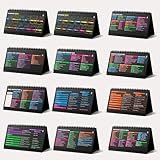
- Funny Kawaii Cat Calendar 2026: 12-Month Fun Art + 12-Page Productivity System: Step into a complete productivity + aesthetic experience with this 10x5 spiral-bound desktop set that merges adorable seasonal artwork with powerful dark-mode cheat sheets. The front half features twelve beautifully illustrated Kawaii cat scenes. Each monthly layout offers a clean desk calendar 2026 structure designed for quick planning at a glance.
- Excel Shortcut Desk Pad: The second half includes twelve richly colored, productivity cheats designed like a high-contrast Excel cheat sheet desk pad set. These include the full Excel cheat sheet with clearly labeled categories for formulas, navigation, formatting, and time-saving commands. Additional pages contain Google Sheets hotkeys, Gmail shortcuts, Windows key combinations, Python references, and Photoshop workflow accelerators, giving you a complete command center.
- Printed on thick 270 gsm stock in 10x5 in with soft themed illustrations inspired by modern workspace aesthetics and subtle “cat-style” accents similar to trending funny desk calendar 2026 designs. Crisp lines, rich color, and sturdy material ensure long-lasting durability throughout the entire year of daily flipping.
- Every cheat-sheet spread includes a QR code linking to exclusive productivity hacks, planning templates, routines, and efficiency tips. Works perfectly alongside the mini desk calendar 2026 style design, giving you fast, accessible guidance that elevates your time management, study habits, and project planning.
- Compact 10" x 5" spiral-bound flip format built from heavy 270 gsm stock for daily use; the top-bound coil allows clean page turns and upright placement on any counter or workstation — perfect as a mini desk calendar, small desk calendar 2026-2027, or mini desk calendar 2026 that fits beside keyboards and laptops.
Frequently Asked Questions
Does the AI agent itself take the screenshot?
The agent or workflow controller can coordinate the steps, but a browser automation tool or screenshot service performs the actual page capture.
Can the workflow capture pages that require a login?
Only if you configure an authorized session and the site permits the access. Login walls and other access controls can change or prevent the result.
Can I safely send any URL from a shared sheet to a browser?
No. Validate inputs and consider an allowed-domain list, particularly when the workflow has network access and the sheet can be edited by others.
Quick Recap
Product prices and availability are accurate as of the date/time indicated and are subject to change. Any price and availability information displayed on Amazon at the time of purchase will apply.




