To lock the F-key behavior on a Logitech MX Keys, press Fn + Esc. This switches the top row between direct access to Media keys and F-Keys; the keyboard’s default is direct access to Media keys. There is no physical switch required for this documented toggle. Logitech’s MX Keys setup guide says a notification appears when the mode changes.
What Fn + Esc changes
The shortcut switches which function the top row performs when you press a key without holding Fn: media controls or F-Keys. Press Fn and Esc together once, then test a top-row key. If you want the other behavior, press the combination again.
As an Amazon Associate I earn from qualifying purchases.
If the top row currently controls media without Fn, that is the documented default—not necessarily a fault. Logitech’s MX Keys guide describes the Fn + Esc toggle and the default media-key access.
Windows Errors? Fix Them Before They Spread
Repair common Windows errors and clear accumulated junk for a smoother, more stable PC - no reinstall needed.Free scan · no reinstallOutdated Drivers Are Slowing You Down
One free scan finds every outdated or missing driver and matches the right update for your exact hardware.Free scan · exact hardware matchShortcut or Logitech software?
| Option | Best for | What is established |
|---|---|---|
| Fn + Esc | Quickly switching the top-row mode | Logitech documents the shortcut for MX Keys. |
| Logitech configuration software | Checking available keyboard settings for a specific model | Logitech lists MX Keys and several MX Keys variants as supported by Logi Options+. The sources do not establish that every variant offers the same persistent preference or software menu. |
For software settings, check the guidance for your exact keyboard model and installed app version rather than relying on a menu name that may differ. See Logitech’s Logi Options+ supported-device list.
#1 Best Overall

- Fluid Typing Experience: Laptop-like profile with spherically-dished keys shaped for your fingertips delivers a fast, fluid, precise and quieter typing experience
- Automate Repetitive Tasks: Easily create and share time-saving Smart Actions shortcuts to perform multiple actions with a single keystroke with the Logi Options+ app (1)
- Smarter Illumination: Backlit keyboard keys light up as your hands approach and adapt to the environment; Now with more lighting customizations on Logi Options+ (1)
- More Comfort, Deeper Focus: Work for longer with a solid build, low-profile design and an optimum keyboard angle that is better for your wrist posture
- Multi-Device, Multi OS Bluetooth Keyboard: Pair with up to 3 devices on nearly any operating system (Windows, macOS, Linux, Googlebook OS) via Bluetooth Low Energy or included Logi Bolt USB receiver (2)
If Fn + Esc does not appear to work
- Press Fn + Esc once and test the top row. Look for the notification Logitech describes and check whether the key now performs the other function.
- Confirm the exact keyboard model. Logitech’s instructions are model-specific; consult the support page for your device if it is not an MX Keys covered by the guide.
- Reconnect or restart the keyboard. This is a cautious troubleshooting step, not a diagnostic sequence Logitech prescribes in the cited guide.
- Check the relevant Logitech software guidance. Verify support and settings for your precise model and app version; available options may vary.
- If it still fails, treat the cause as unresolved. A hardware fault or model-specific issue may need further support. The documented fix does not require a physical switch, but it cannot rule out a defect.
Does the shortcut depend on Windows, Mac, or another OS?
Logitech’s MX Keys guide lists Windows 10 and 8, macOS, iOS, Linux, and Android, but does not specify a different Fn + Esc procedure for each operating system. Follow the keyboard’s model-specific instructions rather than assuming an OS-specific variation.
Logitech also provides general guidance on enabling direct access to F-keys, including the Fn + Esc shortcut and notification context.
Quick Recap
Best Value

- Fluid Typing Experience: Laptop-like profile with spherically-dished keys shaped for your fingertips delivers a fast, fluid, precise and quieter typing experience
- Automate Repetitive Tasks: Easily create and share time-saving Smart Actions shortcuts to perform multiple actions with a single keystroke with the Logi Options+ app (1)
- Smarter Illumination: Backlit keyboard keys light up as your hands approach and adapt to the environment; Now with more lighting customizations on Logi Options+ (1)
- More Comfort, Deeper Focus: Work for longer with a solid build, low-profile design and an optimum keyboard angle that is better for your wrist posture
- Multi-Device, Multi OS Bluetooth Keyboard: Pair with up to 3 devices on nearly any operating system (Windows, macOS, Linux, Googlebook OS) via Bluetooth Low Energy or included Logi Bolt USB receiver (2)
Rank #4

- Perfect Stroke Typing with Smart Keys (1): Type on keys shaped for your fingertips, with voice to text Dictation (4), Mic Mute/Unmute, and Emoji keys
- Mini Size, Mighty Powerful: A layout designed for effortless precision, with a minimalist form for an ergonomic keyboard that's portable and can travel wherever you get work done
- Smart Illumination: The wireless keyboard's backlit keys light up the moment your hands approach, and automatically adjust to suit changing lighting conditions
- Multi-Device, Multi OS: Pair MX Keys Mini compact keyboard with up to 3 devices on nearly any operating system via Bluetooth Low Energy and switch between them seamlessly
- Multiple Computers, One Flow: Team the slim MX Keys Mini with MX Master 3 or MX Anywhere 3 and type across multiple computers or laptops in one fluid workflow(1)
Rank #3

- Engineered for Speed and Precision: MX Keys S Wireless Keyboard features fast fluid laptop-like typing combined with the fast, precise scrolling of MX Master 3S Wireless Mouse
- Fluid Typing Experience: Laptop-like profile with spherically-dished keys shaped for your fingertips delivers a fast, fluid, precise and quieter typing experience
- Scroll 1000 Lines Per Second: With MagSpeed, Logitech’s fastest and most precise scroll wheel (3), and an 8K DPI sensor, this Logitech Mouse tracks anywhere – even on glass (4)
- Automate Repetitive Tasks: Easily create and share time-saving Smart Actions shortcuts that perform multiple actions with a single keystroke with the Logi Options+ app (1)
- Smarter Illumination: Backlit keyboard keys light up as your hands approach and adapt to the environment; now with more lighting customizations on Logi Options+ (1)
Rank #2
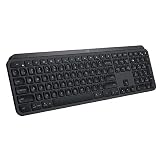
- PERFECT STROKE KEYS - Spherically-dished keys match the shape of your fingertips, offering satisfying feedback with every tap
- COMFORT AND STABILITY - Type with confidence on a keyboard crafted for comfort, stability, and precision
- SMART ILLUMINATION -Hand proximity detection and automatic backlighting
- FLOW CROSS-COMPUTER CONTROL - Type on multiple computers in one fluid workflow
- MULTI-DEVICE & MULTI-OS - Compatible with Windows, macOS, Linux, iOS, and Android systems ? pair with up to three devices
Product prices and availability are accurate as of the date/time indicated and are subject to change. Any price and availability information displayed on Amazon at the time of purchase will apply.




