What’s actually slowing this PC down?
Pick the symptom - the matching free tool is one click away.
Before using an RTX 4090 after moving your PC, shut the system down, unplug it, and check that the card is secure, undamaged, and connected to power correctly. Only restart if those checks look normal; stop and contact the card’s manufacturer if you find physical damage or the system keeps losing display or crashing.
1. Make the PC safe to inspect
- Shut down the operating system normally.
- Switch off the power supply if its switch is accessible, unplug the AC cord, and wait for fans and lights to stop.
- Open the case according to the computer manufacturer’s instructions. Before touching internal parts, touch the unplugged system’s bare metal frame to discharge static. Hold the graphics card only by its edges; avoid its gold PCIe contacts and exposed circuitry. These are general handling recommendations from NVIDIA’s RTX Ada quick-start guide, not a 4090-specific transport manual. Follow the instructions for your exact PC and card if they differ.
2. Check that the card and its support have not shifted
Use good lighting and inspect without removing the cooler or dismantling the card.
As an Amazon Associate I earn from qualifying purchases.
- Confirm the card is aligned and seated in the motherboard’s PCIe slot, and that its case bracket sits flush with its screws present.
- Check whether an anti-sag support has moved and whether the card is visibly sagging.
- Look for a bent backplate, broken fan blades, fans rubbing against anything, cracks, scratches, detached or displaced components, and impact marks on visible PCB areas.
MSI lists deformed backplates, broken fan blades, cracked PCBs, and impact damage to PCB components as examples of customer-induced damage; ASUS lists scratched PCB traces, component damage, and oxidation. These examples are not a home warranty decision: the service center assesses the actual condition. See MSI’s graphics-card damage guidance and ASUS’s customer-induced damage guidance.
3. Inspect the GPU power connection
Check the plug, socket, and cable path for looseness, damaged pins or housing, sharp bends immediately beside the connector, or a cable touching a fan. Make sure the plug is fully and evenly seated as directed by the instructions for your specific card and cable; do not force it, and never mix modular PSU cables.
#1 Best Overall

- All-aluminum metal material - Provides strong and long-lasting support. This is made of all-aluminum metal instead of plastic, can avoid the aging of plastic materials and can be used as a long-term replacement.
- Screw adjustment design - The graphics card bracket design can be compatible with various chassis configurations of traditional and long power supply bays to meet various user hosts.
- Bottom hidden mag.net design - The mag.net hidden in the base is designed for easy installation and more stable standing in the chassis.
- The workmanship of the detail process - The small graphics card support frame is made of three complex processes: polished anode, sandblasted anode and CNC high-speed edge-washing high-gloss process. The full anode process can maintain the durability.
- Tool-free fixing module - The support module is equipped with a cushioning anti-scratch pad and a base high-gloss process.
In an RTX 4090 support update dated November 18, 2022, NVIDIA said incomplete plug insertion was a common issue in its investigation at that time and recommended a firmly and evenly seated connection. It also described connecting the power dongle to the card before installing the card in the motherboard as an installation aid. Do not power the PC if the plug or socket looks scorched, melted, cracked, or otherwise damaged.
4. Start the PC only if the physical checks look normal
- Reconnect power and start the PC. Check whether it boots normally and whether the operating system detects the GPU in Device Manager or its equivalent.
- Confirm that the monitor is set to the correct input and that its display cable is connected to the graphics card. Check that the output is stable.
- If there is no display, check the monitor input and cable first. Then shut the PC down, unplug it again, and recheck the card seating and power connections before another attempt.
MSI’s generic graphics-card troubleshooting guide also describes cross-testing with integrated graphics or another PC when basic checks do not resolve the problem. Do this only if you can do so safely and have compatible hardware. A cross-test can help narrow down whether the problem follows the card or the rest of the system, but it does not by itself identify the failed component.
Rank #2

- ✅ Package Includes: 1 PCS Large Black GPU Support Bracket, securely packed in an ESD bag for long-term storage.
- ✅Prevents GPU Sag and Damage – Provides strong support to prevent graphics card sagging, protecting your GPU and motherboard from long-term damage due to weight.
- ✅Durable All-Aluminum Build – Made from high-quality aluminum alloy, ensuring superior strength, durability, and resistance to wear compared to plastic alternatives.
- ✅Height Adjustable for Universal Fit – Easily adjustable to accommodate different GPU sizes and case configurations, making it compatible with most ATX, M-ATX, and ITX cases.
- ✅Stable and Easy to Install – Features a secure base for stability, offering a simple tool-free setup to keep your graphics card supported without hassle.
5. Decide whether to monitor or stop
| What you find | Next step |
|---|---|
| No visible damage; card and connector appear secure; normal boot, GPU detection, and stable display | Use the PC normally and pay attention to whether the same fault recurs. Avoid treating a successful boot alone as proof that a visibly damaged connector is safe. |
| No display, GPU not detected, or crashes after checking seating, power, monitor input, and cable | Stop repeated restart attempts. If available and safe, use a cross-test to narrow down the problem, then contact the maker of the exact card. |
| Scorching, melting, a cracked PCB, detached components, unusual smell, or recurring display loss or crashes | Do not power or load-test the system. Photograph the condition before disturbing it further, note the card’s exact model and brand, and contact that manufacturer’s support. |
Warranty and repair terms depend on the card: NVIDIA’s listed warranty applies to NVIDIA-branded cards, while partner cards use their makers’ service processes. MSI says improper-use damage may result in a repair estimate or warranty denial; ASUS says customer-induced damage repairs can involve parts and labor charges. The service center determines the outcome. See NVIDIA’s warranty information, MSI’s guidance, or ASUS’s guidance, as applicable.
Use the exact card model for fit and power details
NVIDIA lists the RTX 4090 Founders Edition at 304 mm long, 137 mm wide, and 61 mm (three slots). Partner-card dimensions vary, so identify the exact model before judging case clearance or choosing a support bracket. NVIDIA lists 450 W total graphics power and 850 W minimum system power for the reference configuration, while noting that system power needs depend on configuration; these are not a diagnostic reading or a universal PSU rule for every partner card. Check NVIDIA’s RTX 4090 specifications and your card maker’s specifications for your board.
Quick Recap
Best Value
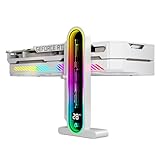
- Integrated Temperature Monitoring:Precisely tracks internal chassis temperature fluctuations to assist in optimizing thermal management for system stability.
- Multi-Range Height Adjustment:The graphics card bracket design can be compatible with various chassis and graphics card, support height is from 35 to 157mm.
- Non-Slip GPU Protection Pad:Single-layer silicone contact surface with vibration dampening properties prevents graphics card movement while providing scratch-resistant protection during installation and operation.
- Dual Recessed Magnetic Base with Protective Silicone:Integrated dual recessed magnets stabilize the bracket position, while silicone-encapsulated magnetic contacts prevent chassis surface abrasion during installation and adjustment.
Rank #4

- Protect your Heavy Graphics Cards: the GPU support bracket provides robust support for heavy graphics cards, ensuring stability and preventing sagging or bending over time,This not only enhances the aesthetics of your computer build but also extends the lifespan of your graphics card
- Horizontal and Vertical Use: The graphics card support is designed with dual functionality, allowing for both horizontal and vertical use. This versatility provides users with the flexibility to choose the optimal installation orientation based on their specific needs and preferences
- With Strong Double-Sided Adhesive: it provides a secure and stable attachment to the chassis, ensuring that the graphics card remains firmly in place. This prevents any wobbling or movement during use, enhancing the overall stability of the system, the adhesive leaves minimal to no residue, making it effortless to clean and reuse if necessary
- Wide Compatibility : it is easy to install and compatible with a wide range of graphics cards, making it a convenient choice for most computer builds, (Compatible with up to 75mm thickness GPU)
- Package Include: GPU Stand 35-120m, Black
Rank #3

- [Esports-grade Materials] Constructed from high-quality aluminum alloy, the acer GPU support bracket features an anodized finish that ensures durability and resistance to rust. It provides lasting support for your graphics card, stable and durable for long-lasting use.
- [Ajustment Freely] The detachable design features precise 0.5mm increments for easy height adjustment, allowing for a perfect fit in various cases and simpler installation. With a large diameter of 14.7mm, it surpasses the thickness of other GPU supports. acer GPU sag bracket offers maximum load capacity, providing reliable support for your graphics car.
- [Powerful Magnetic Design] The top and bottom are equipped with thoughtful silicone pads to prevent damage to the graphics card. The strong magnet at the bottom ensures that the support is firmly 'welded' to the chassis, serving as a double safety guard for the graphics card.
- [Easy installation] Tool-free hand-tightening design allows for height calibration in just 30 seconds, making it easy to get started. The spiral support rod, combined with the fixing ring, helps you find the perfect height, allowing your graphics card to achieve the optimal angle.
- [Confident Purchase] Your purchase is backed by an 18+18-month warranty. For a truly seamless experience, our support team is ready to assist and will answer any inquiry within 18 hours.
Product prices and availability are accurate as of the date/time indicated and are subject to change. Any price and availability information displayed on Amazon at the time of purchase will apply.




