To make a Logitech G733 microphone sound better, first select the correct mic and confirm it is unmuted. Then position the detachable boom consistently near your mouth, test it in your operating system and app, and adjust G HUB’s BLUE VO!CE controls one at a time. If it sounds good in G HUB but poor in Discord, check Discord’s input device and noise suppression before changing your headset settings.
1. Check the microphone and input device first
The G733’s microphone is a detachable, unidirectional cardioid boom mic. That pickup pattern is designed to capture sound primarily from the front, so position the mic consistently near your mouth and make a short recording to judge the result. Logitech does not specify a best mouth-to-mic distance; use the recording to find a position that sounds clear without picking up distracting breath noise.
As an Amazon Associate I earn from qualifying purchases.
- Check the physical setup: Make sure the boom mic is connected and the headset is not muted.
- On Windows, open Settings > System > Sound > Input. Select the G733 microphone, speak, and confirm that the input meter responds. Run Windows’ microphone test if available.
- Test in your target app. Select the G733 as the input device there too, then use the app’s microphone test or make a short recording.
These checks separate a device-selection or mute problem from a sound-quality problem. If you use an operating system other than Windows, check its equivalent sound-input settings.
What’s actually slowing this PC down?
Pick the symptom - the matching free tool is one click away.
2. Tune BLUE VO!CE without overprocessing
Logitech lists the G733 among BLUE VO!CE-enabled gaming gear. In G HUB, the processing path runs through input gain, EQ, signal cleanup, and effects. Start by recording a short sample with processing disabled or at its current settings, then change one control at a time and compare recordings.
#1 Best Overall

- Personalize your Logitech wireless gaming headset lighting with 16.8M vibrant colors. Enjoy front-facing, dual-zone Lightsync RGB with preset animations—or create your own using G HUB software.
- Total freedom - 20 meter range and Lightspeed wireless audio transmission. Keep playing for up to 29 hours. Play in stereo on PS4. Note: Change earbud tips for optimal sound quality. Uses: Gaming, Personal, Streaming, gaming headphones wireless.
- Hear every audio cue with breathtaking clarity and get immersed in your game. PRO-G drivers in this wireless gaming headset with mic reduces distortion and delivers precise, consistent, and rich sound quality.
- Advanced Blue VO CE mic filters make your voice sound richer, cleaner, and more professional. Perfect for use with a wireless headset on PC and other devices—customize your audio with G HUB.
- Enjoy all-day comfort with a colorful, reversible suspension headband designed for long play sessions. This wireless gaming headset is built for gamers on PC, PS5, PS4, and Nintendo Switch.
Set input gain for a usable signal
Use input gain to address a signal that is too quiet, but avoid raising it so far that speech distorts. Logitech describes the goal as a clean signal for clear voice communications; the right setting depends on your voice and speaking level.
Use EQ to correct an audible issue
EQ changes the level of selected frequency ranges. Try it only when you can identify what needs correction—for example, an unwanted sound or a voice quality you want to adjust. A change that sounds good on one voice may not suit another.
Rank #2

- Total freedom with up to 20 m wireless range and LIGHTSPEED wireless audio transmission. Keep playing for up to 29 hours of battery life.1 Play in stereo on PlayStation(R) 4..2
- Personalize your headset lighting across the full spectrum, ~16.8M colors. Play in colors with front-facing, dual-zone LIGHTSYNC RGB lighting and choose from preset animations or create your own with G HUB software.3
- Colorful, reversible suspension headbands are designed for comfort during long play sessions.
- Advanced mic filters that make your voice sound richer, cleaner, and more professional. Customize with G HUB and find your sound.
- Hear every audio cue with breathtaking clarity and get immerse in your game. PRO-G drivers are designed to significantly reduce distortion and reproduce precise, consistent, rich sound quality.
Add cleanup tools only for problems you can hear
BLUE VO!CE includes noise reduction, a gate, compressor, de-esser, de-popper, and limiter. These are options to test, not settings that all need to be enabled or pushed high. A cleanup tool can address a specific noise or level issue, but excessive processing can make speech sound unnatural.
Quick wins for a faster PC:
Clear out junk files and repair common Windows errorsFree Scan →Scan for outdated or missing drivers - takes under a minuteDriver Scan →Logitech does not publish a universal set of BLUE VO!CE values that is best for every voice, room, and application. Treat presets as starting points rather than guaranteed results, and keep the recording that sounds clearest to you.
Rank #3
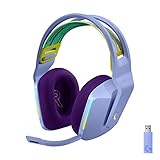
- Total freedom with up to 20 m wireless range and LIGHTSPEED wireless audio transmission. Keep playing for up to 29 hours of battery life.1 Play in stereo on PlayStation(R) 4..2
- Personalize your headset lighting across the full spectrum, ~16.8M colors. Play in colors with front-facing, dual-zone LIGHTSYNC RGB lighting and choose from preset animations or create your own with G HUB software.3
- Colorful, reversible suspension headbands are designed for comfort during long play sessions.
- Advanced mic filters that make your voice sound richer, cleaner, and more professional. Customize with G HUB and find your sound.
- Hear every audio cue with breathtaking clarity and get immerse in your game. PRO-G drivers are designed to significantly reduce distortion and reproduce precise, consistent, rich sound quality.
3. If it sounds bad in Discord, check Discord separately
Discord has its own input-device and audio-processing settings, so a good G HUB test does not guarantee the same result in a call.
- Open User Settings > Voice & Video.
- Choose the G733 microphone under Input Device and check the input volume.
- Use Discord’s mic test, then compare the result with a real call or recording.
- If the sound is worse in Discord, try turning off Discord Noise Suppression and test again. Discord’s troubleshooting guidance recommends this as a check when suppression may be affecting audio quality.
Change only one app setting at a time. This makes it easier to tell whether the change helped instead of confusing Discord’s processing with G HUB’s.
Rank #4

- Lightweight Design: Weighing in at only 8.5 oz (240 g), G335 is smaller and lighter than the G733, features a suspension headband to help distribute weight and is adjustable for a customized fit.
- All-day Comfort: Soft memory foam ear pads and sports mesh material are comfortable for extended use so you can take your gaming to the next level in style and comfort.
- Plug and Play: Quickly jump into your game and simply connect with the 3.5 mm audio jack; these colorful headphones are compatible with PC, laptop, gaming consoles, and select mobile devices.
- Headset Controls: The volume roller is located directly on the ear cup to quickly turn up your game or music, while the mic can be easily flipped up to mute and move it out of the way.
- Impressive Sound: With 40 mm neodymium drivers, the G335 computer gaming headset delivers crisp, clear stereo sound that makes your game come alive.
4. Replace the boom mic only if it is missing or damaged
A replacement is not needed to address ordinary device-selection, positioning, or processing problems. The G733 has a detachable boom mic, but Logitech’s G733 specification page currently reports no spare parts available through that page. That does not establish whether third-party replacements exist. If you consider one, confirm that the listing explicitly says it is compatible with the G733 and check the seller’s return terms; third-party compatibility is not verified here.
PC Slower Than It Used to Be?
A free scan shows the junk files, broken settings and background clutter dragging Windows down - then fixes them in one click.Free scan · Windows 10 & 11Outdated Drivers Are Slowing You Down
One free scan finds every outdated or missing driver and matches the right update for your exact hardware.Free scan · exact hardware matchWhat the G733 microphone specifications tell you
Logitech specifies a cardioid (unidirectional) pickup pattern and a microphone frequency response of 20 Hz–20 kHz. Those are specifications, not a guarantee of how your voice will sound in a particular room or app. For microphone type and product details, see Logitech’s G733 specification page.
For the available G HUB controls and processing order, see Logitech G’s BLUE VO!CE guide. For general microphone placement guidance, see Logitech’s microphone basics and tips. Discord’s device and audio troubleshooting guidance is at Discord’s Voice and Video Troubleshooting Guide.
Quick Recap
Product prices and availability are accurate as of the date/time indicated and are subject to change. Any price and availability information displayed on Amazon at the time of purchase will apply.




