Free tools Windows power users keep installed
One-click scans. No signup required.
If you have no sound after installing a sound card, first select it as the Windows output and check mute and volume. If you hear crackling, turn off audio enhancements and test another audio format. Then work through detection, drivers, and physical connections—in that order. A silent or crackling card is not, by itself, proof that the hardware has failed.
These steps apply to Windows 11 and Windows 10, though labels can vary by Windows version and sound-card driver. Windows 10 support ended on October 14, 2025, according to Microsoft.

As an Amazon Associate I earn from qualifying purchases.
1. Select the sound card as the Windows output
- Open Settings > System > Sound.
- Under Output, select the newly installed sound card.
- Check that the output volume is up and that mute is off. Play audio from a known-working app and test with working speakers or headphones.
- If sound still goes to another device, open More sound settings > Playback, select the card, and choose Set Default (or the equivalent option shown).
Windows may route audio to another available output, such as a monitor or onboard audio. ASUS’s Xonar DG manual likewise instructs users to set the Xonar as the default playback device rather than the onboard codec. See the ASUS Xonar DG manual.
What’s actually slowing this PC down?
Pick the symptom - the matching free tool is one click away.
2. Check whether Windows detects the card
- Right-click Start, open Device Manager, and expand Sound, video and game controllers.
- If the card appears disabled, right-click it and choose Enable device.
- If it does not appear, choose View > Show hidden devices, then Action > Scan for hardware changes. Restart Windows and check again.
- If Windows reports “No audio output device is installed,” continue with the driver and physical checks below rather than assuming the card is defective.
If the card remains undetected, shut down the PC and disconnect power before opening the case. Check that the card is fully seated in a motherboard slot supported by both the card and motherboard manuals. ASUS’s Essence STX II troubleshooting manual gives this model-specific advice: “Ensure that you have properly plugged the audio card in the PCI Express slot on your motherboard.” For the ASUS models covered by its manuals, trying another PCIe slot is also suggested if detection or driver installation still fails; slot advice is not universal. See the ASUS Essence STX II manual.
#1 Best Overall

- HIGH-RESOLUTION AUDIO - Delivers ultra-clear playback with 32-bit / 384 kHz and up to 120 dB SNR
- SURROUND SOUND - Supports discrete 7.1-channel analog output for immersive multi-channel audio on your PC
- VERSATILE CONNECTIVITY - Connects effortlessly to multi-channel PC speaker systems, SPDIF output and headset outputs, mic-in, as well as line-in sources
- ALL-NEW CREATIVE NEXUS APP - AutoEq customization that allows users to simulate the frequency response of various headphones for a tailored listening experience
- COMPACT LOW-PROFILE DESIGN - The card is 10.5 cm in length and comes with a half-height bracket to ensure compatibility with smaller cases and different build needs
3. Install the driver for the exact card
- Find the card’s exact model and your Windows version.
- Download its driver from the sound-card manufacturer’s support page. Follow that model’s installation instructions.
- If a driver is already installed, update or reinstall the manufacturer’s version, then restart Windows.
Microsoft recommends obtaining a suitable driver from the device manufacturer when Windows does not find one. Use the driver for your card and Windows version, not an unrelated model’s driver. Microsoft’s guidance covers sound and audio problems and updating drivers.
4. Fix crackling by testing one audio setting at a time
- Open Settings > System > Sound, select the sound card, and open its audio properties. Turn off audio enhancements, if that option is available, and test playback.
- If crackling continues, open the device’s Advanced settings and select a different Default format. Test again.
- Update or reinstall the card’s manufacturer driver and restart Windows if the problem remains.
- Open the Windows Services app. Restart Windows Audio and Windows Audio Endpoint Builder, then retest.
Settings names and available formats depend on Windows and the driver. Change only one setting at a time so you can tell which change affects the sound. Microsoft lists enhancements, audio format, drivers, and audio services among its troubleshooting steps for distorted or crackling sound: Microsoft’s Windows audio troubleshooting guide.
Rank #2

- PLUG IN AND HEAR SOUND IN SECONDS - USB Type-A connector with a 3.5mm stereo headphone output and a separate 3.5mm mono microphone input. No drivers, no software, no external power - the adapter is USB bus-powered and is recognized as a standard USB audio device.
- WORKS ON WINDOWS, MAC AND LINUX - Driverless on Windows 98SE/ME/2000/XP/Server 2003/Vista/7/8, Linux and Mac OSX, and compliant with the USB Audio Device Class 1.0 specification, so any system that supports class-compliant USB audio will see it. Select it as the sound output and input device after plugging it in.
- TWO JACKS, TWO JOBS - The green jack is stereo OUT for headphones or powered speakers; the pink jack is mono microphone IN for a 3.5mm mic. It does NOT support 4-pole headsets on a single combo plug, it does NOT power passive speakers, and it does NOT add surround sound - it is a stereo 2-channel adapter.
- FOR LAPTOPS AND DESKTOPS THAT NEED AN AUDIO PORT BACK - Adds a headphone and mic port to a laptop, desktop, or mini PC whose onboard jack has failed or was never there. Managed and work-issued computers can block new USB audio devices by policy - check with your IT department before ordering for a company machine.
- SABRENT SUPPORT AND WARRANTY - What is in the box: one USB audio sound adapter. Backed by a 1-year limited warranty, extended to 2 years when you register within 90 days on the manufacturer's website.
5. Check the speaker, cable, and output path
Analog speakers or headphones
- Confirm powered speakers are switched on and their own volume is up.
- Connect speakers or headphones to the intended output on the new card, not an onboard-audio jack by mistake.
- Check mute and volume in Windows, the playback app, and any sound-card utility.
- Try a known-working cable or headphones, if available, to narrow down whether the issue follows the connection or the card.
Some cards require a model-specific power connection. For example, the ASUS Essence STX II manual tells owners of that card to check its power connector; do not assume every sound card has the same requirement. Consult the manual for your model.
S/PDIF or receiver connection
- Select the card’s S/PDIF output in Windows or its control panel, if the card exposes a separate digital output.
- Check that the cable connects the card’s digital output to the receiver’s corresponding input, and select that input and mode on the receiver.
- Make sure the receiver supports the selected digital audio format. In its documented troubleshooting case, the ASUS Essence STX II manual suggests trying 44.1 or 48 kHz; those rates are model-specific suggestions, not universal settings for all cards.
6. Decide whether the card needs service or replacement
Contact the card maker or use its warranty and support process if Windows still cannot detect the card after you have checked its driver, seating, and supported slot. Do the same if sound remains faulty through known-working connections after the software and output checks. These symptoms alone do not establish that the card has failed, and the troubleshooting guidance does not establish a general failure rate.
Rank #3

- Power source type: Corded Electric
- Easy Headphone connectivity -- Compatible with all analog headsets, from standard mobile phone earbuds to gaming and studio-grade headphones; Connect your headsets with single or split stereo/mic connector easily without the use of a Y-splitter cable
- Powerful downloadable software -- control panel software gives powerful Audio Enhancements and unprecedented control; Also includes optimized profiles for multiple earphone brands
- No drivers needed -- works straight out of the box
If replacement becomes necessary, compare the exact interface and motherboard slot fit, driver availability for your Windows version, required outputs, any power connection, and the seller’s return terms. A new card is a last-stage option, not a prerequisite for changing Windows settings or reinstalling a driver.
Quick Recap
Best Value
Rank #4
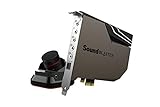
- PRISTINE AUDIO OUTPUT | Supreme audio fidelity with 127 dB DNR hi-res 32-bit / 384 kHz playback via ESS SABRE-class 9018 DAC and DSD64 playback support that satisfies even the most demanding needs of audiophiles for incredibly clean audio
- MASSIVELY POWERFUL HEADPHONE AUDIO | Custom Xamp discrete headphone bi-amp powers each earcup separately with 1Ω output impedance and drives studio-grade headphones of up to 600Ω, including high-end planar-magnetic headphones. And with the Audio Control Module, gain quick access to the Volume Control Knob, as well as the ¼” and ⅛” mic and headphones I/O connectors – all within your fingertips
- THEATRICAL-GRADE DISCREET AND VIRTUAL SURROUND | Supports discrete 5.1 on speakers with Dolby Digital Live / DTS Connect Encoding, and up to 7.1 virtual surround on headphones and speakers. To top it off, we have also integrated Sound Blaster’s Surround Virtualization technology onto AE-7 so that you can conveniently enjoy surround sound on most form of media
- TRUE HARDWARE ACCELERATED AUDIO | Dedicated quad-core processor designed to deliver incredibly pristine and enhanced sound on your PC without overstressing your CPU. Sound Blaster manages audio processing on the card itself, freeing your CPU to handle other tasks
- NEW AND IMPROVED SOFTWARE CUSTOMIZATION SUITE | Sound Blaster Command software interface provides hardware processed sound enhancements and complete control of audio output via the Sound Blaster Acoustic Engine for a full, customized audio experience that delivers clearer vocals, accurate cues, and bass boost
Product prices and availability are accurate as of the date/time indicated and are subject to change. Any price and availability information displayed on Amazon at the time of purchase will apply.




