If Fallout 76 crashes, will not launch, or keeps disconnecting, first check Bethesda’s live service status and the status of your platform’s online services. Maintenance can cause launch verification errors and server timeouts; changing files or router settings will not bring an offline service back. If services are running, follow the steps for your platform and the exact symptom rather than applying every fix at once.
Start by checking whether Fallout 76 or your platform is down
Before troubleshooting your PC or home network, check Bethesda’s Server Status page and the relevant Xbox or PlayStation service status. Bethesda says the message “Unable to verify latest before launching” usually appears when Fallout 76 servers are offline for maintenance. It also recommends checking service status for timeouts and disconnections.
As an Amazon Associate I earn from qualifying purchases.
If an outage or maintenance is reported, wait for service to return and try again. If services appear operational, exit the game completely and retry before moving to the platform-specific checks below. Status can change quickly, so check the live pages when the problem occurs.
Choose the troubleshooting path that matches your problem
| What you see | Where to start |
|---|---|
| Crash or stuttering on PC | Check PC requirements, graphics drivers, and game files. |
| You click Play and nothing happens on PC | Check PC requirements and graphics drivers; investigate a driver conflict only if the error information points to one. |
| “Unable to verify latest before launching” | Check for maintenance first, then retry and use PC connection or file checks if services are up. |
| “Timed out while waiting for server to respond” or “Disconnected From Server” | Check Bethesda and platform services, then test the network path for your platform. |
| “Failed to Find World [4:9:0]” | Restart the game and check local network, firewall, router, or ISP conditions. |
| Infinite load screen on Xbox or PlayStation | Use Bethesda’s console-specific loading steps, not PC file-verification instructions. |
| “Connection interrupted due to modified game data” | Update the game and address custom or corrupted files using the steps for that platform. |
Fix crashes or stuttering on PC
Bethesda’s PC crash and stuttering guidance is a diagnostic sequence, not a guarantee that one step will solve every crash.
#1 Best Overall
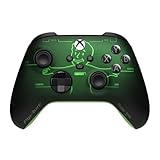
- FALLOUT PIP-BOY EDITION — Introducing the XBOX Wireless Controller – Fallout Pip-Boy. Display your survival prowess on console, PC, and cloud. Inspired by the arm accessory worn by Fallout's vault dwellers, this Vault-Tec approved gear radiates craftsmanship and heritage.*
- WASTELAND-READY DESIGN — The black top case features the outer casing of Pip-Boy with a bright green icon of the Vault Boy in the center, paired with Fallout's signature green tones and HUD iconography throughout.
- PRECISION PERFORMANCE — Stay on target with a hybrid D-pad and textured grip on the triggers, bumpers, and back case for enhanced handling — whether you're exploring the wasteland or battling raiders.
- UP TO 40 HOURS OF BATTERY LIFE — Get up to 40 hours of battery life so your sessions last as long as the wasteland demands. Crafted for enhanced comfort and effortless control during gameplay.*
- PLAY ACROSS EVERY SCREEN — Quickly pair with, play on, and switch between devices including console and PC. Stream games across mobile, gaming handhelds, Smart TVs, and supported VR headsets with XBOX Cloud Gaming.**
- Check the requirements and permissions. Confirm that your PC meets Fallout 76’s minimum system requirements and that your Windows account has administrator access.
- Update the graphics driver. Install a current driver from your GPU maker. If the game crashes during startup, note the GPU model and any Windows Error Reporting details before trying targeted driver troubleshooting.
- Verify the game files. In Steam, use “Verify integrity of game files.” In the Xbox app on PC, use “Verify and repair.” The exact location of these options can vary with client updates.
- Disconnect a controller for a launch test. If the game starts without it, reconnect the controller after launch and see whether the issue returns.
- Check antivirus exclusions. Review your security software’s blocked-app or exclusion settings if it may be preventing the game from launching or connecting. Only add an exclusion if you trust the game files and understand the security trade-off.
- Check for a specific AMD driver conflict only when indicated. Bethesda describes a possible conflict involving
amdvlk64.dllin a Windows Error Reporting entry for a Fallout76.exe APPCRASH. If that exact file appears in the relevant log, consult Bethesda’s guidance and the AMD Cleanup Utility instructions. This is a targeted possibility, not a reason for all players to remove drivers. - Check DirectX and consider reinstalling last. Bethesda lists having a current DirectX installation and reinstalling the game among possible steps. Reinstalling takes time and is not a guaranteed fix, so try the checks above first.
If clicking Play does nothing on PC
For “hit Play and nothing happens,” begin with Bethesda’s dedicated launch troubleshooting page: verify minimum requirements and update the graphics driver. If the game still does not open, note your GPU and review Windows Error Reporting for a relevant Fallout76.exe failure before attempting any driver cleanup. The AMD file conflict described above applies only when the log points to it; it is not a universal cause.
Resolve launch verification errors, timeouts, and disconnects
“Unable to verify latest before launching”
Bethesda says this error usually indicates server maintenance. Check Bethesda service status and your platform’s online status. If both are operating, retry the game; on PC, Bethesda’s error guidance also points to network checks and file verification. If a verification attempt identifies one failed file, Bethesda notes it may be a local configuration file; do not replace files indiscriminately.
Rank #2

- EXPAND YOUR CHARACTER: Enhance Fallout roleplaying with a collection of perks designed to help create unique characters, from charming specialists to powerful survivors, adding new advantages and customization options.
- 155 PERK CARDS INCLUDED: Access a complete deck featuring every perk from the Settler’s Guide and Wanderer’s Guide, providing convenient references for building characters and managing abilities during gameplay.
- EASY GAMEPLAY TRACKING: Keep character choices organized with cards that make perks simple to reference, track, and use during adventures, helping players focus on storytelling and survival.
- CUSTOMIZE YOUR BUILD: Shape your Fallout character with specialized advantages that improve skills, define playstyles, and provide the tools needed to create a survivor ready for any challenge.
- REQUIRES CORE RULEBOOK: Designed for use with Fallout: The Roleplaying Game, this perk deck expands character options and requires the core rulebook to access the full tabletop experience.
“Timed out while waiting for server to respond”
After checking service status, fully exit Fallout 76, test your internet connection, and try again. Bethesda’s timeout guidance includes trying a wired connection, rebooting the modem and router, and checking relevant firewall exceptions. On PC, Steam players can verify game files; on Xbox or PlayStation, run the console’s network test instead.
“Disconnected From Server”
First confirm that Bethesda and your platform’s services are operating. Then follow the branch for your device in Bethesda’s Disconnected From Server guidance. A console network test and PC file verification are different checks; use the one that applies to your platform.
Rank #3
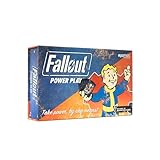
- SEIZE POWER IN THE WASTELAND: Compete for dominance in a brutal post-apocalyptic world where only the strongest, smartest, and most ruthless survive.
- CONTROL ICONIC FALLOUT FACTIONS: Command one of four legendary factions—Brotherhood of Steel, Enclave, Raiders, or Super Mutants—each with unique strengths and playstyles.
- OUTSMART AND OUTMANEUVER YOUR RIVALS: Forge temporary alliances, complete dangerous quests, assassinate agents, and deploy dirty tricks to secure your path to victory.
- BALANCE STRATEGY SKILL AND LUCK: Combine guile, force, and raw luck as you battle opponents and the unforgiving wasteland itself in every match.
- DOMINATE FAST-PACED COMPETITIVE PLAY: Designed for 2–4 players, Fallout: Power Play delivers tense, high-stakes card game action perfect for Fallout fans and strategy gamers alike.
“Failed to Find World [4:9:0]”
Bethesda associates this error with a connection issue. Its error-specific steps include restarting the game, checking firewall or antivirus settings, flushing DNS, power-cycling the network equipment, and trying a wired connection. If the error persists, investigate whether the router or ISP is affecting the connection.
Check a local PC connection problem
If services are up but a PC connection problem continues, work from the least disruptive network checks toward router configuration. Bethesda’s PC connection guidance recommends:
Rank #4

- EXPANSION RPG: Within the 192-pages you will create new characters from brand new origins, including the Commonwealth Minutemen, New California Republic, robots & more! Requires the core rules found in the Fallout: The Roleplaying Game Core Rulebook.
- BUILD your own settlements and manage your settlers! Build housing, shore up defenses, and grow a thriving community.
- COMPANIONS: Make friends with your own trusty companions. Have new dog breeds, robots or even faithful human and mutant allies follow you through the wasteland. Build your own automatrons! Mix & match robot parts to make unique mechanical companions.
- FACTIONS: Learn more about the different factions you’ll encounter, and meet a host of new wastelanders from both the East and West coasts with full stat blocks included!
- Try Ethernet instead of Wi-Fi, if practical. A wired connection is a diagnostic step, not a guaranteed fix.
- Restart the modem and router, then reconnect and retry.
- Check whether firewall or antivirus rules are blocking Fallout 76 or its launcher.
- If the problem persists, investigate router configuration or ask your ISP whether it is affecting the connection.
For persistent connection problems, Bethesda lists these ports for router configuration: TCP 80 and 443, and UDP 3000–3010. Router interfaces and setup differ, so follow your router maker’s instructions and make changes only when basic checks have not resolved the issue. Port configuration is not the first step for every disconnect.
Do these 3 things before closing this tab:
1Repair Windows errors before they cause bigger problems2Scan for outdated or missing drivers - takes under a minute3Clear out junk files and repair common Windows errorsFix an infinite load screen on Xbox or PlayStation
Bethesda’s infinite-loading guidance is specifically for Xbox and PlayStation:
Best Value

- Card Stock: (S33) Superior Smooth Dimensions: 2.32"×3.58" (58.9×90.9mm) Double Sided
- Restart the console and try logging in again.
- Check the Bethesda.net username used to log in. It may not be your email address; remove any trailing spaces from the username.
- Check whether your router firewall is allowing the connection.
- If the issue continues, Bethesda lists TCP ports 80 and 443 and UDP ports 3000–3010 for router configuration. Router setup varies, so use the router maker’s instructions.
These are console loading checks; PC crash and launch problems have separate diagnostics.
Handle the modified game data message
If Fallout 76 says “Connection interrupted due to modified game data,” use the steps for that specific message in Bethesda’s modified-data guidance. If you did not intentionally alter files, fully exit the game, check for updates, and restart after it is current. If you use mods or custom files, remove them and verify the files on Steam; Bethesda says these files may prevent joining certain worlds. On consoles, Bethesda says corrupted files may require uninstalling and reinstalling the game.
Check current patch notes for update-specific crashes
Some crashes can be tied to a particular game update or device configuration. Bethesda’s July 21, 2026 update notes list a fix for a crash that could occur when audio devices were swapped. That is a historical example, not evidence that the same issue remains open; check current patch notes if a problem began after an update or a change to your setup.
Quick wins for a faster PC:
Clear out junk files and repair common Windows errorsFree Scan →Scan for outdated or missing drivers - takes under a minuteDriver Scan →Repair Windows errors before they cause bigger problemsFix Now →Quick Recap
Product prices and availability are accurate as of the date/time indicated and are subject to change. Any price and availability information displayed on Amazon at the time of purchase will apply.




