What’s actually slowing this PC down?
Pick the symptom - the matching free tool is one click away.
If your Xbox controller won’t connect or keeps disconnecting, check its power, test it with a USB data cable, update its firmware, then pair it again to the device you intend to use. If it still fails, test the controller and host separately before concluding that either needs repair.
1. Check power and move closer to the device
- Turn the controller off, then turn it back on.
- If it uses replaceable batteries or a removable rechargeable pack, install known-good batteries or charge the pack.
- While testing, keep the controller close to the console or PC. This helps rule out distance as a factor without assuming that distance or interference is the cause.
2. Test the controller with a USB cable
Connect the controller directly to the console or PC using a compatible USB data cable. Check the controller’s port before choosing a cable: some controllers use USB-C, while others use micro-USB. A cable that only charges may not work for data or a firmware update.
As an Amazon Associate I earn from qualifying purchases.
If the controller works over USB but not wirelessly, focus next on pairing, the wireless connection method, or the host device. That result points toward the wireless path, but does not by itself prove that the controller hardware is fault-free. Xbox Support recommends checking that a different cable is firmly connected to both the console and the controller’s micro-USB or USB-C port (Xbox Support troubleshooting video and instructions, published February 22, 2021).
The Tool Desk
Outbyte PC Repair FREERepair Windows errors before they cause bigger problemsFix Now →Outbyte Driver Updater FREEScan for outdated or missing drivers - takes under a minuteDriver Scan →3. Check for a controller firmware update
Update from an Xbox console
- Open Settings, then Devices & connections, then Accessories.
- Select the controller and check for an available firmware update.
- If the update does not complete, disconnect accessories and try again. Power-cycle the console, then retry with a different USB cable connected firmly at both ends. Allow several minutes for the update process.
These troubleshooting steps come from Xbox Support’s instructions and video; the source does not establish a current firmware version number (Xbox Support).
#1 Best Overall

- Charger for Xbox Series X S and PS5 Controller : USB C Type-C Charger Cord specially made for Xbox Series X Controller, Series S Controller,PS5 Controller. This usb c cable can bear 10000+ bending test,Service life much longer than normal PS5 controller charger cord.
- Perfect Long: With the perfect 10ft length, you can lie on the couch or sofa and play games while you are charging at the same time. and you can also pose in a variety of positions without worrying about your PS-5 Charger Cables are not long enough.Make it easy to stay in the game.
- Perfect Connection: The stainless steel connector heads slot in your PS5 controllers Console easily and steadily, and won't get loose or fall out from your PS5 Controller. Just enjoy the best gaming experience.
- Simultaneously Charge and Play: SCOVEE PS5 charging cable allows you to play playstation-5 games while Charge. No need to stop and recharge,allow you to take charge of your games.
- Universal Compatibility: USB type c to USB C Cable compatible with Xbox Series X Controller,Series S controler,compatible with Playstation-5,PS5 controller and more devices with usb c port.
Update from a Windows PC
Connect the controller to a Windows PC with a USB cable, then launch the Xbox Accessories app and check for an update. Microsoft describes using the app with an Xbox Wireless Controller connected to a PC through USB (Microsoft: connect an Xbox Wireless Controller to a Windows device). If an update fails, try another cable that supports data.
4. Pair it again using the right connection method
Connect to an Xbox console
Use the Pair control on the console and the controller, then follow the console’s on-screen prompts or current Xbox instructions. Console pairing uses Xbox Wireless; it is different from pairing a controller to a PC over Bluetooth.
Rank #2

- Charger for Xbox Series and PS5 Controller : USB C Type-C Charger Cord specially made for Xbox Series X Core Controller,Series S Controller, PS5 Controller. this usb c cable can bear 10000+ bending test.PS5 controller charger cord.
- Extra Long: With the extra15ft length, you can lie on the couch or sofa and play games while you are charging at the same time. and you can also pose in a variety of positions without worrying about your PS-5 Charger Cables are not long enough.Make it easy to stay in the game.
- Perfect Connection: The stainless steel connector heads slot in your PS5 controllers easily and steadily, and won't get loose or fall out from your PS5 Controller. Just enjoy the best gaming experience.
- Simultaneously Charge and Play: SCOVEE PS5 charging cable allows you to play 5 games while Charge. No need to stop and recharge, allow you to take charge of your games.
- Universal Compatibility: USB type c to USB C Cable compatible with Xbox Series X Core Controller,Series S controler,for Playstation-5,PS5 controller and more devices with usb c port.
Connect to a Windows PC over Bluetooth
- Confirm that your controller model supports Bluetooth. Bluetooth support varies by model, including among Xbox One controllers.
- Turn on Bluetooth in Windows settings and put the controller into pairing mode with its Pair button.
- In Windows Bluetooth settings, select the controller when it appears. Microsoft describes Bluetooth connection for compatible controllers; Microsoft Q&A also gives community guidance to press Pair and select “Xbox Wireless Controller” in Windows Bluetooth setup (Microsoft Windows guidance; Microsoft Q&A community guidance).
If your model does not support Bluetooth, use a supported wired connection or another connection method compatible with that controller and PC. An Xbox Wireless Adapter is not universally required; its compatibility depends on the controller and setup.
5. Isolate the controller from the host
Try the controller with another compatible console or PC, or try another controller on the original device. These cross-tests help narrow down the cause, but they are indications rather than definitive diagnoses.
Rank #3
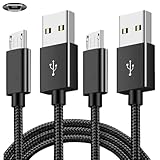
- COMPATIBILITY: Works with PlayStation 4, Xbox One S/X controllers and other devices with micro USB ports for charging and data sync
- CABLE LENGTH: Extra-long 6.6-foot cord provides convenient reach and flexibility while gaming or charging
- DURABLE DESIGN: Premium nylon braided cable resists tangles and provides enhanced durability for long-term use
- DUAL PACK VALUE: Includes two black charging cables to keep multiple controllers powered or serve as backup
- FAST CHARGING: High-quality micro USB connection ensures reliable power transfer and stable data synchronization
- If the original controller fails on multiple compatible hosts, including over USB with a known-good data cable, while another controller works on the original host, a controller fault becomes more plausible.
- If multiple controllers fail on the same console or PC, investigate that host’s settings or connection instead.
If the tests point to a controller fault, consult Xbox support or warranty and service options before replacing it.
Quick Recap
Best Value

- Compatibility: Fit for PS4 Controller (DualShock 4), PS4 Slim/Pro, Xbox One S/X Controllers (including Xbox Elite Wireless Controller Models 1537, 1697, 1708, 1698) and Kindle Paperwhite,Kindle Fire Tablet
- Fit for Roku Streaming Stick 3500X 3600X 3800X,Streaming Stick 4K 4K+ 3820R 3820R2 3820x 3820X2 3821R 3821R2 3821X 3821X2,Express 3700X 3700R 3900X 3930X 3930EU 3930R 3930S4 3930RW 3932X 3932RD 3940X 3940X2 3940rw 3940CA2 3960X 3960R,Express+ 3710X 3910X 3910RW 3931X 3931RW 3941X 3941X2,Premiere 3920X 3920R 3920RW,Premiere+ 3921X, Express 4K+,Fit for Fire TV Stick 1st 2nd Gen/Stick Lite/Stick Basic Edition/Stick 4K Max
- Compatibility Notice: This Micro-USB cable is NOT compatible with USB-C devices or controllers such as PS5 (DualSense),Xbox Series X/S (Models 1914 & 1797),Xbox 360,Roku Streaming Stick+ and Ultra,Fire TV Cube. Please double-check your device’s port before purchasing
- Convenient to use: The micro-USB cable is 6.6 feet/2 Meter long, so you don't have to worry about the micro-USB charging cable being too short to use freely. You can easily use it in living room, sofa, bedroom, bed, table, car, outdoor and other places
- Built to Last Durable: Rigorously tested to withstand up to 10000+ bending and insertion tests,the cable has tensile resistance, safety,long service life,Supports fast 2A charging and 480Mbps data transfer
Rank #4

- 10ft long-distance application: Our 10 ft USB to USB C cable greatly expand the activity radius of your devices, providing 3A fast charging or 10Gbps high-speed data transfer to your phone or other devices while you use them on a sofa, bed, or recliner
- 10Gbps Data Transfer: This USB A to USB 3.2 Gen 2 cable delivers transfer speeds of up to 10Gbps, enabling fast and smooth file and photo transfers. Backwards compatible with usbc 3.0/2.0
- 3A Fast Charging: The 10-foot usb a to usb c cable supports fast charging up to 15W. When paired with a usb charger, it can power low-power usb-c devices such as smartphones and tablets
- Premium Durability: Our USB-C Data Cord features premium wire cores, corrosion-resistant nickel-plated connectors, and flexible pvc material, ensuring more stable signal transmission and enhanced durability
- Broad Compatibility: Our usb-a to usb-c data cables is compatible with most usb a and usb c devices; video transmission is not supported. The usb a devices include computers, laptops, gaming consoles, android auto, carplay, usb a chargers, power banks, HUBs, and more. The usb c devices include portable SSDs, iPhone 17/16/15, Samsung Galaxy, Google Pixel, iPad, Switch, PS5 controllers, and more
Choose a connection method for the next test
| Connection | What to check | Best use in troubleshooting |
|---|---|---|
| USB | Controller port type and a compatible data cable | Test whether the controller works when wired; connect to a PC for the Xbox Accessories app update flow |
| Xbox Wireless | Pair the controller with the intended console | Normal console connection and a check of the console’s wireless pairing path |
| Bluetooth on Windows | Controller model supports Bluetooth; Bluetooth is enabled in Windows | PC wireless connection for a compatible controller |
Product prices and availability are accurate as of the date/time indicated and are subject to change. Any price and availability information displayed on Amazon at the time of purchase will apply.




