To factory reset an onn Roku TV that responds to its remote, press Home, then go to Settings > System > Advanced system settings > Factory reset > Factory reset everything and follow the on-screen instructions. If the TV is unresponsive, use its physical Reset control only after checking the instructions for your specific model.
What to know before you reset
A factory reset erases most personal data, settings, preferences, and the TV’s Roku account link. It returns the set to its initial setup state; you’ll need to complete Guided Setup before streaming again. Apps must be reinstalled, and you may need to sign in to each service. If the TV is still linked to another person’s Roku account, that account holder’s credentials may be needed to activate it. Roku’s factory-reset instructions explain what to expect.
As an Amazon Associate I earn from qualifying purchases.
Before you begin, make sure you have:
- Your Roku account email and password
- Your Wi-Fi network name and password
- Login details for the streaming services you use
- The parental-control PIN, if one is set
Reset the TV from its Settings menu
Use this method when the TV responds to the remote:
- Press Home on the Roku remote.
- Open Settings.
- Select System, then Advanced system settings.
- Select Factory reset.
- On the Roku TV, select Factory reset everything.
- Follow the confirmation instructions on the screen.
You may also be able to navigate the menus with the Roku mobile app if it can control the TV. Menu wording can differ slightly by software version, so follow the labels currently shown on your screen if they vary. For model-specific help, use onn support.
#1 Best Overall

- Compatible with All ONN Roku TV Remote 100007147 3226000858 for 100012584 100012585 100012586 100012587 100012587 100012589 100012590 100018971 100005395 100005396 100005397
- Universal Replaced for ONN RC-AFIR Roku TV Remote Control, Compatible with ONN Roku TVs
- Preprogrammed--No need any setup or programming. Putting batteries in and Works. Batteries and User Manual are not included.
- Precisely control far from 30 feet and it supports over 160,000 clicks for all buttons via approved tests.
If the TV does not respond to the remote
Roku TVs may have a tactile Reset button, a recessed pinhole, or another button arrangement. The location and procedure vary by model, so do not assume every onn set uses the same control. Check the model number on the rear label or, if accessible, at Settings > System > About. Roku directs owners to the TV maker for manufacturer-specific support; its factory-reset guidance also describes the hardware-reset fallback.
If your model has a pinhole Reset control, a paperclip can be used to press it. With the TV powered on, Roku’s general Roku TV instructions say to press and hold Reset firmly for about 10 seconds, then release it after the TV restarts and reaches the initial setup screen. Holding the button too long may send the set into Recovery Mode instead. Check the instructions for your exact onn model before using the physical control.
Rank #2

- No Setup Required: the remote control replacement for Roku TV which can solve your home backup remote control needs. Simply Insert 2 AAA batteries (Not included) , then turn on your device and it will automatically pair, perfectly replacing your original remote control
- Upgrade Material: our remote replacement is made of high quality ABS and silicone, ABS improves durability, can be used for a long time, and also keeps you and your children away from harm
- Completely Compatible: the replacement remote controls only for roku series TVs, compatible with TCL Roku TVs, Hisense Roku TVs, Onn Roku TVs, Sharp Roku TVs, Philips Roku TVs
- Notice: Only for roku tv, not for roku stick/roku box 1/2/3/4(HD/LT/XS/XD), not for roku ultra/roku express/roku premiere and roku player
- Key Features: Get to favorite apps quickly with 8 shortcut buttons for Disney, Netflix, YouTube, Hulu, Primevideo sling, Apple TV+ and VUDU. Strongest signal by mature infrared technology, farther transmitting distance, stable performance, following the movement of the tv page without obvious delay
Try a system restart for a temporary freeze
If the problem is a temporary freeze rather than a need to erase your settings, try a restart first. Roku says a restart does not affect settings. You can restart from the Settings menu, or unplug the TV for at least 10 seconds and reconnect it. This is different from a factory reset: it does not erase personal settings or unlink the device. See Roku’s restart instructions.
Free tools Windows power users keep installed
One-click scans. No signup required.
When Recovery Mode is appropriate
Recovery Mode is a separate, deeper step for serious software problems—for example, a TV that repeatedly restarts or remains stuck on its logo after simpler troubleshooting. It reinstalls the Roku operating system; it is not the ordinary factory-reset procedure. Roku’s guidance says to hold Reset for at least 20 seconds and release it when the Recovery Mode screen appears. Do not use this duration for a routine reset. If Recovery Mode does not resolve the problem, contact Roku or onn support. See Roku’s Recovery Mode troubleshooting guidance.
Quick Recap
Best Value

- Compatible Devices: Universal remote only for Roku TV, Compatible with Roku TV models, TCL Roku TV, Onn Roku TV, Hisense Roku TV, Westinghouse Roku TV, Sharp Roku TV, Philips Roku TV, JVC Roku TV, RCA Roku TV, Insignia Roku TV, Element Roku TV, or Sanyo Roku TV.
- NOT Compatible Devices: NOT Compatible with Roku players or Roku audio devices, NOT Compatible with TCL TV, Onn TV, Hisense TV, Westinghouse TV, Sharp TV, Philips TV, JVC TV, RCA TV, Insignia TV, Element TV, or Sanyo TV.
- Easy to Use: No setup or programming needed—just insert 2 AAA batteries to use (batteries not included).
- Pre-set Channel Shortcuts: Get instant access to your favorite streaming apps with a single click.
- What You Get: IDGPUW replacement remote for roku tv*3, user manual*3, and Industry-Leading 1-Year IDGPUW Care, plus Lifetime Technical Support.
Rank #4
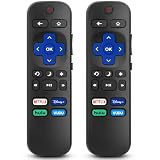
- 【COMPATIBILITY】This remote compatible for Hisense Roku TV, for TCL Roku TV, for Sharp Roku TV, for Onn Roku TV, for Philips Roku TV, for Westinghouse Roku TV, for Eement Roku TV, for Insignia Roku TV, for Jvc Roku TV, for RCA Roku TV, for Sanyo Roku TV ALL Models. Not for Roku Streaming Media Players, Not for Roku Express, Express +, Not for Roku Streaming Stick, Stick+, Not for Roku Premiere, Premiere+, Not for Roku Ultra, Roku Box 1, 2, 3, 4
- 【KEY FEATURES】The EWO'S Remote features shortcut buttons for Netflix, Disney, Hulu, and VUDU for extra convenience. Replace your old or damaged TV remote with the EWO'S remote, it keep all the quality and functionality of the original remote.
- 【HIGHT QUALITY】This remote control has a quick response time of 0.3 seconds. The buttons have been tested to support over 120000 clicks,and our remote has been upgraded to give you a greater transmitting distance (over 35 ft) and a more stable performance.
- 【EASY TO USE】 No programming or setup is required. Just Insert 2pcs*AAA 1.5V batteries to get it work (Note: batteries and manual are not included)
- 【AFTER-SALE SERVICE】 We maintain a high standard of excellence and strive for 100% customer satisfaction. If you have any questions or concerns about your order, please feel free to contact us before leaving feedback and we will get back to you within 12 hours.
Rank #3

- Compatible devices - Roku TV models ONLY
- NOT compatible devices - Roku Streaming Players, Roku Audio, or other smart TVs
- Made by Roku for Roku TV - Stream easy with an official Roku remote, designed to work seamlessly with your Roku TV.
- No juggling remotes - Power up your Roku TV, adjust the volume, mute, and control your streaming with an official Roku remote.
- Simple setup - Ready to control your Roku TV in just one step. Comes with pre-installed batteries.
Product prices and availability are accurate as of the date/time indicated and are subject to change. Any price and availability information displayed on Amazon at the time of purchase will apply.




