To estimate GPU cloud costs, price the complete configuration you need—not just the GPU—then multiply its applicable rate by expected billable hours and add storage, networking, images, and other services. The result depends on the model, GPU count and memory, region, runtime, and pricing model, so there is no meaningful universal hourly price for training or inference.
What information do you need for a useful estimate?
Start with the workload and operating constraints. Without these, a calculator can provide only a scenario, not a reliable forecast.
As an Amazon Associate I earn from qualifying purchases.
- Workload: training or inference, plus the model and software requirements.
- Compute: GPU type and count, host CPU and RAM, and—if using multiple GPUs—the interconnect requirements.
- Runtime: expected training hours, including checkpoint and restart overhead, or inference operating hours and utilization assumptions.
- Deployment: region and, where relevant, zone, availability needs, and capacity or quota constraints.
- Billing approach: on-demand, Spot, or a commitment-based option, if applicable.
- Additional services: storage, network traffic, images, operating system, and any other resources the deployment requires.
Do not substitute a guessed runtime or utilization figure for a missing workload estimate. Record the assumption and treat the result as a scenario until the workload is better characterized.
How do you calculate GPU cloud costs?
- Choose a configuration that fits. Check GPU memory and count, host CPU and RAM, and interconnect for multi-GPU work. Confirm the configuration is available in the intended region or zone and that you can obtain any required quota or capacity.
- Find the applicable rate. Use the provider’s current pricing calculator or price sheet for the precise configuration, region, and billing model. Check whether the displayed rate covers only the GPU or the full machine.
- Multiply the full compute rate by billable time. For a simple hourly configuration, compute estimate = hourly configuration rate × billable hours. If GPU and host VM charges are separate, include both.
- Add non-compute charges. Include persistent or local storage, images and operating system charges, networking, and other required services. Check the calculator’s scope; an estimate may not include every project charge.
- Compare realistic pricing scenarios. Use on-demand as a baseline. Add Spot or a commitment-based option only if its interruption, capacity, and commitment terms suit the workload.
- Save the assumptions. Record the date checked, region, configuration, runtime, rate source, storage and network assumptions, pricing model, and excluded items so the estimate can be reproduced.
Why GPU fit matters as much as the hourly rate
A low GPU-hour rate does not guarantee a low cost to finish a job. A GPU with insufficient memory may not support the model or required batch size; a different configuration may complete the task in less time. Compare the estimated cost of completing the workload, not just the per-GPU rate.
#1 Best Overall
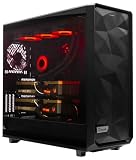
- A M D R9-9950X3D2 4.3GHz 16 core | 256GB DDR5 RAM
- N V I D I A - G e F o r c e 2X5090 64 GB | 1600W Power Supply
- 360mm Liquid Cooler | 8 TB NVMe SSD Boot Drive
- Ready to work, preloaded with Windows 11 Pro and the latest drivers
- Custom built Dual GPU AI Workstation, professional cable management, fully tested
Google Cloud’s GPU documentation lists provider-specific examples of memory capacity: H100 at 80 GB, A100 variants at 40 GB or 80 GB, L4 at 24 GB, and T4 at 16 GB. The same documentation associates these offerings with different workloads, including training and inference. These details are product guidance, not a universal performance comparison or a guarantee that a particular model will run well.
For multi-GPU jobs, include the interconnect in the configuration check: an hourly price comparison that ignores how GPUs communicate may not reflect the runtime you can expect. Also confirm the exact region and zone have the needed offering and capacity.
Rank #2

- Unlock next-generation AI computing with AMD Ryzen AI Max+ 395 processor featuring 16 cores, 32 threads, up to 5.1GHz boost clock, and integrated Ryzen AI engine delivering up to 126 TOPS AI performance. EVO-X3 is designed for local AI models, content creation, development, and professional workloads.
- OCuLink External GPU Expansion – Upgrade Beyond a Mini PC: Take your graphics performance further with a dedicated OCuLink (PCIe 4.0 x4) interface. Connect an external GPU dock to add desktop-class graphics power for AAA gaming, AI acceleration, 3D rendering, video production, and advanced creative applications. EVO-X3 gives you the flexibility of a compact PC with workstation-level expansion capability.
- AI NPU with XDNA 2 ARCHITECTURE - Powered by 16 “Zen 5” CPU cores, 50+ peak AI TOPS XDNA 2 NPU and a truly massive integrated GPU driven by 40 AMD RDNA 3.5 CUs, the Ryzen AI MAX+ 395 is a transformative upgrade and delivers a significant performance boost over the competition. The Ryzen AI Max+ 395 excels in consumer AI workloads like the llama.cpp-powered application: LM Studio. Shaping up to be the must-have app for client LLM workloads, LM Studio allows users to locally run the latest language model without any technical knowledge required and unleash their creativity and productivity.
- AMD RADEON 8090S iGPU GAMING PC - The AMD Radeon RX 8060S offers all 40 CUs with up to 2.9 GHz graphics clock and uses the new RDNA 3.5 architecture. The powerful iGPU is positioned between an RTX 4060 and 4070 laptop GPU and therefore enables gaming in FHD at maximum details in most demanding games. The 8060S can also utilize the full 128GB pool, which is perfect for running LLMs such as Deepseek 70B Q8, which runs comfortably on this machine.
- EIGHT CHANNEL LPDDR5X - LPDDR5X is a new ground breaking memory small form factor installed on-board. With blazing speeds up to to 8000MT/s, it runs 1.5x faster than the DDR5 SODIMMs; 90% better performance over DDR5 SODIMMs in video conferencing and photo editing; 30% better performance in productivity apps; 12% better performance in digital content workloads.
What do published GPU rates tell you—and what do they leave out?
Google Cloud’s official GPU price sheet, accessed in 2026, lists example USD GPU line-item rates of $0.35 per GPU-hour for NVIDIA T4 and $2.48 per GPU-hour for NVIDIA V100. These are not all-in VM or workload costs. Google says its GPU pricing page excludes disk and images, networking, sole-tenant nodes, and VM instance pricing. Actual applicability of listed rates depends on product, region, and billing terms, so verify the current price for your deployment before relying on a figure.
Crashes, No Sound, or Screen Glitches?
Random freezes, missing sound and display glitches usually trace back to one bad driver. Find and replace yours safely.Free scan · under a minutePC Slower Than It Used to Be?
A free scan shows the junk files, broken settings and background clutter dragging Windows down - then fixes them in one click.Free scan · Windows 10 & 11Google Cloud directs users to its Pricing Calculator to estimate costs for GPU and machine-type configurations. AWS also provides an AWS Pricing Calculator for estimates configured to a particular use case. Calculator results are only as complete as their inputs and the charges they cover; check whether storage, networking, images, and other services are included.
Rank #3

- Professional AI & Creator Workstation: AMD Radeon AI PRO R9700 GPU with 32GB GDDR6 is engineered for AI development, professional content creation, and compute-intensive workloads.
- Massive 32GB Memory Capacity: 32GB of GDDR6 memory on a 256-bit bus provides ample bandwidth for large AI models, 8K video editing, and complex 3D rendering.
- Advanced RDNA 4 with AI Accelerators: 64 Compute Units with 3rd Gen Ray Tracing and dedicated 2nd Gen AI Accelerators for groundbreaking AI performance and visual computing.
- Professional Blower Cooling: Efficient single blower design exhausts heat directly out of the chassis, ideal for multi-GPU workstation and server configurations.
- Enterprise-Grade Thermal Solution: Vapor chamber heatsink with industrial Honeywell PTM7950 thermal interface material ensures reliable cooling under sustained professional loads.
Is a Spot GPU worth it for training?
Spot can reduce compute cost when a job can tolerate interruption, but the discount is not a guaranteed rate for every GPU or region. Google Cloud’s Spot documentation, accessed in 2026, says discounts can reach up to 91% off on-demand for many machine types, GPUs, TPUs, and Local SSDs; it also says prices can change as often as daily. Treat “up to 91%” as a stated upper bound, not an expected saving for a particular deployment.
Spot VMs can be preempted. For a training estimate, account for checkpointing, restarts, and lost work when interrupted. Persistent disks may remain after a VM stops and continue to incur storage charges, so include that retained storage in the scenario rather than assuming the entire bill stops with the VM.
Rank #4

- Built for Local AI and Advanced Workflows – The BOSGAME M5 AI Mini PC is powered by AMD Ryzen AI Max+ 395 with 16 cores, 32 threads, up to 5.1GHz, 50 TOPS NPU performance and up to 126 TOPS total AI performance. It is designed for local AI inference, private AI assistants, coding, data analysis, virtualization, content creation and demanding multitasking while keeping sensitive data on the device.
- 128GB Unified Memory for Large Models and Creative Projects – M5 includes 128GB LPDDR5X-8000 unified memory, giving the CPU and Radeon 8060S graphics access to a large shared memory pool. This helps support memory-intensive AI workloads, large project files, multiple virtual machines, 3D work, video editing and complex professional applications without the capacity limits of typical 32GB or 64GB mini computers.
- Radeon 8060S Graphics for Creation, Rendering and Gaming – Integrated Radeon 8060S graphics with 40 RDNA 3.5 compute units delivers high-end visual performance without a separate graphics card. Use the M5 creator workstation for 4K video editing, 3D rendering, CAD, AI image workflows, high-resolution media and modern gaming, while maintaining a compact desktop footprint.
- 2TB PCIe 4.0 SSD and Flexible Expansion – A pre-installed 2TB NVMe PCIe 4.0 SSD provides fast access to models, datasets, media libraries and project files. A second M.2 2280 PCIe 4.0 slot allows additional storage expansion, while the SD 4.0 card reader supports efficient photo and video workflows for creators and production teams.
- Professional Connectivity and Four-Display Support – Dual USB4 ports, HDMI 2.1 and DisplayPort 1.4 support up to four displays and resolutions up to 8K@60Hz. WiFi 7, Bluetooth 5.4 and 2.5GbE deliver fast networking for cloud collaboration, NAS access and business deployment. Windows 11 Pro, performance-mode switching, Wake-on-LAN and auto power-on support flexible workstation use.
Use on-demand as the comparison baseline, then model Spot only where interruption is operationally acceptable. A lower compute rate may not yield a lower total cost if interruptions materially extend runtime or leave storage charges running.
How should you compare estimates?
Compare provider estimates using the same workload, region, duration, and usage assumptions. A simple worksheet can keep the comparison honest:
| Estimate element | What to record or compare |
|---|---|
| Workload fit | Model and software requirements, GPU memory and count, host CPU and RAM, and multi-GPU interconnect needs. |
| Compute cost | Complete machine configuration, applicable rate, billing model, expected billable hours, and resulting compute estimate. |
| Other charges | Storage, networking, images, operating system, and other required services; identify charges excluded by the calculator. |
| Availability | Target region and zone, quota, capacity confidence, and any reservation or commitment requirements. |
| Risk and flexibility | Spot interruption and restart exposure, retained storage, or commitment requirements and the risk that usage changes. |
There is no supported apples-to-apples current price ranking across cloud vendors here. Provider offerings, regions, configuration scope, and billing assumptions differ; compare estimates for your actual deployment rather than ranking headline GPU rates.
How much does it cost to train an AI model in the cloud?
It cannot be calculated from the model name alone. You need the selected GPU configuration, a defensible runtime estimate, target region, billing model, and non-GPU charges. Once those inputs are known, use the provider calculator or price sheet to estimate the complete configuration, multiply by billable time, and add the other services the deployment requires. For a model-specific estimate, first establish its resource needs and expected run time; do not treat a GPU line-item rate as the total training bill.
Quick Recap
How to make the estimate reproducible
- Keep a baseline on-demand estimate and, if justified, a separate Spot or commitment scenario.
- Write down the date checked, provider, region, configuration, and rate source.
- State runtime and utilization assumptions, including training restarts or inference operating hours.
- List included and excluded storage, networking, image, and other service charges.
- Recheck rates, region availability, capacity, and billing terms before deploying; prices and availability can change.
Product prices and availability are accurate as of the date/time indicated and are subject to change. Any price and availability information displayed on Amazon at the time of purchase will apply.




