You can start drawing on a Galaxy S22 Ultra with the S Pen already tucked into the phone—no separate stylus purchase is needed. For a blank canvas, open Samsung Notes and create a note; for guided practice, use PENUP; for marking up what is on screen, use Screen write or Smart select.
How do I start drawing on my Galaxy S22 Ultra?
- Open Samsung Notes: Create a new note and choose a pen tool to begin a drawing. Samsung describes Notes as supporting drawings, with multiple pen options, colors, and writing styles. Samsung’s S Pen guide notes that menus and features can vary by software version or region.
- Warm up with a simple subject: Sketch a mug, leaf, or other small object using a few basic lines. Treat this as a low-pressure exercise: focus on getting the overall shape down before adding detail.
- Explore line weight: Make a few light strokes, then gradually press more firmly. Samsung explains that pressure sensitivity lets you vary line width; the effect depends on the selected pen and app, so experiment with the controls in your current tool. Samsung’s S Pen history describes 4,096 pressure-sensitivity levels and a 0.7 mm tip as historical S Pen design details, not a guarantee that every app produces identical results.
Which S Pen drawing tool should I use?
| Tool | Best for | How it differs |
|---|---|---|
| Samsung Notes | Making a quick sketch or drawing from scratch | A note-based canvas with pen options, colors, and writing styles. |
| PENUP | Practicing from a template or coloring a picture | Samsung describes PENUP as supporting sketching pictures and coloring templates. |
| Screen write | Drawing or writing over the screen you are viewing | Use it to mark up the current screen rather than start a conventional blank drawing. |
| Smart select | Annotating part of the screen | Select an area, then draw or write on it; Samsung says the selected image can be saved to Gallery. |
| AR Doodle | Drawing over a camera view while recording | A playful camera overlay, rather than a general-purpose illustration canvas. |
These workflows are described in Samsung’s S Pen guide. App availability and menu labels may differ by region or software version.
As an Amazon Associate I earn from qualifying purchases.
How do I color a picture with PENUP?
Open PENUP and choose a coloring template, then use the S Pen to fill in areas and add your own marks. This is useful when you want a starting outline instead of drawing the whole subject yourself. If you would rather build a picture from scratch, use Samsung Notes; PENUP’s template workflow is the more guided option.
Can I draw on a screenshot with the S Pen?
Yes. Use Screen write to mark up the screen currently displayed, or use Smart select when you want to capture a particular region before annotating it. Samsung says a Smart select image can be saved to Gallery, which is useful when you want to keep the marked-up selection. These are annotation workflows, not substitutes for a blank-canvas app.
#1 Best Overall
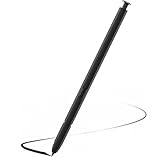
- Compatible with Galaxy S22 Ultra Only , Not Fit S22 and S22 Plus. Samsung Galaxy S22 Ultra Pen Replacement is the reliable choice when you need a backup or replacement for your original Galaxy S22 Ultra S Pen
- S22 Ultra S Pen Replacement can connect your mobile phone and control your mobile phone to take photos and video recording. PPT page turning
- Pull Up The Air Command Menu At The Click Of The S22 Ultra Stylus Pen Button; Simply Hover S22 Ultra Pen Over The Screen And Click The Button On The Side To Pull Up The Features Like Smart Select, Screen Write, Live Messages And More
- Slim 0.7 mm Pen Tip, 4096 Pressure Levels, S22 ultra pen allows you to make quick notes, draw or edit along with all other typical touch-screen
- Packaging Included S Pen S22 Ultra , Replacement Tips/Nibs
How can I make practice sessions more productive?
A repeatable sequence helps you focus on one drawing skill at a time. Try this progression in a Samsung Notes drawing or another suitable canvas:
- Sketch the subject’s basic silhouette with light strokes.
- Block in its largest shapes before refining the outline.
- Adjust contours and proportions, using pressure variation where it helps distinguish heavier and lighter marks.
- Add a small number of details, then color only after the main forms read clearly.
- Save the drawing; if your chosen app supports it, keep dated versions to see how your work changes over time.
This is a practice approach, not a Samsung-prescribed lesson or a claim about a measured rate of improvement.
Rank #2
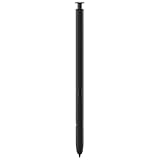
- 【Compatibility】Galaxy S22 Ultra 5G All Version ( Not Compatibility Galaxy S22 & S22 Plus )
- 【Product Features】0.7mm Pen Tips/Nibs , 4096 Pressure Sensor , allows you to make quick notes, draw or edit along with all other typical touch-screen
- 【One-Touch Command】This S Pen replacement for S22 Ultra lets you manage your phone's camera with a single click. Effortlessly capture photos, record videos, and navigate through PPT presentations
- 【Packaging】S Pen Compatible with Galaxy S22 Ultra , Tip/Nibs Replacement
- 【Service】We provide 30 days replacement for all quality-related issues
What should I know about S Pen pressure and latency?
The S22 Ultra’s included S Pen supports direct on-screen drawing, and pressure can change stroke width. Samsung’s 2021 S Pen history article gives 4,096 sensitivity levels and a 0.7 mm tip diameter as historical design details; those figures should not be read as independent measurements of every app or pen setting. In 2022, Samsung said the S22 Ultra S Pen had 70% lower latency than the previous model. That is Samsung’s comparison with its previous S Pen model, not an independent test or a claim that every app responds identically. Samsung’s launch announcement contains the comparison.
Free tools Windows power users keep installed
One-click scans. No signup required.
What if the S Pen is missing, damaged, or from another Galaxy device?
The phone includes an S Pen, so a replacement is only relevant if yours is lost or damaged. Samsung’s compatibility guidance says other S Pen models may have limited functions on the S22 Ultra. Its summary distinguishes the included S22 Ultra S Pen, which can write on other devices, from Note or Tab S Pens used on the S22 Ultra, which are writing-only in the described compatibility context. Exact behavior can vary by device and software, so check the precise pen model and supported features before buying a replacement. Samsung’s compatibility page also explains that Air Actions are separate remote features requiring Bluetooth and charging; they are not needed for direct drawing on the screen.
Quick Recap
Best Value

- (Without-Bluetooth) S Pen Compatible with Samsung Galaxy S22 Ultra
- Slim 0.7mm Pen Tip, 4,096 Pressure Levels, allows you to make quick notes, draw or edit along with all other typical touch-screen
- Pull Up The Air Command Menu At The Click Of The S Pen Button; Simply Hover S Pen Over The Screen And Click The Button On The Side To Pull Up The Features Like Smart Select, Screen Write, Live Messages And More
- Packaging Included S22 Ultra S Pen Replacement , Replacement Tips/Nibs
Rank #4

- DESIGN FOR ACCURACY: Take advantage of the expansive screen on Galaxy S22; S Pen features a slim 0.7mm pen tip with 4,096 pressure levels to write and sketch as naturally and accurately as putting pen to paper
- REMOTE CONTROL: S Pen becomes a remote control for your apps thanks to built-in Bluetooth capacity; Take pictures, switch between cameras, pause or turn up your playlist and so much more — all with a quick gesture or a click of the S Pen button on the side
- AIR COMMAND: Pull up the Air Command menu with a click of the S Pen button; Simply hover S Pen over the phone’s screen and click the button on the side to pull up features like Smart Select, Screen Write, Live Messages and more
- Air actions support may vary by app
Rank #3
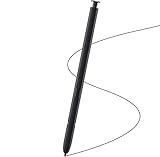
- Brand New- Compatible with Samsung Galaxy S22 Ultra.Tested one by one by professional technicists before shipping.
- High Quality - Galaxy S22 Ultra real pen soft tips great sensitive.4096 levels of pressure sensitivity. Precise touch and control, support all menu functions.[Note: WithoutBluetooth and does not support remote control functionality.]
- Wide Application - The stylus pen helps in daily use , writing ,painting etc.And it does no harm to your screen.
- Helpful -Troubled with your lost stylus Galaxy S22 Ultra, then this will work for you.
- Package Includes:1 X Galaxy S22 Ultra Pen Replacement(Black), WithoutBluetooth
Product prices and availability are accurate as of the date/time indicated and are subject to change. Any price and availability information displayed on Amazon at the time of purchase will apply.




