Windows Errors? Fix Them Before They Spread
Repair common Windows errors and clear accumulated junk for a smoother, more stable PC - no reinstall needed.Free scan · no reinstallCrashes, No Sound, or Screen Glitches?
Random freezes, missing sound and display glitches usually trace back to one bad driver. Find and replace yours safely.Free scan · under a minuteTo download a Core Keeper dedicated-server world safely, stop the server, make an in-game backup, locate the server’s save directory, and copy the complete world data to another computer or drive. On Windows, the usual dedicated-server root is %USERPROFILE%AppDataLocalLowPugstormCore KeeperDedicatedServer; documentation also uses a Saveworlds folder beneath the server installation. A server started with -datapath can use a different location.
Godlike.Host offers hosted Core Keeper servers with its own game panel, SFTP access and free DDoS protection, if you would rather not host it yourself.
Keep the server offline while copying or uploading. After placing the files at the destination, start the server and confirm that the expected world and player progress load before deleting the original backup.
As an Amazon Associate I earn from qualifying purchases.
What you need before downloading the world
A Core Keeper world is made up of save data that can change while the dedicated server is running. Copying files during a save can produce an incomplete transfer or leave you with mismatched companion files. Plan the move as a short maintenance window and prepare both the source and destination before touching the save.
- Server access: You need access to the machine or hosting control panel that stores the dedicated-server files.
- A destination: This can be another computer, a removable drive, a new dedicated server, or a hosted server with an upload tool.
- A safety copy: Use Core Keeper’s built-in backup before copying anything.
- Downtime: The dedicated server must be stopped for the entire copy or upload.
- Matching file structure: Preserve the world’s numbering and any companion files supplied with it.
If you are moving between platforms, do not assume that the client’s save folder and the dedicated server’s folder are interchangeable by location alone. The data can be moved, but it must be placed in the destination’s expected worlds structure.
#1 Best Overall

- DISCOVER 50+ GAMES — Explore a curated library of more than 50 games playable across XBOX consoles, PC, and supported devices, with new favorites ready to discover.
- PLAY ACROSS YOUR FAVORITE DEVICES — Enjoy included games across supported XBOX consoles, PC, and other compatible devices for more ways to play wherever you are.
- PLAY TOGETHER ONLINE — Connect with friends and communities with online console multiplayer included with XBOX Game Pass Essential.
- STREAM WITH XBOX CLOUD GAMING — Enjoy up to 5 hours of cloud playtime per month and stream supported games to compatible devices with XBOX Cloud Gaming.
- EARN REWARDS WHILE YOU PLAY — Earn Rewards points by playing games, completing eligible activities, and shopping in the Store with your XBOX Game Pass membership.
Make a backup with Core Keeper first
The safest first step is Core Keeper’s built-in save archive. From the game’s main menu, press Ctrl+Alt+B. Core Keeper creates CoreKeeperSaves.zip on the desktop.
- Close any world session and return to the main menu.
- Press Ctrl+Alt+B once.
- Look on the desktop for
CoreKeeperSaves.zip. - Copy that ZIP file to a separate drive or other safe location if the transfer is important.
- Leave the original archive unchanged until the destination opens the correct world and its progress is confirmed.
This archive is your recovery point if the wrong world is selected, a transfer is interrupted, or the destination’s files are overwritten. Do not use the backup as a substitute for stopping the dedicated server: create it first, then shut down the server before copying the live server data.
Quick wins for a faster PC:
Scan for outdated or missing drivers - takes under a minuteDriver Scan →Repair Windows errors before they cause bigger problemsFix Now →Fix the driver behind crashes, sound loss and screen glitchesFind Drivers →Find the source world files
The correct path depends on whether the source is a Steam client world or a dedicated-server world. User IDs and world slots are represented by folders or numbers, so open the path rather than searching for a file with a guessed name.
Windows Steam client worlds
On Windows, Steam client worlds are normally under:
%USERPROFILE%AppDataLocalLowPugstormCore KeeperSteam<user-id>worlds
In File Explorer, paste the path into the address bar. Replace <user-id> with the folder shown on your installation. The worlds folder contains the client’s numbered world data. If several worlds are present, use their numbers and in-game descriptions to identify the one you intend to move.
What’s actually slowing this PC down?
Pick the symptom - the matching free tool is one click away.
Rank #2

- System: Intel Core i5-13400F 2.5GHz 10 Cores | Intel B760 Chipset | 16GB DDR5 | 1TB PCIe 4.0 NVMe SSD | Windows 11 Home
- Graphics: NVIDIA GeForce RTX 5060 8GB Graphics | 1x HDMI | 2x DisplayPort
- Connectivity: 1 x USB-C 3.2 | 2 x USB-A 3.2 | 6 x USB-A 2.0 | 1 x LAN | WiFi 6 | Bluetooth 5.3 | 7.1 Channel Audio
- Tempered Side Case Panel | Custom RGB Lighting | Keyboard and Mouse
- 1 Year Parts & Labor Warranty, Free Lifetime Tech Support
Linux Steam client worlds
On Linux, the usual client location is:
$HOME/.config/unity3d/Pugstorm/Core Keeper/Steam/<user-id>/worlds
The dot-prefixed .config directory may be hidden by your file manager. Enable hidden files or navigate directly to the path. As on Windows, preserve the numbered structure instead of renaming files to make them look tidier.
Windows dedicated-server saves
The normal Windows dedicated-server save root is:
%USERPROFILE%AppDataLocalLowPugstormCore KeeperDedicatedServer
Dedicated-server documentation also identifies a Saveworlds subfolder relative to the server installation. In practice, inspect both the normal save root and the server’s installation directory. The active location is the one containing the server’s current save data, not necessarily the folder where the executable is installed.
Servers started with a custom data path
A launch argument of -datapath overrides the default save location. Check the server’s startup command, launch script, or service configuration for that argument and use the path supplied there. If no -datapath argument is present, the default is a DedicatedServer subfolder in the normal Core Keeper save root.
This check matters when a server appears to have no worlds: you may be looking at the default directory while the running instance is writing to a custom path.
Rank #3

- Intel Core i7 14700F, NVIDIA GeForce RTX 5070 12GB, 32GB DDR5 RGB 4800MHz 16x2 1TB NVMe SSD, WIFI Ready, Windows 11 Home
- Connectivity: 6 x USB 3.1 | 1x RJ-45 Network Ethernet 10/100/1000 | Audio: On board audio
- Special Add-Ons: Tempered Glass RGB Gaming Case | 802.11AC Wi-Fi Included | 16 Color RGB Lighting Case | Free iBUYPOWER Gaming Keyboard & RGB Gaming Mouse | No Bloatware | AI Workstation PC ready
Understand world numbering and companion files
Core Keeper world slots and filenames are numbered. A world may be represented by a complete folder, or by a numbered file such as 0.world.gzip, depending on the installation and the hosting interface.
- Copy a folder as a folder: If the source presents a numbered world directory, copy the entire directory and everything inside it.
- Do not select a random file: Companion files can be required for the world to load correctly.
- Keep numbering intact: Changing a slot number can cause the server to load a different world or fail to find the expected one.
- Do not edit compressed saves: Files ending in
.gzipshould be transferred unchanged.
When a hosting panel asks whether to upload a Steam-ID folder or an individual world file, follow the panel’s documented layout. Both methods are supported in hosting instructions, but the destination must receive the same numbering and hierarchy the server expects.
Download a world from a dedicated server
Use this procedure when the server is the source and you want a local copy, a migration copy, or an archival backup.
- Announce a stop: Tell connected players that the world will be unavailable during the copy.
- Stop the dedicated server cleanly: Use the server control panel or its normal shutdown action. Wait until the process is no longer running.
- Locate the active save path: Check the default
DedicatedServerroot, the installation-relativeSaveworldsfolder, and any path specified by-datapath. - Identify the world: Compare the numbered folders or files with the world slot you use. If the directory contains several worlds, do not assume slot zero is the active one.
- Copy the complete data: Copy the entire world folder, including all companion files. If the server exposes a single numbered world file and its documentation says that file is sufficient, copy that file without renaming it.
- Store the copy separately: Place it on another drive or computer and retain the original server files until the destination has been tested.
- Record the source layout: Note whether you copied a folder, a Steam-ID directory, or a file such as
0.world.gzip. This makes it easier to reproduce the structure at the destination.
Do not edit, decompress, or reorganize the files while the copy is in progress. If the transfer tool reports that a file is still in use, the server has not stopped completely; wait for the process to exit before trying again.
Move a client world to a dedicated server
Use the client path for the source and the dedicated-server path for the destination. This is the common route when a world was played locally and is being made available to a group.
- Back up the client saves: Press Ctrl+Alt+B from the Core Keeper main menu and preserve
CoreKeeperSaves.zip. - Close the client: Exit the game so the client is not writing to the world while you copy it.
- Open the client’s
worldsfolder: Use the Windows Steam path or Linux Steam path listed above. - Choose the numbered world: Select the folder or file belonging to the world you want to host. Preserve all companion data.
- Prepare the destination server: Stop the dedicated server. Find its active save root, including any custom
-datapath. - Create the destination structure if needed: If the server has no
worldsfolder, you can create it manually before copying. Alternatively, allow the new server to run until a player joins and the server completes its first save, then stop it and inspect the generated structure. - Place the world: Copy the client’s complete world folder or the documented individual world file into the destination
worldslocation. Keep the existing numbering unless you have a specific reason to select another slot. - Check the configured world index: If the server has a setting that selects a world number, make it correspond to the filename or folder you uploaded.
- Start and test: Start the server, join with a test player, and verify the terrain, inventory, buildings, and other expected progress.
If the destination already contains a generated blank world, stop the server before replacing or adding files. Keep that generated data until your imported world has been verified, because it can help confirm that the server is using the path you think it is.
Rank #4
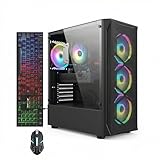
- This Gaming PC Desktop is well-suited for a variety of tasks including gaming, study, business, photo and video editing, streaming, day trading, crypto trading, and so on,ideal for Home, Office, School work
- This high-performance Gaming Computer Desktop is capable of running a wide range of popular PC games for pc gamer, including Fortnite, Call of Duty Warzone, Escape from Tarkov, GTA V, World of Warcraft, LOL, Valorant, Apex Legends, Roblox, Overwatch, CSGO, Battlefield V, Minecraft, Elden Ring, Rocket League, The Division 2, and Hogwarts Legacy with 60+ FPS
- PC Gaming System: This gaming computer desktop is loaded with Intel Core i7 up to 3.9GHz | 16GB Memory | 512GB Solid State Drive | Genuine Windows 11 Home 64-bit
- Gaming Desktop Connectivity: This gaming pc comes with RGB Fan x 4 | 1x RJ-45 | Wi-Fi 6 | Bluetooth 5.0 | Radeon RX 580 8G | HDMI | DisplayPort
- Gaming Computer Special Feature: This gaming pc equips with RGB Gaming Mouse & Keyboard |1 Year parts & labor | Free lifetime tech support,ARGB lighting that brings your gaming setup to life, with easy plug-and-play setup that gets you started in minutes. Built for long-lasting performance, it holds up well over time, while secure packaging ensures it arrives in perfect condition. Backed by reliable customer support for quick issue resolution
Upload the world to a hosted server
Hosted servers generally provide a file manager or upload control panel rather than direct access to the host’s operating-system folders. The important rules remain the same: upload while the server is powered down and preserve the expected hierarchy.
- Stop the hosted Core Keeper server from its control panel.
- Open the host’s file manager and navigate to the Core Keeper save location, normally the server’s
worldsdirectory. - Choose the upload option documented by the host. It may accept a Steam-ID folder or an individual numbered world file such as
0.world.gzip. - Upload the complete folder or file without changing its name or numbering.
- Wait for the upload to finish before closing the file manager or starting the server.
- Confirm that the uploaded item appears in the destination directory and is not nested one level too deep. For example, avoid placing
worldsinside anotherworldsfolder unless the panel explicitly requires that layout. - Start the server and connect to verify the imported world.
A host may expose a different path label from the Windows paths above, but its instructions should identify the equivalent save directory. If the panel offers both a Steam-ID folder upload and a single-file upload, use the option that matches the structure you copied from the source.
Local transfer or hosted upload?
Both destinations use the same safe-copy principles. The practical differences are control, availability, and how you reach the files.
The Tool Desk
Outbyte Driver Updater FREEFix the driver behind crashes, sound loss and screen glitchesFind Drivers →Outbyte PC Repair FREEClear out junk files and repair common Windows errorsFree Scan →| Decision point | Another local computer or self-managed server | Hosted server |
|---|---|---|
| Control of files | Direct access to the operating-system folders and backups. | Access is mediated by the provider’s file manager, FTP-style tool, or control panel. |
| Server online during transfer | No. Stop the dedicated server before copying. | No. Power down the hosted server before uploading. |
| Backup visibility | You choose the drive and retention policy, including the CoreKeeperSaves.zip archive. |
You must download or store a separate copy; panel snapshots and retention rules vary. |
| Path configuration | Check the default save root, Saveworlds, and any -datapath override. |
Follow the host’s documented save path and upload layout. |
| Upload interface | File Explorer, a Linux file manager, or another file-transfer method. | A web file manager or host-provided upload control. |
| Always-on access | Depends on your computer, network, and power settings. | Designed for a server that remains available independently of your personal computer, subject to the host’s service terms. |
Choose a local destination when you need full control over files and retention. Choose a hosted destination when independent uptime and a web upload workflow matter more. The world data itself does not become safer merely because it is hosted; keep an independent backup either way.
Independent reader supportYour contribution helps us test, update, and keep practical guides available for everyone.Verify that the destination loaded the correct world
A successful server start is not enough. Check the world in-game before removing the source copy.
- Terrain and landmarks: Confirm that explored areas, bases, pathways, and major landmarks match the source.
- Player progress: Check inventories, equipment, skills, and other progress for at least one player.
- World state: Look for placed objects, storage contents, doors, and automation that would reveal a newly generated world.
- World slot: If the server presents multiple worlds, ensure that the selected index corresponds to the transferred number.
- Persistence: Make a small, harmless change, stop the server normally, restart it, and confirm that the change remains.
Once these checks pass, retain the ZIP archive and the original source copy according to your normal backup schedule. Do not delete both at the same time merely because the server started without an error.
Best Value

- This Gaming PC Desktop is well-suited for a variety of tasks including gaming, study, business, photo and video editing, streaming, day trading, crypto trading, and so on,ideal for Home, Office, School work
- This high-performance Gaming Computer Desktop is capable of running a wide range of popular PC games for pc gamer, including Fortnite, Call of Duty Warzone, Escape from Tarkov, GTA V, World of Warcraft, LOL, Valorant, Apex Legends, Roblox, Overwatch, CSGO, Battlefield V, Minecraft, Elden Ring, Rocket League, The Division 2, and Hogwarts Legacy with 60+ FPS
- PC Gaming System: This gaming computer desktop is loaded with Intel Core i7 up to 3.9GHz | 16GB Memory | 512GB Solid State Drive | Genuine Windows 11 Home 64-bit
- Gaming Desktop Connectivity: This gaming pc comes with RGB Fan x 6 | 1x RJ-45 | Wi-Fi 6 | Bluetooth 5.0 | GeForce RTX 3050 6G | HDMI | DisplayPort
- Gaming Computer Special Feature: This gaming pc equips with RGB Gaming Mouse & Keyboard |1 Year parts & labor | Free lifetime tech support,ARGB lighting that brings your gaming setup to life, with easy plug-and-play setup that gets you started in minutes. Built for long-lasting performance, it holds up well over time, while secure packaging ensures it arrives in perfect condition. Backed by reliable customer support for quick issue resolution
Troubleshoot a missing or incorrect world
The server starts a blank world
First check the world index and filename numbering. A valid upload can still be ignored if the server is configured to open another slot. Next, inspect the directory nesting: the world must be inside the destination worlds structure, not in a neighboring folder or an extra nested directory. Finally, verify that you copied the complete folder or all required companion files.
There is no worlds folder
A new dedicated server may not create the folder until it completes its first save after a player joins. Start it long enough for that initial save, stop it, and inspect the generated directories. You can also create the worlds folder manually before copying the world. If neither approach produces the expected location, check for a -datapath launch argument.
You cannot find the files on Windows
Paste %USERPROFILE%AppDataLocalLowPugstormCore Keeper into File Explorer rather than browsing from the desktop. Then check the Steam and DedicatedServer branches separately. A client world is under a user-ID folder and worlds; a dedicated server normally uses the DedicatedServer root or an installation-relative Saveworlds folder.
You cannot find the files on Linux
Navigate to $HOME/.config/unity3d/Pugstorm/Core Keeper/Steam/<user-id>/worlds and enable hidden files if the file manager does not show .config. Confirm that you are checking the Steam client path rather than a separate server data path.
The copy contains only one file
Do not assume the single file is sufficient just because it has a familiar name. If the source displayed a folder, recopy the entire folder and its companions. If a hosting panel explicitly documents individual-file uploads, an item such as 0.world.gzip may be the correct unit; keep its original name and place it in the panel’s required directory.
Recommended Free Tools
The server reports a file-in-use or transfer error
Stop the server and wait until its process has fully exited. Do not copy while the server is still saving. Restart the transfer only after the source files are no longer changing. If an upload was interrupted, remove the incomplete destination copy before retrying so that an old partial file is not mistaken for a complete world.
The world works once but later reverts
Check that you are testing the same destination path each time and that the server is not being launched with a different -datapath. Confirm that the server is shutting down normally so the latest save is written. Keep the original archive available while you isolate the path or shutdown problem.
Use a repeatable backup routine
For an active community world, treat a migration copy as only one layer of protection. Before major updates or risky file changes, return to the main menu and create a fresh CoreKeeperSaves.zip with Ctrl+Alt+B. For server-side backups, stop the dedicated server, copy the complete world data, label the copy with the date and world slot, and store it separately from the live directory.
Keep at least one copy that the server cannot overwrite. When rotating backups, retain a known-good copy from before the latest change instead of keeping only the newest archive. This is especially important when several numbered worlds share the same save root: record which number belongs to which world so that restoration does not depend on guesswork.
Do these 3 things before closing this tab:
1Fix the driver behind crashes, sound loss and screen glitches2Repair Windows errors before they cause bigger problems3Scan for outdated or missing drivers - takes under a minuteQuick Recap
Safe transfer checklist
- Press Ctrl+Alt+B and preserve
CoreKeeperSaves.zip. - Close the client if it is the source.
- Stop the dedicated server or power down the hosted server.
- Check the active save root and any
-datapathoverride. - Copy the complete numbered world folder and companion files when present.
- Keep filenames, numbering, and compression unchanged.
- Create or locate the destination
worldsfolder. - Upload or place the copy while the destination server is stopped.
- Check the configured world index.
- Start the server, inspect the world and player progress, make a small persistence test, and retain the original backup until all checks pass.
Product prices and availability are accurate as of the date/time indicated and are subject to change. Any price and availability information displayed on Amazon at the time of purchase will apply.




