To add or change a Gmail signature on a computer, open Settings > See all settings, edit the text in Signature, then click Save Changes at the bottom. To remove one, select it in that section, choose Delete, confirm, and save. The Gmail app has a separate mobile-signature setting for messages sent from the app.
Create or edit a Gmail signature on a computer
- Open Gmail in a computer browser.
- At the top right, click Settings, then See all settings.
- In the Signature section, enter a new signature or select and edit an existing one. You can format the text and optionally add an image.
- Scroll to the bottom of the page and click Save Changes.
Google allows up to 10,000 characters in a signature, with any image counting toward that limit. If an image causes a limit error, Google suggests resizing it. Google’s Gmail signature instructions cover the editor and related settings.
As an Amazon Associate I earn from qualifying purchases.
Remove a signature on a computer
- In Gmail, click Settings > See all settings.
- Under General, scroll to Signature and select the signature you want to remove.
- Click Delete, then confirm by clicking Delete again.
- Click Save Changes at the bottom of the settings page.
Set a signature in the Gmail mobile app
Mobile signatures are configured separately and apply only to messages sent from the Gmail app. Google says that if you have not set a mobile signature, new messages use the signature created on your computer.
PC Slower Than It Used to Be?
A free scan shows the junk files, broken settings and background clutter dragging Windows down - then fixes them in one click.Free scan · Windows 10 & 11Crashes, No Sound, or Screen Glitches?
Random freezes, missing sound and display glitches usually trace back to one bad driver. Find and replace yours safely.Free scan · under a minuteAndroid
- Open the Gmail app, tap the menu, then scroll down to Settings.
- Select the Google Account you want to change.
- Tap Mobile signature, enter the signature, and tap OK.
See Google’s Android instructions.
iPhone and iPad
- In the Gmail app, open Menu > Settings.
- Under Compose and Reply, tap Signature settings.
- Turn on Mobile Signature, edit the text, then tap Back to save.
If you use multiple accounts in the app, change the setting for each account. See Google’s iPhone and iPad instructions.
#1 Best Overall
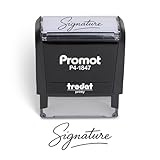
- Personalized with Your Handwritten Signature: Create your own stamp signature for a professional touch. Ideal for anyone who signs documents often, this customized stamp ensures each impression is clear & consistent while maintaining a genuine look.
- Self-Inking Signature Stamp: No need for messy separate ink pads. This custom signature stamp is designed with a built-in, self-inking mechanism that automatically re-inks itself after each impression, giving you quick and clean stamping every time.
- Choice of Ink Color: Select from a variety of ink colors to match your needs. Whether you prefer black for legal documents, blue for banking or red for emphasis, this stamp provides the flexibility to create impressions that fit every situation.
- Durable Construction: Made from quality materials, this custom signature stamps is built to withstand frequent use at home, office or in professional settings. The refillable ink pad delivers thousands of crisp impressions before needing replacement.
- Versatile for Business, Legal, Personal Use & Gifting: More than just a time-saving office tool, this custom self-inking signature stamp makes a thoughtful gift for professionals, business owners, teachers, or anyone who frequently signs documents.
Use different signatures for messages or addresses
Gmail’s computer settings support multiple signatures. You can choose defaults for new messages and replies, then select another signature while composing when needed. If your account uses Send mail as, you can assign a different signature to each address from the dropdown above the signature text box. If that dropdown is absent, check Accounts and Import and confirm the addresses appear under Send mail as. These options are in Gmail’s signature settings.
Add or troubleshoot a signature image
Gmail can insert a signature image from a public web address, Google Drive, or an upload from your device. Google recommends an image 70–100 pixels high by 300–400 pixels wide; its stated maximum is 100 pixels high by 1,000 pixels wide. These are Google’s image-size recommendations and maximums, not requirements for text-only signatures. Google’s image troubleshooting page explains insertion and resizing options.
Quick Recap
Best Value

- Signature Stamps by ExcelMark are available in 5 different sizes - Impression area - Small: 9/16"x 1-1/2"- Medium: 11/16"by 1-7/8", Extra Wide: 5/8"by 2-21/32", Large: 15/16"by 2-3/8", Extra Large: 1-1/8"by 2-11/16"
- Prints in your choice of ink color: black, red, blue, green, and purple. Ink pads are re-inkable.
- Customization Instructions: Click on 'Customize Now' on the right and follow instructions to upload a .jpg or .png file for your signature stamp or enter your name with the selected font.
- Clear mount bottom helps you line up your stamp correctly
Rank #4
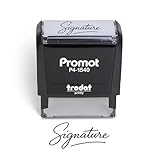
- Personalized with Your Handwritten Signature: Create your own stamp signature for a professional touch. Ideal for anyone who signs documents often, this customized stamp ensures each impression is clear & consistent while maintaining a genuine look.
- Self-Inking Signature Stamp: No need for messy separate ink pads. This custom signature stamp is designed with a built-in, self-inking mechanism that automatically re-inks itself after each impression, giving you quick and clean stamping every time.
- Choice of Ink Color: Select from a variety of ink colors to match your needs. Whether you prefer black for legal documents, blue for banking or red for emphasis, this stamp provides the flexibility to create impressions that fit every situation.
- Durable Construction: Made from quality materials, this custom signature stamps is built to withstand frequent use at home, office or in professional settings. The refillable ink pad delivers thousands of crisp impressions before needing replacement.
- Versatile for Business, Legal, Personal Use & Gifting: More than just a time-saving office tool, this custom self-inking signature stamp makes a thoughtful gift for professionals, business owners, teachers, or anyone who frequently signs documents.
Rank #3
![TechMark Personalized Signature Stamp Self Inking [Upload Signature or Pick Font] Custom Signature Stamp for Signing Name and Checks with Clear, Consistent Impressions & Effortless Stamping](https://m.media-amazon.com/images/I/41oACJn7hzL._SL160_.jpg)
- ✒️ Smooth & Effortless Stamping – Designed for quick, easy, and reliable use, this custom self-inking signature stamp delivers crisp, clear impressions every time—no separate ink pad needed!
- ✒️ Bright & Quick-drying Ink – The high quality ink used in our personalized signature stamp is bright in color and dries quickly. It won't smudge your hands, documents, and workspace. Keep your work area clean.
- ✒️ Refillable & Eco-Friendly – The built-in ink pad is easy to refill, saving you money and cutting down on plastic waste—a smart, sustainable choice!
- ✒️ Make It Yours – Design your unique signature stand out with precision and professional. Boost efficiency and save time.
- ✒️ Just the Right Size – With a 1.85" x 0.98" impression, durable casing and ergonomic grip, it’s perfect for contracts and personal projects, invoices.
Rank #2

- Signature Stamps by ExcelMark are available in 5 different sizes - Impression area - Small: 9/16"x 1-1/2"- Medium: 11/16"by 1-7/8", Extra Wide: 5/8"by 2-21/32", Large: 15/16"by 2-3/8", Extra Large: 1-1/8"by 2-11/16"
- Prints in your choice of ink color: black, red, blue, green, and purple. Ink pads are re-inkable.
- Customization Instructions: Click on 'Customize Now' on the right and follow instructions to upload a .jpg or .png file for your signature stamp or type your name in the font of your choice
- Clear mount bottom helps you line up your stamp correctly
- For a Google Drive image, sharing must let anyone with the link view it.
- If one insertion method fails, try another, or delete and re-upload the image.
- For work or school accounts where only URL insertion is available, an administrator may need to allow public image sharing.
- If an image will not upload or display, Google suggests trying an incognito window or another browser, clearing Chrome’s cache or Gmail cookies, or allowing cookies for mail.google.com. These are troubleshooting options, not guaranteed fixes.
Product prices and availability are accurate as of the date/time indicated and are subject to change. Any price and availability information displayed on Amazon at the time of purchase will apply.




