Quick wins for a faster PC:
Fix the driver behind crashes, sound loss and screen glitchesFind Drivers →Repair Windows errors before they cause bigger problemsFix Now →To create an SRT subtitle file for a pre-recorded video, transcribe the final version, divide the words into timed cues, save them as UTF-8 plain text with the .srt extension, and upload the file to the destination platform. An SRT file contains captions and timestamps—not video. It can add captions to an uploaded video, but that alone does not guarantee captions will appear when the video is broadcast as a live stream.
What an SRT file contains
Here, “SRT” means a SubRip subtitle file. Each cue consists of a sequential number, a start and end timestamp, the caption text, and a blank line before the next cue. The file is separate from the video.
As an Amazon Associate I earn from qualifying purchases.
It is not the same as Secure Reliable Transport, also abbreviated SRT, which is a protocol for carrying live video. A subtitle file is not an SRT stream URL, stream ID, or passphrase.
Do these 3 things before closing this tab:
1Repair Windows errors before they cause bigger problems2Scan for outdated or missing drivers - takes under a minute3Clear out junk files and repair common Windows errorsMake the SRT file
- Use the final video. Create or check the captions against the exact edit you will upload or stream. If the edit changes, cue timings may no longer match. Vimeo OTT says a subtitle file must be uploaded again if its video is replaced.
- Transcribe the audio. Preserve the spoken words and review names, spelling, and punctuation. For captions intended to communicate audio to viewers who cannot hear it, include meaningful sounds where appropriate; YouTube’s manual-caption guidance gives examples such as
[applause]and[thunder]. - Split the transcript into cues. Give each cue a sequential number, a start and end time, and one or more lines of caption text. Make cues readable on screen. The sources cited here do not establish a universal line-length or cue-duration limit, so treat those choices as editorial judgment rather than a platform rule.
- Time each cue against the video. For the SRT format documented by Vimeo, timestamps use
hh:mm:ss,mmm: two digits each for hours, minutes, and seconds, then a comma and three millisecond digits. Vimeo OTT specifically says to use the media timecode, not SMPTE timecode. - Save as UTF-8 plain text. Use a plain-text editor and save the file with an
.srtextension. Vimeo recommends UTF-8 for reliable display of special characters. - Validate and preview. Check numbering, timestamps, cue text, blank lines, spelling, and synchronization before uploading. Preview the beginning, middle, and end against the video.
Minimal SRT example
1
00:00:02,400 --> 00:00:05,200
Welcome to tonight's program.

2
00:00:05,600 --> 00:00:08,000
We recorded this session earlier today.
This demonstrates the cue layout and timestamp form in Vimeo’s troubleshooting guidance; platform acceptance can still depend on the destination workflow.
#1 Best Overall

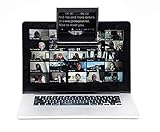
- Clear Prompts, Natural Eye Contact: Beam splitter glass reflects your phone’s script in front of the recording lens, helping you read while looking toward your audience. Stay on track during YouTube videos, tutorials, product demos, and live streams without memorizing every line
- Adjustable Smartphone Fit: The prompting phone holder expands up to 3.8 inches to accommodate different phone widths. Use one phone to display your script and another to record. Adjust the recording phone’s height and zoom as needed to keep the teleprompter frame out of your shot
- Webcam Setup for Online Meetings: Mount the teleprompter on a compatible computer monitor and adjust its height to align with the webcam. Read notes from your prompting phone while facing the camera during video calls, online interviews, webinars, and remote lessons
- Bluetooth Remote & App Control: Use the included Bluetooth remote with the Stream Prompt app for iOS and Android to control your script while presenting. Play or pause scrolling, adjust scroll speed and font size, and move through your script without reaching for the phone. Remote batteries are not included
- Cold Shoe Mount for Accessories: The built-in cold shoe mount lets you attach a compatible LED light or microphone to support your recording setup. Keep your script in view while filming at home, teaching online, or presenting on camera—helpful for solo content creators
Upload the file to the destination
YouTube
In YouTube Studio, open the video’s Subtitles section, choose the language, select the option to add subtitles, and upload the timed file. YouTube lists SubRip (.srt) as a supported format. Its caption tools also offer transcript auto-sync and manual entry, which are alternatives to uploading a fully timed file. Check that the language and subtitle track are correct, then preview playback. Automatic captions are a separate feature and do not verify that your authored file is accurate.
Vimeo and Vimeo OTT
Vimeo supports SRT and WebVTT for standard video captions and recommends WebVTT for its standard workflow; use UTF-8. Vimeo OTT accepts SRT and VTT, expects media timecode, and requires a replacement subtitle upload if the video is replaced. The controls and available options can vary by Vimeo product and plan, so use the language or subtitle controls for the specific video.
Rank #2

- 【Multi-Device Compatibility, All-in-One Use】 This Desview T5 teleprompter is perfectly compatible with smartphones, tablets (under 11 inches) and DSLR cameras, matching most mainstream shooting devices on the market. Equipped with 49/52/55/58/62/67/72/77/82mm universal adapter rings and a phone/tablet holder, it supports both mobile shooting and professional camera recording, meeting all your needs for live streaming, vlogging and video creation.
- 【Professional Desview APP & Bluetooth Remote Control】 Download the official Desview APP (iOS/Android available) for free to edit manuscripts, import txt/docx files, adjust font size/color/background, set mirror/rotate screen and countdown timer. The included Bluetooth remote enables wireless control of play/pause, playback speed and page turn, and supports one-key on/off with auto sleep mode (5mins idle off/30mins connected idle off), making your shooting more convenient and hands-free.
- 【Flexible Shooting Modes & Precise Adjustment】 The teleprompter supports horizontal/vertical shooting for mobile phones—just press and pull the holder to switch modes, and adjust the camera position with one key for precise alignment. It also features a real-time self-check function: install a second phone to view the shooting status in real time, avoiding shooting errors and improving your creation efficiency.
- 【High-Quality Material & Humanized Design】 Equipped with high-grade coated glass that ensures clear script display without affecting shooting effect; the foam cushion and light seal foam effectively block stray light, reducing glare and improving shooting quality. The panel can be opened with one click for quick device installation, and the height of the front panel is adjustable, adapting to different shooting angles and habits.
- 【Durable Quality & Reliable After-Sales】Coated glass with anti-scratch design, solid structure to resist accidental collision; enjoy 1-year free warranty and lifetime free maintenance, with professional technical support for all product issues.
Adding captions to a pre-recorded live stream
Uploading an SRT file to an on-demand video and sending captions during a live encoder session are different workflows. The platform documentation describes video subtitle uploads and, separately, the SRT live-video transport protocol; it does not establish that an uploaded subtitle file automatically supplies closed captions to every live simulcast of pre-recorded content.
The Tool Desk
Outbyte Driver Updater FREEFix the driver behind crashes, sound loss and screen glitchesFind Drivers →Outbyte PC Repair FREERepair Windows errors before they cause bigger problemsFix Now →If you need captions on the live broadcast itself, confirm the exact platform and encoder’s caption-ingest method for that event before relying on the file. Do not treat a SubRip .srt file as a transport-protocol setting.
Rank #3

- DETACHABLE DESIGN & UNIVERSAL COMPATIBILITY — Features a convenient detachable structure with secure hand-tightened screws for quick assembly and easy storage. The Desview T3 teleprompter for DSLR and mirrorless cameras supports iPad, tablets, and smartphones up to 10 inches. It includes built-in dual cold shoe mounts on top for LED lights and microphones, plus a 10 ft reading distance that ensures comfortable eye contact with the lens.
- 9-PIECE LENS ADAPTER KIT INCLUDED — Comes with 49/52/55/58/62/67/72/77/82 mm camera lens adapters for a secure, tight fit on your DSLR or mirrorless camera. It fully supports a 24mm+ horizontal shooting angle, allowing for wide-angle setups without vignetting. Enjoy a bigger, clearer view for your professional video recording.
- PREMIUM 70/30 BEAM SPLITTER GLASS — Equipped with industry-standard 70/30 beam splitter glass featuring 26 anti-reflection coated layers. This delivers outstanding light transmission and zero visual distortion for effortless script reading, strictly ensuring natural eye contact. The durable 7H hardness surface and included protective lid safeguard the teleprompter during transport and daily use.
- EASY SETUP FOR CONTENT CREATORS — Experience an effortless 1-minute setup without any complex tools. Simply mount the teleprompter to your camera via the adapter ring, or attach your smartphone using the included phone clamp. It is the perfect prompting solution for YouTube videos, live streaming, vlogging, and remote teaching.
- BLUETOOTH REMOTE & SMART APP CONTROL — Scroll through your scripts hands-free with the included Bluetooth remote. Easily adjust play/pause, slow down, and speed up on the fly. The free DESVIEW app seamlessly syncs with the remote controller and is fully compatible with both Android and iOS devices, elevating your professional prompting experience.
Fix common SRT problems
- The platform rejects the file: Confirm it is plain text with an
.srtextension, starts with cue number1, and has sequential cue numbers, start and end times, caption text, and a blank line after each cue. - Timestamps are rejected: Use two digits for hours, minutes, and seconds, a comma before milliseconds, and three digits for milliseconds—for example,
00:00:07,751. Check that the arrow is written as-->. - Special characters display incorrectly: Save as UTF-8; Vimeo recommends this encoding for reliable display of special characters.
- Captions are out of sync: Compare cues with the final media timeline, not an earlier edit. For Vimeo OTT, use media timecode rather than SMPTE timecode. If the video changed, retime the captions and, for Vimeo OTT, upload the subtitle file again.
- Captions do not appear during the live broadcast: An on-demand subtitle upload does not establish that captions are being sent in the encoder session. Check the platform and encoder’s live caption workflow separately.
Or let it run in the cloud
If your pre-recorded video is meant to keep a YouTube channel live around the clock, StreamNeo is a separate option for playing uploaded videos as a YouTube live stream. Upload the recording or make a playlist, add your YouTube stream key, and go live; the cloud keeps it running without a computer or home connection left on.
- Nothing has to stay on at home.
- Uploaded video streams as made, up to 4K 60fps, at one flat price per slot.
- Automatic recovery if YouTube drops the stream.
- The first day is free with no card required.
Monthly: $9.99 per month. StreamNeo plays uploaded videos; it does not go live from a camera. Visit StreamNeo or start the free first day.
Quick Recap
Best Value

- 【Installation Free Design】 This teleprompter with an installation free design, is an all in one collapsible teleprompter made by aluminum alloy, it is durable enough to hold ipad, tablet, smartphone, or camera for your work. The teleprompter is no assembly and is easy to mount it on tripod for use conveniencently.
- 【12 "High-Quality Optical Glass for Clear Display】The 12 inch teleprompter features great light reflection and light transmittance with high quality anti-reflective coating, can reflect clear text for read up to 15ft (4.6m) reading range and record high-definition video, is ideal for presentations, live streaming and video recording, ect
- 【Wide Devices Compatibility】Teleprompter suitable for smartphones or tablets up to 8.6 inch (22 cm), compatible with iPad, iPad Air, ect. This teleprompter suitable for multiple photography equipment, camera mounting screw support DSLR camera/mirrorless camera/video recorder which have 1/4 inch and 3/8 inch mounting screw
- 【Wireless Remote Control】The teleprompter equipped with remote control and GVM Teleprompter APP, which support intelligent wireless control. Allow you to play/pause text, adjust scrolling speed and change font size via the remote control or the APP on your smartphone/tablet (the APP is compatible with IOS/Android),Comes with a Bluetooth remote control to conveniently start/stop text scrolling and adjust speed without touching the device.
- 【Foldable and Portable】All in one collapsible teleprompter make it easy to storage and transport on the go, simply fold the teleprompter down and store it in the included carry bag for protection and portability
Product prices and availability are accurate as of the date/time indicated and are subject to change. Any price and availability information displayed on Amazon at the time of purchase will apply.




