The Tool Desk
Outbyte PC Repair FREEClear out junk files and repair common Windows errorsFree Scan →Outbyte Driver Updater FREEScan for outdated or missing drivers - takes under a minuteDriver Scan →To take a few straightforward orders, add an order form to a WordPress page and connect a payment provider if customers should pay online. If you need a product catalog, cart, checkout, and tools to manage ongoing orders, build a WooCommerce store instead. The right choice depends on whether customers are choosing from a fixed set of options or shopping from a store.
Choose between an order form and a WooCommerce store
A form is a good fit when customers select from a limited, defined list of products or services and submit one order at a time. WooCommerce is designed for a fuller store workflow: product listings, a cart, checkout, and order dashboards. WordPress Learn describes these as core components of a WooCommerce setup (WordPress Learn: WooCommerce); WooCommerce’s guide covers creating the store, adding products, and selecting payment options (WooCommerce store guide).
| Consideration | Order form | WooCommerce store |
|---|---|---|
| What customers choose | A fixed set of items or services presented in form fields, as in the WPBeginner example (WPBeginner order-form tutorial). | Products in a catalog, with a cart and checkout (WordPress Learn: WooCommerce). |
| Best suited to | Simple order collection where a full store is unnecessary. | Businesses managing a product catalog and multiple orders through store tools (WooCommerce store guide). |
| Payment setup | Add a payment integration supported by the form builder; check the provider and plan requirements in its current documentation. | Configure a WooCommerce payment method, such as the Stripe extension, subject to eligibility and setup requirements (WooCommerce Stripe extension). |
| Stock, shipping, or delivery rules | Consider this route if the order choices and fulfillment process are simple enough to manage without store-specific tools. | Consider this route when product, cart, checkout, and order-management features suit the way you fulfill orders (WordPress Learn: WooCommerce). |
You do not need WooCommerce just to collect a one-off order. Choose a store when its catalog and ongoing order workflow solve a real need.
How to create a simple WordPress order form
The steps below reflect the workflow in WPBeginner’s 2020 tutorial, which demonstrates WPForms Pro. Treat it as an example, not confirmation of current plan tiers, features, prices, or exact interface labels; check the form builder’s current documentation before choosing a plan or payment integration.
#1 Best Overall

- 【Fast Printing & Auto Cutter】The pos printer high efficiency with auto cutter and printing speed--250mm/sec. Easy for paper installation, easy maintenance, easy to use.Three Interface ports:USB+ LAN + SERIAL PORT.DO NOT-Wifi-Bluetooth.
- 【Wall Hanging Design】 Kitchen printer with two hanging holes on the bottom support wall mount hanging. Easy to use, save the place. With auto cutter and compatible with several operating systems. Print width:79.5±0.5mm; Paper Width:3 1/8" (80mm).
- 【Wide Compatibility&Reasonable Design】Desktop or wall-mounted type for option, lets you use every space more rationally. The humanized auto-cutter, the receipt will not fall to the ground after printing. One-button open cover and large paper warehouse design, easy to use & maintain. Work with MUNBYN 3 1/8 x 203ft thermal paper,MFLABEL thermal receipt paper.
- 【Most Cost-effective】Support cash drawer driving, compatible ESC/POS print commands.Do not need ribbon/ink cartridge, low operating cost. The printer has the function of overheating protection, long service life. Printing characters with high speed, reliable performance.It is an ideal choice for receipt printing in large shopping malls, supermarkets, retail, hotels, canteens, restaurants, etc.
- 【Buy with Confidence】 Rongta is a brand that is dedicated to offering the highest quality products and good shopping experience for the customer. Warm tips:The receipt printer is not compatible with Ubereats/Grubhub/Doordash/Lightspeed/Postmates/Square/Chromebook/Clover.
- In the WordPress dashboard, install and activate the form builder you have selected. In the example tutorial, this is WPForms Pro.
- Create a billing or order form, then add fields for the products or services customers can select. Keep the choices and any requested customer details clear.
- Configure a payment provider, such as PayPal or Stripe, if you want to collect payment with the order. Verify that your current form-builder plan and provider integration support the payment flow you need.
- Publish the form on a WordPress page or post. The tutorial demonstrates embedding it with the WPForms block.
- Preview the published page and submit a test order to confirm that the form works as intended and that the expected payment setup is in place.
The tutorial says the form builder may prompt the administrator to configure payment-provider options if they are not already set up. Exact prompts and settings may have changed since the tutorial was published.
How to accept Stripe payments with WooCommerce
If you choose WooCommerce, its official instructions describe installing the Stripe Gateway and completing setup from the store’s payment settings. Stripe eligibility and technical requirements can change, so use the live prerequisites before installing the extension.
Rank #2

- Compatibility Information: Please ensure that our receipt printer is compatible with your device.The Ethernet interface supports Windows, Mac OS, Linux, VirtualCom, Android, RaspberryPi and iOS. But the USB interface could only support Windows, Mac OS, Linux, VirtualCom and Android. Additionally, it does not support Ubereats, Grubhub, Doordash, Postmates, Clover, or Shopify for POS software.
- Fast Printing & Auto Cutter: This high-efficiency thermal receipt printer boasts a maximum printing speed of 260mm/s, ensuring quick and efficient printing without any paper jams. The automatic cutter is designed to handle heavy usage and can last up to 1.5 million cuts. With a one-button open cover and a spacious paper warehouse, this POS printer is easy to use and maintain. Additionally, the receipt printers utilizes direct thermal printing technology, eliminating the need for ribbons or ink.
- USB & Ethernet Interface: The receipt printer has USB and Ethernet interfaces, as well as cash drawer RJ11 ports. However, it does not support Bluetooth or WiFi printing. With a 203 dpi resolution, the Ethernet receipt printer produces high-quality prints that are sharp and clear. To develop custom applications on Ethernet-supported systems like iOS and Android, a software development kit (SDK) is necessary.
- Wall Mount Option: The kitchen printer has a wall mount option with two hanging holes at the bottom, allowing it to easily fit into any space. This USB receipt printer is an excellent choice for various establishments such as restaurants, kitchens, retail stores, grocery stores, clothing stores, supermarkets, cafes, ticket points, food trucks, banks, shopping malls, hotels, canteens, and more.
- Customer Service in the United States: Our team of customer support based in the United States is ready to help you with any problems you may have regarding the integration of the direct thermal printer. Whether you require assistance with setup, connection, compatibility, or any other issues related to the product, please don't hesitate to reach out to us. Additionally, all Volcora products are backed by a limited lifetime warranty, ensuring your peace of mind when making a purchase.
- Confirm that your business is in a Stripe-supported country, your site meets the extension’s current WordPress, WooCommerce, and PHP requirements, and the site uses HTTPS. Check WooCommerce’s Stripe setup and configuration requirements for current details.
- In the WordPress dashboard, go to Plugins > Add New, find the WooCommerce Stripe Gateway, install it, and activate it, following WooCommerce’s installation instructions.
- Go to WooCommerce > Settings > Payments > Stripe and continue the setup. Connect an existing Stripe account or create one through the connection flow, as described in WooCommerce’s Stripe account connection guide.
- Complete Stripe’s onboarding, then return to WordPress and check the payment, payout, webhook, and sync statuses in the WooCommerce settings. Webhooks let the extension communicate with Stripe about payment events; the setup guide explains their configuration.
Stripe controls its own account verification and compliance process. For questions about those requirements, consult Stripe directly. WooCommerce lists card, express checkout, local payment, and buy-now-pay-later methods for its extension, but availability depends on account configuration and location (WooCommerce Stripe extension). Check the methods shown in your own payment settings. WooCommerce says Stripe determines transaction fees, so review Stripe’s current pricing for your country and payment method rather than relying on a universal fee.
A hosted checkout page and an embedded payment form are different customer experiences: a hosted page redirects the customer to Stripe, while an embedded form appears on the site. Stripe explains the distinction in its Checkout quickstart; whether a particular WordPress plugin supports either option depends on that plugin’s integration.
What’s actually slowing this PC down?
Pick the symptom - the matching free tool is one click away.
Rank #3

- Auto Cutter and High-Speed Printing: The thermal receipt printer features high efficiency with auto cutter and the fastest printing speed of 300mm/sec. Easy for paper installation, easy maintenance, and excellent structure. Plug and play USB PORT, easy to use. Three Interface ports: USB+ LAN + SERIAL PORT. Does NOT support Wifi or Bluetooth. Compatible with WIN2003/WINXP/WIN7/WIN8/WIN10/LINUX/Mac
- Wall Hanging Design: Kitchen printer with two hanging holes on the bottom support wall mount hanging. Easy to use, save the place. With auto cutter and compatible with several operating systems. Print width: 79.50.5mm; Paper Width: 3 1/8 inch (80mm)
- Wide Compatibility and Reasonable Design: Desktop or wall-mounted type for option, lets you use every space more rationally. The humanized auto-cutter ensures the receipt will not fall to the ground after printing. One-button open cover and large paper warehouse design, easy to use and maintain. Works with MUNBYN 3 1/8 x 203ft thermal paper and Gorilla 3 1/8 x 230 Thermal Paper Receipt Rolls
- Cost-Effective Operation: Supports cash drawer driving, compatible with ESC/POS print commands. The network receipt printer does not need ribbon or ink cartridge, resulting in low operating cost. The printer has the function of overheating protection for long service life. Printing characters with high speed and reliable performance for receipt printing in large shopping malls, supermarkets, retail, hotels, canteens, and restaurants
- Compatibility Notice: The receipt printer is not compatible with Grubhub, Doordash, Square, Chromebook, Uber, or Clover systems. Rongta is a brand dedicated to offering high quality products and good shopping experience for customers
Enter an order for a customer in WooCommerce
WooCommerce can also handle orders taken by phone or arranged directly with a customer. An administrator can create the order in the dashboard and send a payment link.
- Go to WooCommerce > Orders and choose the option to add an order.
- Enter the customer details and add the relevant line items.
- Set the order to an appropriate status. If the customer still needs to pay, leave it pending payment.
- Save the order, then use the order details email to send the customer its payment-page link. WooCommerce documents the manual-order workflow at Managing orders.
This workflow is useful for staff-entered or custom orders as well as testing. Check that the order details and status are correct before sending the payment link.
Quick Recap
Best Value
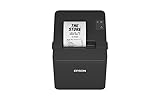
- ✅【High-Speed Thermal Printing Performance】– Print receipts lightning fast at up to 310 mm/s, delivering smoother transactions and shorter wait times for your customers. Perfect for retail stores, restaurants, cafés, and service businesses that need reliable, continuous printing.
- ✅【Triple Interface Connectivity】– Equipped with USB, Serial (RS-232), and Ethernet ports for versatile integration with any POS system. Includes an extra USB-A port for peripherals such as barcode scanners or customer displays — plug and print with total flexibility.
- ✅【Seamless Multi-Platform Compatibility】– Works with Windows, Android, and iOS devices through Epson ePOS technology, allowing direct printing from tablets, smartphones, and web-based POS apps. Ideal for modern mPOS and cloud-based retail environments.
- ✅【Smart Paper-Saving & Eco Design】– Reduce paper usage by up to 30% using intelligent margin and spacing controls. ENERGY STAR certified and RoHS compliant, this printer helps your business stay efficient and environmentally responsible.
- ✅【Compact, Durable & Easy to Install】– Sleek, space-saving design (5.5" × 7.8" × 5.7", only 1.7 kg) fits any countertop and supports horizontal, vertical, or wall-mounted installation. Built to last with 2 million auto-cuts and a 60 million line MCBF.
Rank #4

- High-speed printing of 43 receipts per minute (250mm/s) with easy to setup USB connection - just Plug and Print; USB serial number feature means the PC will detect the TSP143IIIU on its Windows platform using any USB port
- Compatible with iOS, Android, and Windows for a simple setup process
- The "Drop-In and Print" clamshell design allows for fast and easy paper loading; patented "De-Curl" function always delivers a flat receipt
- The TSP143IIIU USB model is certified with the following companies: Postmates, Square, Chromebook, and Clover
- The small footprint and embedded power supply saves precious counter space
Product prices and availability are accurate as of the date/time indicated and are subject to change. Any price and availability information displayed on Amazon at the time of purchase will apply.




