There is no single fan-control procedure for every Supermicro X9 system. First identify the exact motherboard model and revision, chassis, BMC/IPMI firmware, fan type, and where the fans are connected. The available controls and whether they work depend on that configuration.
Identify your X9 hardware before changing settings
“X9” covers multiple motherboards and system configurations, so do not assume a menu, command, or fan setting applies to all of them. Record these details before troubleshooting:

As an Amazon Associate I earn from qualifying purchases.
- Motherboard model and revision: Read the board label or check the system documentation.
- Chassis model: The chassis can affect fan wiring and the required fan type.
- BMC/IPMI firmware: Note the installed version, since management interfaces and behavior can vary.
- Fan type and connection: Check whether each fan has a three-pin or four-pin connector and whether it is connected to a motherboard header, backplane, or another controller.
- What is happening: Note whether the fans are too loud, not spinning, or producing a fan-speed alarm.
A secondary iTechGuides overview likewise cautions that the motherboard model, revision, BMC/IPMI firmware, wiring, and tachometer behavior can affect control. Its guidance is not a substitute for the manual for your specific system.
Quick wins for a faster PC:
Repair Windows errors before they cause bigger problemsFix Now →Scan for outdated or missing drivers - takes under a minuteDriver Scan →Where fan-speed controls may be available
BIOS Hardware Monitoring on the documented X9DRH family
For the X9DRH-7F, X9DRH-iF, X9DRH-7TF, and X9DRH-iTF, the motherboard manual describes fan-speed control through Thermal Management under Hardware Monitoring in the BIOS Advanced Setting. Menu names and options should not be assumed to match other X9 boards. See the X9DRH-7F/-iF/-7TF/-iTF manual.
#1 Best Overall

- Application: X9 2U(+) Active?UP, DP Servers
- Socket Type: LGA 2011 (Square and Narrow ILMs)
- CPU Support: Intel Xeon Processor E5-2600 Series
- Fan Speed: 8400 RPM
- Noise:52.0 dBA
IPMI fan modes
Supermicro’s SUPER X9 SMM IPMI User’s Guide depicts Full Speed, Standard, and Optimal fan modes. These are documented modes, not a promise that every X9 system exposes the same choices or interface. Use the instructions and options shown for your board and firmware.
Check fan connectors and wiring
On the X9DRH family covered by its manual, speed control is available for four-pin fans only. The manual says three-pin fans are backward compatible with the headers, but that connection compatibility does not mean their speed can be controlled. A three-pin fan may therefore fit and spin without responding to a speed setting.
Rank #2

- Application: 4U X9 UP, DP Servers
- Socket Type: LGA2011
- CPU Support: Intel Xeon E5-2600 Series Processors
- Material: Copper Base; Aluminum Fins; Heat Pipes; Cooling Fan (Front Side)
- Mounting Method: Screws & Springs; Mounting Brackets (for Square and Narrow ILMs Included)
Wiring can also prevent control from working as expected. In a specific configuration—an X9DRi-F motherboard with a CSE-847E16-R1400LPB chassis—Supermicro says fan power and PWM control come from the motherboard headers. Its guidance is to connect the fans directly to those headers, using the seven included four-pin PWM extension cables, rather than connecting them to the drive backplanes. That advice applies to this named configuration; confirm the wiring requirements for your own chassis. See Supermicro FAQ 45689.
Troubleshoot in a safe order
- Confirm the exact system details. Match the motherboard and chassis models to their documentation, and note the BMC/IPMI firmware version.
- Check the fan type. If the system requires speed control, verify whether the fan is four-pin PWM; do not infer control capability from the fact that a three-pin fan fits.
- Trace the connection. Confirm that each fan is connected to the header or controller specified for that system. Follow any chassis-specific wiring guidance.
- Use the documented control interface. For the cited X9DRH boards, look under BIOS Advanced Setting → Hardware Monitoring → Thermal Management. For IPMI, use the modes available in your system’s interface and guide.
- Recheck fan operation and alarms. If the fan does not respond or an alarm persists, verify the connection and tachometer reporting, then consult the exact board and chassis documentation or Supermicro support.
The available documentation does not establish a universal PWM value, RPM alarm threshold, or command sequence for all X9 systems. Do not apply a value or command from another board as if it were universal.
Independent reader supportYour contribution helps us test, update, and keep practical guides available for everyone.Choosing a replacement fan or extension cable
A four-pin PWM computer fan is a relevant replacement category when the specific system supports PWM control, but that alone does not establish compatibility. Before buying, verify the fan’s physical dimensions, connector, electrical requirements, airflow and chassis requirements, and tachometer behavior against the board and system documentation. Extension-cable needs are also configuration-specific; the seven included cables cited by Supermicro apply to the X9DRi-F/CSE-847E16-R1400LPB example, not every X9 server.
If you need exact commands, thresholds, or a replacement part number, provide the complete motherboard model and revision, chassis model, BMC/IPMI firmware, and fan details. Without those identifiers, a precise recommendation is not established.
Quick Recap
Best Value
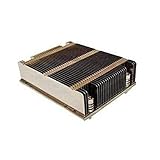
- X9 1U UP, DP Servers
- LGA2011
- Intel Xeon Processor E5-2600 Series
- Screws & Springs for Square ILM
Rank #4

- Part Number:SNK-P0048AP4
- Application:X9 2U+ UP, DP Servers
- Socket Type:LGA2011 or LGA1356
- Supported CPU:intel Xeon E5-2600 and E5-2400 Series
- Mounting Method:Screws & Springs for Both Square and Narrow ILMs (BKT-0048L-RS and BKT-0048L-RN Included)
Product prices and availability are accurate as of the date/time indicated and are subject to change. Any price and availability information displayed on Amazon at the time of purchase will apply.
What’s actually slowing this PC down?
Pick the symptom - the matching free tool is one click away.




