What’s actually slowing this PC down?
Pick the symptom - the matching free tool is one click away.
Configure multi-rail GPU networking in layers: keep the cluster’s primary CNI for ordinary pod connectivity, use Multus to attach additional networks, and use the SR-IOV Network Device Plugin and SR-IOV CNI to allocate and configure the host’s virtual functions (VFs). For multiple rails, each requested attachment must map to the intended device and fabric path; attaching multiple interfaces alone does not guarantee isolation, correct routing, or use by a GPU communication library.
What each Kubernetes networking component does
Multus is a CNI meta-plugin: it lets a pod have additional network interfaces alongside its primary Kubernetes network. It does not create VFs, configure NIC hardware, or decide how a GPU collective library uses network interfaces. The primary CNI remains necessary for the cluster’s ordinary networking.
As an Amazon Associate I earn from qualifying purchases.
| Component | Role in the setup | What it does not do |
|---|---|---|
| Primary CNI | Provides the pod’s default Kubernetes network. | It does not replace the secondary SR-IOV attachments. |
| Multus | Coordinates additional network attachments for a pod. | It does not create or select physical rails by itself. |
| SR-IOV Network Device Plugin | Discovers configured host devices and advertises them to Kubernetes as schedulable resources. | It does not create VFs or configure the pod’s network interface. |
| SR-IOV CNI | Configures the device allocated to a pod and connects it to the pod’s network namespace. | It does not decide the cluster’s resource inventory or GPU traffic policy. |
The device plugin and SR-IOV CNI are separate parts of the flow: Kubernetes schedules an advertised device resource, and the CNI attaches the allocated device. When the pod is deleted, the SR-IOV CNI releases or resets the VF according to its documented behavior.
Free tools Windows power users keep installed
One-click scans. No signup required.
What to verify before configuring multiple rails
Start with the physical and software design, not a generic two-interface manifest. Record which NIC functions and fabric paths are intended for each rail, then confirm the node, driver, firmware, and cluster configuration support that design.
#1 Best Overall

- 6 Pin to 8 Pin PCIe Adapter: Connect a 6-pin male PCIe power plug from a compatible power supply to the 8-pin PCIe power input on a supported graphics card. Confirm the connector types before ordering
- For Compatible Low-Power GPUs: Use the PCIe power adapter only when the power supply and its 6-pin PCIe connection provide sufficient power for the graphics card. Check the documented power requirements of the PSU and GPU before installation
- 8 Pin to 6 Pin PCIe Adapter: The GPU power adapter changes a 6-pin PCIe connection into an 8-pin connector but does not increase the PSU wattage, current capacity, or available power. It is not suitable for bypassing GPU power requirements
- Secure PCIe Connections: The 8-pin male connector features a locking latch, while the 6-pin female connector uses a keyed housing to support proper alignment and help prevent accidental disconnection
- Convenient 2-Pack: Use the two PCIe adapter cables with separate compatible systems or keep one as a spare. Compatible with select Gigabyte, Radeon, and Sapphire graphics cards with an 8-pin PCIe power input. Check the GPU power requirements before use. Not compatible with CPU/EPS 8-pin ports
- Hardware and fabric: identify the NIC model, PF/VF layout, link type, and whether the deployment uses Ethernet/RoCE or InfiniBand. Confirm the intended switch or fabric paths rather than assuming separate interfaces are separate rails.
- Host software: verify kernel, NIC driver, firmware, SR-IOV support, and any RDMA stack against the hardware and Kubernetes distribution’s compatibility guidance.
- Resource inventory: decide which device-plugin resource pool represents each allocatable path and whether every node expected to run the workload has enough devices.
- Network plan: determine address allocation, subnet, VLAN or partitioning, routes, MTU, and any VF trust or spoof-check policy from the fabric design.
- Application behavior: determine how the GPU communication software selects interfaces and whether it can use the intended paths. Kubernetes attachment configuration alone does not set those application-level choices.
The SR-IOV Network Device Plugin project lists Intel Ethernet 800 Series (E810), 700 Series, 500 Series, Mellanox ConnectX-4 through ConnectX-6 Dx, BlueField-2, and Broadcom NetXtreme-E among devices tested with that implementation. That is a project test list, not a guarantee of compatibility for every server, firmware, kernel, driver, or fabric.
How to configure SR-IOV and Multus in order
- Keep the primary CNI working. Install and validate the cluster’s existing default network first. Configure Multus to use that default network; additional SR-IOV networks supplement it rather than replacing it.
- Create and verify the host VFs. Configure the desired VFs on the relevant physical functions using the host and NIC vendor’s supported procedure. The device plugin discovers selected devices; it is not the VF-creation mechanism.
- Configure device-plugin resource pools. Set selectors to match the actual devices and requirements, such as PCI vendor/device IDs, drivers, PF names, and RDMA capability. The names advertised by these pools become Kubernetes extended resources; use those exact names in workload resource requests and network definitions.
- Install compatible networking components. Deploy the SR-IOV CNI and SR-IOV Network Device Plugin, along with a compatible meta-plugin such as Multus. Confirm the relevant CRDs and CNI configuration are present for the cluster’s versions before creating attachments.
- Create a NetworkAttachmentDefinition for each intended attachment. A NetworkAttachmentDefinition uses the
k8s.cni.cncf.io/v1API and an SR-IOV CNI configuration withtypeset tosriov. Itsk8s.v1.cni.cncf.io/resourceNameannotation can associate it with the matching advertised extended resource. Configure IPAM when the kernel interface needs an IP address; select subnets, routes, VLANs, and VF policies from the real network plan rather than copying arbitrary example values. - Request the attachments and resources in the workload. Use the Multus pod-network annotation to name the required NetworkAttachmentDefinitions, and request the corresponding extended resources in the container’s resource limits. For two intended attachments, the annotation could name
gpu-rail-a,gpu-rail-bif those are the actual NAD names; the resource requests must use the exact names advertised by the device plugin. Ensure the scheduler can place the pod only on a node with the complete requested inventory. - Validate the result before running GPU traffic. Check the attached interface names, addresses, routes, link state, reachability, RDMA device visibility where applicable, and the GPU communication software’s use of the intended interfaces. Check each intended PCI function and fabric path; multiple pod interfaces do not by themselves prove independent physical rails.
How multiple SR-IOV attachments relate to multi-rail networking
A multi-rail configuration is a mapping among workload attachments, allocatable NIC functions, and fabric paths. Each rail needs an explicit resource and network design that matches the available hardware. The pod must request enough resources to obtain all required interfaces on one eligible node, and the fabric and application must be configured to use them as intended.
Rank #2

- COMPATIBILITY: PCIe 16x riser adapter designed for GPU extension, supporting PCIe 3.0 standard with male to female connection
- 90-DEGREE DESIGN: Innovative L-shaped design enables right-angle GPU mounting, perfect for space-constrained PC cases
- DUAL PACK VALUE: Includes two identical PCIe extension adapters for multiple GPU setups or backup purposes
- PROTECTION FEATURES: Built-in slot protection mechanism helps prevent accidental damage during installation and removal
- CONSTRUCTION: Durable blue PCB with reinforced turquoise mounting bracket ensures stable connection and reliable performance
Do not treat two Multus interfaces as proof of two independent rails. They could map to functions that share an upstream path, or they may not have the routes, isolation, or application configuration required by the design. Confirm the PCI function and switch or fabric path behind every attachment, then validate routing and traffic behavior with the cluster’s own operational checks and workload tests.
Recommended Free Tools
What changes when the workload needs RDMA
RDMA adds host, NIC, driver, and pod-access requirements beyond attaching an interface. Configure the device plugin to select the intended RDMA-capable resources, and verify that the host’s drivers and RDMA stack match the NIC and cluster. An RDMA-capable attachment is not sufficient evidence that the application can access or use RDMA.
Rank #3
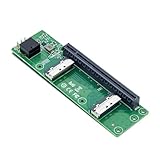
- High-speed data transfer : The adapter is designed for use with ssd that use MICO 8x connectors, allowing for fast and reliable data transfer at speeds of up to 24 Gbps.Easy to use: Simply plug in the MCIO 74 Pin end of the adapter into your device and the MCIO 74pin/38pin end into your external hard drive, and you're ready to go.
- One detachable PCIE PCI-Express 8x motherboard can be connected,The converter can be installed into the system internally through the MCIO interface.Only supports motherboards with detachable PCI-E channels.Control the operation of two disks based on the motherboard PCIE channel,The motherboard without PCIE signal split can only recognize one disk.
- What is mini cool edge Io (MCIO): MCIO adapters are designed for data center, networking and telecommunications markets that use SAS, PCIe, Ethernet and othersignal protocols.
- The solution can support adapter to board and card to board applications in system, which include chip to chip, chiptomodule, chip to board and card edge option.High-performance adapter for networking and server equipment: The MCIO Mini Cool Edge IO is designed to support a wide range of protocols, including SAS, PCIe, Ethernet, and more, ensuring optimal performance for your equipment.
- Built-in multiple sets of high-power DC modules for sustainable and stable work; Industry standards: Support for SAS 3.0/4.0, PCIe Gen 3/4/5, 25G Ethernet, and 56GT/s PAM4 means that you can trust that your equipment will perform at optimal levels without any signal loss or degradation.
The Kubernetes Network Plumbing Working Group’s RDMA application guidance lists ConnectX-4 Lx, ConnectX-5, and Intel E810-C adapters, with corresponding modules mlx5_core/mlx5_ib or ice/iavf. It also states that the documented RDMA application requires the IPC_LOCK capability. Treat those as guidance for the documented setup, not a universal compatibility promise or permission to broaden pod privileges without reviewing cluster policy.
Check the current vendor and cluster documentation for the supported kernel, driver, firmware, device exposure, and security policy. Requirements may differ across distributions and RDMA implementations.
Rank #4

- 1)MCIO to PCIe 5.0 Host Interface Adapter:This adapter converts a motherboard's internal SFF-TA-1016 (MCIO) 8i port into a standard PCIe 5.0 x8 slot, enabling the connection of PCIe devices like GPUs and SSDs directly through the Mini Cool Edge IO interface.
- 2)Unlock High-Speed Device Connectivity:Designed to leverage the full bandwidth of PCIe 5.0, it facilitates high-speed data transfer for compatible devices, supporting advanced configurations like Intel VROC for NVMe RAID arrays.
- 3)Enterprise-Grade Performance & Flexibility:Built for data center and networking environments, the MCIO standard supports multiple protocols including PCIe, SAS, and high-speed Ethernet, ensuring robust performance with support for the latest signal standards.
- 4)Integrated Power & Simple Installation:Features built-in high-power DC modules for stable operation. Installation is straightforward: simply connect the MCIO cable from the motherboard to the adapter and install your PCIe card.
- 5)Universal Form Factor Compatibility:Includes both low-profile (8cm) and standard (12cm) brackets, ensuring mechanical compatibility with a wide range of server chassis and workstation systems.
How to validate the configuration
- Scheduling: confirm the pod is scheduled on a node that advertises every requested resource and has sufficient inventory for all rails.
- Attachment: confirm Multus reports the expected secondary interfaces and that each maps to the intended allocation.
- Network: check per-interface link state, IP address, routes, VLAN or partition configuration, reachability, and applicable MTU.
- RDMA: verify the expected RDMA devices are visible to the workload and that the host driver and pod access policy match the chosen implementation.
- Application: confirm the GPU communication software is configured to use the intended interfaces, then run workload-level tests and inspect per-path counters. Do not infer throughput, latency, or scaling from successful attachment alone.
Why there is no universal multi-rail manifest
The correct resource names, VF policy, subnet, routes, number of rails, and GPU communication settings depend on the NICs, server layout, fabric, drivers, Kubernetes distribution, and application. The SR-IOV and Multus components establish and attach networks; the cited project guidance does not prescribe universal topology, routing, collective-library settings, tuning values, or benchmark results. Use the compatibility matrix and deployment guidance for the specific hardware and software combination, then validate the complete path in the target cluster.
Quick Recap
Best Value

- 【PCIe 4.0 x4 High-Speed Performance】This Pcie Oculink Riser Card Supports PCIe 4.0 x4 with 64Gbps bandwidth. Native direct connection brings ultra-low latency and improved performance over regular Thunderbolt for eGPU, enterprise NVMe SSD and high-speed peripherals
- 【Broad Compatibility】Backward compatible with PCIe 3.0. Ideal for eGPU, high-speed NVMe storage and server expansion. Plug-and-play, works smoothly with Windows and Linux systems
- 【PCIe 4.0 x4 to Oculink SFF-8611 8612 4i】This adapter board converts PCIe 4.0 X4 interface to OCuLink port, standard 4i design (not 8i), compatible with copper cable and optical fiber cable. Widely match most mainstream OCuLink devices, deliver stable high-speed short-distance transmission. (Cables are not included.)
- 【Stable & Reliable Build】Adopts 10U gold-plated pins and high-frequency low-resistance high-temperature resistant PCB board. Built-in circuit protection blocks current backflow from external GPU to safeguard motherboard. Equipped with signal boosting parts to reduce signal loss and interference, delivers steady full-speed performance. Durable connectors support frequent plugging for long-term stable use.
- 【Package Include】a PCIe 4.0 x4 to OCuLink Riser Card with Low & Full Profile PCI Brackets
Product prices and availability are accurate as of the date/time indicated and are subject to change. Any price and availability information displayed on Amazon at the time of purchase will apply.




