Windows 10 has no built-in CPU temperature readout. To see a live reading while Windows is running, use a monitoring utility that supports your processor; alternatively, check BIOS/UEFI if your PC provides a temperature screen. The right tool depends on whether your CPU is Intel or AMD.
Check CPU temperature while Windows is running
Choose a utility compatible with your processor. Before installing one, identify whether your PC has an Intel or AMD CPU if you are unsure; you can find the processor model in Windows under Settings > System > About.
As an Amazon Associate I earn from qualifying purchases.
| Method | Compatibility and readings | What to know |
|---|---|---|
| Intel Extreme Tuning Utility (XTU) | For supported Intel processors; Intel’s support article describes Windows 10 64-bit and models with a K suffix. Displays temperature in System Monitor. | Check Intel’s compatibility list before installing. Follow Intel’s instructions to open System Monitor and select temperature as a displayed parameter. |
| AMD Ryzen Master | For supported Ryzen processors; provides real-time temperature monitoring, including average and peak readings. | Choose the download grouping for your Ryzen generation: Ryzen 5000 and later, 3000–4000, or 2000 and earlier. You do not need to use overclocking controls just to view temperature. |
| Open Hardware Monitor | Supports Intel and AMD CPUs and can show per-core temperatures. | Sensor availability depends on the hardware. Some sensors require administrator privileges. |
Use Intel XTU on a supported system
- Check Intel’s supported-processor information to confirm that your CPU is compatible.
- Install and launch XTU, then open System Monitor.
- Select temperature among the parameters to display and read the reported value.
Use Ryzen Master on a Ryzen system
- Open AMD Ryzen Master and select the download grouping that matches your Ryzen generation.
- Install and launch the utility, then view its live temperature readings, including average and peak values.
Use Open Hardware Monitor across CPU brands
- Get the utility from the Open Hardware Monitor project.
- Launch it and inspect the CPU temperature sensors for per-core values.
- If a sensor is unavailable, try running the program as administrator; some sensor access requires elevated permissions.
Check CPU temperature in BIOS or UEFI
If you prefer not to use a Windows utility, restart the PC and enter its BIOS/UEFI setup. Look for a screen called Hardware Monitor, PC Health, or something similar, if your system offers one. The key to enter setup and the menu names vary by manufacturer and model, so check your PC or motherboard manual rather than relying on a universal key.
A firmware reading is a snapshot from that moment. To observe how temperature changes under a Windows workload, use a monitoring utility while Windows is running.
#1 Best Overall

- 【USB Power Supply】This digital thermometers is use usb connector as power supply. Easily to connect to PC, laptop computer, power bank, usb socket or any other usb port.
- 【Accurate and Responsive】Temperature range: -58°F to 230°F /-50°C to 110°C, Input: DC 4~25V, Size: 4.7 x 2.8 x 1.7cm / 1.9" x 1.1" x 0.7", 50 Grams, Sensor cable: 1 meter, Temperature display unit: °C/°F switchable.
- 【NTC 10K sensor waterproof】This digital PC thermometer is responsive and accurate to measure the temperature. Measurement interval: 0.25s, accuracy: ±0.5°C/±0.5°F.
- 【Wide Applications】This thermometer gauge with probe is widely used in managing aquarium, pets, vehicle, air conditioning, refrigerator, freezer, water heater, greenhouses, Incubators, computer chassis temperature detection, DIY, etc.
- 【Color Liquid Crystal Display】This aquarium thermomter digital is equipped with bright backlight, you can clearly check the temperature even in the dark.
Choose the right reading and assess it against your CPU
There is no single temperature threshold that applies to every processor and situation. AMD notes that operating temperature depends on the cooler, system airflow, ambient temperature, custom settings, and workload. Check the maximum operating temperature for your exact processor in its manufacturer’s specifications instead of treating generic temperature bands as universal limits. AMD’s temperature and performance troubleshooting guidance also recommends considering the system’s cooling setup when a reading seems high.
On Ryzen systems, a program may show Tdie and Tctl. PCWorld explains that Tdie represents die heat, while Tctl is a control temperature that may include an offset. Sensor labels and reporting can differ among utilities, so compare the same type of reading rather than treating differently named values as equivalent. PCWorld’s CPU temperature guide discusses the distinction.
Rank #2

- Digital LCD Fridge Thermometer, It only suitable for Fahrenheit,not for Celsius
- Temperature range: -50~ 230 Fahrenheit
- Temperature display resolution: 0.1
- Probe wire: 1M Length
- Size: 47*28*14mm
If the reading seems unusually high
- Confirm that you are looking at the sensor and metric you intend to monitor, especially if the utility lists multiple readings.
- Ensure the system is updated and running at stock configuration, as AMD advises.
- Check that the cooling solution has suitable capacity, is mounted properly, and is working.
- Use the specification for your exact processor to assess its maximum operating temperature.
Why Task Manager does not show CPU temperature
Task Manager is for monitoring performance and resource use, such as CPU load; it is not a Windows CPU-temperature interface. Use compatible monitoring software for a live temperature reading instead. Microsoft’s Task Manager guidance describes its performance-monitoring role.
Do these 3 things before closing this tab:
1Clear out junk files and repair common Windows errors2Scan for outdated or missing drivers - takes under a minute3Repair Windows errors before they cause bigger problemsQuick Recap
Best Value
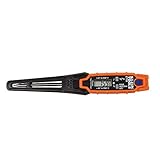
- TEMPERATURE SELECTION: User selectable Fahrenheit and Celsius measurements for convenience and versatility
- WIDE MEASUREMENT RANGE: Measurement range of -40 to 482°F (-40 to 250°C) with room temperature accuracy of +/- 27°F (+/- 15°C)
- BACKLIT DISPLAY: Backlit display allows for easy viewing in low-light environments
- ADVANCED FUNCTIONS: Max/Min, Hold, and Average functions provide additional data analysis capabilities
- NON-MEDICAL DEVICE: Not intended for use on people or animals, complying with regulations and maintaining clear distinction from medical devices
Rank #4

- The Alphacool Core Sensor allows you to show temperature of the fluid inside your cooling loop
- Thanks to the available colour display, the temperature can be read either in degrees Celsius or Fahrenheit
- Integration made easy The Alphacool Core temperature sensor is very compact and can be integrated into any loop thanks to its two G1/4" internal threads
- It does not matter whether the system is equipped with hoses or hard tubes
- Using an adapter with G1/4" external thread, the sensor can be used on all exposed G1/4" threaded openings on the radiator, reservoir, graphics card cooler or CPU cooler
Rank #3

- Monitor real-time coolant temperature and flow rate of your water loop
- Monitoring real-time temp/flow rate via LCD Display or
- For quick temp monitoring under a large high-quality LCD clear display
- Product packaging: 1*digital display monitor
Product prices and availability are accurate as of the date/time indicated and are subject to change. Any price and availability information displayed on Amazon at the time of purchase will apply.




