Recommended Free Tools
Use HandBrake’s queue to batch-compress copies of your Hindi MP4 files, then check a short sample before processing the full set. For broad playback compatibility, start with an H.264 MP4 preset; confirm the Hindi audio or subtitle track you want is preserved. HandBrake’s compression settings prepare files for use in OBS—they are separate from OBS’s recording and streaming encoder settings.
Before you start: identify the Hindi track and keep your originals
“Hindi video” does not tell you how Hindi is stored. It may be spoken audio, a selectable subtitle track, or text permanently burned into the picture. Burned-in text is part of the image; it is not a subtitle track you can select or remove. Track layouts can also differ from one file to another.


As an Amazon Associate I earn from qualifying purchases.
- Keep the original files until you have checked the compressed outputs.
- Open a representative MP4 and note its resolution, frame rate, audio tracks, and subtitle tracks.
- Decide whether the output needs Hindi audio, Hindi subtitles, or both, and whether it must remain selectable in the player.
HandBrake’s official presets include H.264 MP4 options such as Very Fast 1080p30, as well as H.265/HEVC MP4 options. A preset is a starting point, not a guarantee that its resolution, frame rate, or track choices suit every source. HandBrake’s official preset documentation lists the available preset families.
Choose a codec and preset for the way you will play the files
| Choice | When it fits | What to check |
|---|---|---|
| H.264 in MP4 | A compatibility-oriented starting point when the files may be played on a range of devices or software. | Pick a preset that does not exceed the resolution or frame rate you need. Confirm the output plays in your intended OBS workflow. |
| H.265/HEVC in MP4 | An alternative if the playback and editing environment supports HEVC. | Check compatibility before converting the full batch. The codec alone does not guarantee a particular file-size reduction. |
Compression depends on the source and the quality settings. Do not assume a fixed percentage saving or that the smallest output will look acceptable. Encode a representative short sample, then compare its playback and visual quality with the original. HandBrake documents its presets and options at handbrake.fr.
#1 Best Overall
![Prism Video Converter Software - Convert Between AVI MP4 MOV and Other Formats [Download]](https://m.media-amazon.com/images/I/51snGe-czuL._SL160_.jpg)
- Convert or compress video files within minutes
- Universal video converter supporting all popular formats
- Batch video conversion to convert thousands of videos
- Set compression/encoder rates, resolution and frame rate of output files
- Add video files directly from DVDs
Batch-compress files with HandBrake’s queue
- Open a representative source. In HandBrake, open one MP4 and inspect the source information. Check its resolution and frame rate, then review the audio and subtitle track lists to identify the Hindi track.
- Choose an MP4 preset. Select a preset appropriate to your intended output. For a compatibility-first workflow, an H.264 MP4 option such as Very Fast 1080p30 is one documented choice. Do not upscale a smaller source or select a frame rate above what you need.
- Set the intended tracks. In the Audio and Subtitles tabs, review which tracks will be included and which subtitle behavior you want. A language label or track index on one file is not proof that the same index identifies Hindi in every other file.
- Set a destination and output name. Choose a destination folder that will not overwrite the originals. Check the filename and container before adding jobs.
- Add the job to the queue. Add the configured file to HandBrake’s queue. For a batch, add the other files with the intended settings, checking files with different track layouts rather than blindly assuming they match.
- Inspect the queue and run it. Confirm the queued sources, destination names, and settings, then start the queue. HandBrake documents queue management and CLI use, including importing a queue file created in the GUI, in its command-line reference.
- Check an output before trusting the batch. Play at least one result. Confirm the picture is acceptable, audio remains synchronized, and the desired Hindi audio or selectable subtitle track is present. If the first output is wrong, correct the settings and test again before processing the remaining library.
Keep HandBrake transcoding settings separate from OBS settings
HandBrake converts existing files; OBS settings control recording or live encoding. An OBS encoder recommendation is not a universal HandBrake compression recipe. NVIDIA’s FFmpeg guidance also distinguishes file-to-file transcoding from real-time capture and live streaming: NVIDIA FFmpeg guidance.
For OBS recording, the OBS Project’s Advanced Recording Settings guide lists NVENC guidance including Constant QP 16–23, keyframe interval 2, preset P5, High Quality tuning, two-pass quarter-resolution mode, High profile, Look-ahead off, adaptive quantization on, and two B-frames. These settings are recording-encoder guidance, not settings to copy wholesale into HandBrake. The guide notes that lower CQ values mean higher quality and larger files: OBS Advanced Recording Settings.
Rank #2
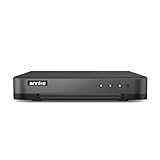
- 【Important Note on Storage】This unit is sold without a hard drive and supports real-time viewing only. For video playback, please install a compatible HDD (Max. 10TB supported).
- 【5-in-1 Hybrid DVR】The expandable hybrid digital video recorder, combing the features of DVR/NVR/HVR, supports up to 16 pcs TVI, AHD, CVI, CVBS & extra 2 IP cameras. So, you have full-range security camera choices for your property.It is highly recommended that this DVR works with ANNKE wired cameras to to achieve optimal performance.
- 【Innovative Human & Vehicle Detection】By setting up the human & vehicle detection, you will get motion detection alerts only when people and vehicles are in the frame. Minimizing unwanted alerts triggered by bugs, animals, leaves and so on.
- 【Advanced H.265+ Video Format】H.265+ coding offers longer recording time before having to overwrite the older recordings, saving up to 50% of storage space than H.265 systems. You'll enjoy fast & smooth streaming without latency when accessing the DVR.
- 【Remote Access with All Devices & Browsers】Link the DVR to a router and download ANNKE Vision App to control the DVR remotely. Access the DVR via 3G/4G/5G or with your smartphones, tablets, computers and browsers (Google Chrome, Firefox, Microsoft Edge, Internet Explorer, etc.).
Optional: use NVENC if your PC supports it
Hardware encoding is optional; the queue workflow does not require a supported NVIDIA GPU. HandBrake’s current NVENC documentation specifies GeForce RTX Turing (2060+), Ampere (3060+), Ada Lovelace (4060+) or newer, NVIDIA driver 610.0 or later, and Windows 10 or later as supported configurations. HandBrake says NVENC may work on older configurations, but those are not officially supported. These version-sensitive requirements are from HandBrake’s NVENC documentation.
NVENC does not eliminate CPU work. HandBrake notes that CPU can still be used for decoding, filters, audio encoding, subtitle handling, synchronization, and muxing, so noticeable CPU use during a hardware encode is possible.
Rank #3
Troubleshoot common batch problems
- The output has the wrong language or no Hindi subtitles. The source may use a different track layout, or the intended track may not have been selected. Inspect the source and output track lists; check each distinct layout rather than reusing a track index uncritically.
- Subtitles are selectable when you wanted them visible, or are missing when you wanted them selectable. Review subtitle selection and behavior in HandBrake before queuing. Burned-in text is already part of the video picture and cannot be toggled like a subtitle track.
- The output is larger than expected or looks worse. There is no guaranteed compression ratio. Revisit the preset and quality choices, test a representative clip, and compare visual quality and file size before applying changes to the whole batch.
- A file does not play in the target setup. Check whether the playback environment supports the chosen codec, especially if you selected H.265/HEVC. Retest with H.264 MP4 if broad compatibility matters more than trying HEVC.
- Hardware encoding is unavailable. Check the GPU generation, driver, and Windows requirements in HandBrake’s current NVENC documentation. You can use software encoding instead; GPU acceleration is not mandatory.
- CPU usage remains high during NVENC encoding. This can be expected because decoding, filters, audio, subtitles, synchronization, and muxing may still use the CPU.
Or let it run in the cloud
Compressing files helps prepare a media library; it does not keep a live stream running after your computer is off. If your goal is a continuous YouTube stream from uploaded videos, StreamNeo is a separate cloud option: upload a recording or build a playlist, add your YouTube stream key, and go live. It loops uploaded videos; it does not stream from a camera.
- Your computer and home connection do not have to stay on.
- Each slot streams the uploaded quality up to 4K 60fps at one flat price per slot, with no re-encode or quality tiers.
- It automatically recovers if YouTube drops the stream.
- The first day is free with no card, one free day per account.
Monthly: $9.99 per month. See StreamNeo for details, or start your free day.
Quick Recap
Best Value
![VideoPad Video Editor - Create Professional Videos with Transitions and Effects [Download]](https://m.media-amazon.com/images/I/91zAUcPqOhL.png._SL160_.png)
- Apply effects and transitions, adjust video speed and more
- One of the fastest video stream processors on the market
- Drag and drop video clips for easy video editing
- Capture video from a DV camcorder, VHS, webcam, or import most video file formats
- Create videos for DVD, HD, YouTube and more
Product prices and availability are accurate as of the date/time indicated and are subject to change. Any price and availability information displayed on Amazon at the time of purchase will apply.
The Tool Desk
Outbyte PC Repair FREERepair Windows errors before they cause bigger problemsFix Now →Outbyte Driver Updater FREEFix the driver behind crashes, sound loss and screen glitchesFind Drivers →



