Before troubleshooting or factory-resetting a Pixel, confirm that its Google Account backup is recent, check which data it includes, and verify photos, contacts, and app-specific data separately. A factory reset erases data stored on the phone, so do not proceed until you have checked the items you need to restore.
Pixel backup checklist before you reset
- Confirm the Google Account. Open Settings > Google services > Backup and check which account is selected. Make sure you can sign in to that account after the reset.
- Run or review the device backup. On the Backup screen, start a backup if needed, then open Backup details to inspect the types of data and apps included. Check the last modified date in the Google Drive backups area to see when the backup was last updated. Menu wording can vary by Pixel model and software version. Google’s Pixel backup instructions describe these checks.
- Verify services that sync separately. Check Google Photos for the photos and videos you want to keep, and check Contacts in the service where you sync them. These are separate from the device backup; do not assume every photo or contact is included in its backup. See Google’s backup guidance and restore instructions.
- Back up important apps on their own. For WhatsApp, open WhatsApp > Settings > Chats > Chat backup > Back up. Confirm that you know the account and phone number needed to restore the chats. Google’s guidance notes that a WhatsApp transfer is not guaranteed to succeed. Read Google’s WhatsApp transfer instructions.
- Only then decide whether to reset. Try less destructive troubleshooting first when practical. If you choose a factory reset, treat the checks above as prerequisites, not as proof that every app’s local data is recoverable.
What the Pixel device backup covers—and what it does not establish
A Google Account device backup saves supported device data and settings. Its details screen is the place to review the categories and apps represented in that backup; inclusion is not universal for all app data. A backup also does not replace the separate sync or backup used by services such as Google Photos, Contacts, or WhatsApp.
As an Amazon Associate I earn from qualifying purchases.
| Data route | What to check | Where to verify | What you need later |
|---|---|---|---|
| Google Account device backup | Supported device data and settings; review listed categories and apps rather than assuming every app is covered. | Pixel Settings > Google services > Backup > Backup details; check the last modified date in Google Drive’s backups area. | Access to the Google Account selected for the backup. |
| Google Photos and Contacts sync | Photos and videos, and contacts synced through their respective services; these are separate from device backup. | Check the relevant Google Photos and Contacts service directly. | Access to the account used by each service. |
| WhatsApp chat backup | WhatsApp chats backed up through the app’s own chat backup flow. | WhatsApp > Settings > Chats > Chat backup. | The account and phone number required by WhatsApp for restoration. |
Why the account and backup date matter
The Pixel Backup settings let you change the Google Account used for backup. A recent backup under an account you cannot access will not help with restoration, so confirm both the selected account and your ability to sign in before wiping the phone. The last modified date in Drive’s backups area is a useful recency check, but it does not prove that every item you care about was included; review Backup details and the separate services as well.
What a factory reset deletes and how to start one
Google warns that a factory reset erases all data stored on the phone. Its standard Settings route is Settings > System > Reset options > Erase all data (factory reset). Follow the prompts only after you have finished the backup checks. Google’s guidance is in Get help with your Pixel phone.
#1 Best Overall

- Dual Connectors: The USB-C port can only work on phones/tablets with OTG function. Please make sure your smartphone with OTG function and reversible type-c interface. The other end is USB 3.0 port connecting regular USB devices.[Not for iPhone]
- Important: Default format of the drive is EXFAT as this is the format recognized by the smartphones and tablets. These drives are only compatible with C-Port enabled mobile phones & computers only. While formatting the drive keep a check on the drive format
- Fast Speed: High-speed USB 3.0 flash drive for fast data transfer, backwards compatible with USB 2.0,easy to complete the storage and transport functions. You can use it to transfer your computer file or access files from Type-C devices, store and share your photos, videos and music in a simple and reliable way
- Easy to Use: Plug and play, no need any drive. Used as laptop notebook tablets phones accessories, compatible with Samsung Galaxy Note 8,Galaxy S8,Google Nexus 5X and 6P,Google Pixel XL,New Macbook Pro and more
- Package includes: 1 pc 256G USB C & USB Multi-function Flash Drive
Restoring data after the reset
Supported backed-up data is restored during initial setup or after a factory reset. Photos and videos are available through Google Photos. Android backups made on a higher Android version cannot be restored to a phone running a lower Android version, so version compatibility can affect restoration. Google’s Pixel restore guidance covers these limits.
Pixel 9 and later: restore after setup
Pixel 9 and later support cloud restoration after setup through Settings > Accounts & backup > Android Switch > Start. Google limits this restore route to one previous device. If you want to switch to a different backup source after setup, you must reset the Pixel first. These instructions apply to Pixel 9 and later, not every Pixel model. See Google’s post-setup restore instructions.
Quick Recap
Best Value
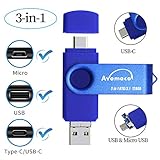
- The 3in1 USB-C &Micro flash drive makes it seamless to move data between your USB-C smartphones, tablets, laptops, the iPhone 15 series,which has been available since 2023, (iPhone 15,16,17, iPad Pro with Type-C/USB-C port) and your USB-A devices such as computers, car audio, printers, game consoles, and more.
- The photo backup flash drive works with Android Smart Phone with OTG function.For example: Since 2013 years Samsung Galaxy phones with Type C/USB-C port or Micro Port. Xiao mi, Google phones, LG phones with OTG function.
- For more supported models ,please refer to the" product description".n the video category at the bottom of the details page, there are operation videos of the photo stick on different models of mobile phones for viewing.
- Extra storage for your mobile device for photos, music, videos and other files.Preserve life’s cherished memories and wonderful moments for years to come.
- 1 year after-sales service. Give you great value for every cent you pay. Take advantage of the 1 years free Service that could bring safety and happiness to your mind.
Rank #4

- ✔:The flash drive works with Android Smart Phone, for Samsung GalaxyA20,A50,A60,A70,A71,A80,A90,A10,M30,S10.S10+,A50,S8,S8+,S9,S9+,S20,Note7,8,9,10,20,A5(2017)A6S,A9S,Google Pixel, LG V35 ,V30,V20,G5,G6,G7,Q8,LG Stylo 4,Hua Wei,one plus. etc.
- ✔:ATTO Disk Benchmark is the base for testing the speed of Type C Flash Drive. The Drives will provide you the Write speed of 20-50Mbps and read speed of 50-130Mbps depending apon the variant you are using.
- ✔:USB OTG Dual Flash Drive equipped with two connectors - USB 3.0 and Type-C 3.0. It allows you a high speed data transfer between variable port devices such as Type C port mobile phones, computers, tablets, etc.
- ✔:Storage Capacity:32GB to 512GB,Choice the best Storage capacity for yourself. Use A-class chip, can be erased repeatedly for 100,0000 times, Shockproof and electromagnetic proof.In the video category at the bottom of the details page, there are operation videos of the photo stick on different models of mobile phones for viewing.
- ✔:NOTE: Before inserting the photo stick, please take off the protective cover of the mobile phone first, in case the photo stick interface and the mobile phone interface cannot be fully contacted , the mobile phone cannot recognize the photo stick. 1 year after-sales service. Give you great value for every cent you pay. Take advantage of the 1 years free Service that could bring safety and happiness to your mind.
Rank #3
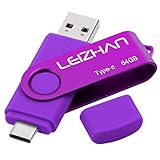
- Type C Pen drive is 64GB storage capacity. Dual Interface: USB 3.0 and Type-C (USB-A and USB-C ), quickly transfer data between your computers, OTG enabled USB Type-C smartphone & tablets, car audio system, consoles and more, it also compatible with Macs
- Photostick for Samsung Galaxy S10e, note 10, S10+, S10, S9+, S9, Note 9,Samsung Galaxy 8,Samsung Galaxy S8, Note 8, huawei P30, P20 ,P9, honor 8, Google Pixel 2/ 2XL Nexus 5X, Nexus 6P, Nokia N1, LG G5 G6, HTC U11, One Plus MacBook, New MacBooks, MacBook Pro, ChromeBook Pixel, Le 2PRO, Le MAX, MICROSOFT 950XL, and other TYPE C supported devices
- Our USB C Pen drive can help extra storage for your mobile device for photos, music, videos and other files.If it as a gift, you can storage some pictues,music,movies and good memory into it before you give this gift to them.Give them a big surprise
- High-speed USB 3.0 flash drive for fast data transfer, backwards compatible with USB 3.0 and USB 2.0. Important Note : all flash drives work with OTG-enabled smartphone, most Type C phone can connect flash drive automatically, some early version mobile (like S9+, S9, S8, Note 10, Note 9 and earlier) need to work with OTG adapter/USB connector
- Package Contents.64GB photo stick for Type-C phone,User Manual and our best wishes
Rank #2

- EXPAND YOUR STORAGE. Easily move files off your device, freeing up valuable space so you can store your favorite photos, movies, music, games, and more.
- Say goodbye to emailing photos between devices. Once they’re on your SanDisk Phone Drive, read speeds up to 100MB/s let you transfer files fast. (1 MB/s = 1 million bytes per second. Based on internal testing; performance may vary depending upon host device, usage conditions, drive capacity, and other factors. USB Type-C port with USB 3.2 Gen 1 support required.)
- AUTOMATIC BACKUP. Automatically back up your latest photos, videos, music, documents, and contacts with the SanDisk Memory Zone app. (Download and installation required. Set up automatic backup within app settings. See official SanDisk website for Memory Zone details.)
- DATA RECOVERY. Recover deleted files with the included RescuePRO Deluxe software.(Registration and download required; terms and conditions apply. See RescuePRO page on SanDisk site.)
- CONVENIENT DESIGN. Attach your drive to your keyring to help keep it secure so you can have storage wherever you are, whenever you need it.
Product prices and availability are accurate as of the date/time indicated and are subject to change. Any price and availability information displayed on Amazon at the time of purchase will apply.
Recommended Free Tools




